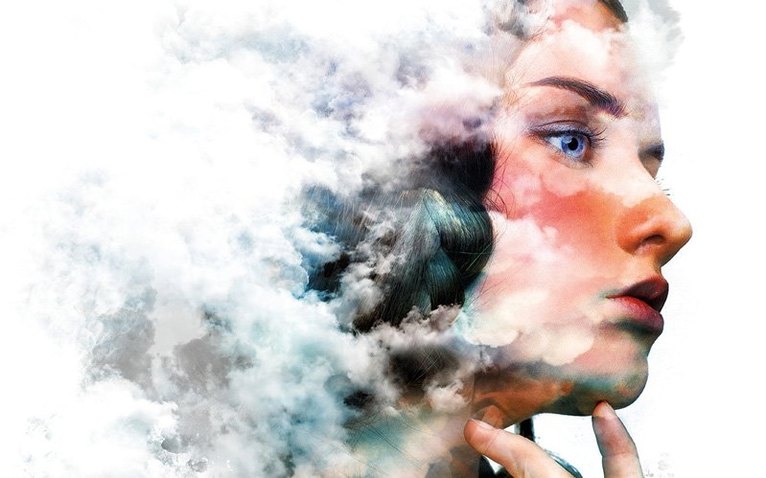



Markup lets you guide AI edits with simple visual annotations. Circle an area, draw an arrow, and the generation follows your lead.
Opening a file
You choose which formats appear in the Save As dialog. No more scrolling through formats you never use.
Adjusting light
The Light adjustment layer handles exposure, contrast, highlights, and shadows without touching the original pixels.
Directing an edit
Photographers who print their work often run into a color shift between screen and page. The fix lives in View > Proof Setup. Pick your paper profile there, then toggle Proof Colors with Command-Y. What you see becomes what you get. Another frequent snag: the brush cursor vanishes mid-stroke. Caps Lock is almost always the culprit — it switches the cursor to a crosshair so small it looks absent. Tap it again and the normal preview returns.
Large files that slow to a crawl benefit from one overlooked setting. Under Preferences > Scratch Disks, move your fastest external SSD to the top of the list. Leave the startup drive unchecked entirely. Photoshop writes massive temporary files during editing; isolating that traffic keeps everything breathing.
Batch-sync edits
Three kinds of users pull the most from Photoshop, and each for a different reason.
Photographers who batch-process hundreds of raw files find the non-destructive adjustment layers indispensable. They build a look once, then sync it across a whole shoot. The Light adjustment layer alone replaces three separate sliders they used to juggle.
Illustrators who start on paper and finish on screen live inside the brush engine. Custom brush creation — where tip shape, scattering, and texture combine — means no two artists have the same toolset. The Dynamic Text feature adds type that follows a drawn path, which saves trips to a separate layout app.
Designers who composite multiple sources into a single image lean hardest on automatic masking and one-click selections. Markup, new in this version, lets them sketch rough boundaries that guide the AI-assisted editor. The result arrives faster than manual pen-tool work and often needs only minor cleanup.
Silicon support
People usually ask three questions. First: will it run on an older Mac with Intel silicon. The architecture supports both Apple Silicon and 64-bit Intel, so yes — provided the system runs macOS 14 or later. Second: does the Neural Filters pack require an extra step. Yes, it needs extracting to the Adobe UXP plugins storage folder. The instructions walk through it. Third: is Generative Fill available. It is not. The AI-assisted editor, Prompt to Edit, and Markup are present and functional; they handle the generative tasks most people reach for first.
The install process itself has one subtlety worth flagging. If Rosetta is not already on the machine, install it before running the Photoshop installer. Skipping that step produces a silent failure that looks like a corrupted download but is not.
Small shortcuts worth learning
Hold Option while clicking a layer’s eye icon to solo it — every other layer hides instantly. Release Option and click again to restore the previous visibility state. This is faster than collapsing groups or hunting through a stack of forty layers.
Command-Option-Shift-E merges all visible layers into a new layer at the top of the stack while leaving the originals intact. Useful before applying a global edit you might want to discard.
The bracket keys resize brushes, but adding Shift changes brush hardness. Shift-left-bracket softens; Shift-right-bracket hardens. Most people discover this by accident after years of opening the brush panel.
In the Save As dialog, the format list can be trimmed permanently. Open Preferences > File Handling, find the file format filter, and uncheck every format you never export. Photoshop remembers this across sessions. For anyone who works only in TIFF and JPEG, it removes four lines of clutter from every save.
Use masks and selections to confine generative changes to a specific zone. The rest of the image stays exactly as it was.