Batch-changing file dates usually means settling for the surface. Creation and modification stamps are easy. The actual metadata inside the file is where things get messy.
Photo timestamps
It can synchronize a photo's modification date with its shooting date, or adjust EXIF date and time data inside JPEG, CR2, and NEF files directly. The change tag action in version 7.50 also accepts more GPS coordinate formats.
Video dates
A one-hour DST error when writing QuickTime dates is fixed. The app now writes the Apple QuickTime creation date so Photos and Final Cut Pro can use movie content creation dates properly.
Precision
You can change the creation date of a photo or a batch of files without touching the rest of the system metadata. It works where Finder's basic controls stop.
Date overwrite
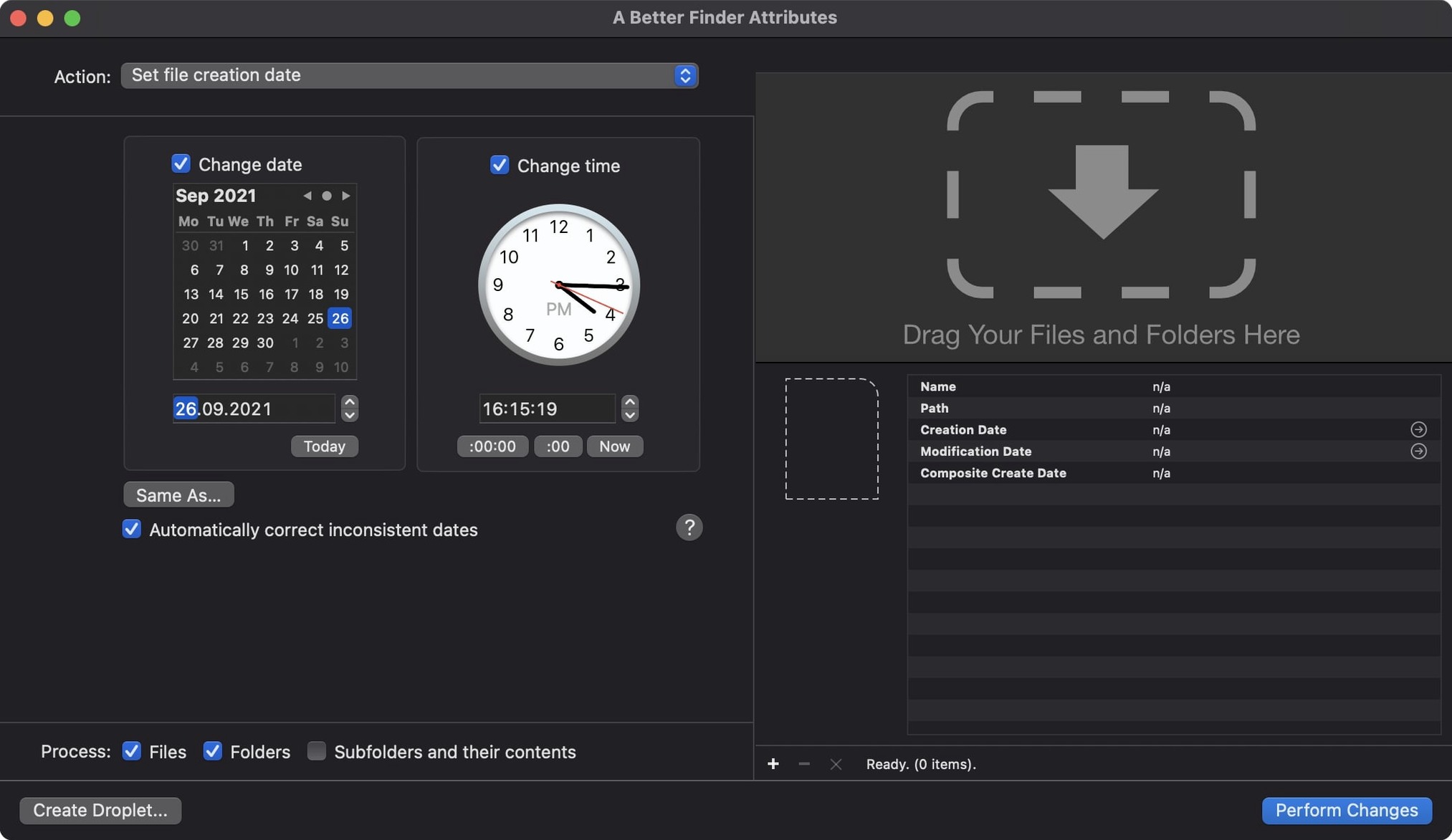
Open the preferences window early. The default behavior works, but two switches make the tool behave more predictably.
Turn on Preserve original modification date when changing creation date. Without it, adjusting a creation date can silently overwrite the modification date on some volume formats. The setting keeps the two timestamps independent.
Enable Show warning before processing more than 100 files. The batch engine is fast and does not ask twice. A misplaced drag can rewrite thousands of files before you notice. The guard dialog costs nothing and saves regret.
Metadata inspector
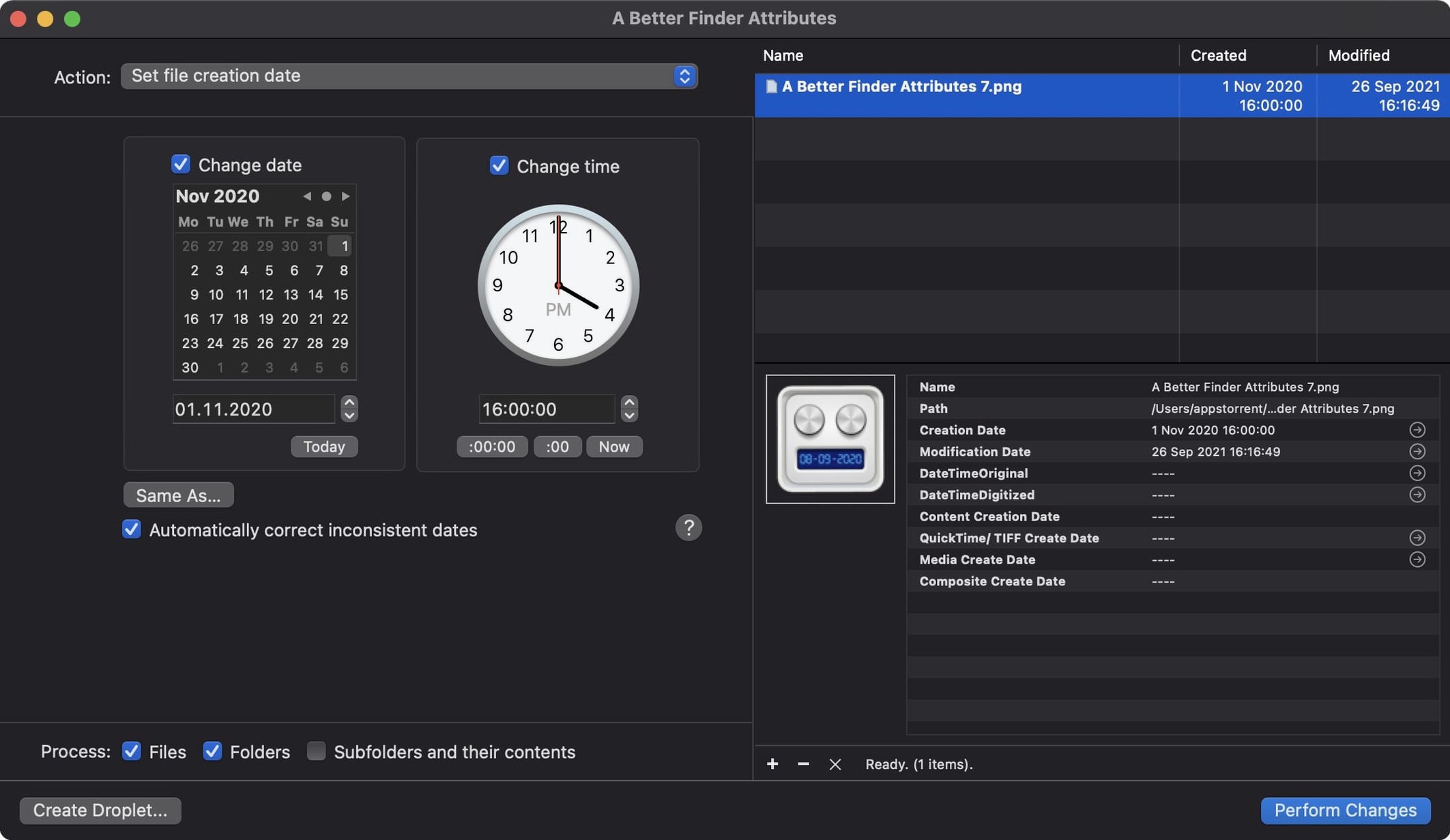
The info button in the title bar, added in 7.50, shows the exact metadata structure of the selected file. You see which date fields exist, which are empty, and what the raw offsets look like. Use it before designing a batch action to avoid targeting a field the file does not have.
Holding Option while dragging files into the list adds them to the current selection instead of replacing it. Useful when you forgot a folder and do not want to start over.
The preset menu at the top of the action panel remembers your last five configurations. If you run the same correction on every import—shifting EXIF timestamps by time zone, for example—save it once and recall it with two clicks.
Preview catches
The most common one is ignoring the preview column. After you configure an action, the list shows what each file’s date will become. A quick scroll catches errors: files shifting the wrong direction, dates landing in 1970, or EXIF fields that stay blank because the source format is unsupported.
Another is confusing file-system dates with embedded dates. Changing the Finder modification date does not touch the EXIF DateTimeOriginal tag, and vice versa. People run a batch, check Finder, see the correct date, and assume the photo’s internal timestamp matches. It often does not. The info button reveals the gap.
Beginners also target too many RAW formats in one pass. ARF, CRW, and CIFF files store date structures differently. An action that works perfectly on NEF files can silently skip fields in older Canon formats. Split the batch by file type when precision matters.
A quieter mistake: forgetting that QuickTime date writing is now active for all movie files. After updating to 7.50, a batch that previously only touched file-system dates may also write the Apple QuickTime creation date into each clip. That is useful for Final Cut Pro, but if your archive relies on untouched media checksums, run a small test batch first.
If you grabbed a better finder attributes 7 build for a specific RAW workflow, spend ten minutes with five test files before aiming it at a whole shoot. The tool is precise, but precision rewards caution.