A disc sits on your desk. You want it as a file. VideoByte removes the copy protection that makes that hard.
Will it run
You need an Intel Mac. That's the one requirement.
macOS 10.10 or later. An optical drive, connected or built-in.
It speaks English, German, French, and Japanese. No Apple Silicon build exists.
Four-step workflow
A simple workflow in four parts:
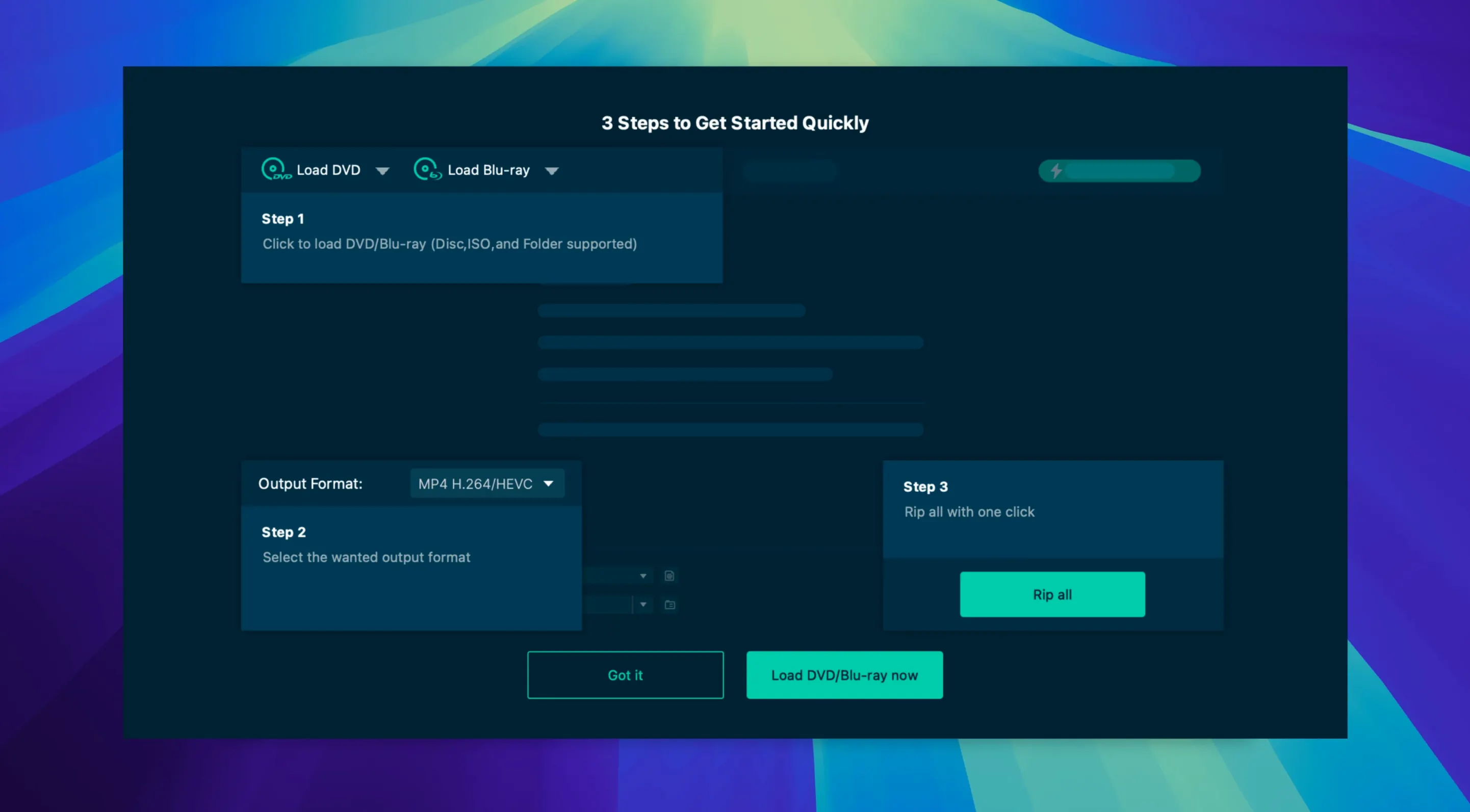
- Load the disc, a BDMV folder, or an ISO.
- The app strips the protections — CSS, AACS, BD+, and the rest — without asking.
- Pick an output. MP4, MKV, MOV, WMV for video. MP3 or AAC for audio only.
- Trim, crop, rotate, or add a watermark if you want. Then hit start.
Zero-byte fix
Some discs load as zero-byte track lists. Cancel, eject, and reload; the parser often recovers on a second pass.
If hardware acceleration stalls, switch to software decoding in preferences. NVIDIA and AMD modules sometimes conflict with older Intel GPUs on dual-GPU MacBook Pro models.
Subtitles vanishing in the output usually trace to a mismatched container. MKV preserves PGS and forced subs more reliably than MP4. Change the container first, not the subtitle settings.
For a videobyte mac install that won't open, confirm you ran the Gatekeeper bypass exactly once; a second Terminal invocation is harmless but unnecessary.
A collector's Saturday
An anime fan with a shelf of region-locked Blu-rays wants everything on a travel drive — original Japanese audio, English subs, no re-encoding. They load disc one, select MKV passthrough, tick the subtitle track, and queue it. Over coffee, six discs turn into six tidy files. No menus, no trailers, just the episodes.
iPad preset
You insert a documentary Blu-ray. VideoByte reads the disc in about twenty seconds. The main title auto-selects.
You switch the profile to iPad 1080p. The preset already dials in H.264, AAC stereo, and a sensible bitrate. You open the trim bar, drag the handles to skip a three-minute intro, and click Start.
The progress bar climbs steadily. You hear the drive spin down after twelve minutes. The finished MP4 sits in your Movies folder, named after the disc title. You drag it onto an iPad in Finder. It plays.
The disc spins down. A file lands on your desktop.