
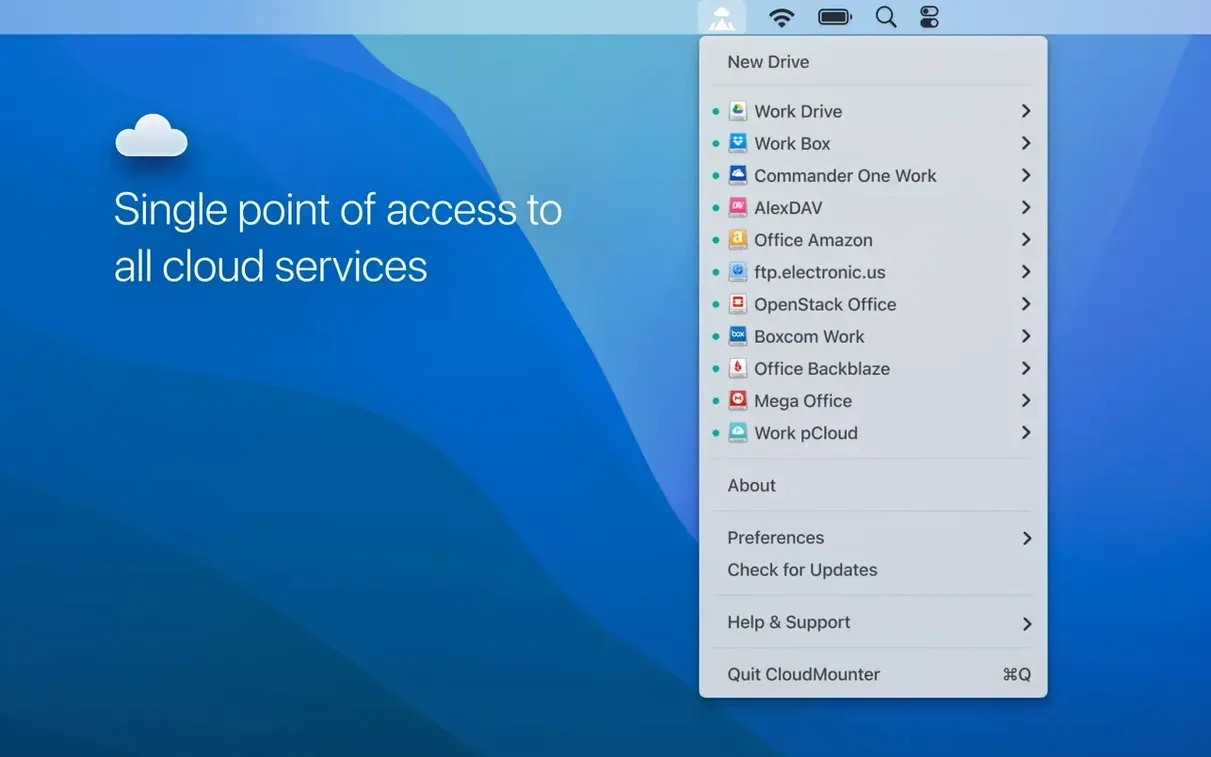
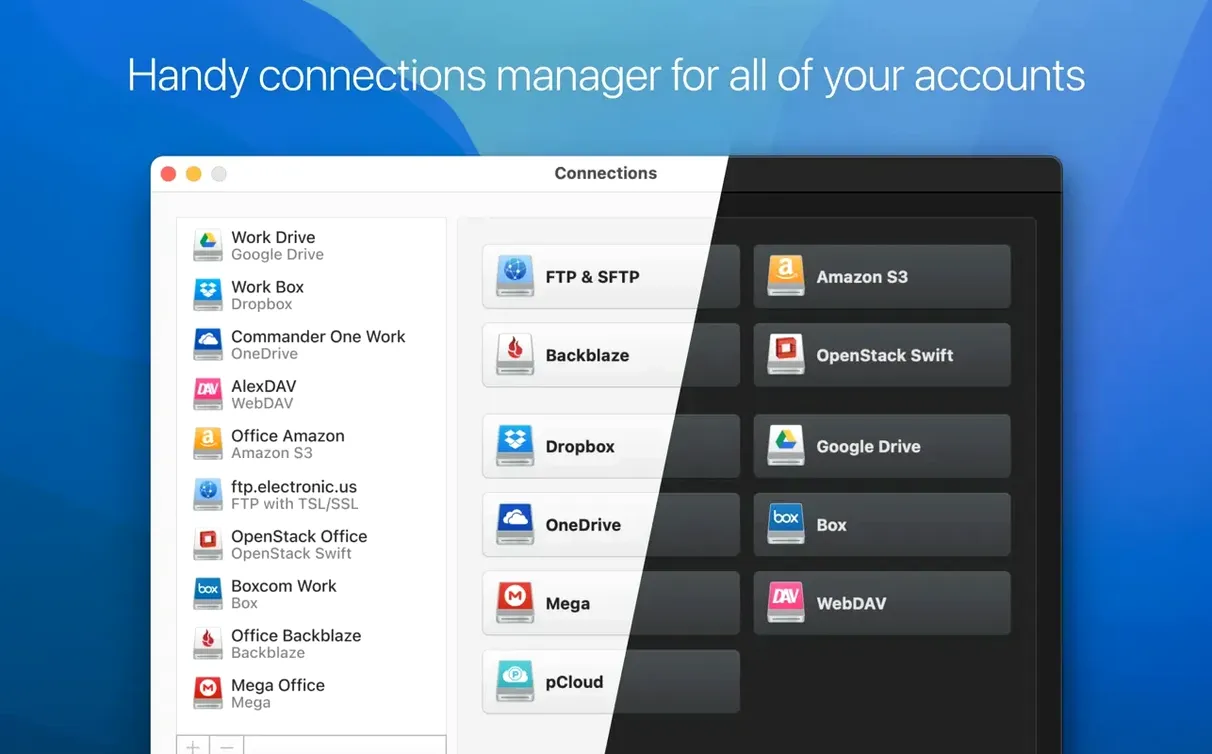
CloudMounter runs on Intel Macs with macOS 10.14 or later. It removes the need to keep cloud-service apps open just to reach your files. You connect an account — OneDrive, Dropbox, a remote SFTP server — and it appears in Finder as a plain, local volume. No syncing everything first. No browser tabs.
- Mount multiple cloud accounts inside one app.
- Work with files directly in Finder, no extra windows.
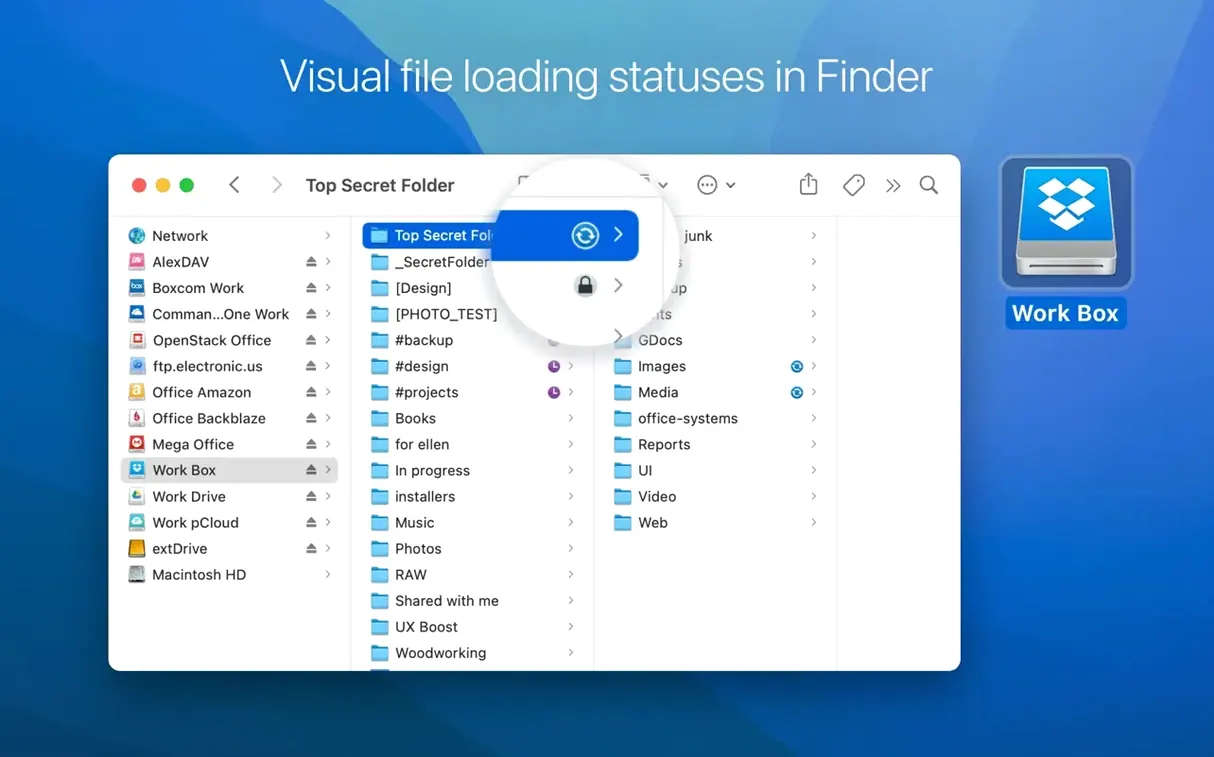
- Status icons show what's uploading, moving, or updating.
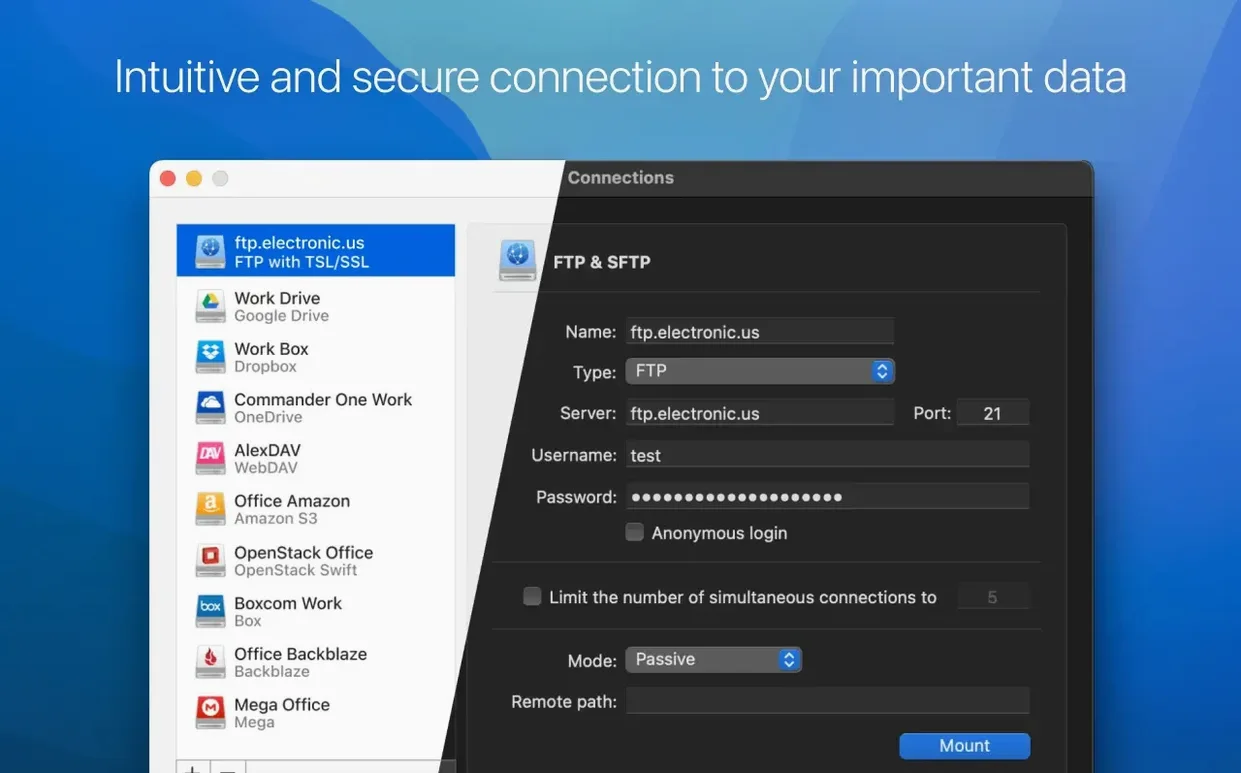
- SFTP, FTP, and WebDAV connections sit beside consumer cloud services.
- Interface in 11 languages, including German, Japanese, and Portuguese.
CloudMounter vs others
Most cloud-tools fall into two camps. Syncing clients pull everything down — fine for a small folder, annoying when you have terabytes elsewhere. Web interfaces work in a browser, slow and detached from your file system. CloudMounter sits between them: mount, don't sync.
ExpanDrive does something similar, with more protocol support but a busier interface. It feels heavier. Mountain Duck hides behind a menu bar icon and also mounts remote volumes, yet its Finder integration is less direct — it pushes you toward its own copy engine more often. For someone who wants mounted drives to behave like drives, CloudMounter stays closest to that promise.
Commander One with a cloud plugin does dual-pane file management well, but it's a separate app, not Finder. Different philosophy. If you already live in Finder and want remote storage to simply show up, CloudMounter skips the extra window.
Stale tokens
The most common stumble is stale connections. A volume sits in the sidebar but won't open. Usually the token expired. Disconnect the drive inside CloudMounter, reconnect, and it sorts itself out.
Large folder listings can lag on slow SFTP servers. Turning off the Finder preview pane helps; the app isn't building thumbnails in the background. Another quirk: moving files between two mounted cloud drives goes through your Mac's internet connection — so moving a 2 GB video from Dropbox to OneDrive isn't instant. It uploads and downloads in the background. The status icons let you watch progress and cancel when needed.
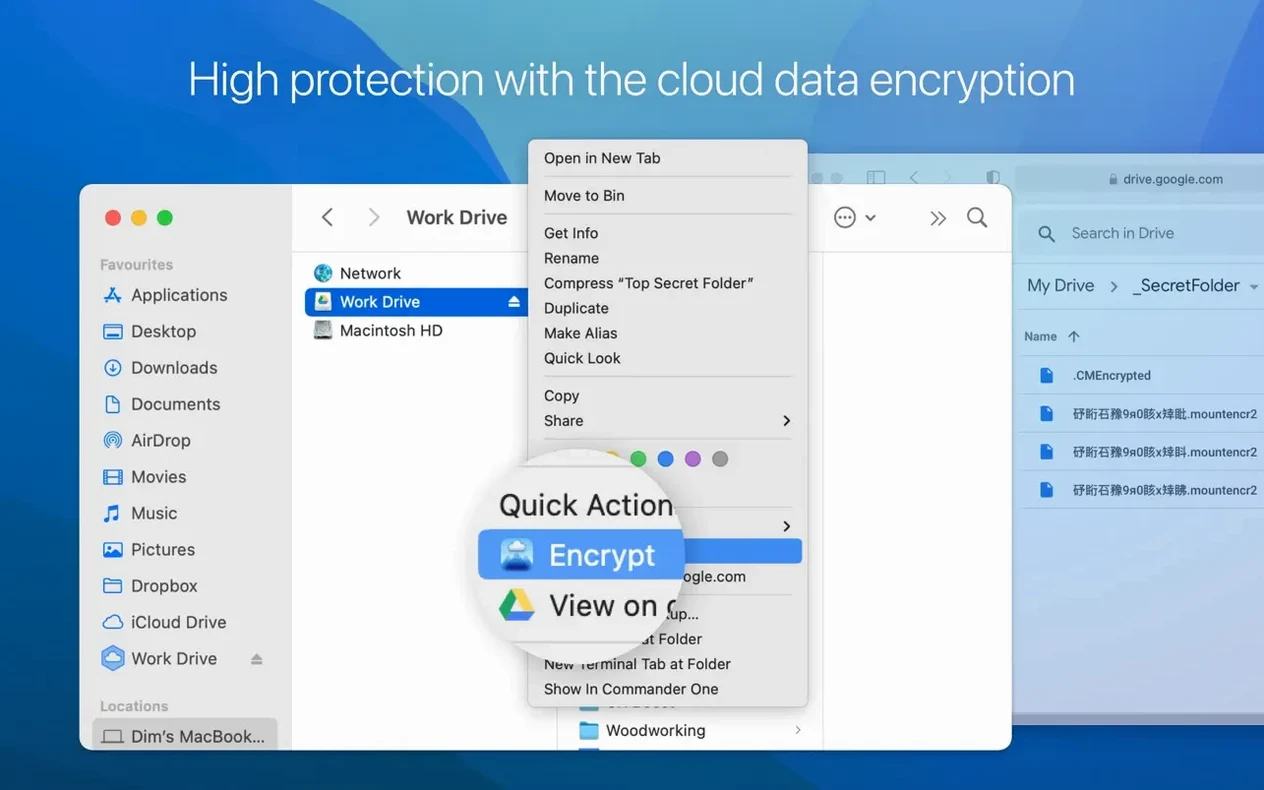
Encrypted folders need remembering where you put the key. Lose it and the data is gone — AES-256 doesn't leave a back door. Store the key somewhere local, not on the same cloud volume.
Pin one cloud
Start with one service. OneDrive or Dropbox is easiest. Mount it, pin a folder you use often to the Finder sidebar, and stop opening the web app for a day. See if the habit sticks.
Add SFTP later. Set a short timeout in preferences if you roam between networks. For Backblaze B2 or S3, avoid mounting buckets with millions of tiny files; the listing takes patience. Use those for archive folders you dip into occasionally, not daily work.
If you grabbed a CloudMounter macOS build that includes extras like a CloudMounter crack or a CloudMounter activation code, install clean. A CloudMounter torrent sometimes bundles older versions. The 4.18 release improved large-file uploads and MEGA connections noticeably, so you want that one. Check that the FUSE component installs correctly — CloudMounter uses FUSE, and the installer handles the setup.
The benefit is a quieter desktop. One place for remote files, with the tools you already use. Nothing more.