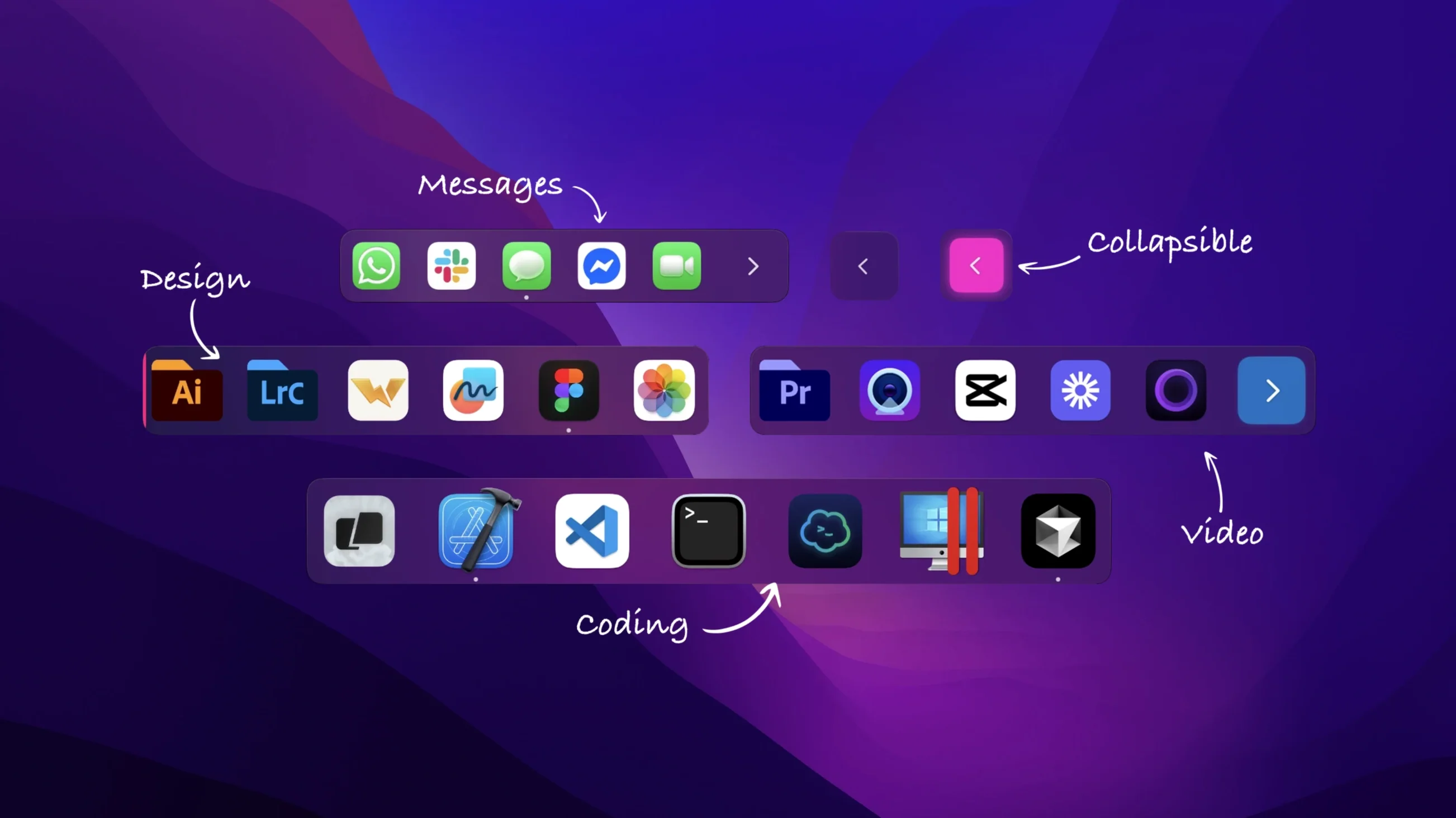
Someone who tracks a dozen projects, or separates work tools from personal ones, runs out of space in the macOS Dock fast. ExtraDock puts a few quiet docks where you need them.
One setup
- Open the app and click the plus button.
- Add a small set of writing apps. Name the dock words.
- Set it to the transparent style and pin it to the left edge.
- Add a second dock for messaging, neon style, pinned to the right.
- Set both to collapse on hover so they stay out of the way.
Placement
The docks can live horizontally or vertically. Move them freely or snap them to a screen edge. They work alongside the native Dock without replacing it. The fixes in version 4.3.21 mean a dock pinned to the top stays there, and live Clock icons no longer interrupt your session.
Minimal footprint
After a week of daily use, extraDock stays out of Activity Monitor's top ten. The footprint hovers in the low tens of megabytes. Docks appear without lag, even when five or six are set to expand on hover. Fullscreen detection kicks in before I notice the app was in the way.
The collapse animation is quick enough to feel instant. No beachballing. No redraw glitches when you drag an app from one dock to another.
Drag across screens
extraDock works with, not against, the rest of the system.
Drag a file from Finder across two screens and drop it onto a dock icon — the target app opens as expected. Spotlight, Stage Manager, and Mission Control all ignore the floating docks. The tray menu stays compact and handles dock switching without opening the main window. If you use a KVM or disconnect a display, the auto-hide-on-disconnect option keeps a secondary dock from lingering on the wrong monitor.
Labels and distinct color styles help when you share your screen. A colleague can glance at the neon dock on the right and know those are chat apps without asking.
Second-screen dock
Imagine a day with a multi-monitor setup: timeline on the main display, bins and scopes on the second. The built-in Dock sits at the bottom of the timeline screen. On the second display, a small horizontal dock holds Finder, QuickTime, and Compressor — pinned low, transparent, collapsed to a single button. It expands on hover when an export finishes and you need to check the file. Another dock, vertical on the far right, groups Slack, Messages, and a notes app in neon so they catch your eye between renders. Neither dock overlaps the scopes. At the end of the day, disconnecting the second monitor removes both docks. Reconnecting it tomorrow puts them back where they were.