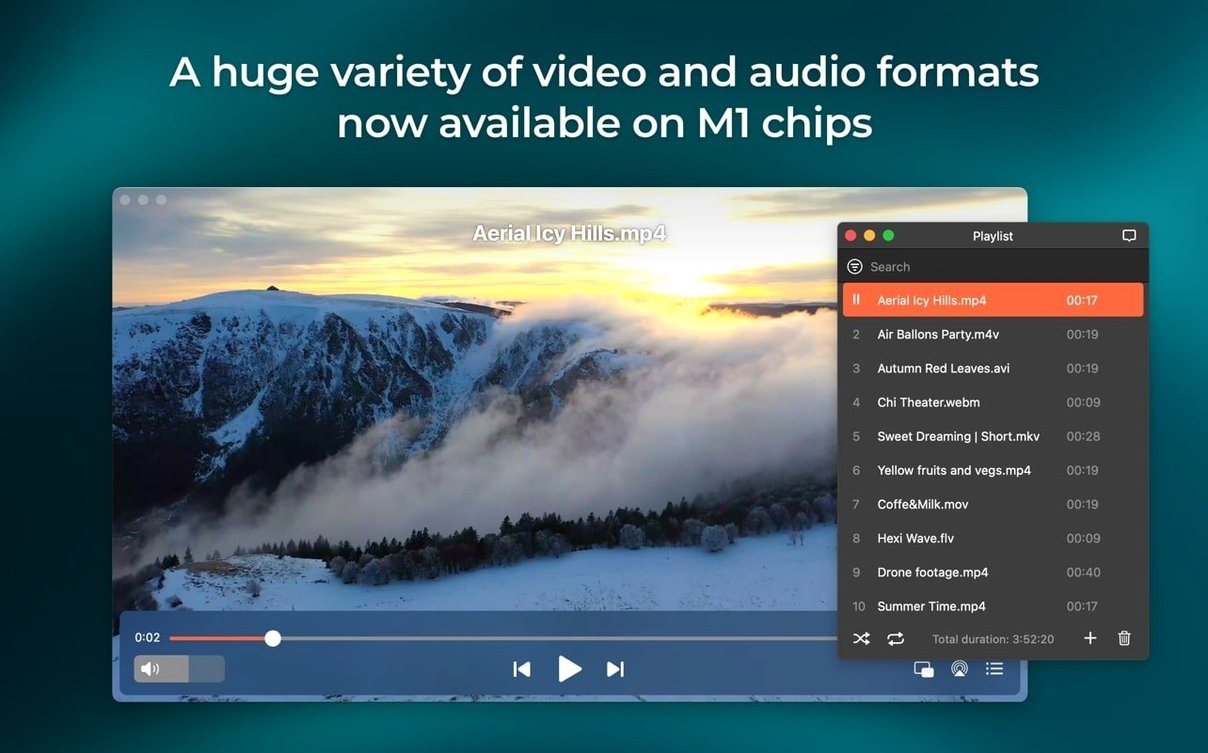
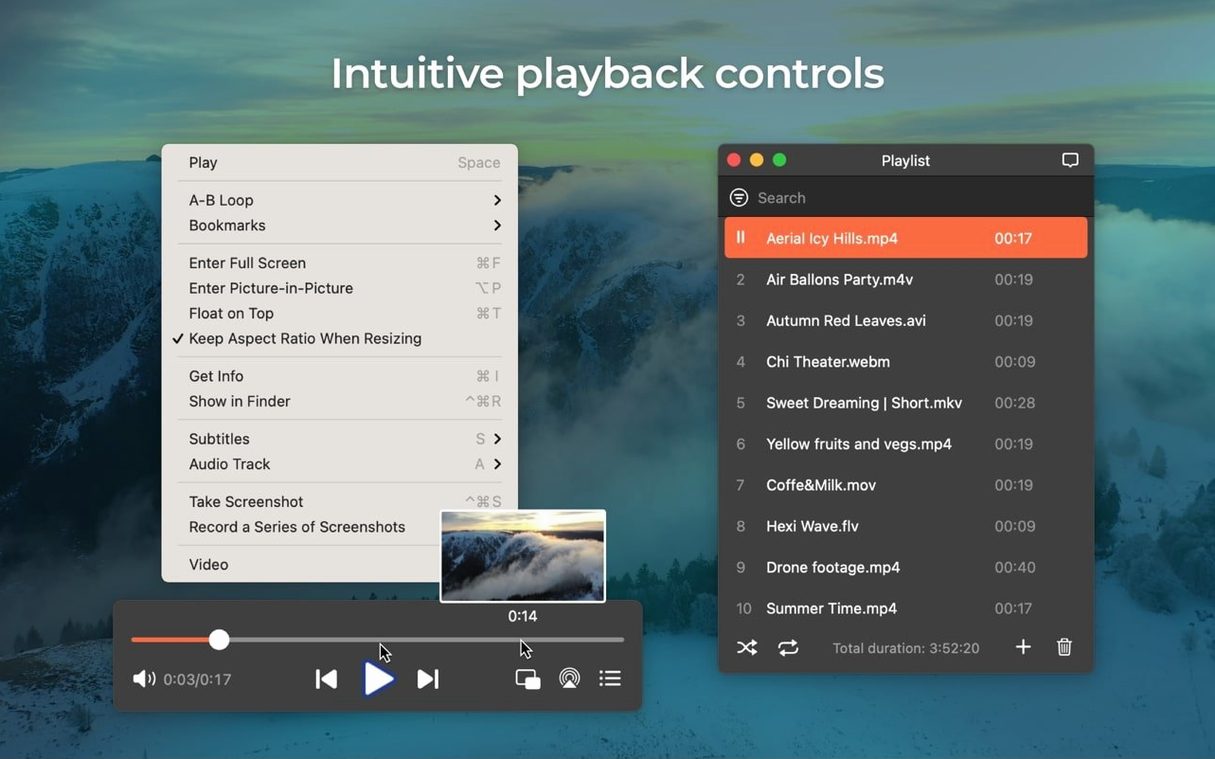
A single window for nearly any video or audio file you throw at it.
Obscure format support
- Playing obscure file formats without hunting for codecs
- Downloading online video or pulling just the audio track
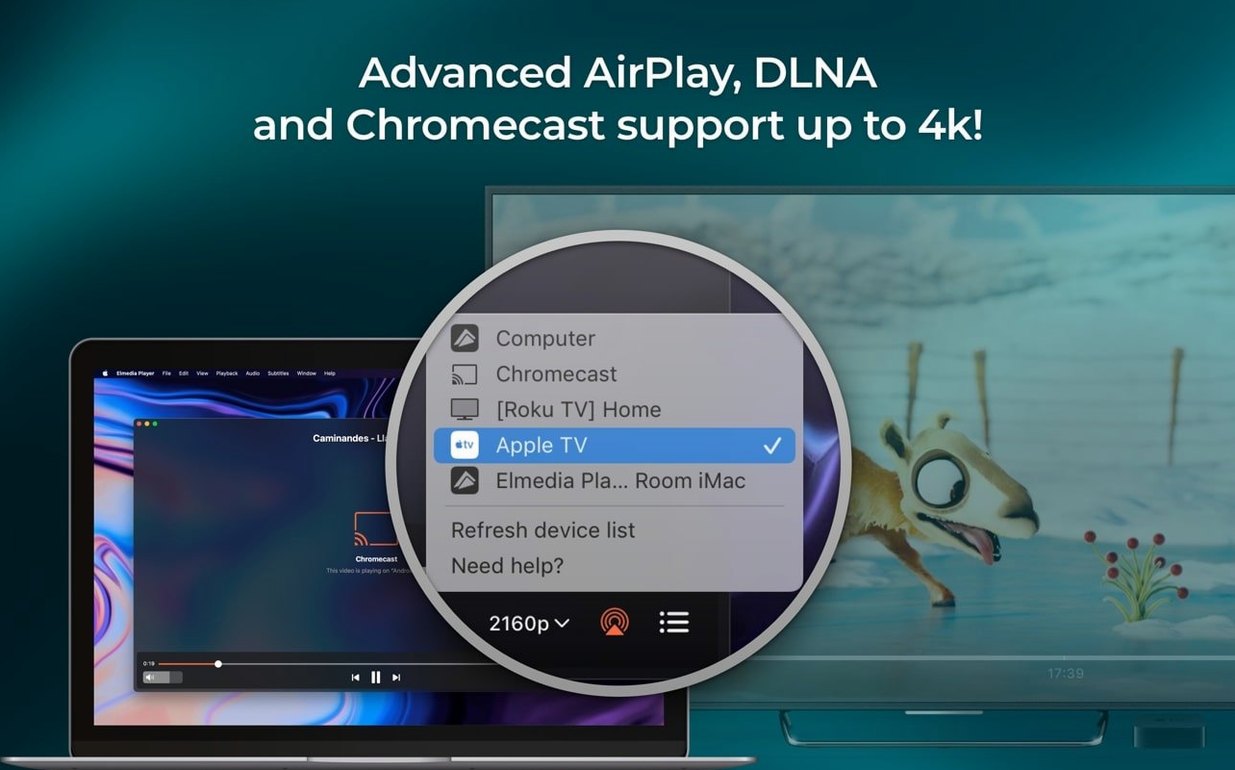
- Sending playback to a TV or speakers over AirPlay
- Opening an online video directly inside the player
- Grabbing a clean screenshot from a paused scene
Legacy tool inside
- Requires macOS 10.12 or later
- Built-in web browser is functional, not a daily driver
- Flash EXE to SWF conversion is a narrow, legacy tool
Rock-solid playback
On an M-series Mac it is quiet. Memory sits around 180–220 MB during 1080p playback. CPU rarely moves past 6%. I have run four-hour video files without a single frame skip.
Stability holds. No crashes across file types. The only hiccup: when toggling passthrough for AC-3 while playback is running, the audio can drop for a beat. Pause first and it behaves.
One small grace. The app keeps the Mac awake during streaming now. No more screen-dim interruptions mid-film.
Settings to adjust
Out of the box it is sensible. A few changes make it yours.
Playback speed. The default step is 0.1x. I tighten it to 0.05x under Preferences → Player. Better for language work.
Screenshot format. PNG is the default. Switch to TIFF if you need lossless frames for print. The setting is under Preferences → Screenshots.
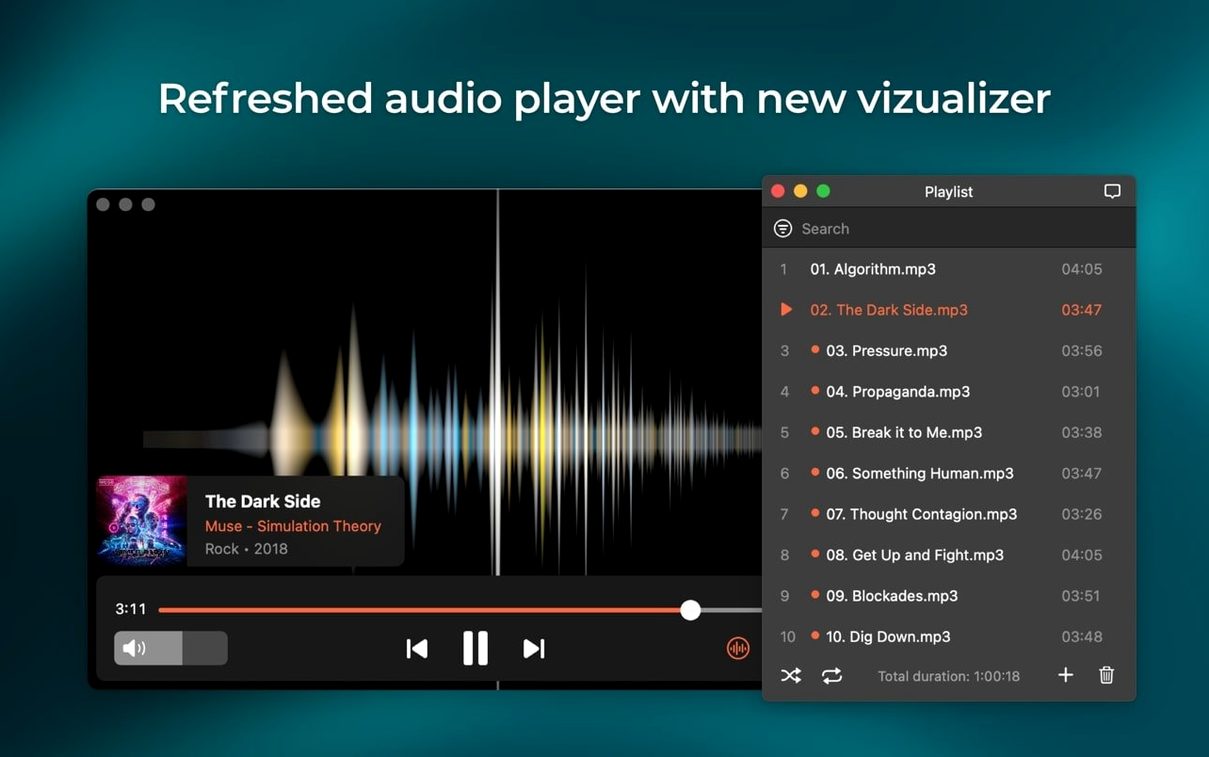
Audio output device. The player can send audio to a device different from the system setting. Useful when you want film audio through headphones while the Mac plays notification sounds elsewhere. Find it under Audio → Output Device.
Subtitles. Increase the default font size by two points. The preference is under Subtitles. Default size is too small on a 14-inch screen.
A quiet evening
A film editor comes home with a drive full of reference clips. Some are MKV, some FLAC audio, one is an old SWF animation. No time to transcode.
She drags the folder onto Elmedia. Everything opens. She scrubs through, grabs three TIFF frames for a mood board, then streams the whole sequence to the living room TV via AirPlay. One window. Nothing installed. Nobody asked her what codec she used.
Workflow: pulling audio from a lecture
A graduate student has a two-hour video lecture she wants as audio only. She is building a commute playlist.
- Open the lecture URL directly in Elmedia. The built-in browser loads the page.
- Click the download icon. Choose Download Audio from the dropdown.
- Wait roughly forty seconds. The file lands in the designated download folder as M4A.
- Drag it into the player to check the start and end. Trim playback with the A-B repeat markers if she only needs a section.
- Rename and move to her podcast app's watch folder.
No browser extension. No separate converter. Three clicks.