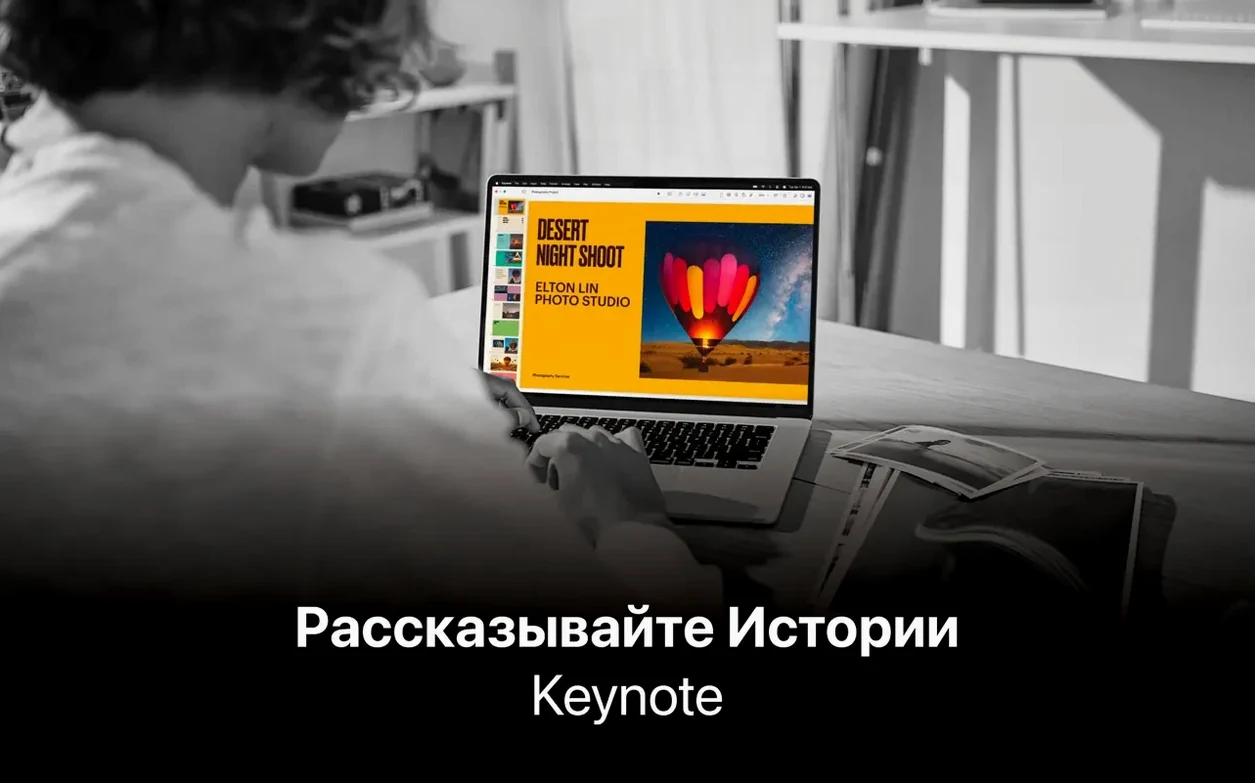
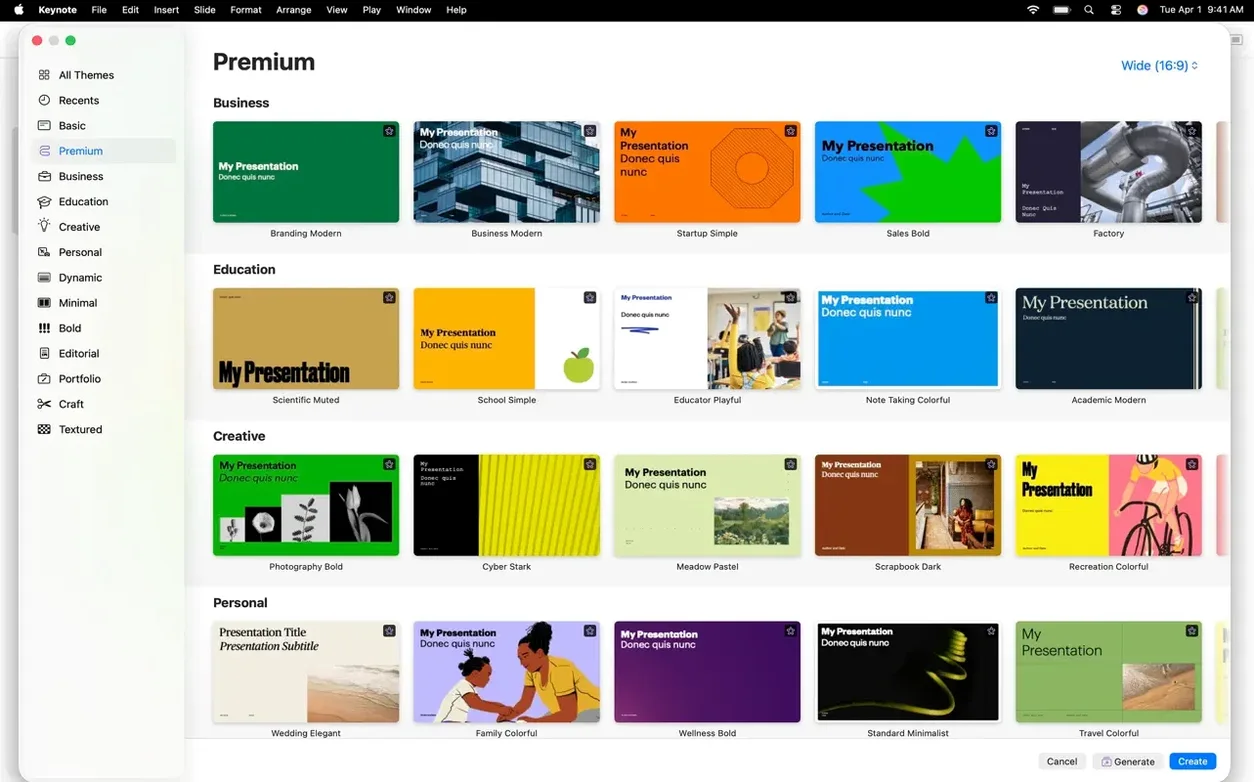
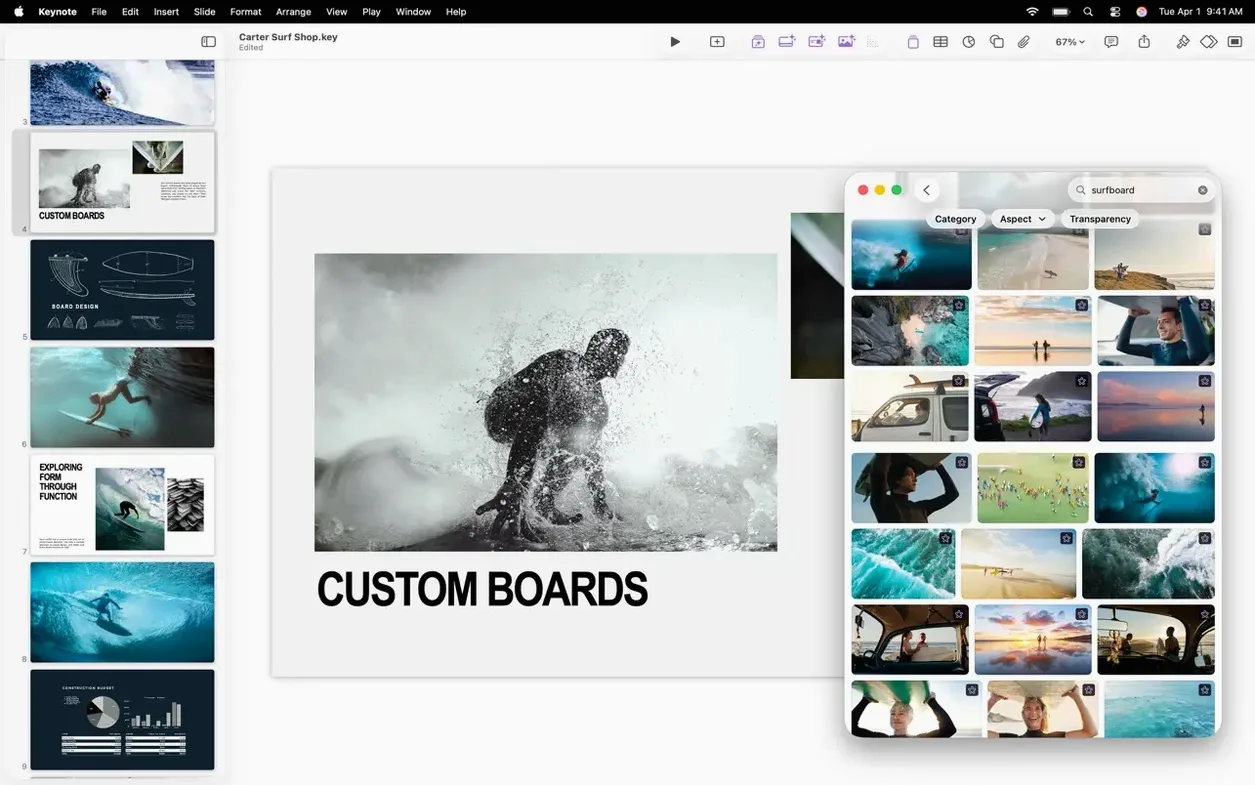
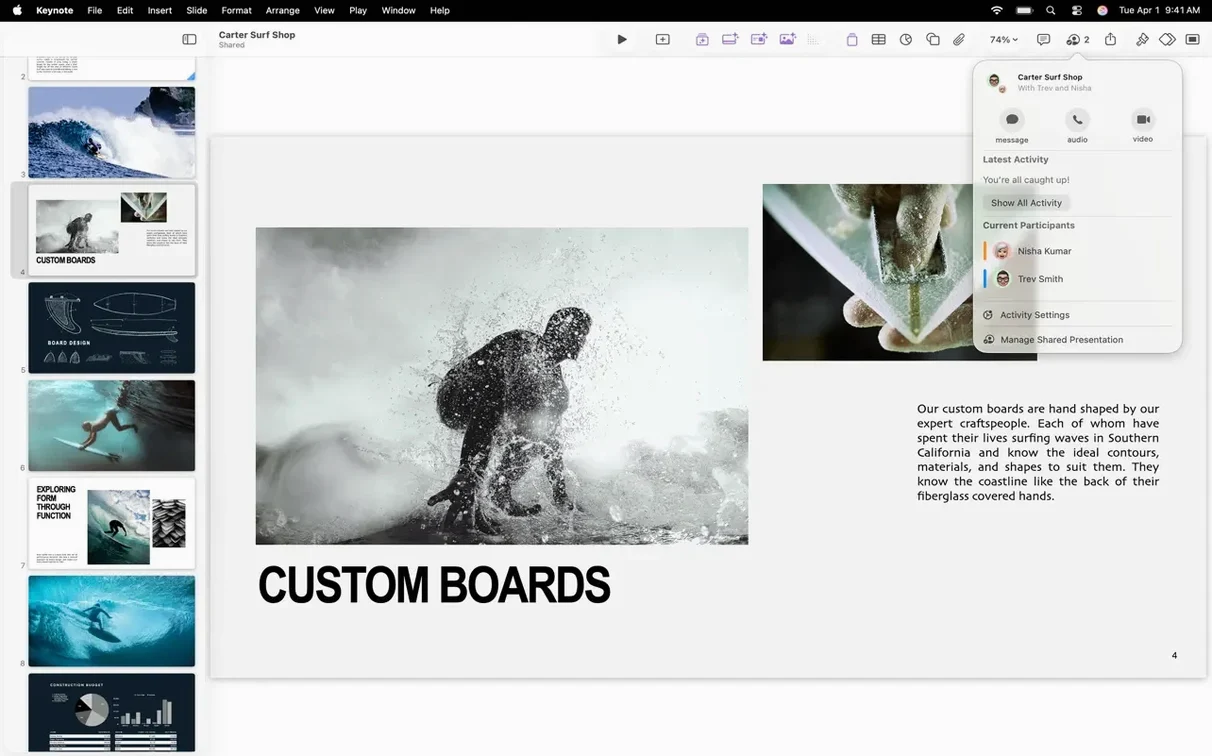
Keynote is for people who present. Teachers laying out a lesson. Founders pitching an idea. Researchers showing results. It starts with a theme, then gives you room to shape the slide around the message, not the other way around.
- Choose from Apple-designed themes and adjust type, images, and charts.
- Add notes to Keynote slides to keep your talking points close.
- Use Magic Move to animate objects smoothly between slides.
- Import and edit PowerPoint files without reformatting.
- Record audio or broadcast video directly into a slide.
Nearby apps
PowerPoint is the room default. It opens almost every file someone sends you, and its Windows version still has features the Mac edition lacks. But its ribbon still feels heavy. Keynote takes the opposite approach: fewer clicks, more white space. For a speaker who designs their own slides, Keynote is faster.
Deckset turns Markdown into slides. It’s clever, but it limits visual control. If you want a slide shape that’s not in the template, you can’t make it. Keynote gives that freedom without asking you to learn a design tool.
Google Slides lives in a browser. It’s fine for quick team edits, but offline work and complex builds feel clunky. Keynote stays responsive even with large images and many builds. When the wifi drops, nothing stops.
A conference talk
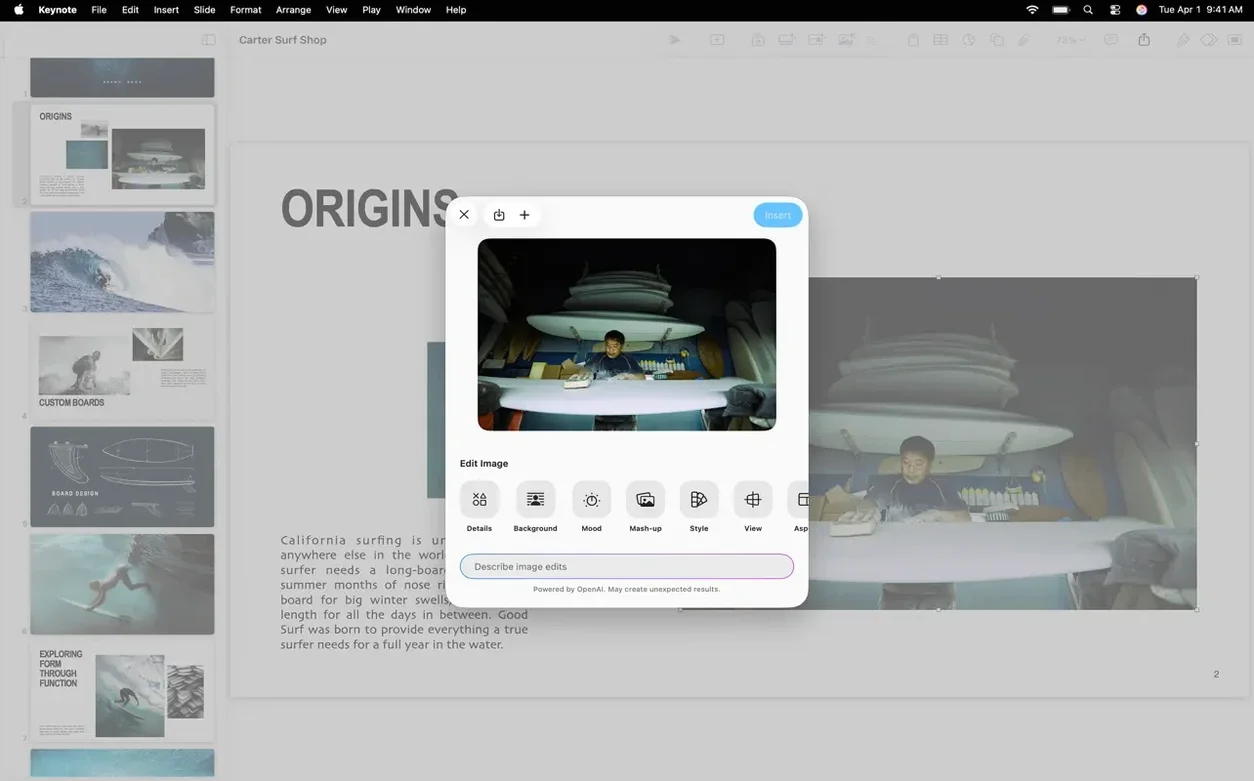
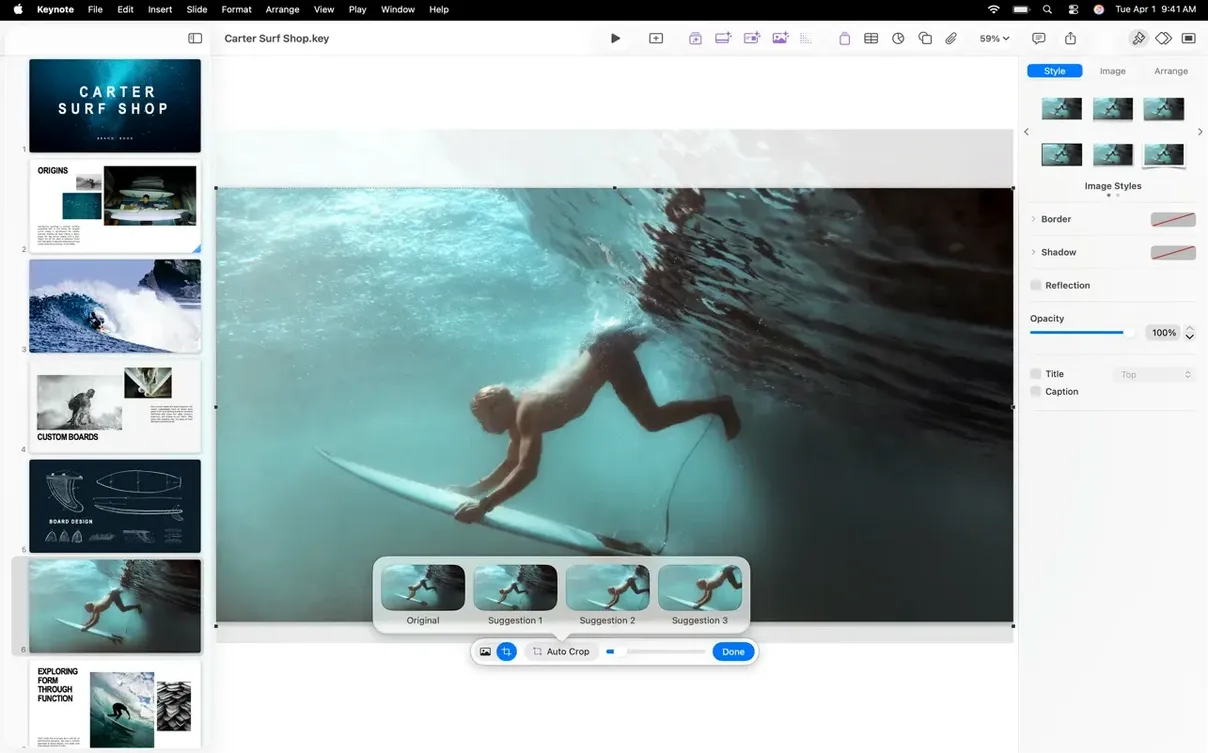
Imagine a biologist preparing a talk for an ecology conference. She has photos from the field, a few charts from R, and a short video clip of a tagged animal. She drags the images onto the slide, crops one with the mask tool, and removes the background from another with one click. The charts drop in as PDF and stay sharp. She records voiceover for the video slide so the audio plays back without a separate file.
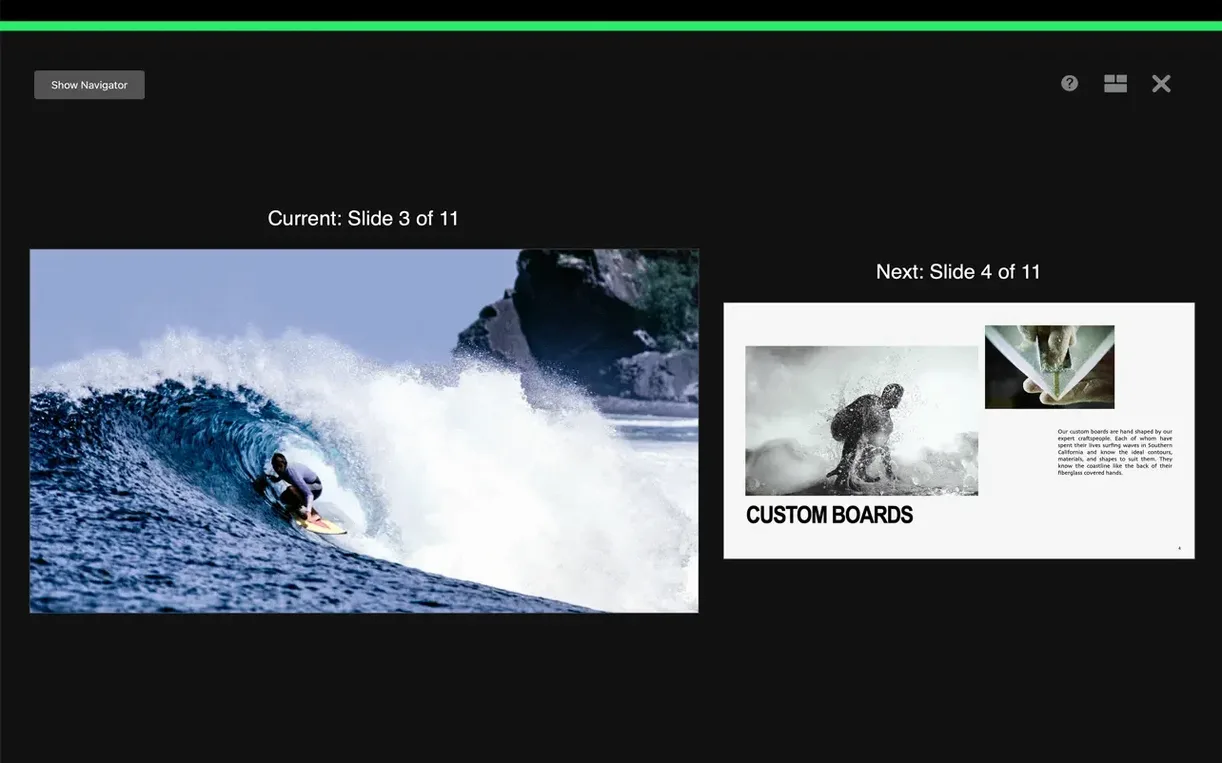
During rehearsal, she opens the presenter display on her MacBook. The current slide, next slide, and timer are right there. No printed notes. When she presents, the talk moves cleanly from one idea to the next. The slides don’t compete for attention.
Imported Shift
PowerPoint imports sometimes shift text blocks by a few points. It’s subtle but annoying. A quick fix: open the imported file, select all slides, and reapply the master slide. Most alignment drifts resolve.
Large video files can make the file size balloon. A Keynote package can hit several gigabytes fast. Compress the video before you drop it in. HandBrake does this well, and the file stays portable enough to share.
If a colleague sends you a file made in an older version, some new transitions won’t show on their machine. Stick to the build library common to both versions. Keynote warns you when you use a build that won’t play back, but only if you look for the tiny alert icon. Keep an eye on the slide navigator.
A presentation should feel like one continuous thought. Keynote keeps the tools out of your way so the sequence holds together.