
A MacBook left on the charger all day slowly degrades its own battery. AlDente stops that.
It lets you set a hard charge limit below 100%. The power adapter runs the machine directly once the limit is reached. No more micro-cycling, no more constant trickle charge.
Desk-bound duty
- Desk-bound MacBooks that rarely leave the charger
- Users who want plain charge control, not a guesswork optimizer
- Anyone checking battery health with the built-in monitoring panel
Bypasses Apple
- Requires macOS 12 Monterey or newer; older systems cannot run it
- Charge limiting bypasses Apple’s own optimized charging on supported models
Photographer’s afternoon
A wedding photographer imports a full card into Lightroom around 2 pm. The MacBook Pro sits on a stand, lid closed, driving an external display. Without a limiter, it would climb to 100% and sit there for the next six hours of culling and color work.
With the limit set to 75%, the machine runs off the adapter. The battery stays cool. At 9 pm, when she unplugs to edit on the couch, the charge is exactly where she left it — enough for an evening, never topped off for no reason.
Sticky spots
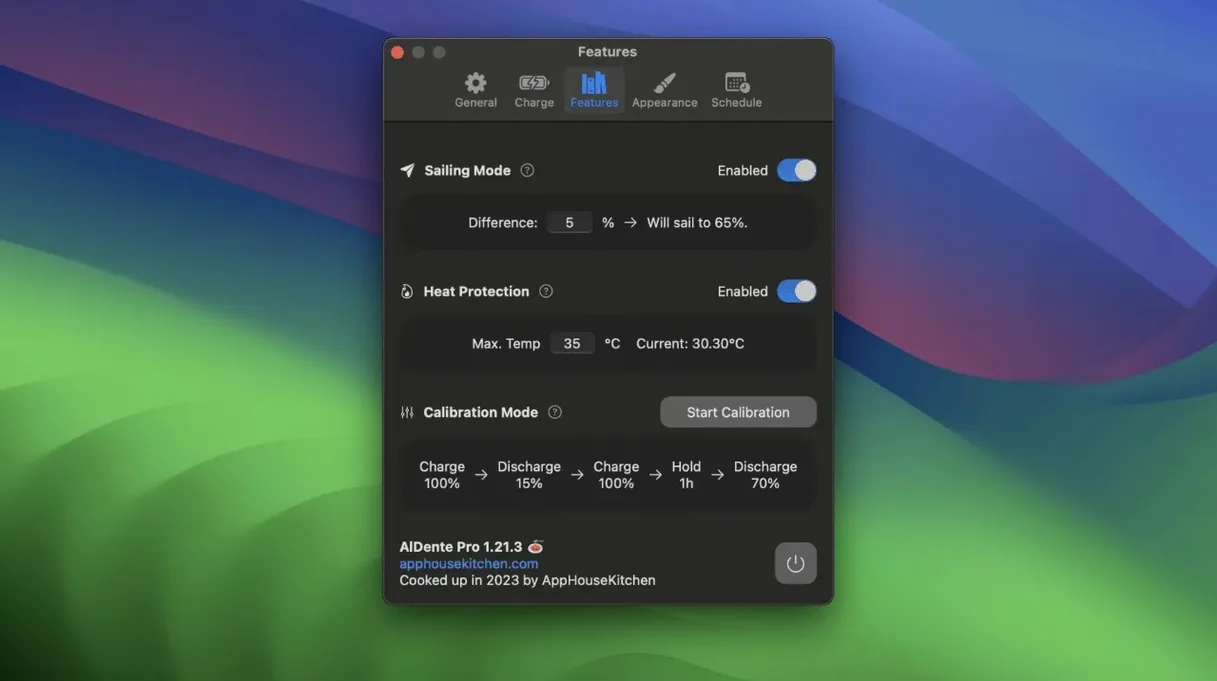
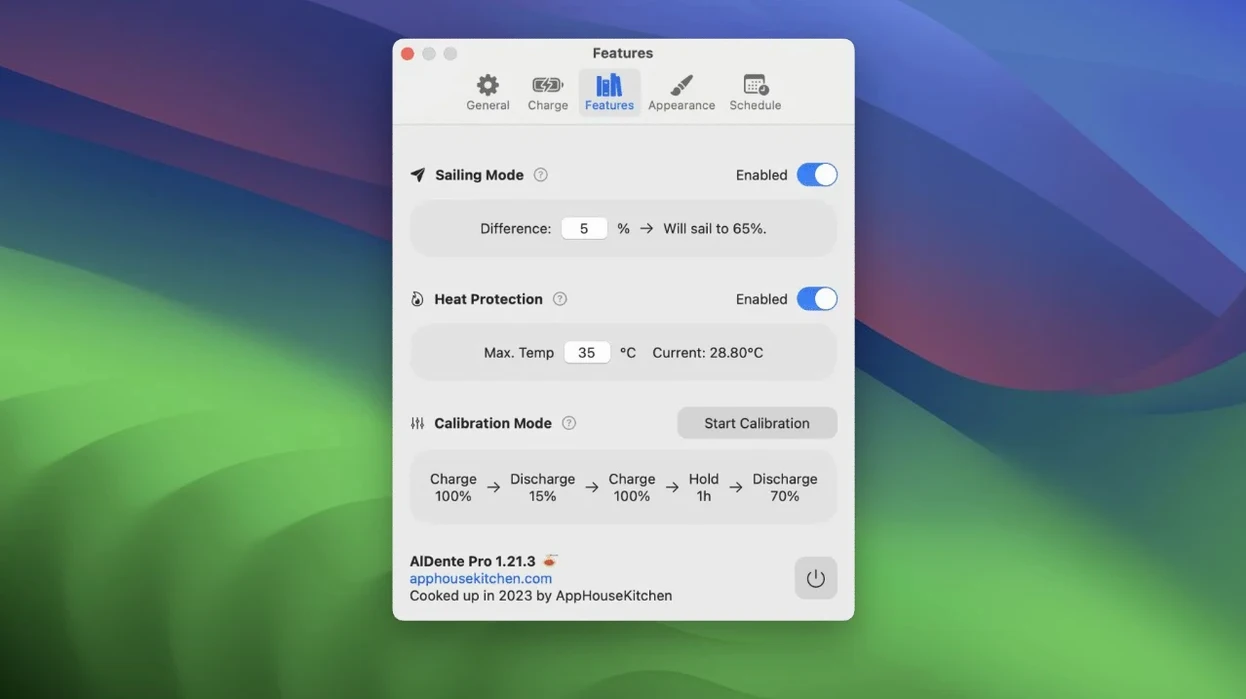
Sleep and lid-close behavior confuses people. When the Mac sleeps, AlDente cannot hold the limit. The battery may drift back toward 100% if the charger stays connected. The fix is simple: keep the app running and allow brief wake periods. Sailing Mode helps here — it widens the charge window so the system isn’t constantly nudging the limit.
The menu bar icon sometimes disappears after a macOS update. Re-enabling it from the app’s preferences restores it. A small thing, but one that leads to support emails every release cycle.
Third-party USB-C hubs occasionally report incorrect power states. If the limit isn’t being honored, plug the charger directly into the MacBook and test again before assuming the app is at fault.
Ceiling not current
The battery percentage in the menu bar can show the real charge or the intended limit. Toggle it in settings. Seeing the ceiling rather than the current level changes how you think about the battery — it fades into the background.
Right-click the menu bar icon. The contextual menu contains Calibration Mode, which drains the battery to a safe low and then charges to full, letting the internal chip recalibrate. Run it every few months, not weekly. Too-frequent calibration is a beginner mistake that adds unnecessary cycles.
Heat protection triggers automatically at a temperature you define. The default is conservative. If you work in a warm room, lowering the threshold by a few degrees delays charge tapering and keeps the chassis cooler under sustained loads like rendering or compilation.
First-week errors
Setting the limit too low, too soon. A 60% cap on day one feels virtuous. Then you need to run a presentation from battery and the charge isn’t enough. Pick a limit that fits your longest unplugged stretch, not the most aggressive number you’ve seen in a forum thread. You can adjust it anytime.
Forgetting that the limit applies only when the app is running. If you quit AlDente or boot from an external system, charging returns to default behavior. Some users assume the limit persists in firmware — it does not. Keep the app in your login items.
Ignoring Sailing Mode entirely. Without it, the battery can bounce around the limit as the system manages small power fluctuations. Sailing Mode adds a range rather than a hard line. It’s quieter for the battery and quieter for your attention. Turn it on once you’ve settled on a working percentage.