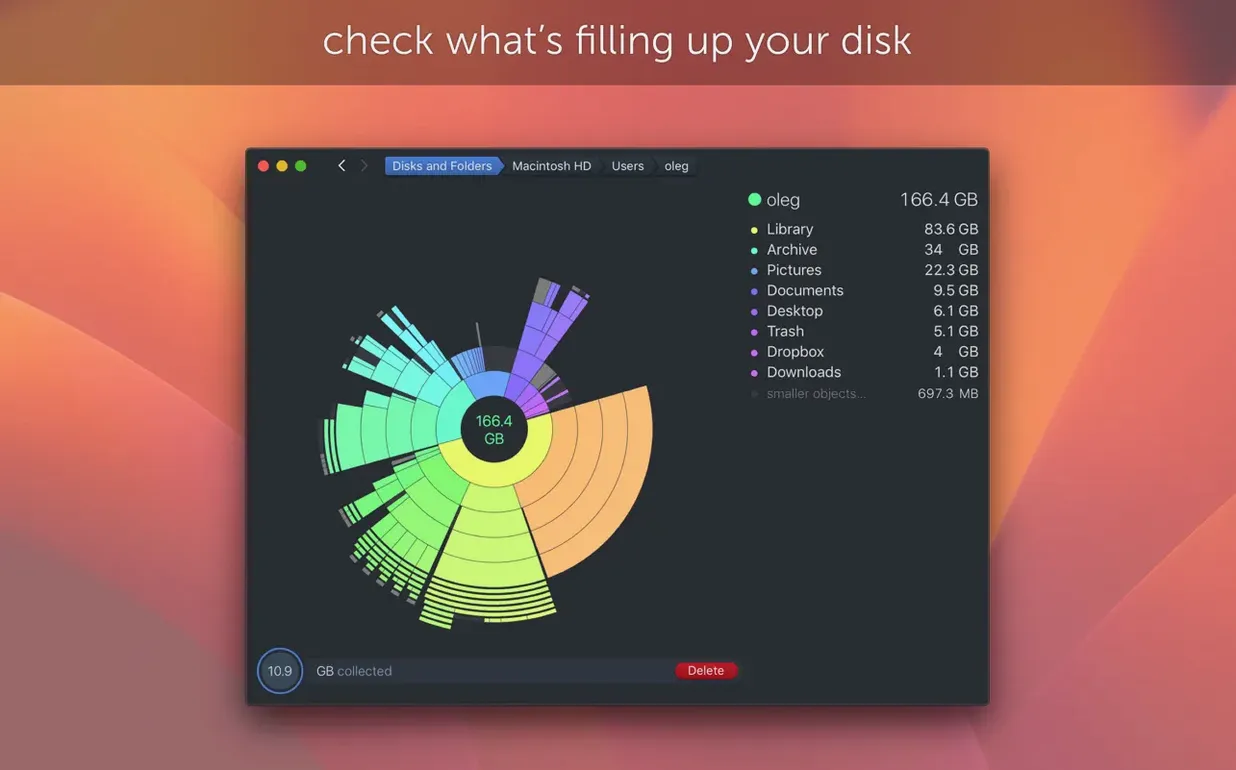
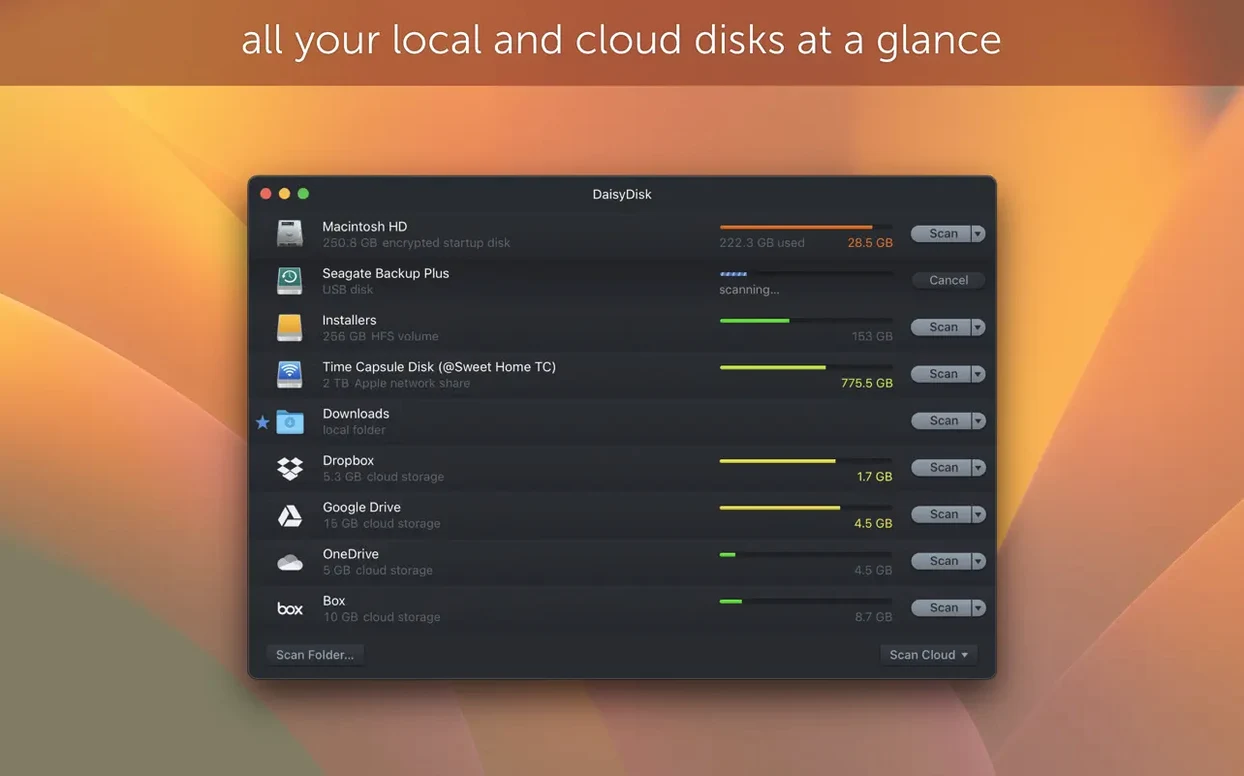
Finder shows folders. DaisyDisk shows a sunburst map. One quick scan and you see your disk as a single image — large files bulge out, small ones shrink into the rim. No digging.
APFS clones
- Spotting forgotten APFS clones that quietly eat space
- Scanning multiple drives in parallel and comparing them side by side
- Previewing any file in place with Quick Look before you delete it
System requirements
- Requires macOS 10.13 or later, Apple Silicon and Intel both supported
- Version 4.34.1 fixed a scanning bug on systems older than Sonoma
- Interface languages include Russian, Japanese, Simplified Chinese, and eight others
Hide sidebar
Open Preferences before your first scan. Two changes make a difference.
Turn off Show hidden files in the sidebar. The sidebar gets noisy fast. You can still reveal hidden items inside the map when you need them — right-click any segment.
Switch the color scheme to High contrast if you use DaisyDisk on a laptop screen. The default palette is subtle. A stronger separation between file types makes the map readable at a glance.
Enable Scan in parallel only when you have multiple disks to check. For a single internal drive, serial scanning often finishes sooner because the disk head isn't jumping between two filesystem trees.
Space preview
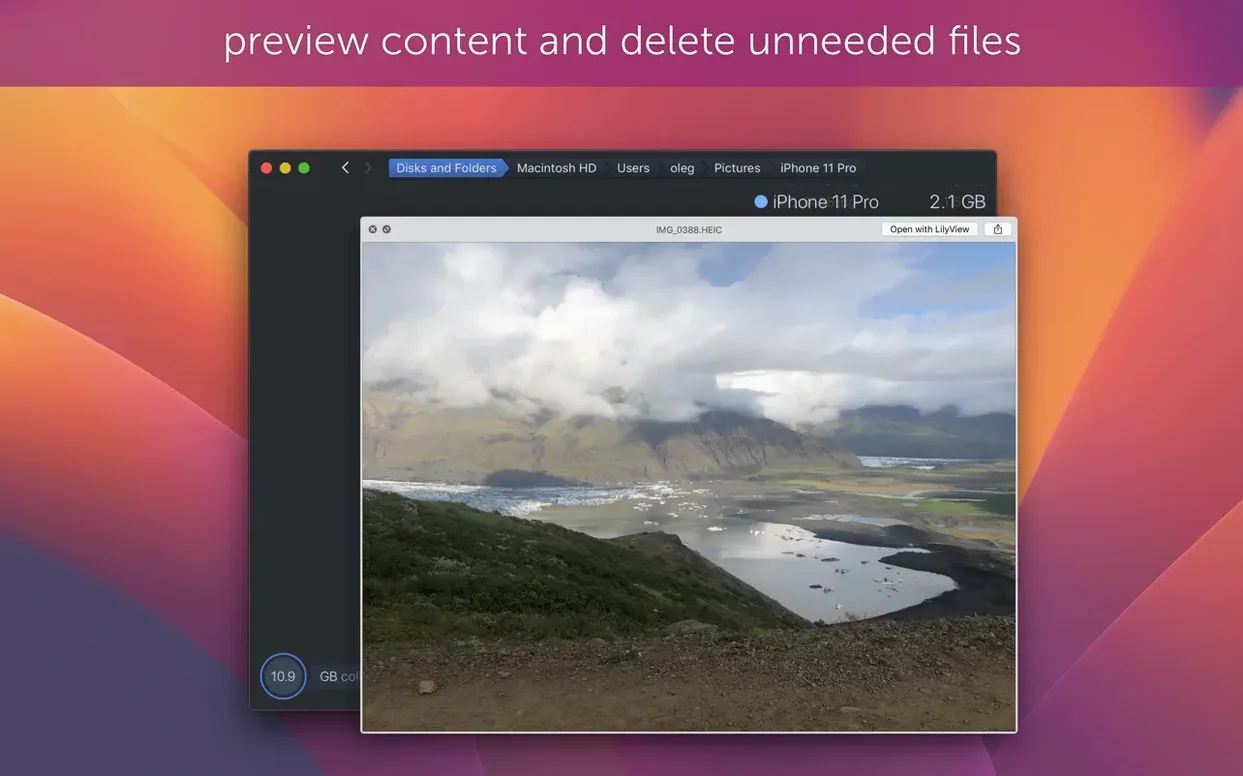
Press Space on any segment. Quick Look opens the file or folder right there — same preview as Finder, no extra window.
Drag a folder from the map directly to the Trash icon in your Dock. DaisyDisk doesn't make you use its own delete button. The drag gesture works across apps.
Hold Option while hovering over a segment. The tooltip shows the full path without clicking. Small thing. Saves a lot of unnecessary drilling.
Right-click any segment and choose Show in Finder. The folder opens instantly, selected. Useful when you want to move something rather than delete it.
A cleanup workflow
Say you have a 256 GB MacBook Air. Storage dropped below 20 GB free overnight. You know something large landed somewhere, but Finder's About This Mac storage bar just shows a wide gray "Other" band. No details.
Launch DaisyDisk. Hit Scan on your internal drive. Wait about forty seconds.
The map loads. A massive purple arch sits inside ~/Library. You hover — it's Application Support. Click in. One folder dominates: an old iOS backup from two phones ago, 38 GB, untouched since 2023.
Press Space to Quick Look the backup folder. Confirm it's the right one. Drag it to the Trash. Empty Trash. Done.
Before closing DaisyDisk, scan again. The purple arch is gone. Free space now reads 58 GB. The whole thing took under two minutes.
No daisydisk torrent hunt, no command-line spelunking. Just an image of your disk and a drag gesture.
A clean scan, a clear map. With a daisydisk torrent, you see what you already have.