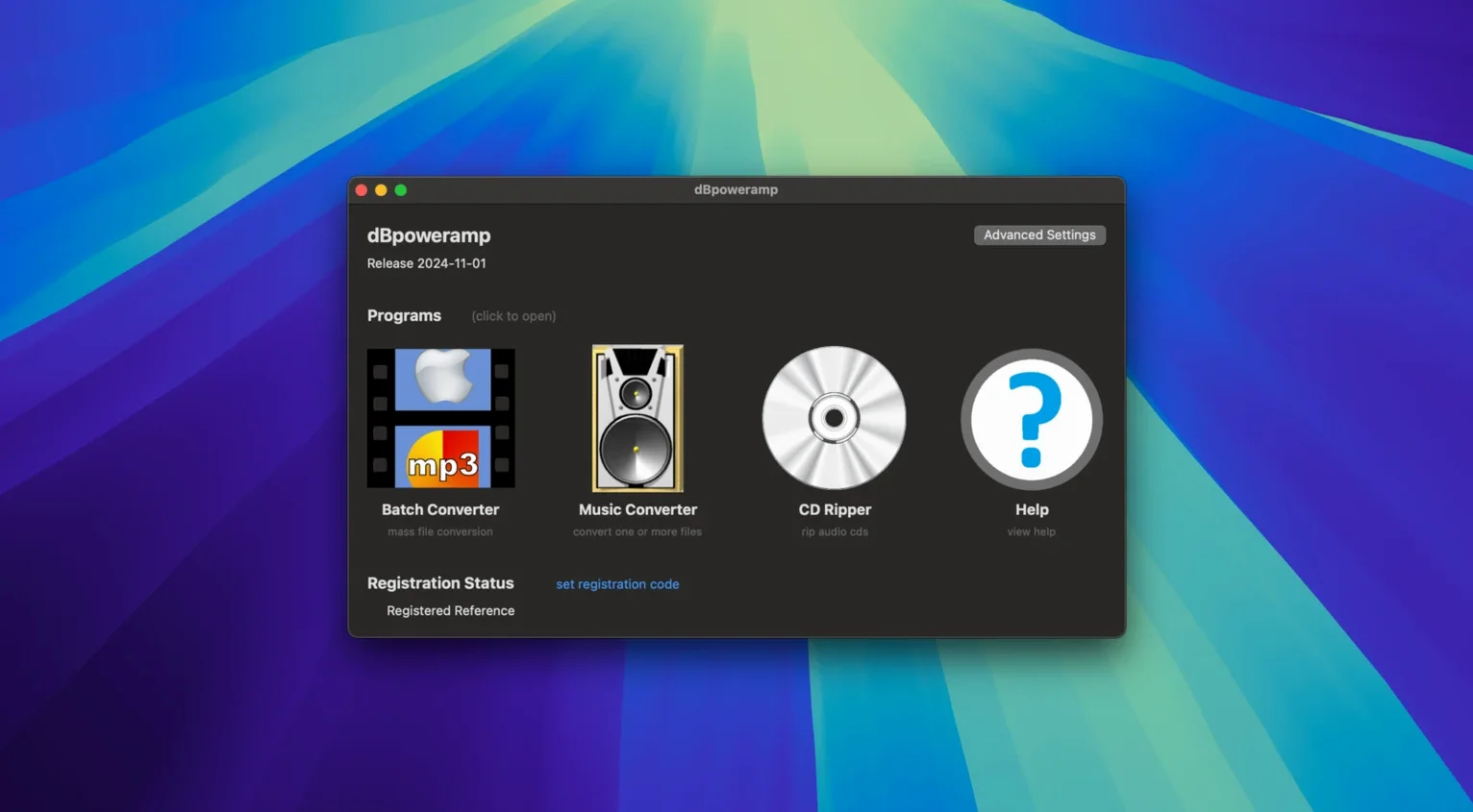
dBpoweramp Music Converter is a tool that changes audio files from one format to another, in batches, without fuss.
Convert
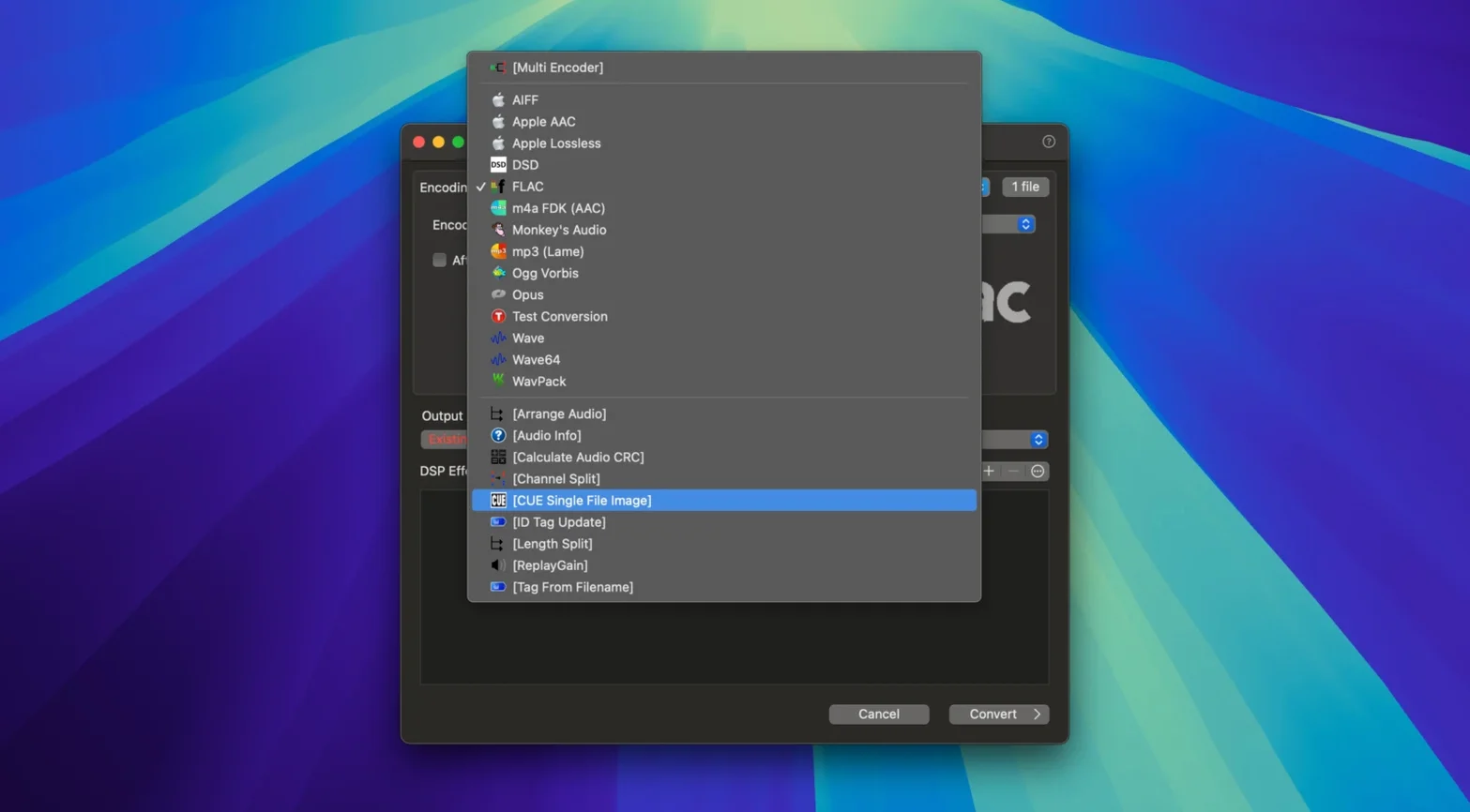
Select a stack of files and the app writes them out as MP3, FLAC, Apple Lossless, AAC, WAV, or another format you choose. It sits beside your Mac’s existing media tools and handles the heavy lifting when you need a whole folder in a new format.
Tag
The built-in ID Tag Editor lets you clean up metadata before or after conversion. Fix artist names, album titles, or artwork in a straightforward pane.
Integrate
Drag & Convert
You drag a folder of FLAC files onto the Batch Converter. They appear in a plain list. You pick AAC as the output. The app asks where to save them — a folder on the desktop is fine.
You open the DSP tab. Volume Normalize goes on. So does Resample, set to 48 kHz. Two clicks.
You press Convert. The progress bar moves fast. Four cores light up. A minute later, the new AAC files sit in the output folder, tags and artwork intact. You eject the backup drive and move on.
That’s the rhythm. No wizards, no export dialogs that ask six questions. Just choose, set, go.
Native Cocoa
People wonder if dBpoweramp for Mac is a port or an afterthought. The interface is plain Cocoa. It feels like a Mac app — Finder integration, standard shortcuts, no bundled toolbars. It has been native on Apple Silicon for some time.
Another question: does it overwrite originals? No. It writes new files to the location you set. Your source folder stays untouched.
Some ask about lossless-to-lossless passes. FLAC to Apple Lossless preserves the audio bit for bit. The app decodes and re-encodes without altering the stream.
And the CD Ripper component mentioned in the help? It is present. If you have an optical drive connected, the ripper appears as a separate utility. AccurateRip verification is built in.
Alongside other tools
dBpoweramp Music Converter does not replace your music player or library manager. It feeds them. Convert a folder of WAV masters to FLAC for storage, then to AAC for a portable player. The files drop right into Apple Music or any folder that another app watches.
The Finder integration works with Automator and folder actions. Select a group of files, right-click, choose Convert with dBpoweramp, and the last-used settings apply. You can build a watched folder that auto-converts incoming files without opening the main window.
For tagging, the ID Tag Editor reads and writes metadata that other apps respect. Clean up a messy batch in dBpoweramp, and the changes appear in Music, Swinsian, or any player that reads standard tags. Artwork embeds correctly, including high-resolution covers.
Right-click a file in the Finder and the conversion shortcuts are right there. No need to open the main window for a quick format change.