Eight interface languages ship with version 2.4. The app still does exactly two things.
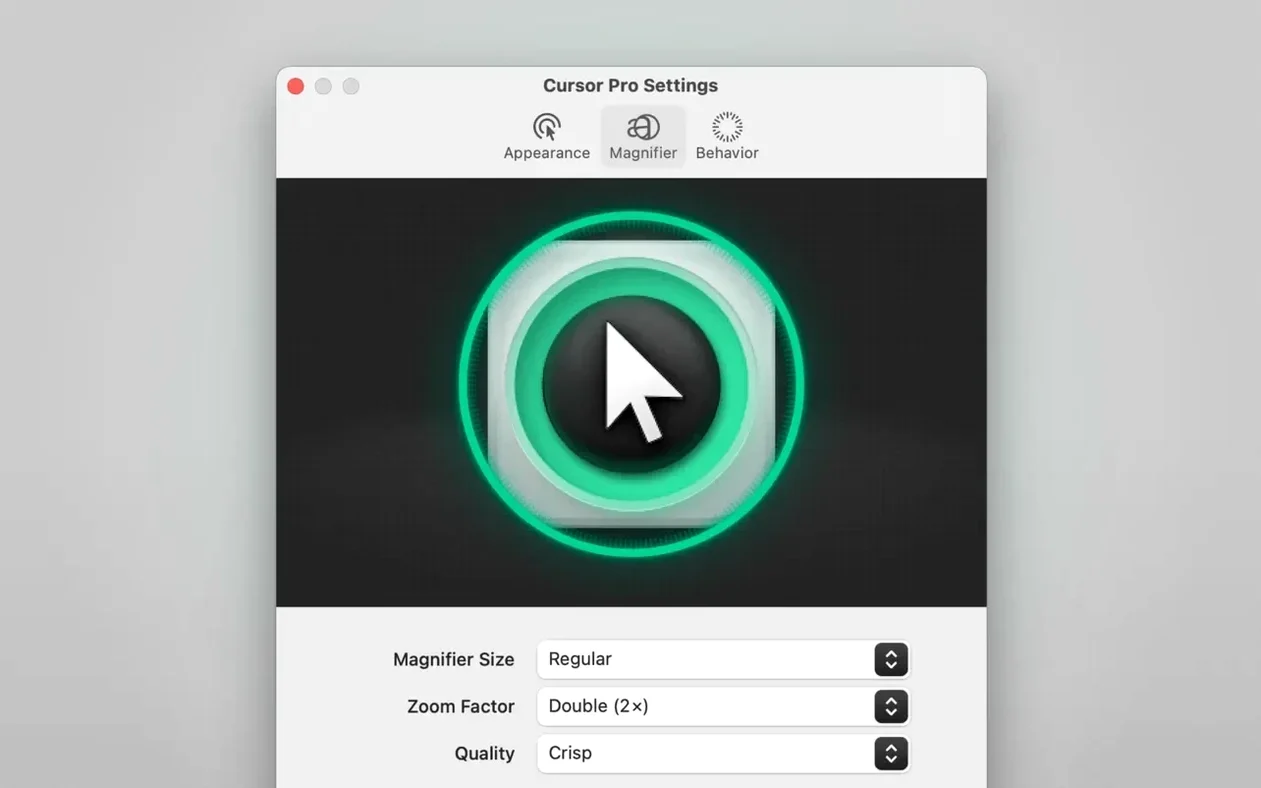
It puts a customizable glow around your pointer. It magnifies whatever sits under the cursor. No full-screen capture. No recording. Just visual clarity when you need someone to follow along.
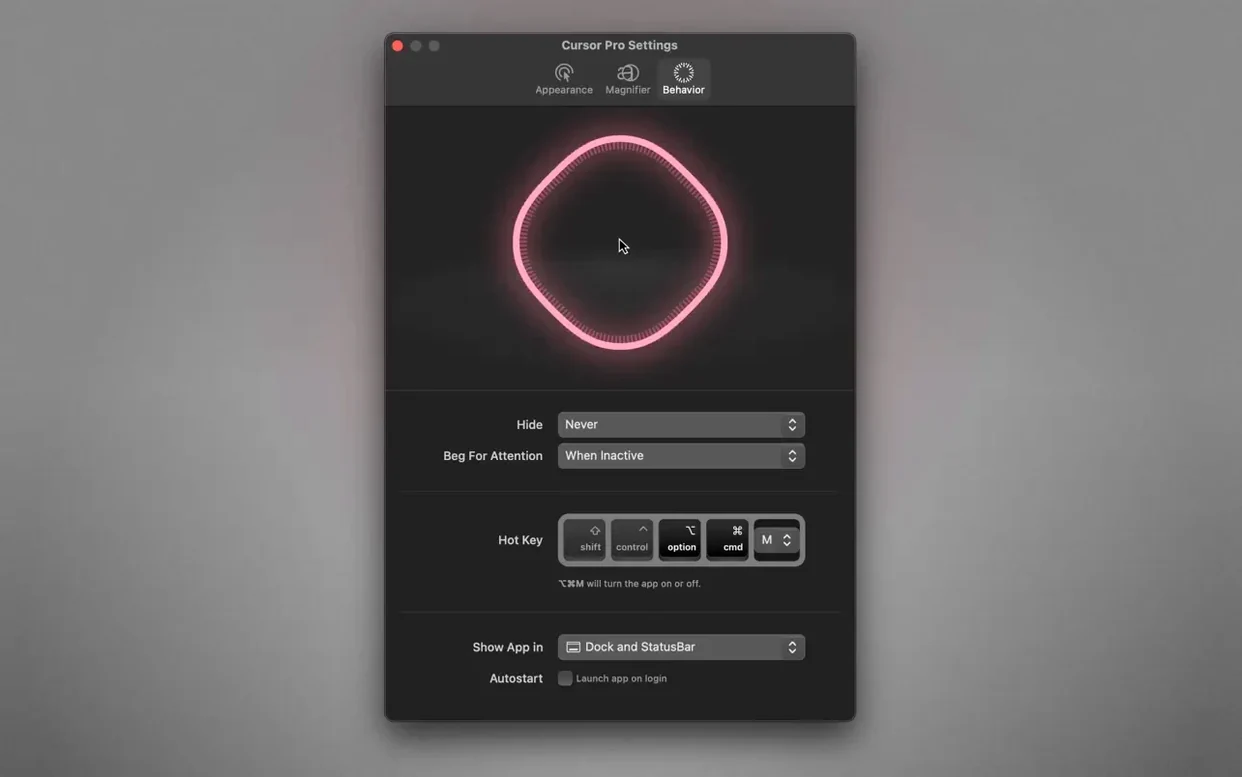
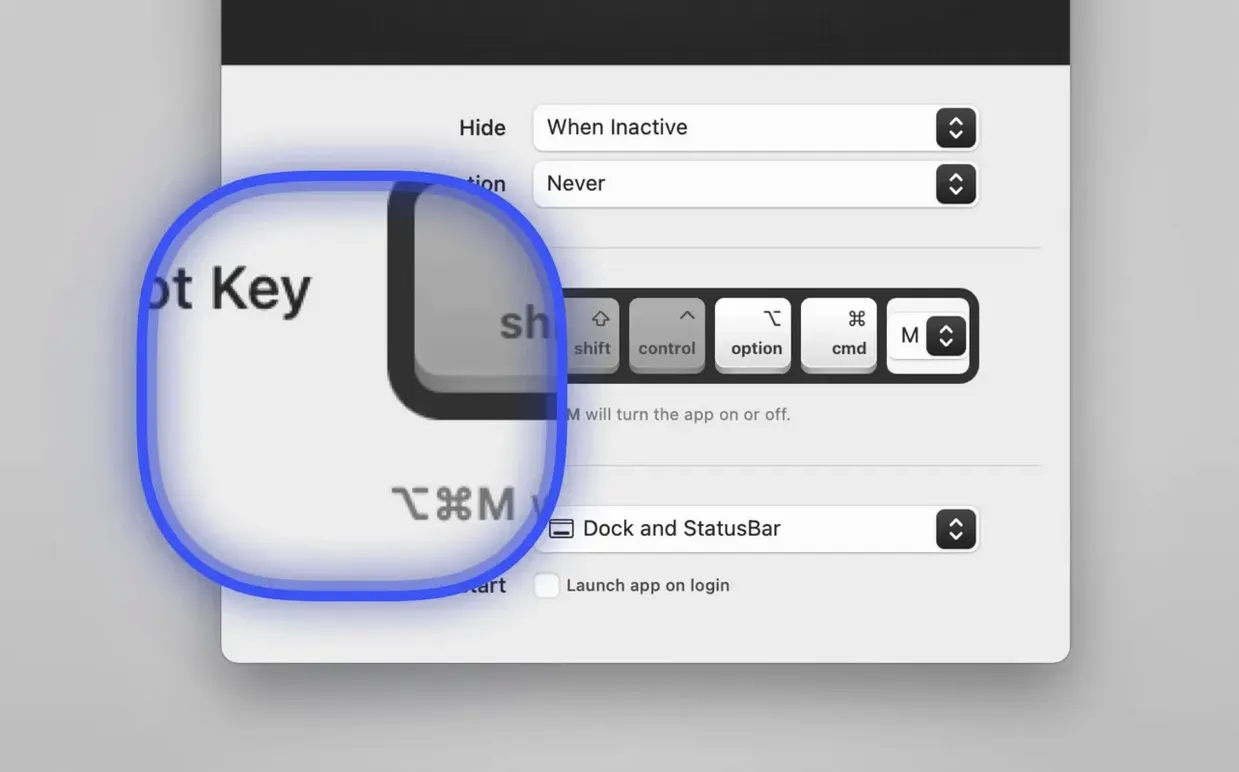
A global hotkey toggles everything. You decide whether the app lives in the Dock, the status bar, or both. Auto-hide keeps the highlight out of frame until you move the mouse, and it can launch when you log in. The highlight color is yours to pick.
Screen-sharing apps see the glow and the magnifier when you share the whole display. That is the point. Presenters and trainers use it to guide eyes without waving the mouse around.
Diamond trap
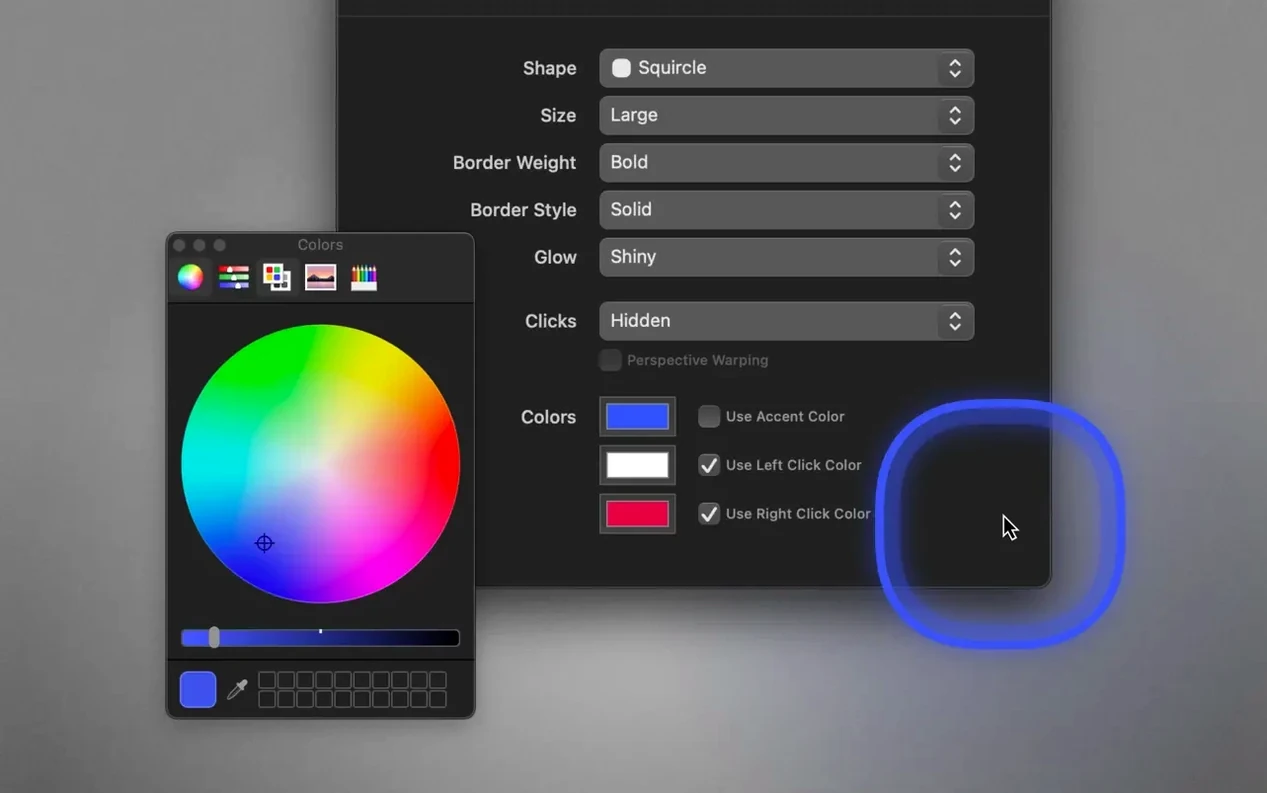
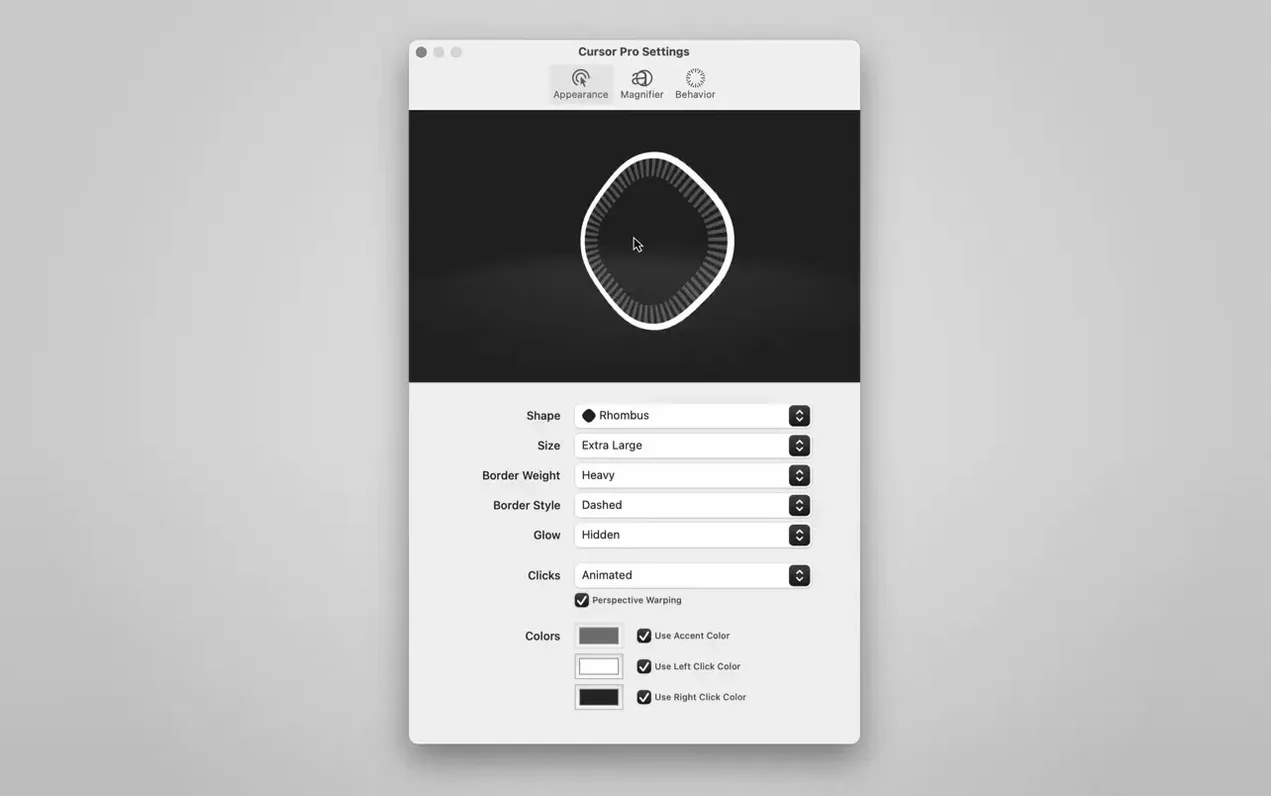
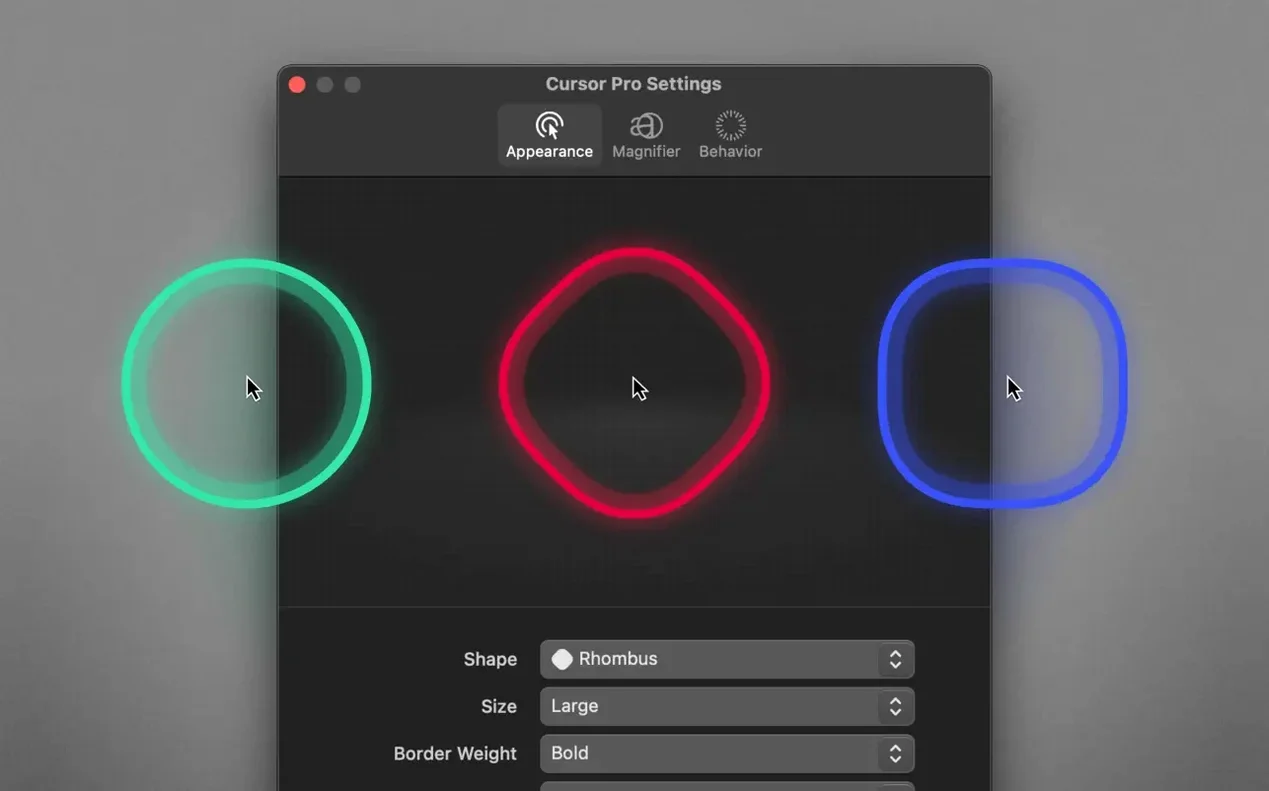
The highlight shape trips people up first. A diamond obscures text more than a circle. New users pick it because it looks sharper in the preview, then wonder why their audience squints.
Glow radius set too high spreads the color into a fog. Try the smallest radius that still pulls attention — usually four to six pixels on a Retina display.
Auto-hide sounds like a convenience. With a slow fade time, the pointer disappears during pauses. A presenter points at a number, stops talking to let it land, and the highlight vanishes. Disable auto-hide during live sessions or set the delay long enough to outlast your silences.
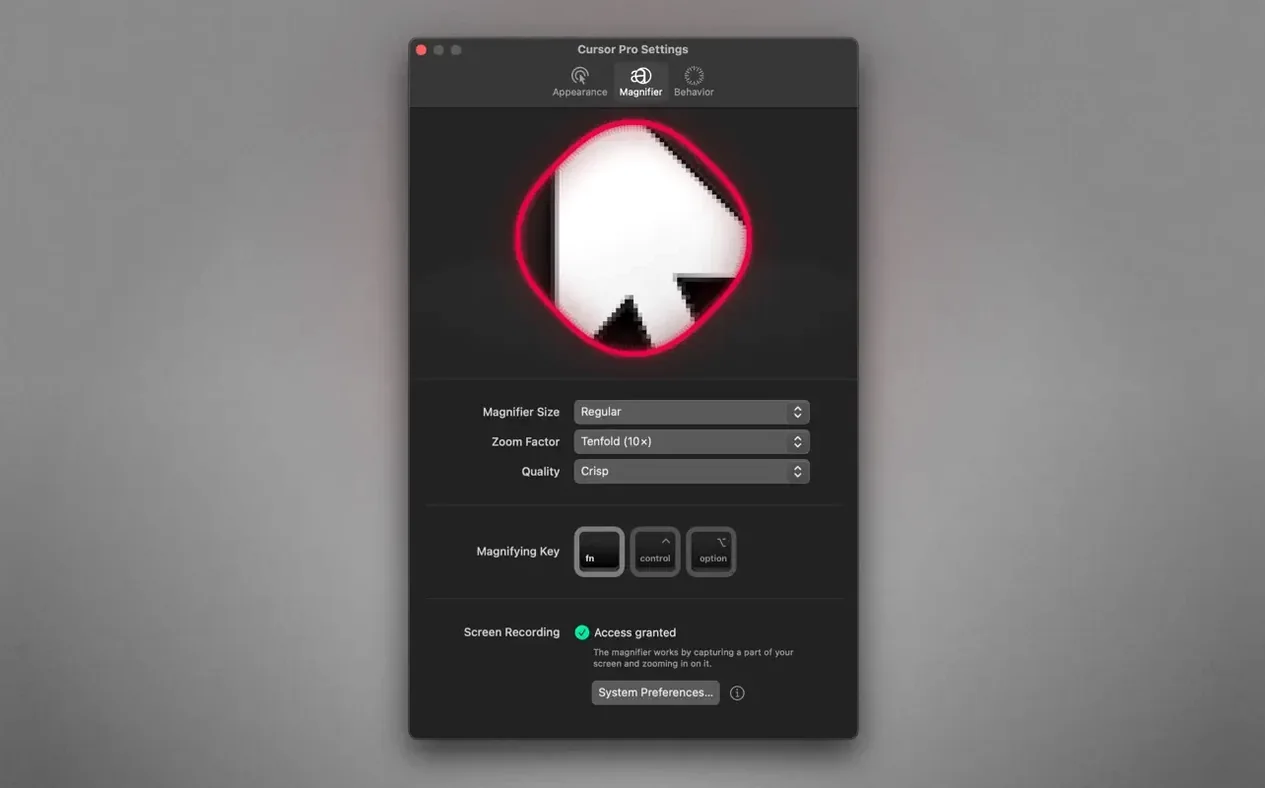
Another quiet trap: the magnifier zoom factor. Beginners crank it to 3× or more. The zoomed region jumps so far ahead of the actual pointer that the connection breaks. Keep it at 1.5× or 2× — enough to reveal detail, not enough to disorient.
Muscle memory
Open preferences and assign a hotkey you can hit without looking. The default works, but your fingers already know ⌃⌥⌘P or something similar. Make it yours.
Change the highlight color to amber or a warm orange. Mac screens lean cool. A warm pointer sits apart from windows, menus, and white backgrounds without clashing. Avoid red — it reads as an error marker in too many interfaces.
Set the app to status bar only. The Dock icon wastes space for a utility you toggle, not one you click repeatedly. A small dot in the menu bar reminds you it is running without demanding attention.
Pulse can stay off. A steady highlight is easier to track than one that breathes in and out. Pulse makes sense for a recorded demo where you want drama; in a live meeting it distracts.
Visible context
Mouseposé dims the entire screen except a spotlight around the cursor. That approach works for focused demonstrations but kills context. Cursor Pro leaves the rest of the screen fully visible, so your audience still sees the toolbar, the sidebar, the surrounding data. For teaching an interface rather than a single button, Cursor Pro fits better.
Cursorcerer hides the pointer globally with a hotkey. It solves the opposite problem — removing the cursor from clean screenshots and recordings. The two apps complement each other. You might run Cursorcerer while capturing stills, then switch to Cursor Pro when you need to guide a live walkthrough.
OmniDazzle offered a range of pointer effects, including sparkles and trails, but development stalled years ago. It no longer runs reliably on Apple Silicon Macs. Cursor Pro covers the practical half of that feature set — highlight and magnify — without the abandonware risk. No fireworks, just the two tools that actually ship.
Some users search for a Cursor Pro torrent to skip the small friction of obtaining the app. To get it running well on an M-series Mac, verify the build matches your ARM hardware and check the code-signing flags. Version 2.4 runs clean on Apple Silicon with no extra steps.
No new features this time. The foundation holds.