
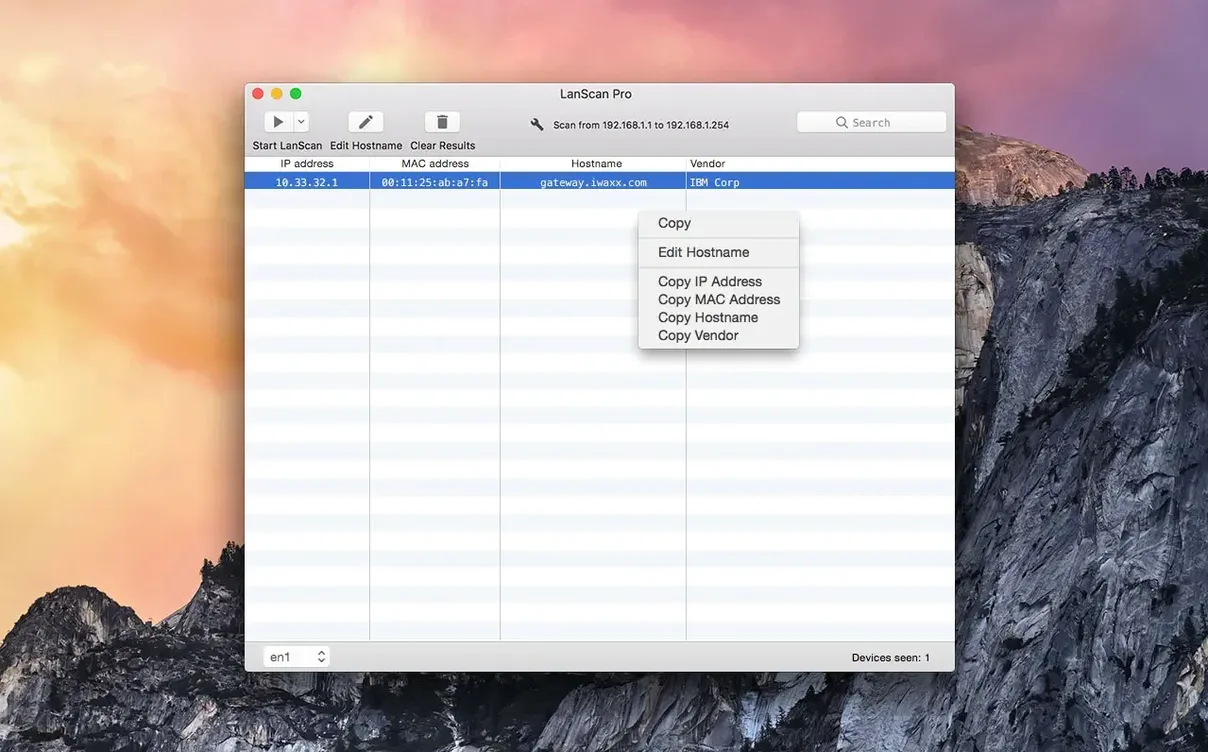
LanScan is a native macOS network scanner that lists every active device on your local subnet or a configured public range.
1. Open the app. It detects your current network immediately.
2. Select an interface and choose IPv4, IPv6, or both. Hit scan.
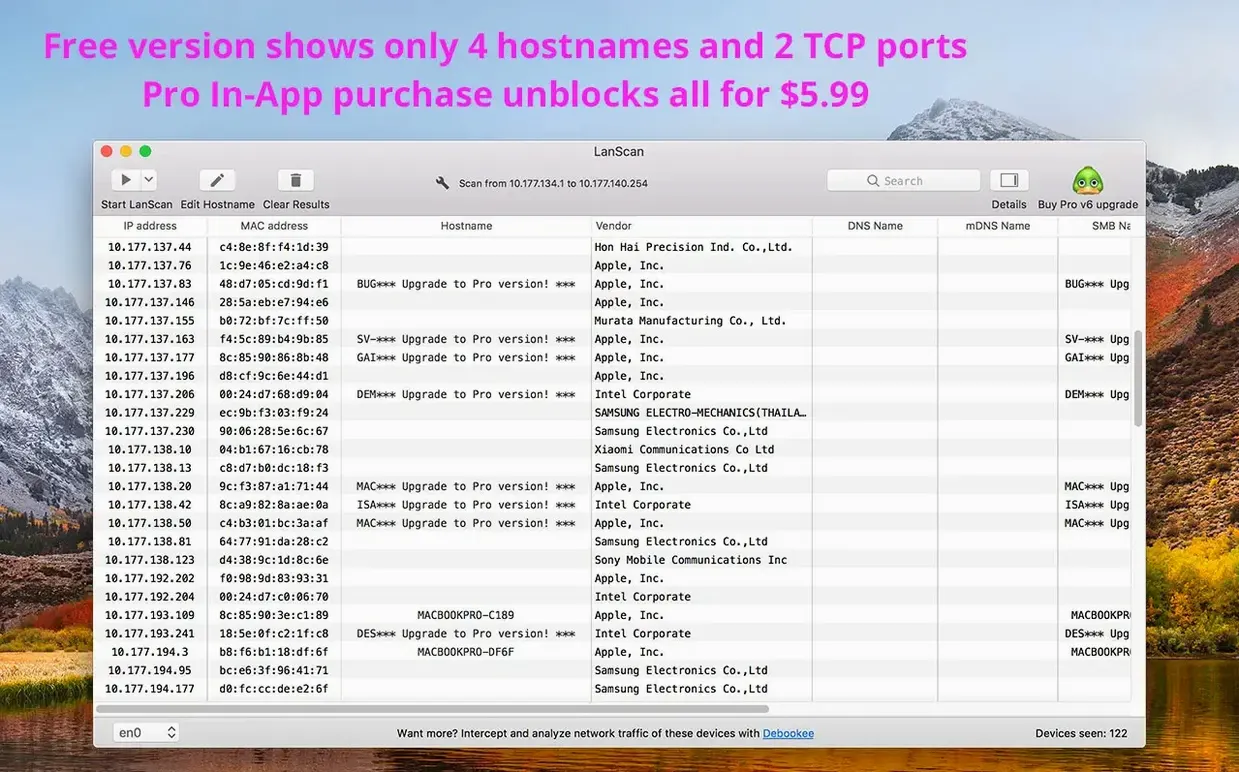
3. Watch the table populate with IPs, MAC addresses, and host names resolved via DNS, mDNS, and SMB.
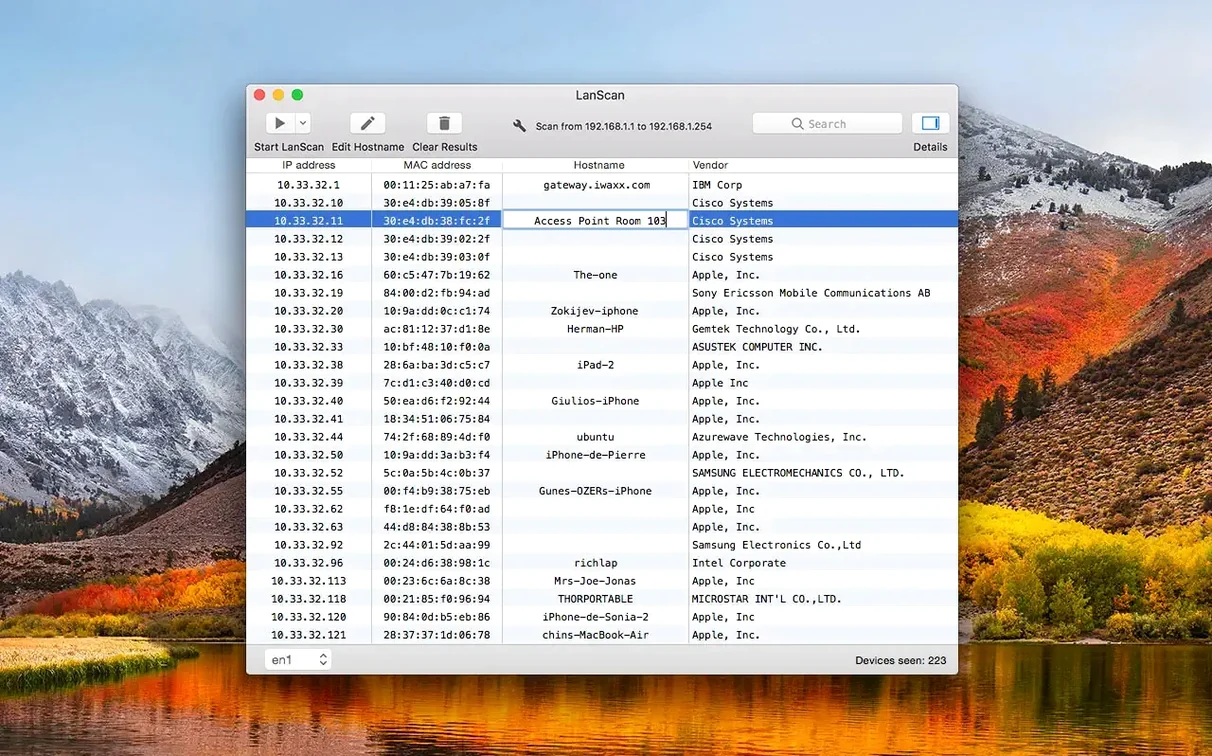
4. Edit any host name manually. Adjust column widths one at a time to suit your view.
5. Export the results to a CSV when you need a record.
Instant scan
You open LanScan. It reads your active interfaces instantly—no wizard, no setup prompts. The main window shows Ethernet, AirPort, and any virtual interfaces it found.
Select your Ethernet interface. Leave it on IPv4. Hit Scan.
Within a second, ARP packets fan out across the subnet. The table starts filling. Each row appears quietly: IP first, then a MAC address resolves, then a hostname appears—sometimes two or three.
A device you don’t recognize shows no hostname. You double-click the row, type "Living room Apple TV" in the custom name field. The comment column gets a note: needs firmware update.
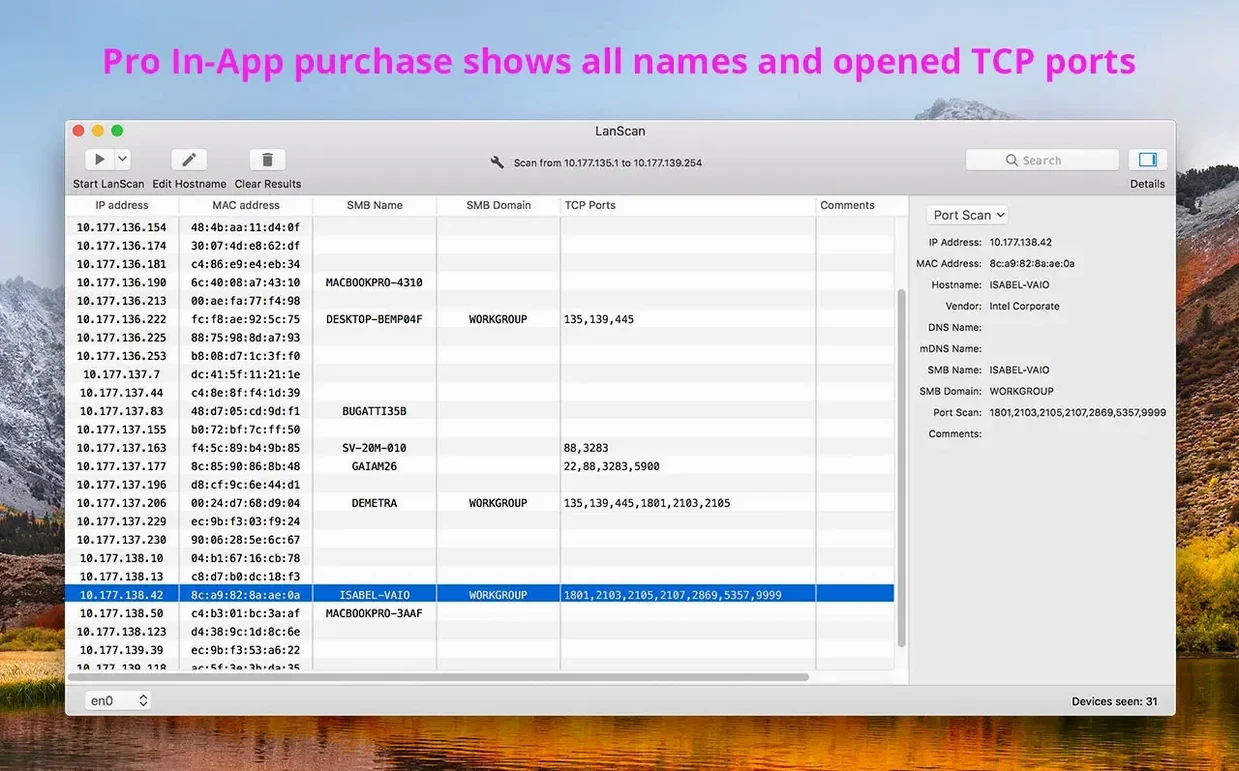
You notice one IP resolving to four hostnames. mDNS found the .local name, SMB returned the Windows-style name, and DNS had two records cached. You drag the column wider to read them properly.
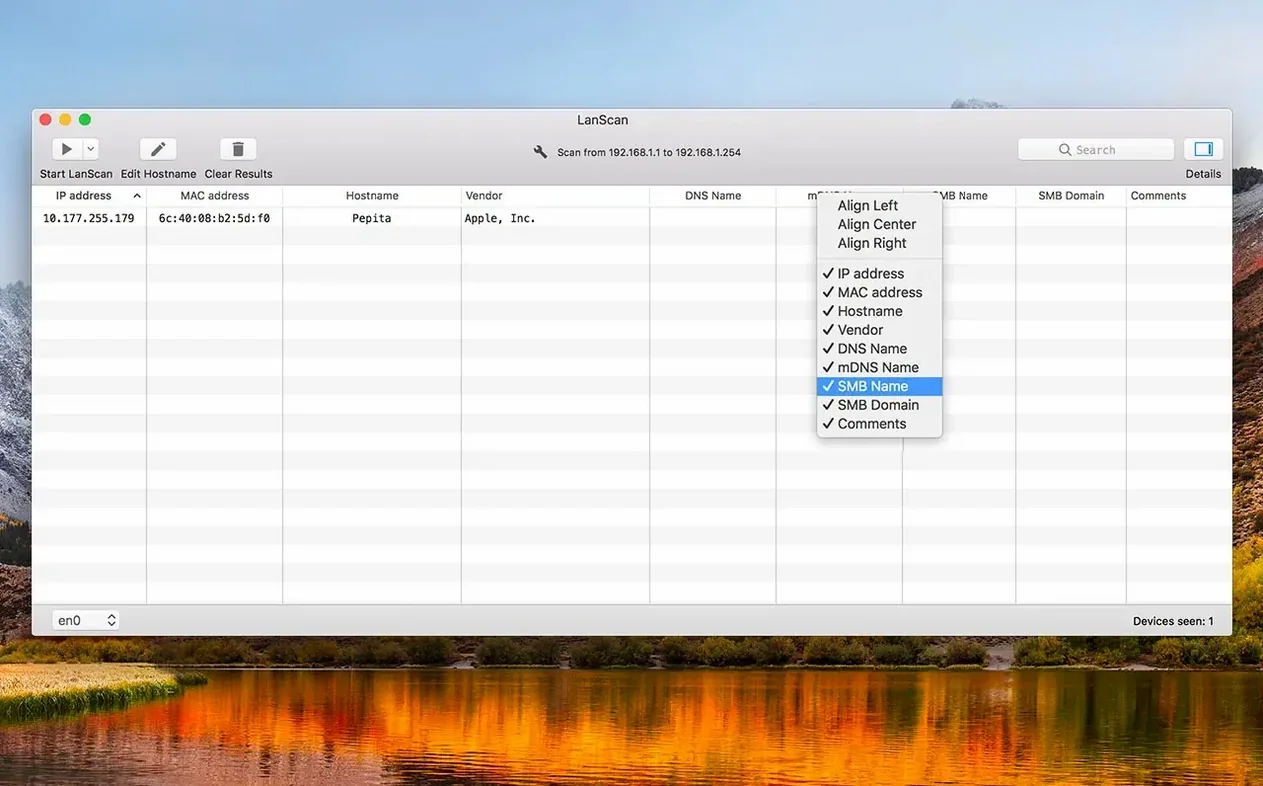
When the scan finishes, you hide the columns you don’t need—SMB domain, for one—and export a CSV. The whole session took under ninety seconds.
Native resolution
Angry IP Scanner runs everywhere but feels like a Java app from another decade. It requires Java, its interface is functional but coarse, and it does not resolve hostnames through SMB or mDNS. LanScan uses the macOS network stack natively and looks like it belongs on your Mac.
Fing offers a polished mobile-first experience with an account system and cloud syncing that many people don’t want. Its desktop app is a wrapper around a web view. LanScan installs as a single, offline native app with no login. It won’t ask you to create an account just to scan a subnet.
NetSpot focuses on Wi-Fi surveying and heatmaps—a different job entirely. If you need device-level hostname resolution with manual editing per device, NetSpot is the wrong tool. LanScan does one thing and stays out of your way.
A sysadmin’s Monday morning
A small-office sysadmin arrives to reports of a printer that won’t respond. She opens LanScan from a lanscan dmg she keeps on a USB stick. The app launches and auto-detects the office Ethernet interface.
She runs an IPv4 scan. Two dozen devices appear. The Konica printer shows a self-assigned 169.254 address instead of its expected static IP. She spots it immediately—the MAC address vendor column confirms it’s the right hardware. She adds a comment: APIPA, DHCP reservation missing, exports the scan, and attaches the CSV to a ticket.
She then runs a second scan on the guest Wi-Fi interface to check for rogue devices. Nothing unexpected. The whole diagnostic took three minutes. She unmounts the disk image and moves on.
A lanscan mac download lives on her utility drive for a reason. It’s the first tool she reaches for when something on the network isn’t named in DHCP and needs to be found by its MAC address alone.
No device limit. The scanner uses Ping, SMB, and mDNS packets, and picks up an SMB domain if one is configured.