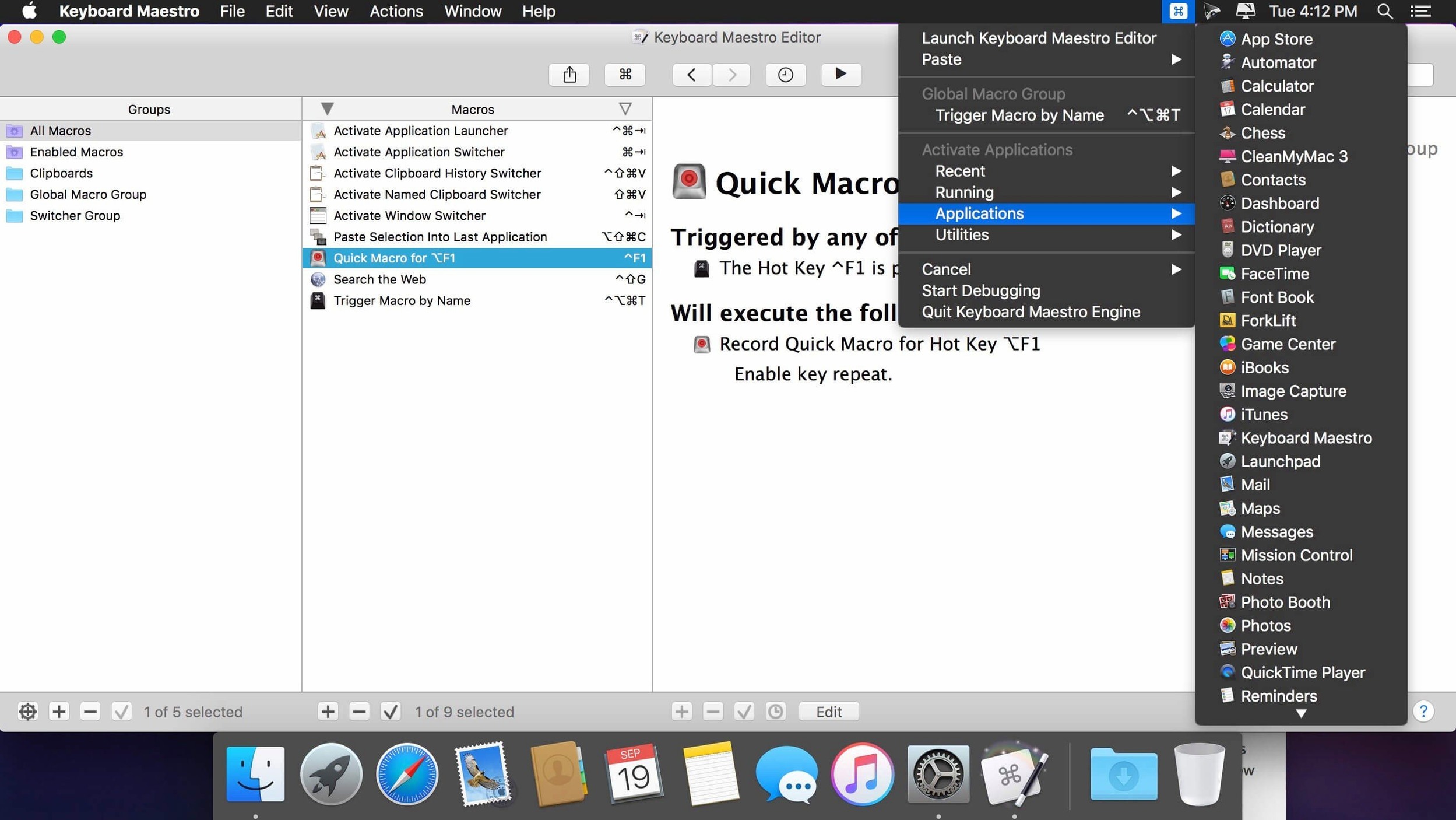
It runs on any Mac with macOS 10.13 or newer, Intel or Apple Silicon.
Fill forms
A web form you fill every morning. Keyboard Maestro enters the fields, tabs across, submits. It watches the clipboard and window titles to know when to act.
Read images
An on-screen instruction graphic. The OCR Condition now uses Apple Text Recognition to pull the text, then triggers the next step in your workflow.
Chain apps
An email arrives, a report is generated, a document is saved and named. One shortcut can move work across several applications without you touching the trackpad.
Common hesitations
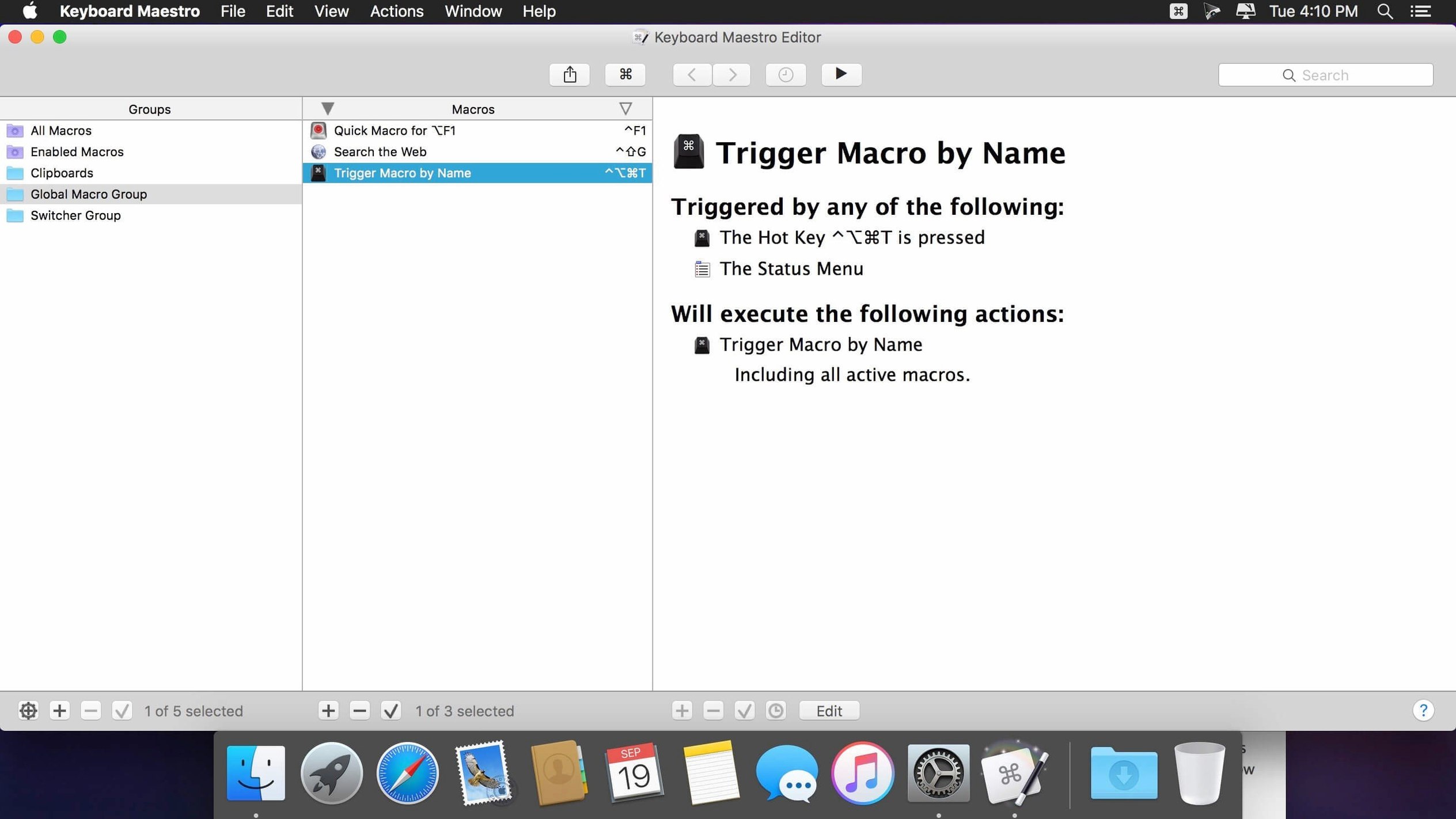
People ask if Keyboard Maestro is difficult to learn. It is not. You build a macro once, by recording your actions or picking from a list. The editor shows you what will happen step by step. Most users get something useful within ten minutes.
Some worry about it running all the time, slowing the Mac down. It sits quietly in the menu bar. On an M1 MacBook Air with 8 GB of RAM, it uses less memory than a single Safari tab. CPU use stays at zero when no macros are active.
Others ask whether it conflicts with the accent mac keyboard layout. It does not. Keyboard Maestro respects the system input source. You can even build macros that switch layouts when you enter certain apps, then switch back when you leave.
Everyday performance
Speed is the point. A macro that resizes and tiles two Finder windows fires faster than you can release the keys. There is no lag between trigger and action.
Stability over weeks of uptime is unremarkable in the best way. Version 11.0.4 has not caused a single crash here. The macro debugger window, now with tool tips, makes troubleshooting quiet work. Search highlighting triggers are fixed, so you see exactly which macro matched.
Resource use scales with what you ask it to do. A clipboard filter that watches for six patterns and reformats them adds no perceptible load. A macro that runs OCR on a high-resolution screenshot takes a second and releases the memory after. The engine is conservative by design.
Next to other tools
Compared with the 60 keyboard shortcuts built into macOS, Keyboard Maestro gives you shortcuts you define for your own sequences, not Apple’s fixed set. System shortcuts stop at menu items. Keyboard Maestro goes into the workflow between apps.
Next to Automator, the difference is depth. Automator handles simple pipelines well. Keyboard Maestro adds conditions, loops, variables, and triggers that Automator cannot see: a USB device connecting, a specific window appearing, a time of day. It also runs Automator workflows, if you still need them.
Against BetterTouchTool, which shares some trigger types, Keyboard Maestro wins on macro logic. BetterTouchTool excels at gesture customization. Keyboard Maestro excels at chaining actions across applications with flow control. Many people run both.
A translator’s afternoon
A translator receives a folder of scanned Japanese contracts. Each file needs OCR, text extraction, formatting into a two-column document, and delivery to a client folder with a timestamp.
She drops the folder onto a Keyboard Maestro palette. One macro watches for new files, runs OCR on each image, cleans the line breaks, applies a template in Nisus Writer, and saves the result. Another macro moves the original to an archive and logs the job. What used to take an afternoon now takes the time to drag a folder and make tea.