
Gigapixel AI is a desktop upscaler that adds pixels where there were none. It guesses, but it guesses well.
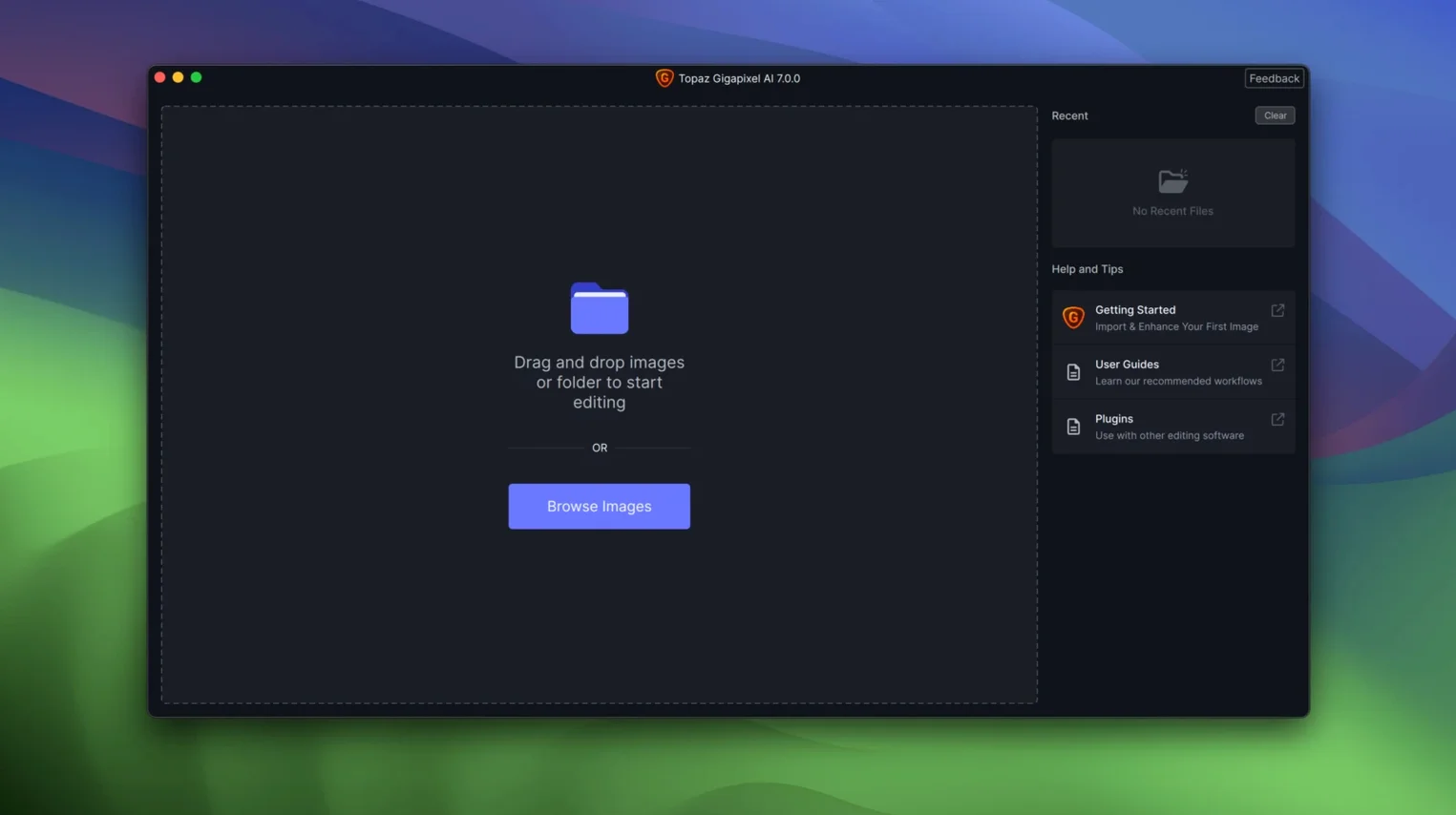
- Drag in a single image or a batch of them.
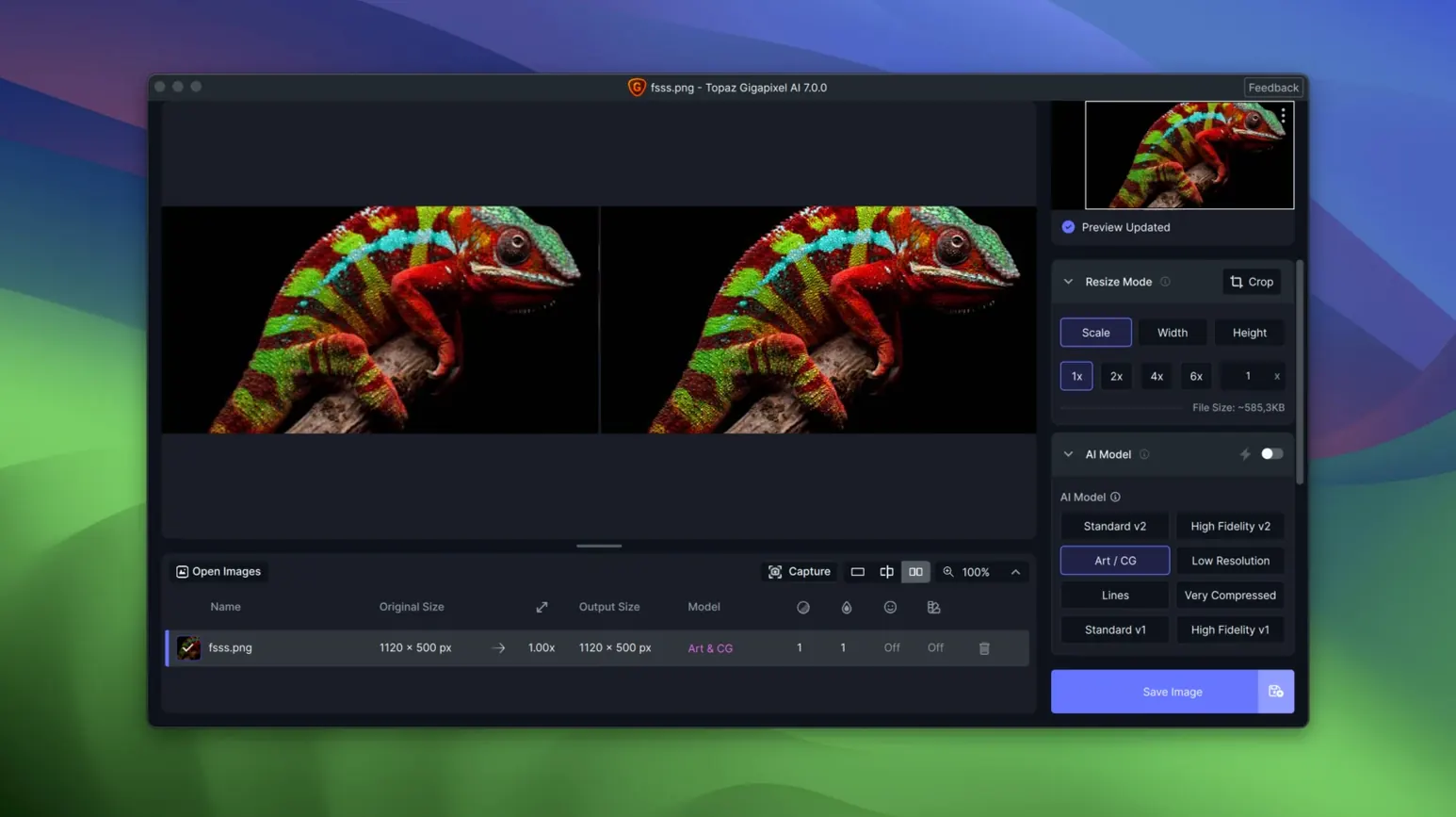
- Pick an enlargement factor.
- Let the model run. Faces, textures, and edges stay coherent.
- Save out the larger file.
The legacy line ended at version 8.4.4. Version 1.3.5 runs native on Apple Silicon and Intel Macs with macOS 12 or newer. Batch processing means a folder of low-res shots becomes a folder of usable ones while you step away.
Steady renders
On an Apple Silicon Mac, a 4× upscale of a 12-megapixel image finishes in under thirty seconds. That timing holds steady across long sessions. The app does not leak memory or slow down after the tenth file. On Intel machines, the same job takes roughly twice as long, which is still reasonable for batch work left overnight.
Resource use is predictable. Gigapixel AI pins the GPU during processing and releases it cleanly afterward. Fans spin up, then settle. If you queue fifty images and walk away, you come back to fifty finished files, not a frozen progress bar. Stability is one of the quiet strengths of this build.
Crashing is rare. The most common trigger is running the app alongside another GPU-heavy tool. Closing the other tool before starting a large batch avoids the conflict. A machine with 16 GB of unified memory handles almost any realistic queue without swapping.
Raw preview panic
Some users drop a folder of mixed raw and JPEG files and expect uniform results. The model treats raw files differently. Preview thumbnails can look soft until the final render completes, which causes unnecessary second-guessing. The fix is simple: let one file finish before judging the output.
Another snag is scaling vector-style graphics. Thin lines and flat color blocks sometimes emerge with faint halos. Switching from the standard model to the “Lines” or “Art” model inside the app cleans that up. People who miss that setting end up blaming the tool.
Large TIFF files occasionally hit a processing ceiling. Breaking them into smaller chunks before upscaling sidesteps the issue. The app does not warn you about this limit; it simply stops. A quick crop tool pass beforehand saves time.
Activation prompts after a macOS update catch people off guard. Running the included Patch.command again resolves it in seconds. Keeping the patch file in the Applications folder next to the app makes this a ten-second fix.
Ancestral faces
Photographers restoring old family scans get the sharpest return. Faces that were a blur of four pixels become recognizable. Print makers who need 300 dpi from a phone snapshot find the upscale holds enough detail for small-format prints. The batch mode turns a tedious week of manual resizing into a single afternoon queue.
Designers working with client-supplied assets gain the most in daily use. A low-res logo pulled from a website can become a clean 4× version for a presentation slide. The line-art cleanup model handles JPEG artifacts in old PNG files without smearing edges. These are small wins that compound across projects.
Casual users looking for a one-click “make it bigger” button may find the interface quiet but not confusing. The lack of sliders and jargon-heavy panels means you drop in a file and go. People who regularly search for a gigapixel torrent to test the waters usually stay for the batch workflow and the predictable output quality.