
Tuxera NTFS is a file system driver that lets your Mac write to Windows drives.
Macs read NTFS-formatted USB disks without complaint. Editing, copying, moving, or deleting files is blocked. This driver removes that barrier. It sits quietly in the background and makes a Windows drive behave like any other disk on your desktop.
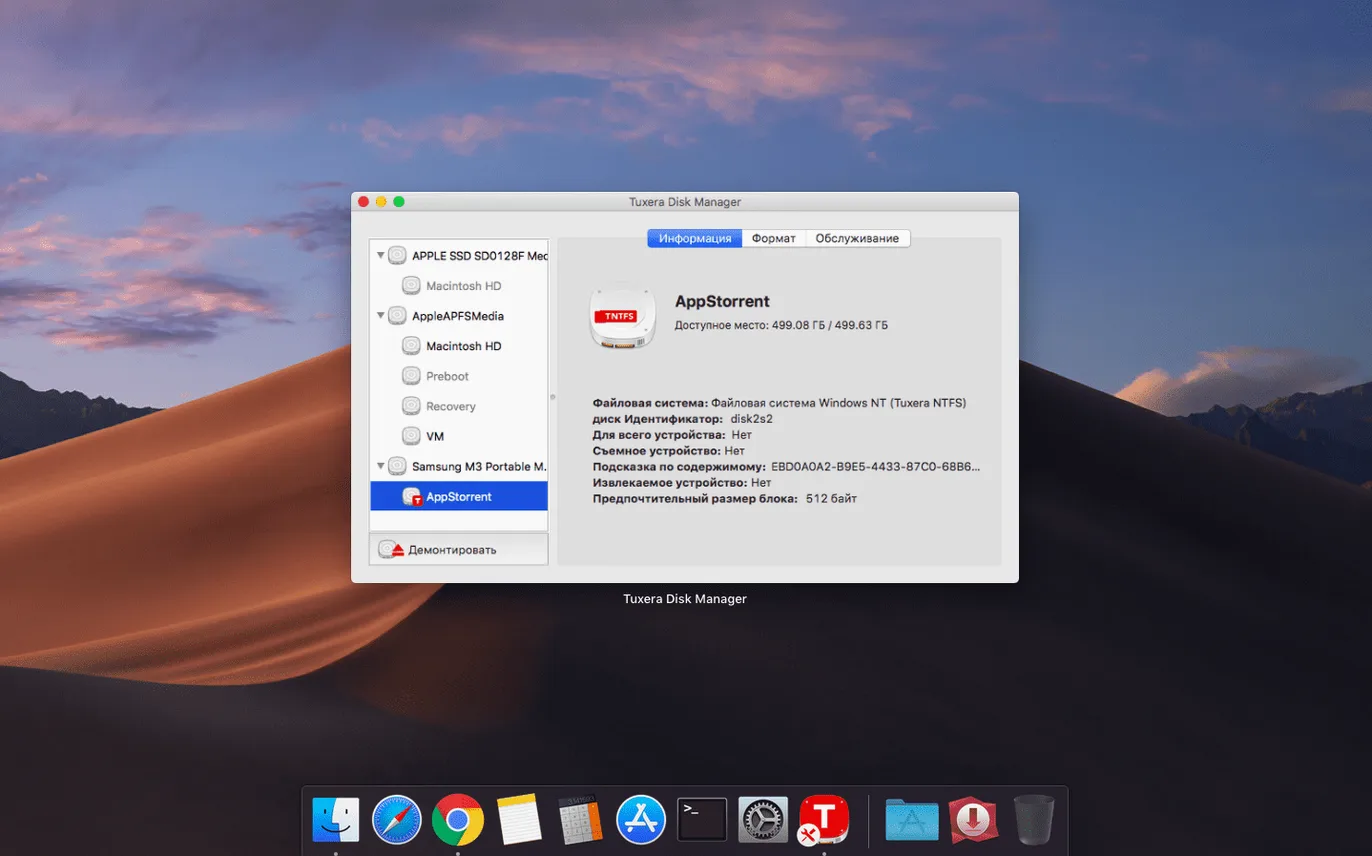
It supports every version of NTFS and works with external drives that travel between PCs and Macs. A built-in verification and repair tool handles minor volume issues when they appear.
Beginners often install the driver and expect a visible app icon to appear. There isn't one. The software works at the file system level. After installation, you plug in an NTFS drive and interact with it through Finder, just as you would any other disk. Looking for a dashboard that isn't there is the first point of friction.
Another common misstep is forgetting to safely eject. Yanking an NTFS drive while a write operation is still in progress can corrupt the volume. The built-in repair tool handles minor damage, but a habit of right-clicking and selecting Eject saves a slow disk check later.
Some users assume the driver converts their drive. It does not. The disk stays NTFS. If you connect it to a Windows machine afterward, it works normally. No reformatting happens behind the scenes.
Default permissions
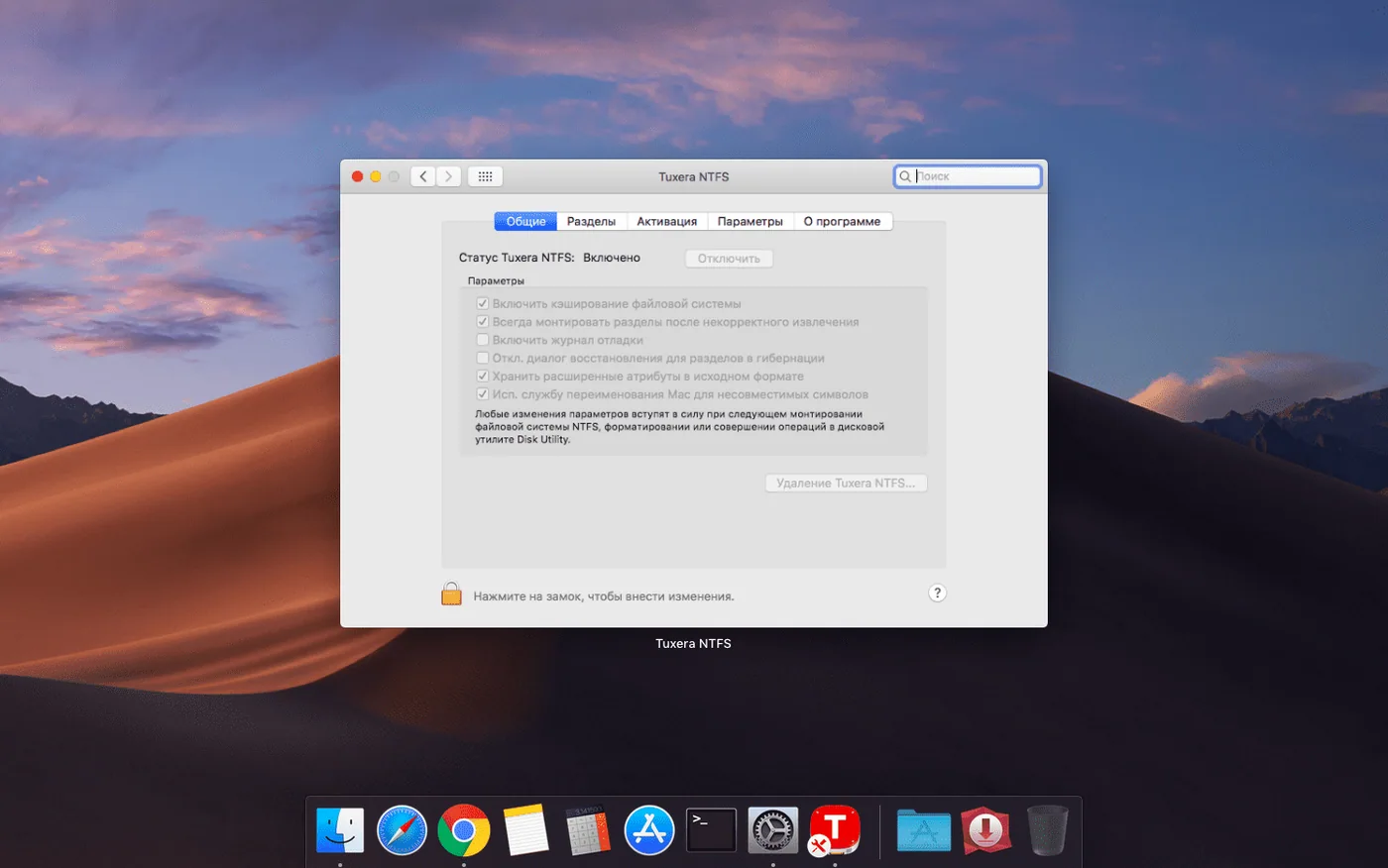
One easily missed convenience lives in the preferences pane. Tuxera NTFS adds an entry in System Settings where you can set a default permission policy. You can choose to mount every NTFS volume with full read-write access automatically, or prompt each time. Setting it to automatic removes the only remaining click between plugging in a drive and using it.
Holding the Option key while dragging a file to an NTFS drive forces a copy instead of a move, the same as it does on Windows. This is a macOS convention the driver respects without advertising it.
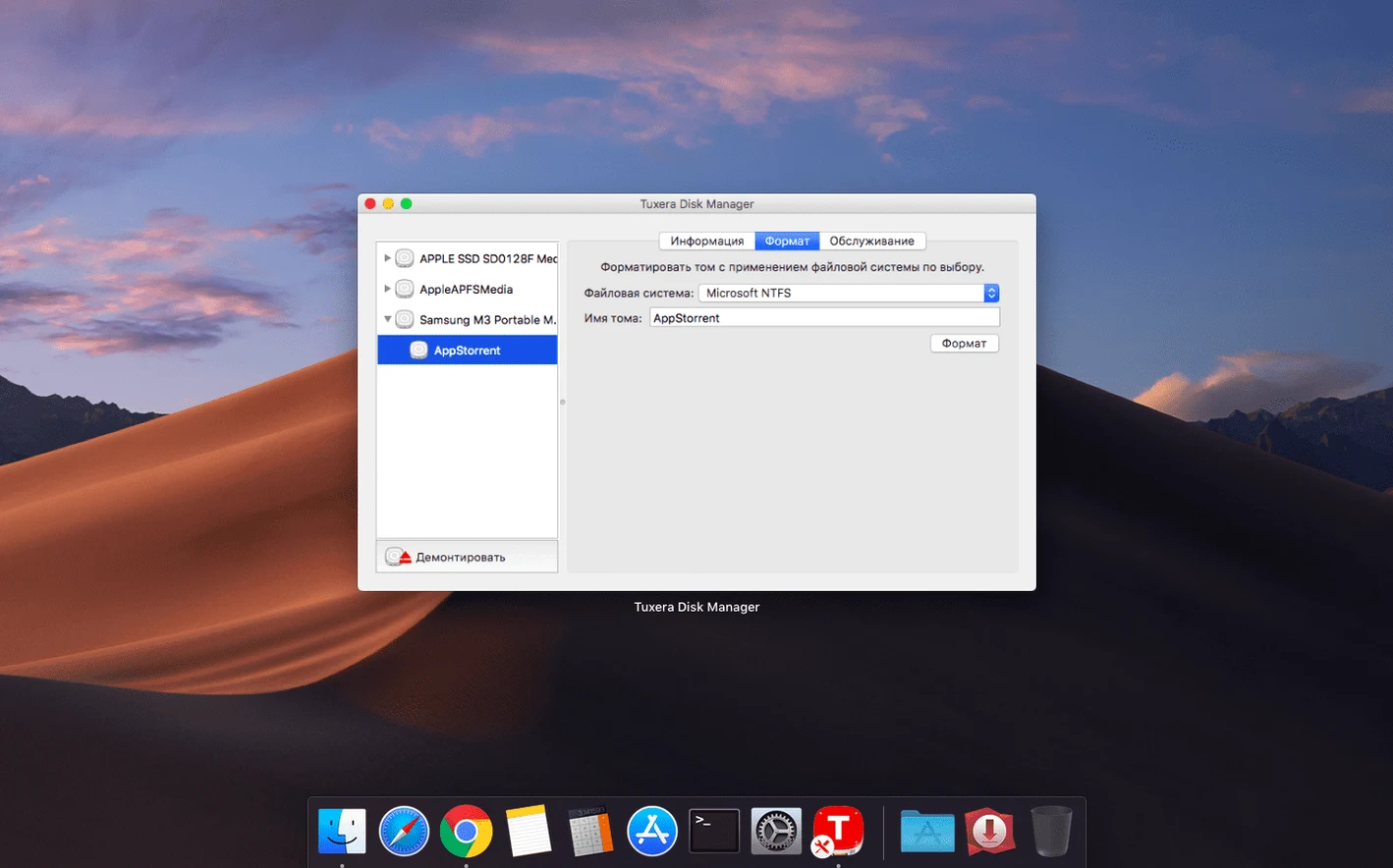
Disk Utility integrates with the driver once it is installed. You can format a new drive as NTFS directly from macOS. No Windows VM or borrowed PC needed. The option appears in the erase dialog alongside APFS and exFAT.
The driver caches small writes. This means ejecting a drive sometimes takes a few seconds longer than you expect, especially after a burst of small file saves. Waiting is normal. The light on your external drive stops blinking when it is done.
A photographer's week
A wedding photographer delivers final galleries on a portable SSD. The studio runs Macs. The client's office uses Windows. The drive must be NTFS.
Before the driver, the photographer kept two copies: one on an HFS+ drive for editing, and a second NTFS drive made on a borrowed laptop for delivery. That doubled the export time and introduced version confusion. Now the same SSD holds the working files and the delivery copies. Exports go straight to the NTFS drive from Lightroom. The drive leaves the studio, travels to the client, and returns with a folder of print selections added from a Windows machine. Nothing breaks.
The repair tool gets used once, after a venue laptop froze mid-copy. A thirty-second verification fixed the volume. No files were lost.
Format a drive and move a project
You have a new 1 TB external drive and a video project that needs to move between your Mac and a Windows workstation.
Connect the drive. Open Disk Utility. Select the external disk and click Erase. In the format dropdown, choose Windows NT File System (Tuxera NTFS). Name it and confirm. The process takes seconds.
In Finder, the drive appears. Drag your project folder onto it. If you want to keep the original copy on your Mac, hold Option during the drag to force a copy. The progress bar runs. Wait for the drive light to settle, then eject.
Walk the drive to the Windows machine. Open the project in Premiere. Work. When you bring it back, plug it into your Mac. Continue editing. The round trip required zero conversion steps and zero extra software on the Windows side.
Install it and forget it. Your Mac gains a small, useful skill it should have had from the start.