
1080p. A crisp, modern resolution until the light drops, the sensor struggles, and noise creeps into the shadows. Some clips need a second pass.
One clip, three fixes
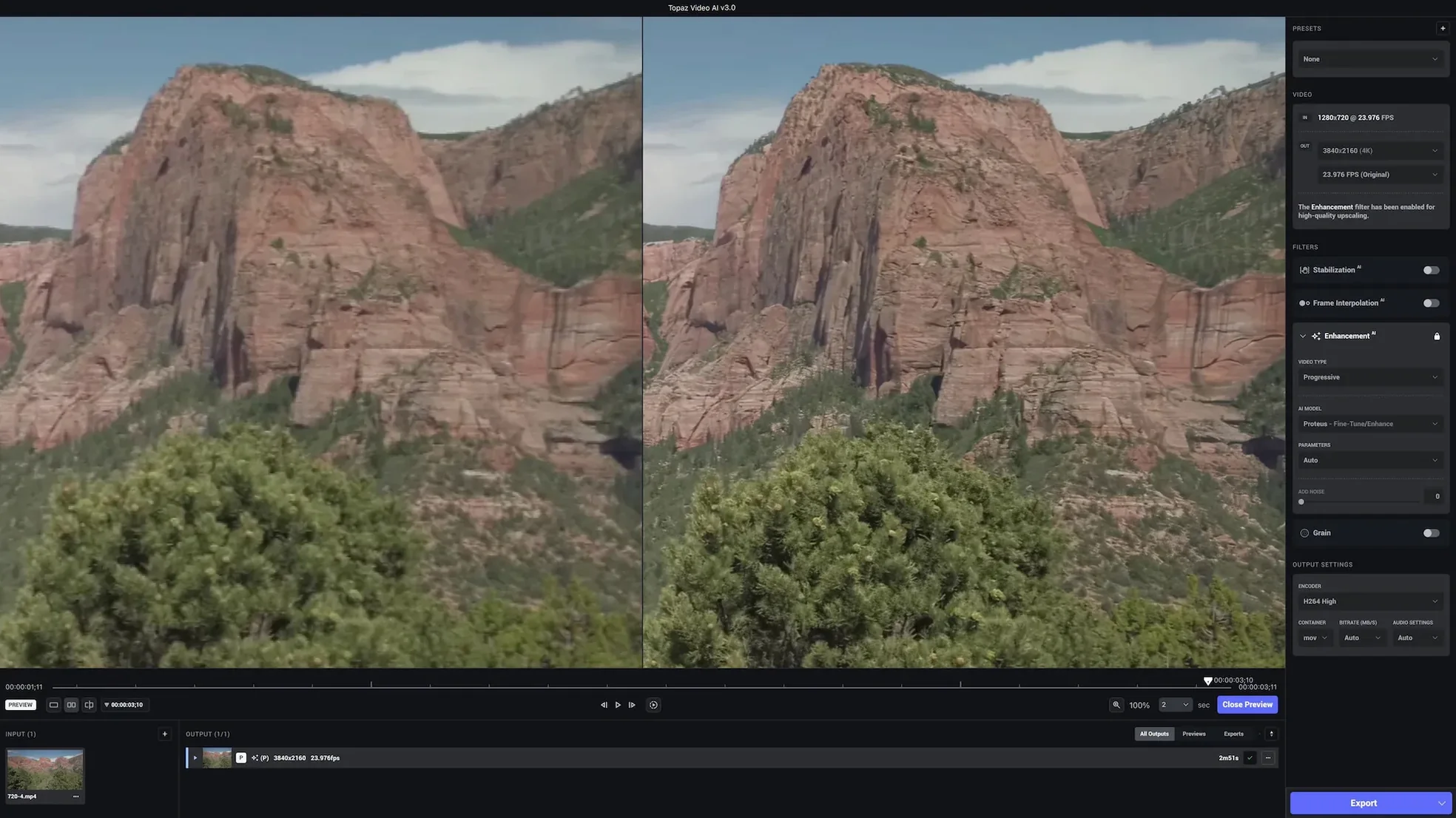
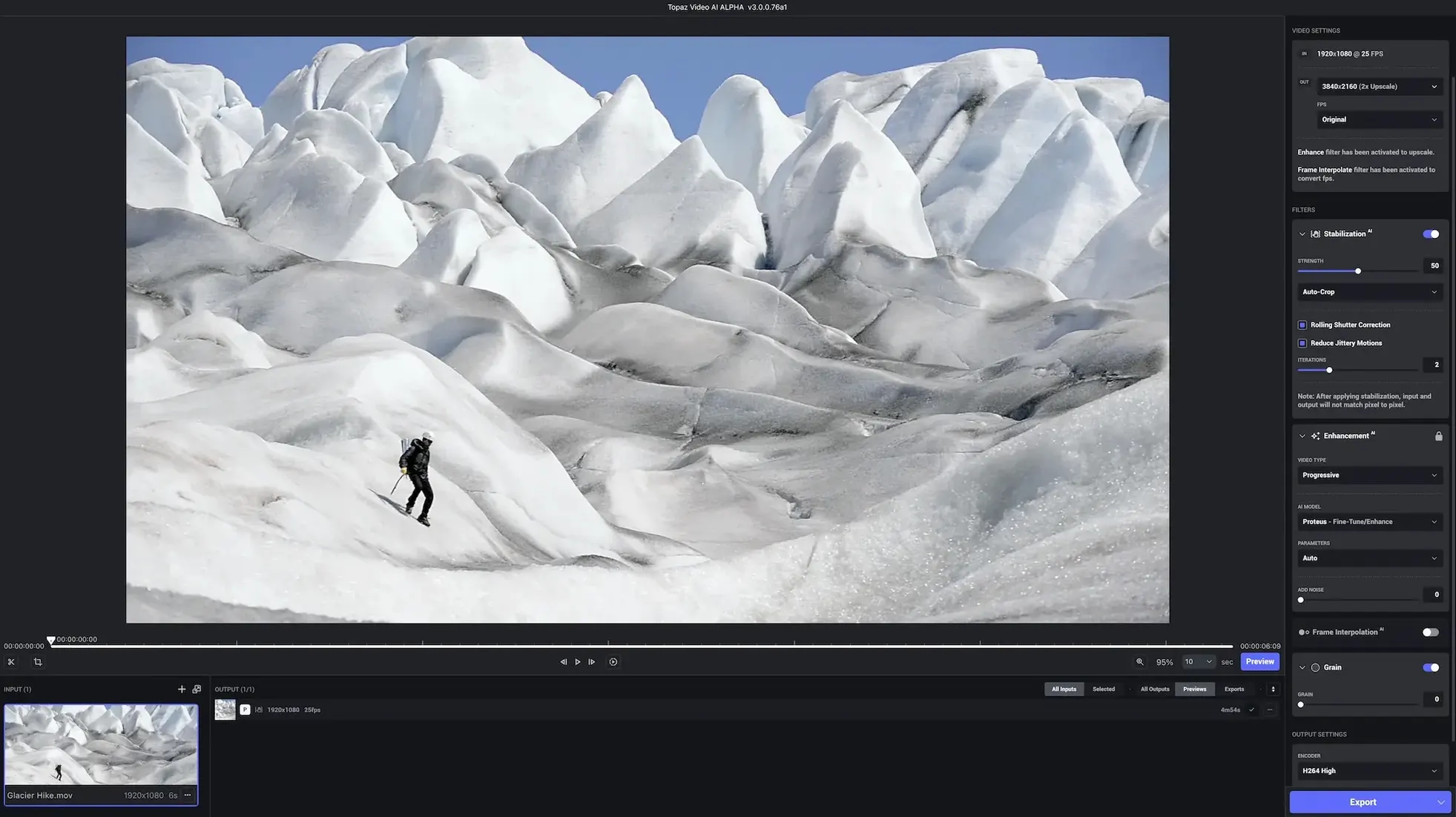
Drop a DSLR clip from a dim concert into the timeline. The goal is simple: clean the noise, steady the handheld wobble, and push the output to 4K for a cleaner projection. Select the Proteus denoising model, enable stabilization, and set the upscale target. Topaz Video AI renders frame by frame, keeping motion consistent without the usual smearing. Grain disappears. Edges tighten. The preview plays back steady and usable.
For footage that matters
It works best on sources worth saving — DVD transfers, game captures, stock clips, or music videos where reshooting is not an option. The interface stays out of the way. One timeline, a few model choices, and a render button. No timelines full of nodes.
Spacebar preview
A few shortcuts are easy to miss. Tap the spacebar to preview the current frame with the chosen model applied. It renders a single image, fast, so you can compare before committing to a full export. Command-Option-P toggles the original and the processed preview — useful for spotting subtle sharpening halos or denoising artifacts on small screens.
Export presets live in a menu most people overlook. You can save a custom combination of codec, resolution, frame rate, and model, then recall it with two clicks. For recurring tasks — say, upscaling 1080p game footage to 4K with Iris — the preset removes four decisions from the morning.
Drag and drop works everywhere. Drop a folder onto the app and it queues every compatible clip inside. Right-click any file in the queue to duplicate it with a different model chain, so you can render two treatments overnight and decide in the morning.
Speed and silence
On an Apple Silicon Mac, the app runs natively. Render times depend entirely on the model. Artemis denoising at 2x upscale moves briskly; Gaia at 4K with frame interpolation asks for patience. The machine stays cool. Memory pressure is modest — around 4–6 GB of active RAM on a 16 GB system during a 4K export. No swap thrashing, no sudden fan ramp.
Stability is uneventful in the best way. A week of daily renders, mixing H.264 and ProRes sources, produced no crashes. The queue pauses gracefully when storage fills, and the app remembers its place after sleep. One quirk: leaving the preview window open during a long render can slow the export slightly on Intel machines. Closing it returns the headroom.
Tighter interpolation
Version 1.7.1 tightened the frame interpolation model. Fast motion — panning shots, sports clips — shows fewer edge tears where the synthetic frames meet the originals. The difference is subtle on a phone screen, visible on a monitor.
The app also refined its Metal backend. Export times on M-series chips dropped a few percentage points, noticeable only in batch work. A small thing: the file list now sorts correctly by name on macOS Ventura and Sonoma, which had been broken since the system update.
Earlier builds introduced the Iris model for faces, which remains the best choice for talking-head footage. 1.7.1 did not change the model roster, but it fixed a memory leak that appeared when switching between Iris and Proteus repeatedly without restarting. That alone makes the update worth the download.
Alongside others
Set against Adobe Premiere Pro's built-in scaling, Topaz Video AI is a specialist. Premiere does real-time upscaling well enough for a quick edit, but the AI models here resolve texture — fabric weave, skin pores, leaf detail — that bicubic scaling smears. The trade is time. Premiere plays instantly; Topaz renders.
DaVinci Resolve Studio includes Super Scale, a neural upscaler that works inside the edit timeline. It is fast and integrated. Topaz Video AI handles denoising and frame-rate conversion in a single pass, which Resolve requires as separate steps with third-party plugins. For restoration jobs with multiple problems, Topaz collapses the workflow.
A standalone like HitPaw Video Enhancer shares the same premise — drag in, choose a model, export — but the model selection is smaller and the temporal consistency on moving subjects is less reliable. A pan across a crowd looks cleaner through Topaz Video AI than through HitPaw's general model, especially at 4K output.
The difference is most visible in the edges of fast-moving subjects. A skateboarder crossing frame at 60 fps, interpolated from 30, shows fewer breakup artifacts here than in any of the general-purpose tools. That one scenario might be the reason to keep the app on the dock.
The quiet pleasure is restoration, not reinvention.