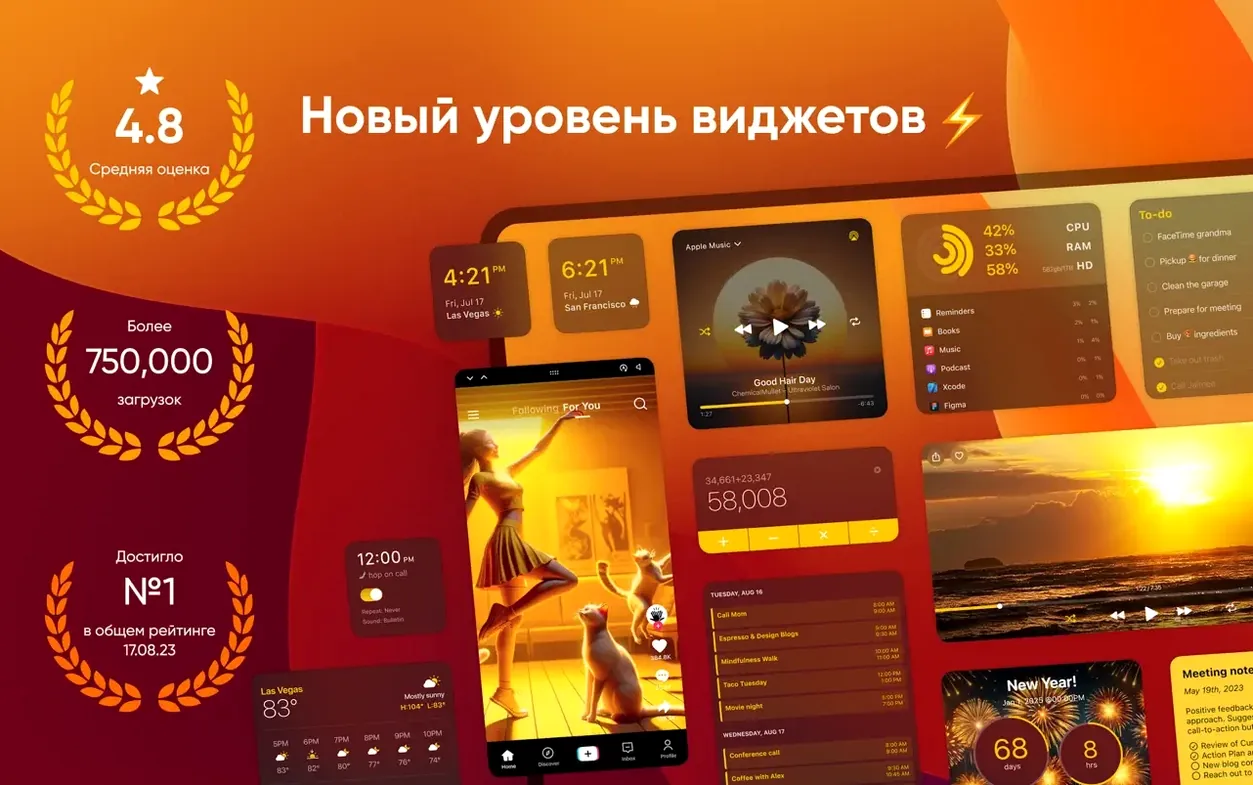
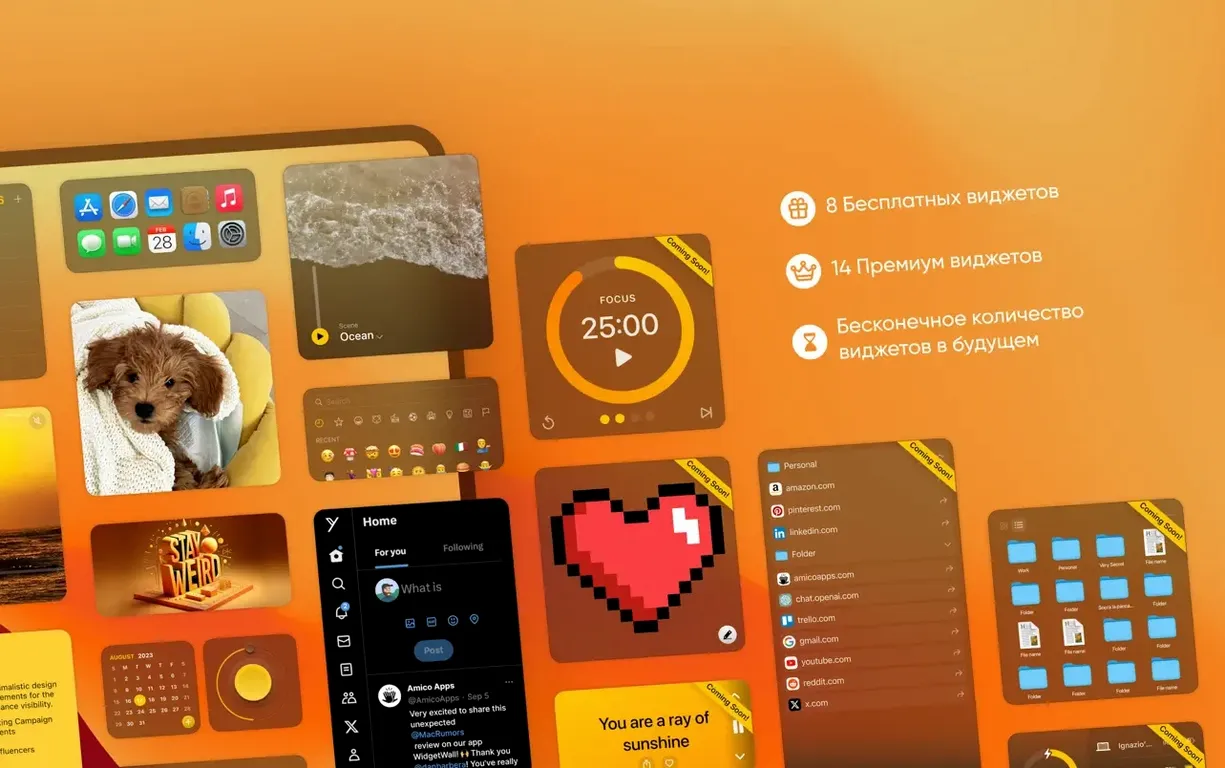
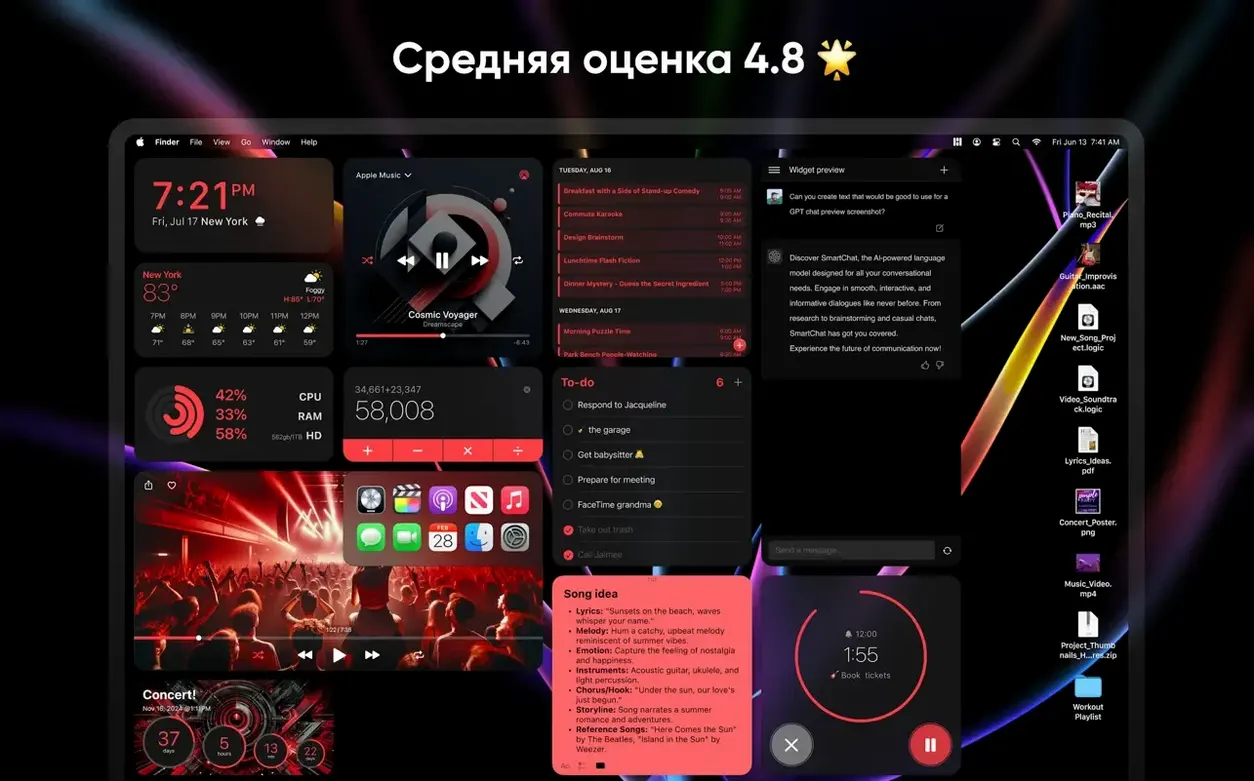
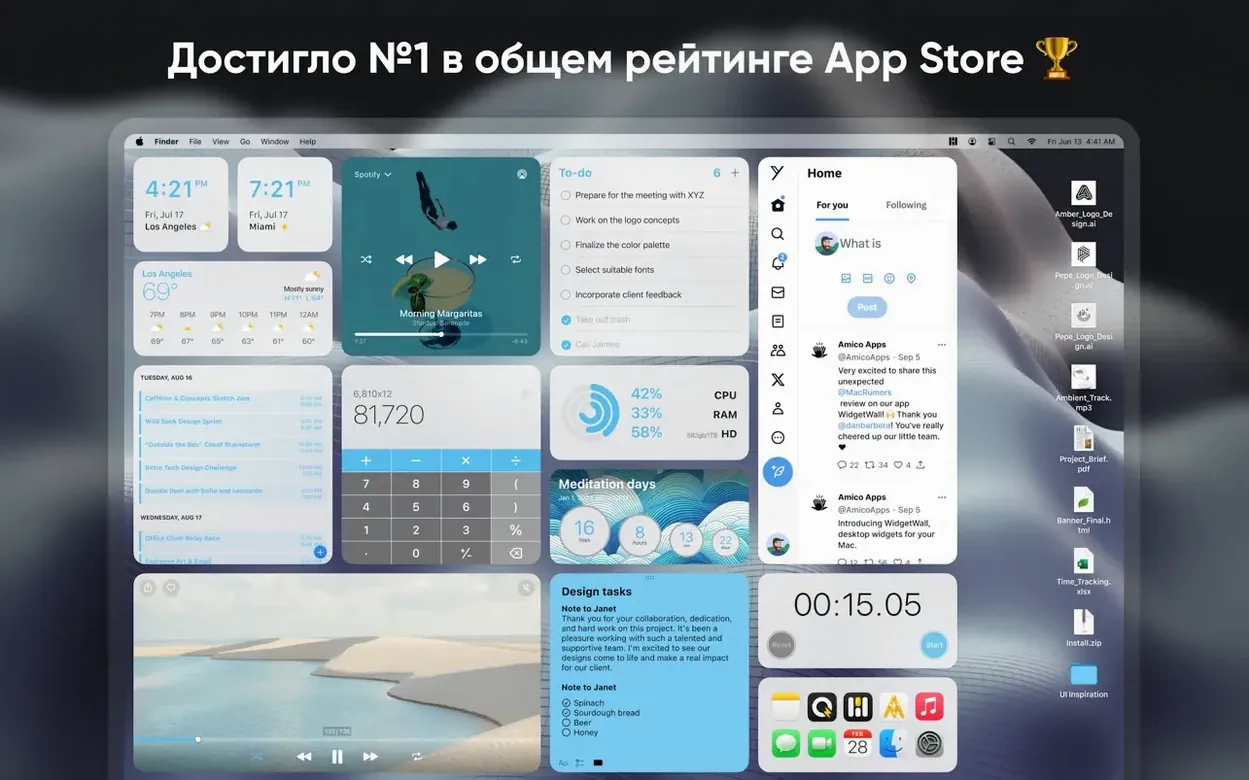
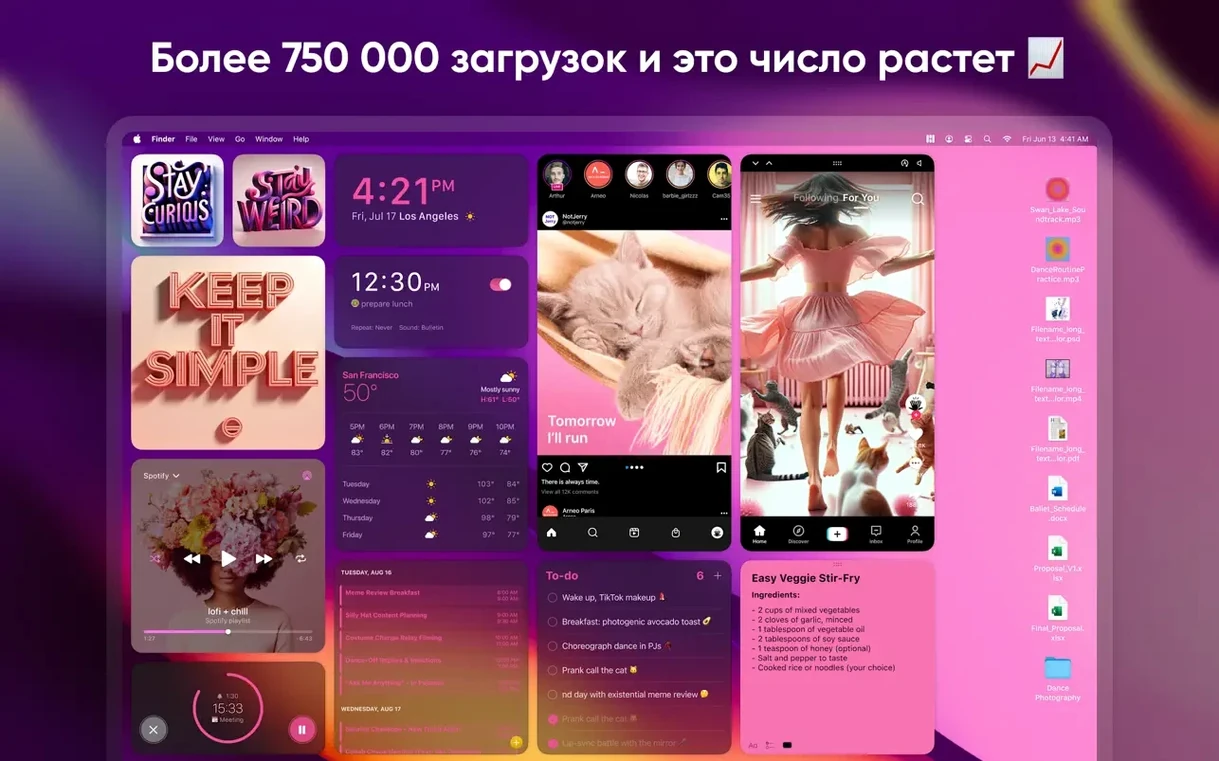
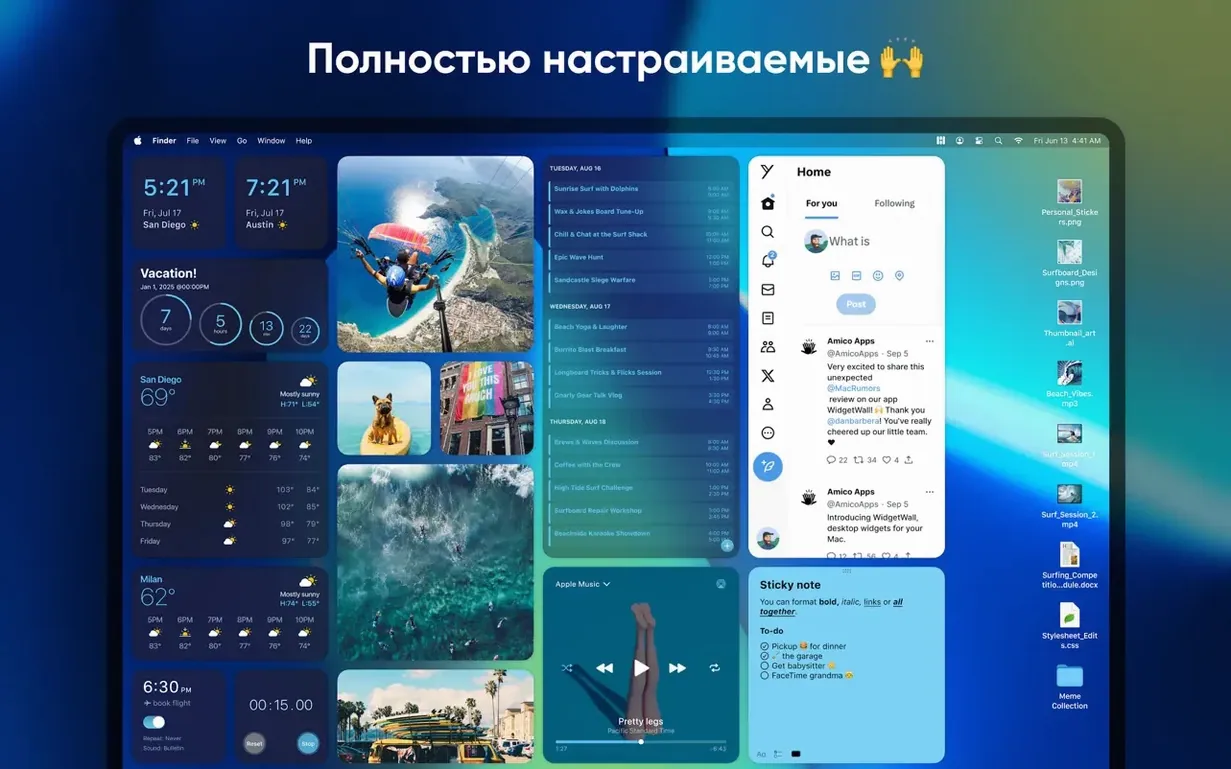
WidgetWall is a Mac app that puts customizable widgets and stickers directly on your desktop.
Sizing up
- Three widget sizes — small, medium, large — for every widget you place
- Runs on Apple Silicon and Intel Macs, macOS 12 or later
- Interface in English, Russian, Spanish, French, and Traditional Chinese
Medium tricks
Most people open WidgetWall, drag a clock onto the desktop, and stop there. A few smaller touches make daily use smoother.
The medium size is not just a scaling step. Some widgets change layout at that size — a clock might show seconds, a calendar might reveal the next three events instead of one. Try the same widget at all three sizes before deciding where it belongs.
Right-click any placed widget to reach its settings without opening the main window. The Calculator widget accepts keyboard input when focused, so you can type a sum and press Return without touching the mouse. The Timer responds to the spacebar for start and pause.
Widgets remember their position across restarts. If you use Spaces, a widget placed on one desktop stays on that desktop. Widgets meant for quick glances work best on your main Space; things like White Noise or the Pomodoro Timer can live on a secondary one.
Display drift
Version 3.15.2 is the current release. Recent updates focused on stability for macOS 12 and later, with fixes that keep widgets from drifting after display resolution changes.
Widget placement feels firmer now. When you connect or disconnect an external monitor, widgets return to the spaces where you left them more reliably than in earlier builds. The Photos widget also refreshes faster after you add images to its folder.
Language support remains consistent: English, Russian, Spanish, French, and Traditional Chinese. If your system runs in one of those, WidgetWall follows it without a separate setting.
Desktop layer
WidgetWall works alongside macOS features rather than against them. Widgets sit on the desktop layer; Stage Manager and Mission Control leave them alone. You can still use Hot Corners to reveal the desktop when windows pile up.
The Music widget reads the same now-playing data as Control Center, so it stays in sync with Apple Music and other players that report to macOS. Reminders and Calendar widgets pull directly from your system accounts, no separate login needed.
For quick app access, the App Shortcuts widget can hold a small row of launchers. It pairs well with Spotlight — keep Spotlight for search, and App Shortcuts for the three or four apps you open every morning.
No dock-hopping. No menu bar clutter. Just the few things you want to see, sitting quietly on the desktop.