
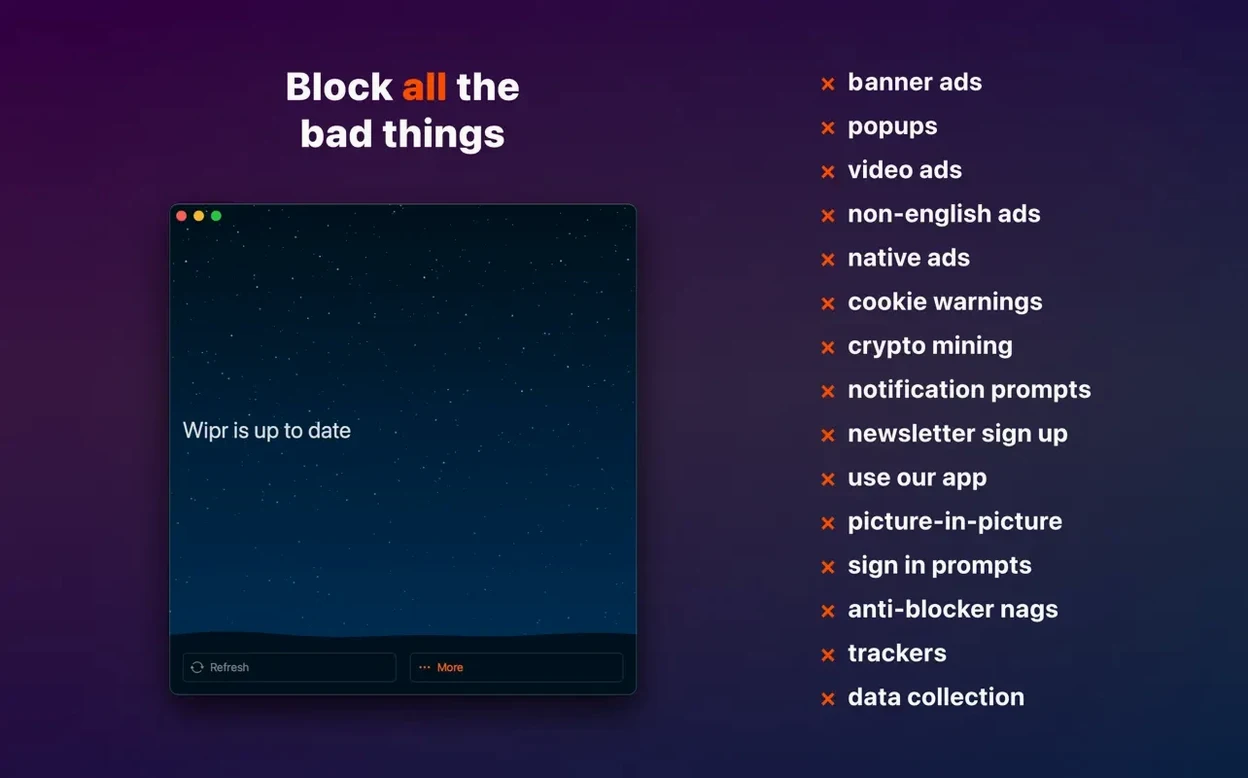
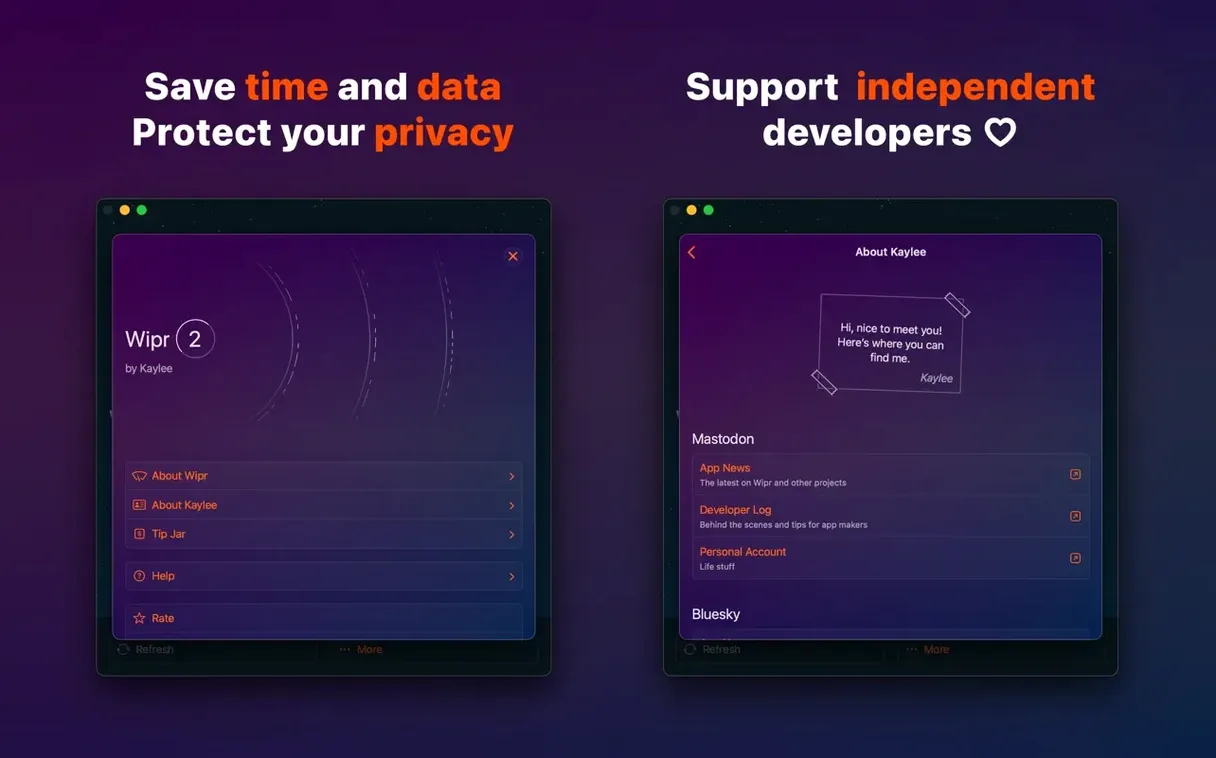
The web without a blocker is loud. Ads jump, popups interrupt, cookie banners pile up. A good blocker returns some quiet.
Start with these after installing Wipr 2:
- Visit a news site you normally avoid. Watch it load. Notice the gaps where banners used to be.
- Open Safari settings and confirm Wipr’s extensions are enabled — there are two.
- Check the Wipr app itself. There is almost nothing to configure. That is the point.
- Browse a European site. Cookie notices are gone. Wipr Extra handles those.
- Leave it alone. The blocklist updates twice a week without your attention.
The app is quiet. Pages load faster because less data comes down. Fewer trackers follow you. After a day or two, you forget it is there. That is what a good blocker does.
Wipr 2.38 brought two quiet shifts that matter in everyday browsing. Wipr Extra, which handles cookie notices and other annoyances, got smarter across a wide range of sites. You notice it mostly on smaller European blogs and shop pages — the ones that previously slipped through with a stubborn banner at the bottom. Those are gone now. The accessibility improvements are less visible but equally practical: VoiceOver describes blocking status more clearly, and the extension’s interface works better with screen readers. Neither change asks anything of you. They just make the silence more complete.
Check on a recipe blog
The urge to check whether it is working is normal. Do not open the Wipr app repeatedly — it shows almost nothing by design. Instead, visit a page you know is heavy. A recipe blog works well. Scroll down. The ad slots are empty white space. The page finishes loading before you expect it.
Some sites break slightly. A video player might not load, a comment section could vanish. This is rare with Wipr, but if it happens, open Safari’s address bar, click the puzzle-piece icon, and pause Wipr for that site. Reload. The page returns to its noisy state. You can turn Wipr back on later — or leave it paused. No configuration file, no whitelist manager.
Check your Wi-Fi usage after a week. In Settings under Network, you will see a modest drop in downloaded data. Wipr strips bulky ad scripts before they arrive. That matters on metered connections and hotel Wi-Fi.
Confirm every site
Wipr ships with sensible defaults. Two tweaks are worth making early.
First, open Safari’s Preferences, go to Websites, and look for Content Blockers in the sidebar. For every site listed, confirm Wipr is set to On. A few sites default to Off after migrating from an older blocker. Correcting this once prevents confusion later.
Second, consider disabling other Safari extensions that touch content — old ad blockers, script managers, anything that rewrites pages. Two blockers running together can slow page rendering more than the ads they replace. Wipr works best alone.