You just dragged a folder of client proofs to an email and watched it bounce — too large. A minute later, it's a single encrypted ZipX file sitting in your Dropbox, ready to share.
Mac — macOS 10.15 or later, Apple Silicon and Intel native
Compression — creates Zip and ZipX archives; opens RAR, 7Z, LHA, TAR, GZ, BZ, XZ and more, converting them instantly
Encryption — password-protects archives before you send them anywhere
Cloud — connects directly to iCloud Drive, Dropbox, and Google Drive
Extras — strips duplicate files, shrinks email attachments, handles batch file tasks
Compared to the built-in tools
macOS Archive Utility does one thing quietly: it zips and unzips. No encryption options. No format beyond Zip. No cloud pane. You right-click, it runs, you move on.
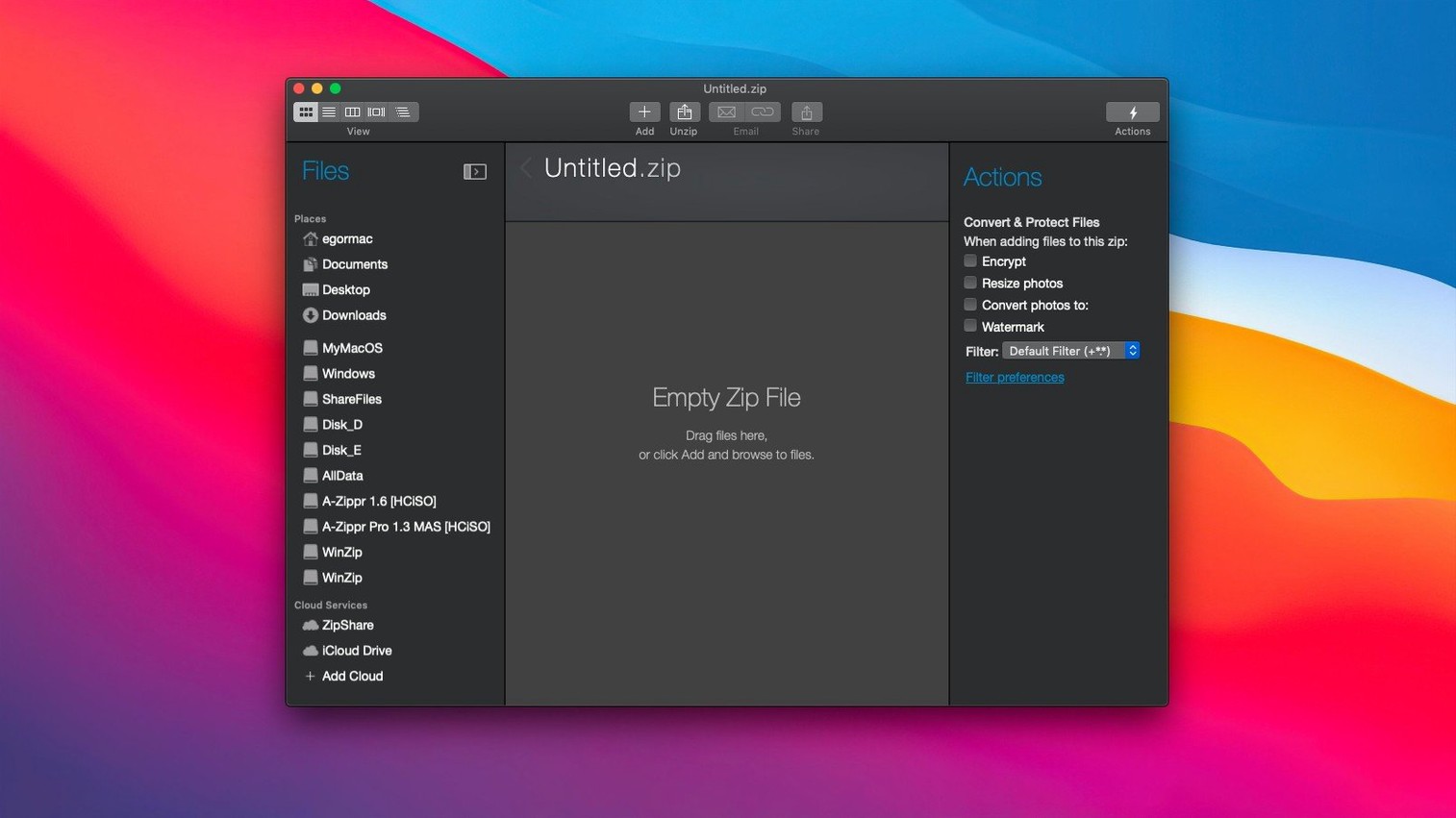
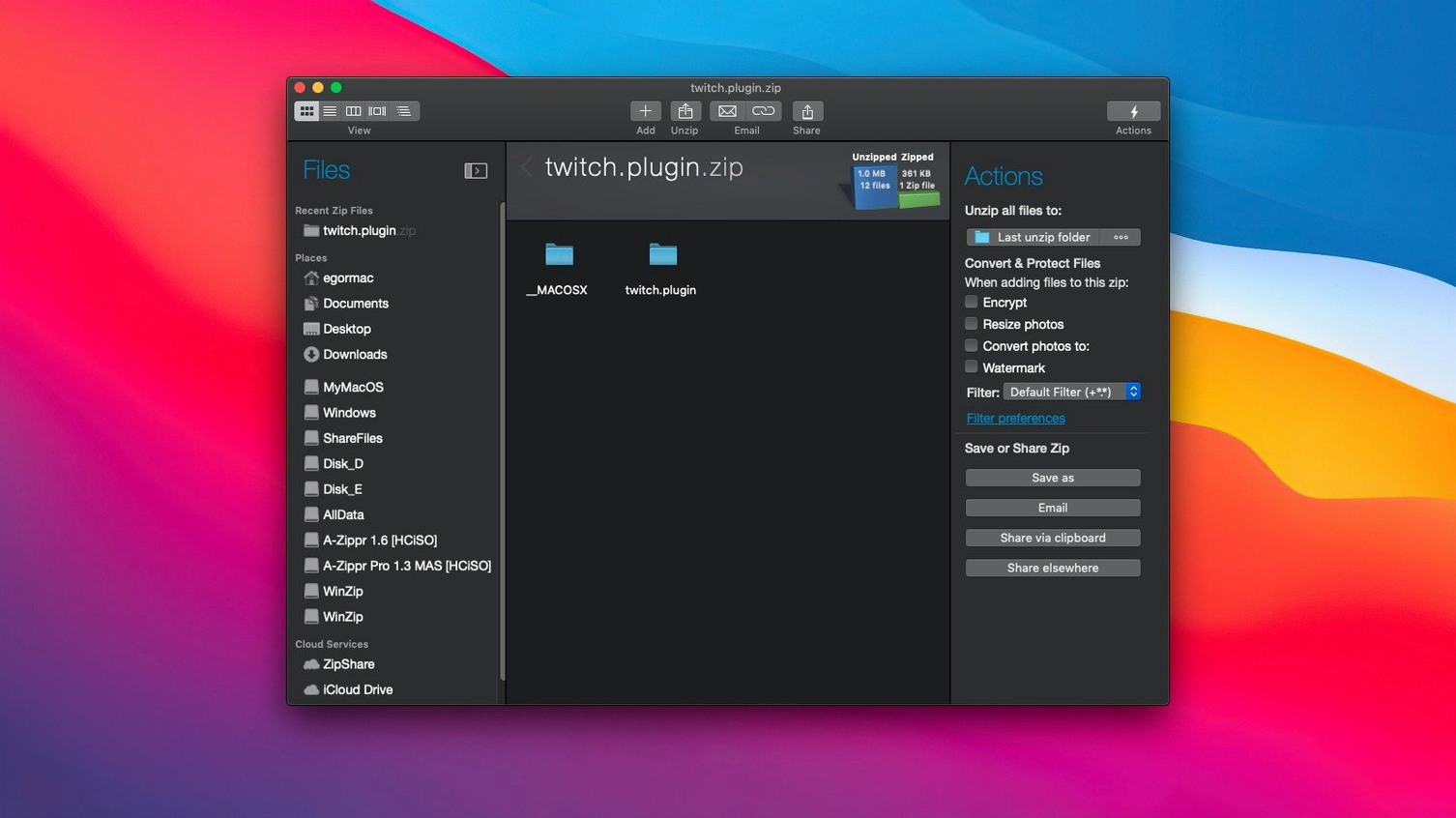
WinZip Mac Pro replaces that silence with a workspace. You see what's inside an archive before you expand it. You convert a 7Z someone sent you without hunting for a separate utility. The duplicate detection runs before you archive, which saves space the system tool simply leaves on the table.
Keka leans closer to this feature set. It handles 7Z, RAR, and encryption. But it lives in the menu bar or as a drop target — it never connects to Dropbox or iCloud Drive. If you just need a free compressor that speaks many formats, Keka works. If you compress files as part of a daily routine that ends with a cloud share, WinZip cuts out three or four extra steps.
BetterZip has the strongest overlap. It browses archives without extracting, supports a similar format list, and offers encryption. What WinZip adds is the direct cloud integration and the instant-convert workflow. Drag a RAR onto WinZip, pick ZipX, and it's done — no intermediate extraction folder.
None of the three alternatives combine cloud, conversion, and duplicate cleanup in a single window. That narrow window of difference matters most when you're sending files to someone who won't download a third-party utility to open what you sent.
Quieter alerts
The defaults are reasonable, but two changes make the app quieter and faster.
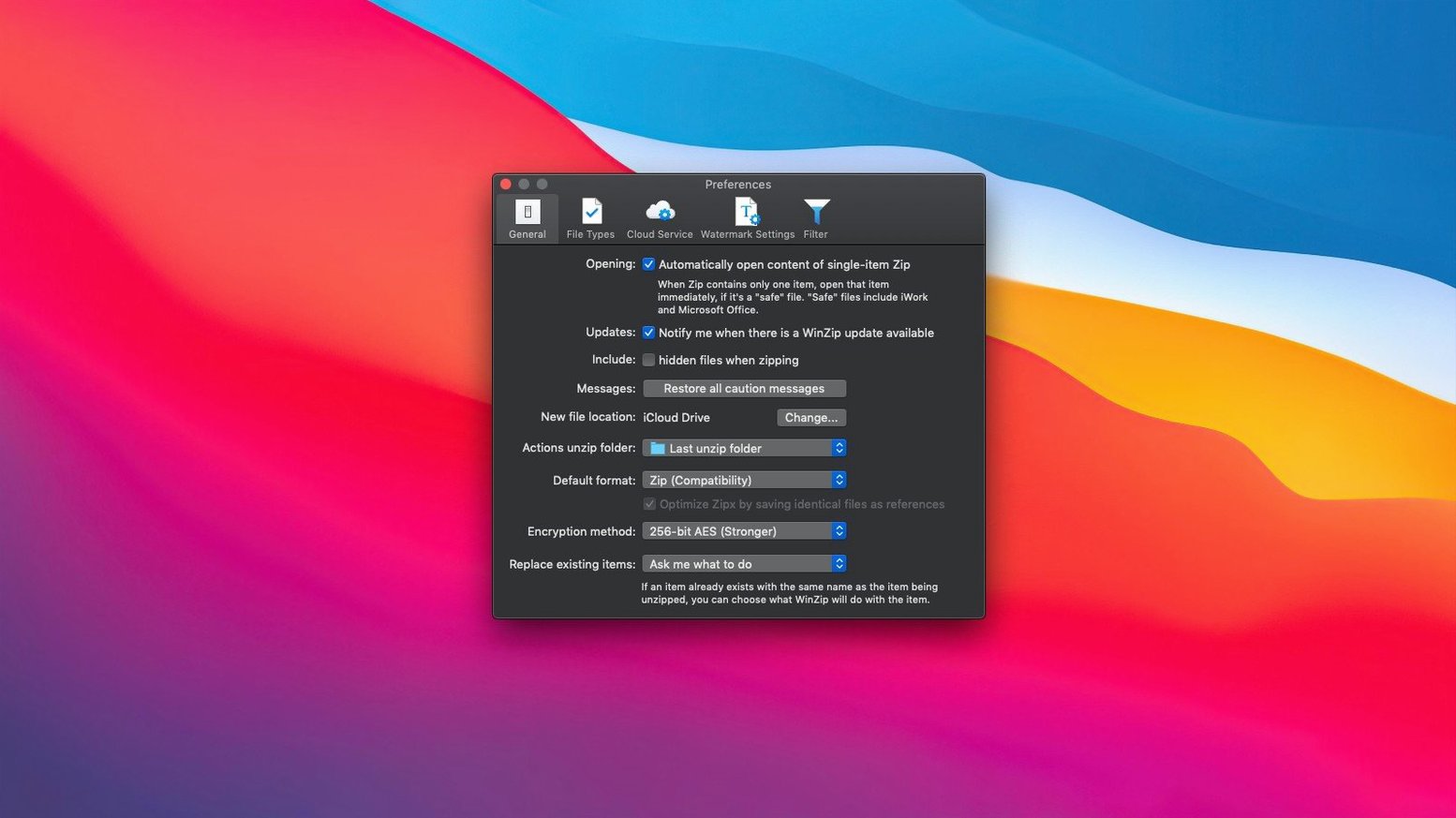
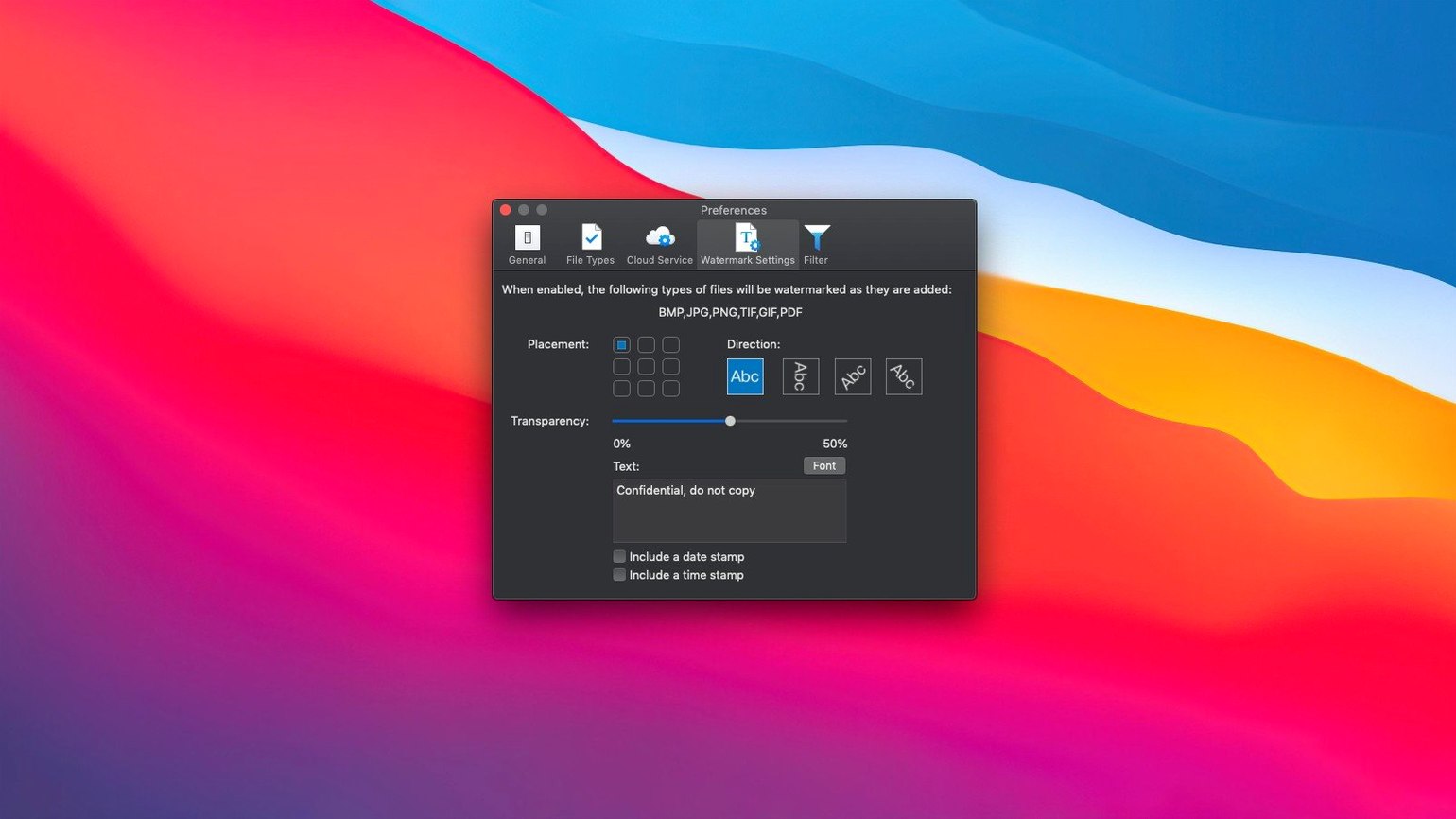
Turn off the compression complete sound. Open Preferences, find the notification panel, uncheck the alert. After a dozen archives in an hour, that chime stops being helpful.
Set the default output format to ZipX if your recipients are on modern systems. ZipX produces smaller archives than standard Zip. The trade-off is compatibility with very old operating systems — rarely a concern today.
Pin your most-used cloud service in the Save To pane. The app lists iCloud Drive, Dropbox, and Google Drive as equal peers; dragging one to the top of the sidebar keeps the destination one click away instead of three.
If you archive the same folder structure repeatedly, save a compression profile. Set the format, encryption password, and destination once, then name the profile. A single click runs the whole job later.
7Z fails
Someone sends you a 7Z file and WinZip won't open it. Almost always, the archive was created with an ultra compression preset the Mac library doesn't fully parse. Ask the sender to re-compress at normal strength, or use a dedicated 7-Zip port for that one file, then convert it to Zip for next time.
Cloud saves fail silently when a token expires. If "Save to Dropbox" does nothing, disconnect and reconnect the service in Preferences — the OAuth handshake needs refreshing every few months.
Large archives with encryption can feel slow. The app encrypts on the fly during compression; on older Intel Macs, a 2GB folder takes noticeably longer than the same folder without a password. The workaround is compressing first, then encrypting as a second pass — slightly manual but faster overall.
Duplicate detection flags files with identical names but different content as duplicates only if you enable content comparison. The default is name-only matching, which is fast but conservative. Switch to content comparison in the duplicate pane for a true space audit, but expect it to take longer on large drives.