macOS has Audio MIDI Setup, a sparse utility for basic routing. Loopback takes the same idea and removes the guesswork.
First route
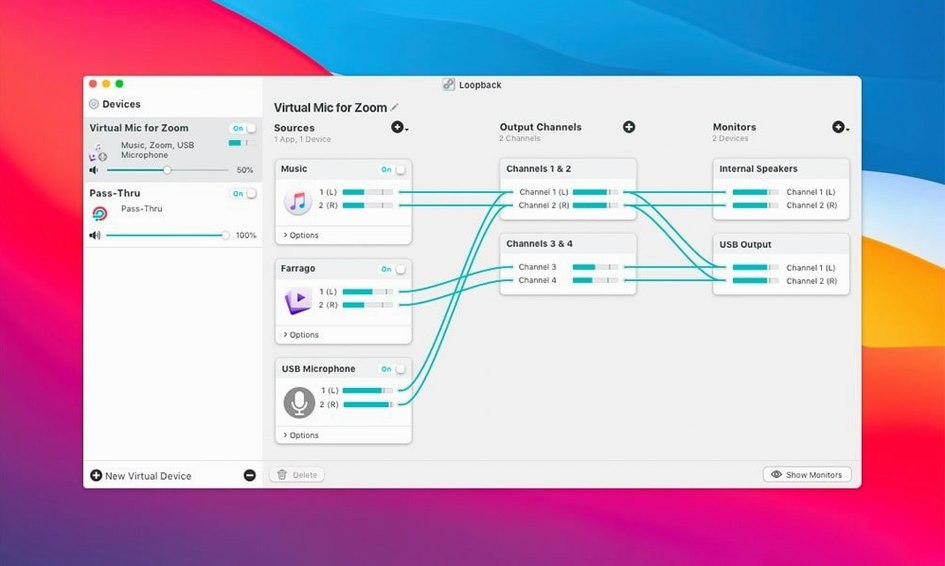
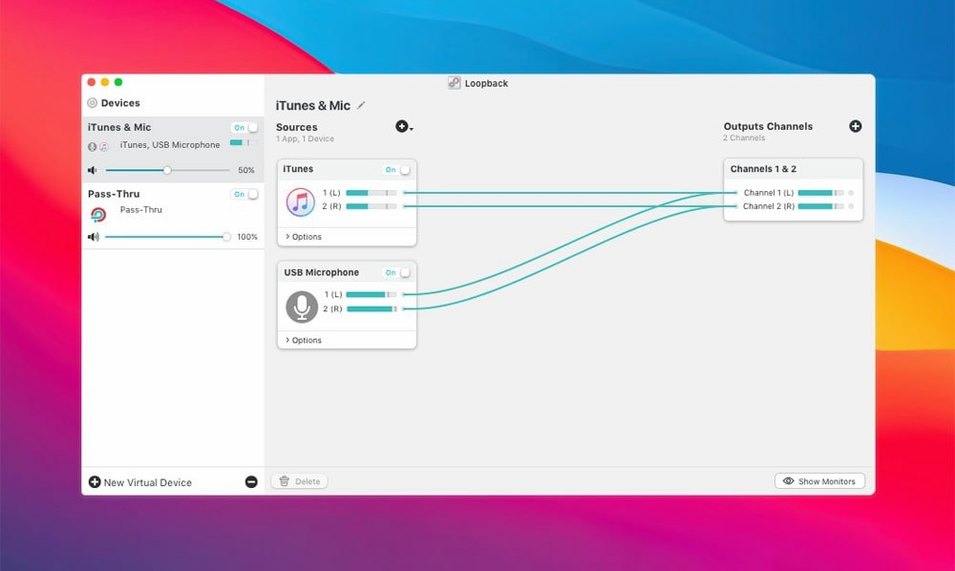
- Add a virtual device and give it a name you will recognize.
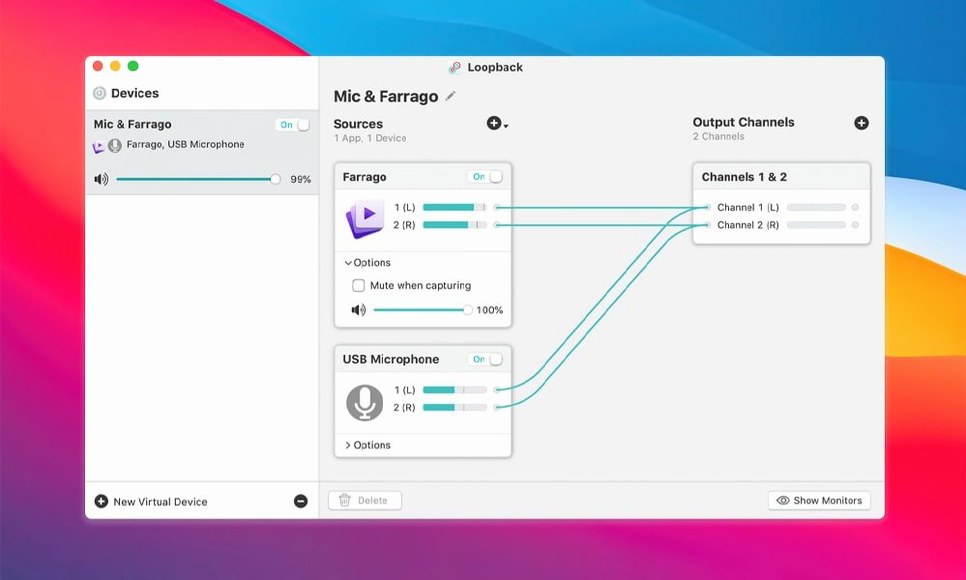
- Drag your microphone into the sources. Then drag in an app: Music, a browser, anything playing sound.
- In your voice chat app, choose the new device as input.
One device now carries your voice and the app, mixed and live.
Screen capture
Overlooked moves
Right-click any source and choose Mute When Inactive. A music app that is not playing stops contributing noise floor. Quiet.
Holding Option while dragging a source duplicates it. Two copies of the same mic, each with its own volume or mute state, before the signal hits the virtual device. One for the stream, one for your own monitoring chain.
The wired canvas responds to the delete key. Select a source, tap delete. No context menu needed.
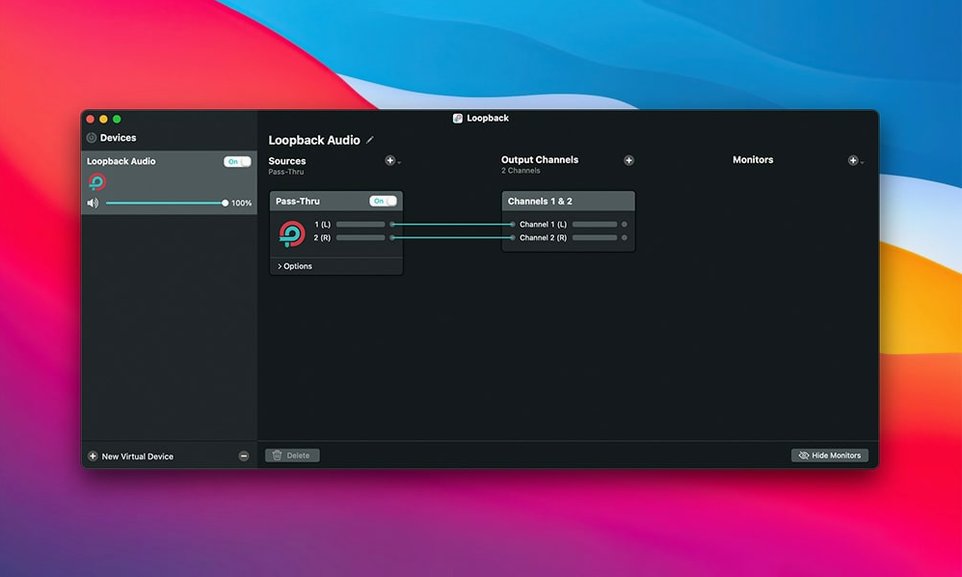
Pass-through devices are worth a moment. Add an output channel to a virtual device and route it straight to a hardware output. Your combined voice and app audio leaves the Mac through a physical jack, no extra software in the path.
Menu bar
Loopback sits in the menu bar and rarely asks for attention. Once a device is configured, it survives sleep, wake, and app restarts without a crackle.
Memory use stays below 80 MB with three active devices here. No spikes during screen capture at 1440p. The ARK plugin updated in version 2.5.0 handles the audio stack with a light touch; kernel extension days are behind it.
Latency is imperceptible. Routing a mic through a virtual device, into Audio Hijack, and out to a broadcast adds nothing you can feel.
One app misbehaves: a source that vanishes from the system leaves a placeholder, not a crash. The device goes silent, you swap the source, and playback resumes.
Show icon
Open Preferences and check Show in menu bar if the icon is not already there. The menu bar gives you a device list and volume sliders without opening the main window.
Disable Automatically check for updates if you prefer manual control. The app is stable enough that updates are rare and deliberate.
Under the Advanced tab, enable Use separate volume control per source. Each source in a device gets its own slider, not a shared gain stage. Mixing a quiet browser and a loud synth becomes a two-second adjustment instead of a hunt through individual app settings.
Stream Mix
You open a loopback mac app window at 8:45. A virtual device named “Stream Mix” already exists from last week. You drag in a USB mic, Music, and a browser tab playing a soundboard. The browser is muted by default; you uncheck mute and set its volume to forty percent.
At 9:00 you launch your voice call software. Input device: “Stream Mix.” A quick test shows the mic is hot and the background track is present but low. You pull the music volume down another five points during the intro.
Mid-session, you drag the soundboard source out of the device. No need to stop the call. The wired canvas updates live.
At 10:15 the session ends. You leave the device configured. It will be there tomorrow, silent until you need it.
Make a second device with your mic and the app you are recording, and point the screen recorder at it. One track, no syncing later.