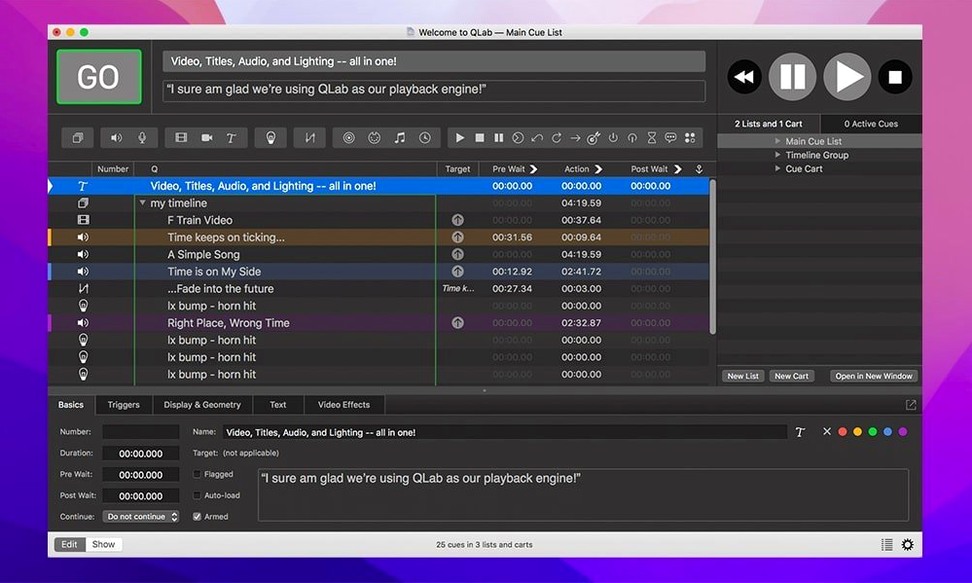
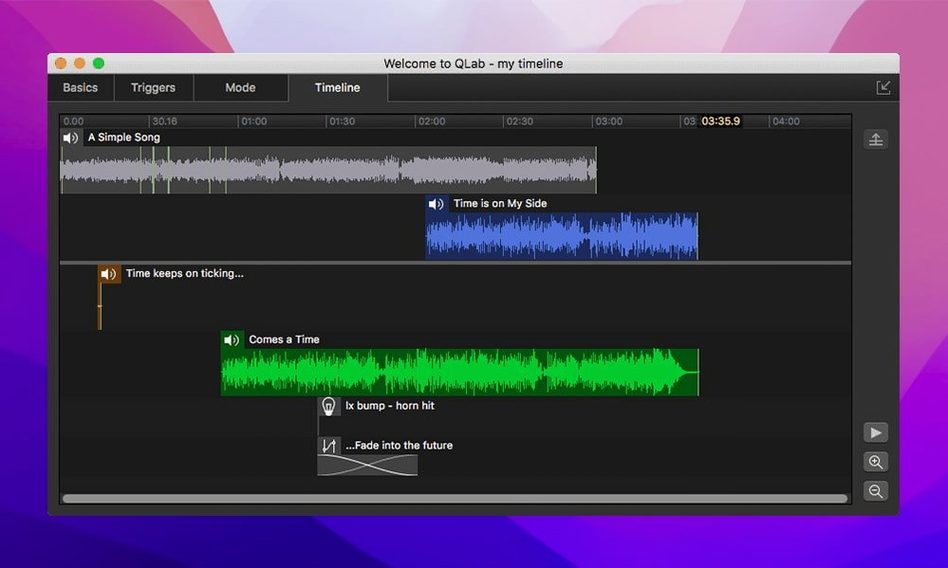
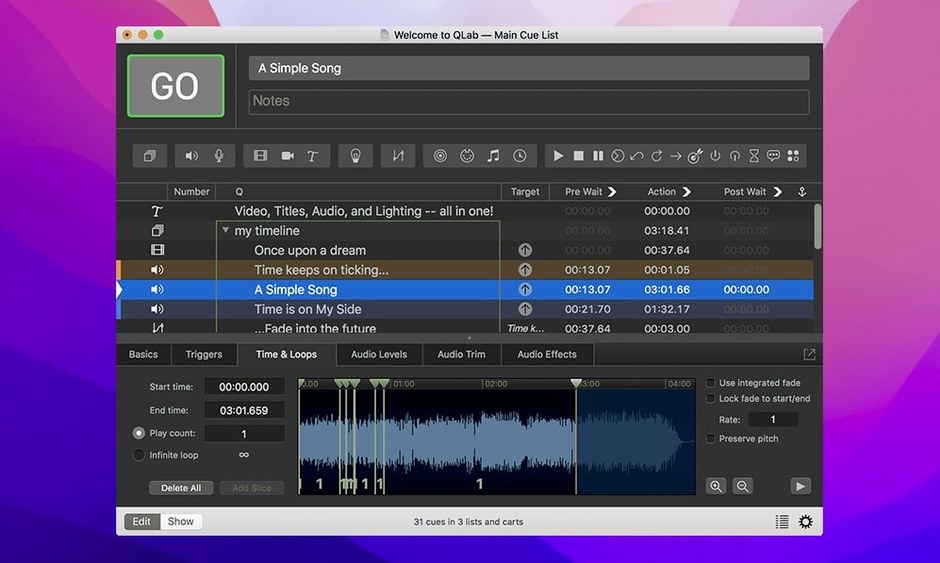
QLab is a cue system for live performance. Sound, video and lighting on one Mac.
What it runs
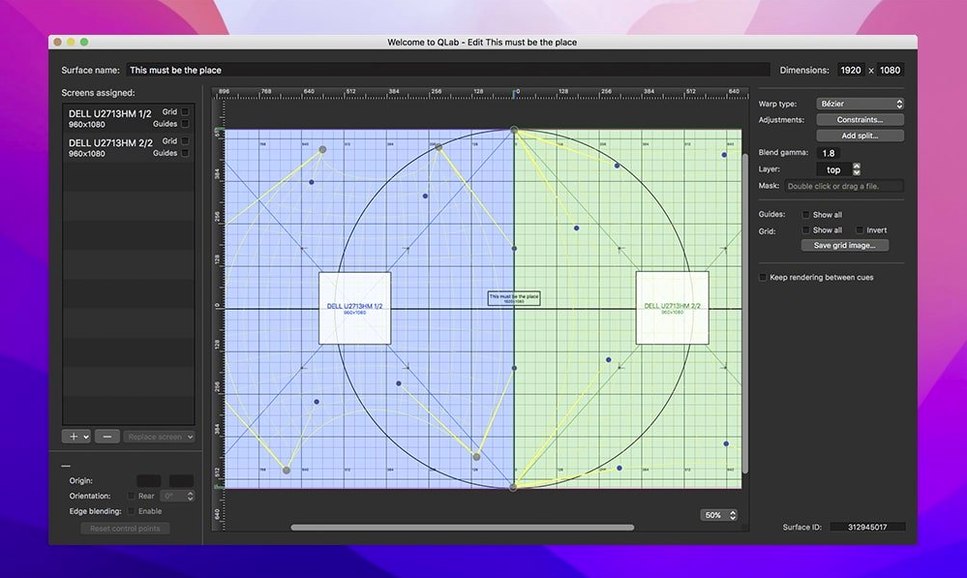
Audio across 48 outputs and 24 inputs. Video with keystone and corner pinning. Lights. Trim audio in the built-in editor, change speed with pitch control, take a live feed from a Blackmagic device.
Spaces optional
Silence warnings
Workspace preferences ship with defaults that suit a quiet edit session. For a show, change two things immediately.
Open Workspace Settings → General. Uncheck “Show warning when overwriting cues.” During a tech run, that dialog steals time you do not have.
Go to Audio and set the default patch to a simple stereo pair unless you use all 48 outputs. A clean starting patch prevents a stray cue from landing in the wrong speaker.
Next, Appearance. Switch the cue rows to compact. Smaller rows let you see more of the list without scrolling. When a show has 300 cues, that matters.
Dead outputs
A common one: no sound from a freshly loaded file. Almost always, the cue’s patch is still set to the default device but the audio interface is elsewhere. Click the Audio Patch column, pick the right output.
Video black on the projector but fine on the Mac screen. Check Video → Stage Display. A missing full-screen assignment means the surface never reaches the projector. Drag the stage to the right display.
MIDI cues not firing. Open Workspace Settings → MIDI and confirm the destination is enabled. QLab does not warn you if a MIDI device is unplugged; it just stays quiet.
Seed template
Build your first workspace as a template. Strip it down to a few cue groups: one for audio, one for video, one for lights. Save it with your default patch, stage layout and MIDI targets. Every future project starts from that file, not from the blank cue list.
Name your cues as you build, not after. A cue called “Audio 3” tells you nothing at midnight during a note session. A name like “door knock L” does.
Learn the number keys. 1–9 start cue 1 through cue 9. The space bar fires the selected cue. A week in, those three keys will do half your work.
Finally, run the workspace once with the network cable unplugged. If something breaks — an OSC command to a lighting desk, a MIDI note to a synth — you want to know before the house doors open.
A church tech’s Sunday
She arrives at 8 a.m. The workspace is already open from the midweek rehearsal file. A few cues need updating: the band added a song, the sermon illustration changed to a video with soft start.
She drags the new audio file into the song cue list. Trims two seconds of silence off the head in the editor. For the video, she drops the file into a Video cue, sets the fade in to 1.5 seconds and assigns it to the side screen via the Stage Display.
During the service, a lapel mic drops. She hits a pre-built Mic Mute cue — one MIDI message to the console — then brings it back with the next cue. No panic, no reaching for the soundboard. QLab sits between her and the chaos.
No. A small show uses it for a few sound cues; a big one runs projection and moving lights from the same machine.