Nectar 4 runs on any Apple Silicon or Intel Mac that can install Ventura 13.7.4.
Vocal Assistant — your first click. It listens to a short sample and builds a starting chain. Rarely perfect, always a faster way in than an empty rack.
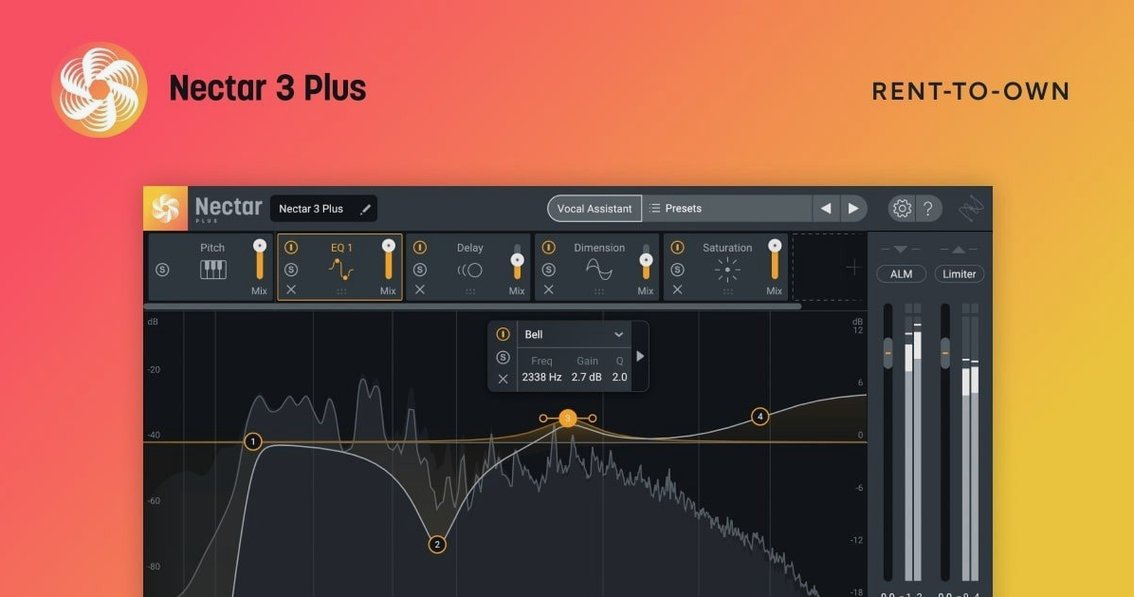
EQ with Dynamic mode — the second place you go. Pull the body forward, cut the low-mid clutter, and let the dynamic band follow the voice as it moves. Static curves alone can't do that.
Auto-Level — Advanced edition only. Not a compressor. It rides the gain so the vocal sits before anything else touches it. Write automation without drawing a single breakpoint.
Version 4.1.0 arrived quietly. No new modules. No reworked interface. But two changes shift the everyday workflow. Windows HiDPI support is the headline, yet on macOS the real news is the raised floor: Ventura 13.7.4 minimum. If you are still on Monterey, this update is not for you. If you are on Ventura or later, the plugin loads faster and the authorization path is cleaner — a lingering iLok bug for Standard edition users was fixed. Small things that stop small interruptions.
Missable
Hold Option while dragging any knob. The movement slows to a quarter of normal speed. Obvious once you know it, invisible until then.
Right-click a module header and choose Copy settings. Paste it onto the same module on another track. No need to save a preset, no need to open the preset browser.
The Output section has a mono button. Flip it when you are checking a vocal in a dense mix. Mono collapses the stereo image and reveals masking that a wide playback hides. It is a single click, and it lives where most people never look.
Double-click a band marker in the EQ to reset it to zero. Works on every band type, including dynamic ones. Saves the tiny drag back to the centre line.
In Voices, the Harmony module maps to MIDI. Feed it a simple chord track and the backing parts follow. You do not need to know the notes — draw them roughly, and the module interpolates. Imperfect input, usable output.
Assistant input type
The Assistant learns from what you give it. Before you run it, set the input type — sung, spoken, or instrumental bleed — in the top bar. Leaving it on auto is fine, but telling it what to expect tightens the first pass. A spoken-word vocal gets a different chain than a belted chorus, and the assistant guesses conservatively when it is unsure.
Turn on auto-gain compensation in the Output module. Nectar’s processing chain can shift level as you enable modules. Auto-gain keeps the perceived volume steady so you judge the sound, not the loudness bump. Toggle it off only for final level checks.
If you use Backer, drop the blend to around 30% and push the width no further than 60. The default settings sound like a double-track that wants attention. Lower blend and moderate width make it sit behind the lead, where it belongs.
Set the De-esser to split-band mode and listen on headphones. The wideband mode works, but split-band treats only the sibilant range and leaves the body of the voice untouched. It is the quieter option, and usually the one you want on a finished take.