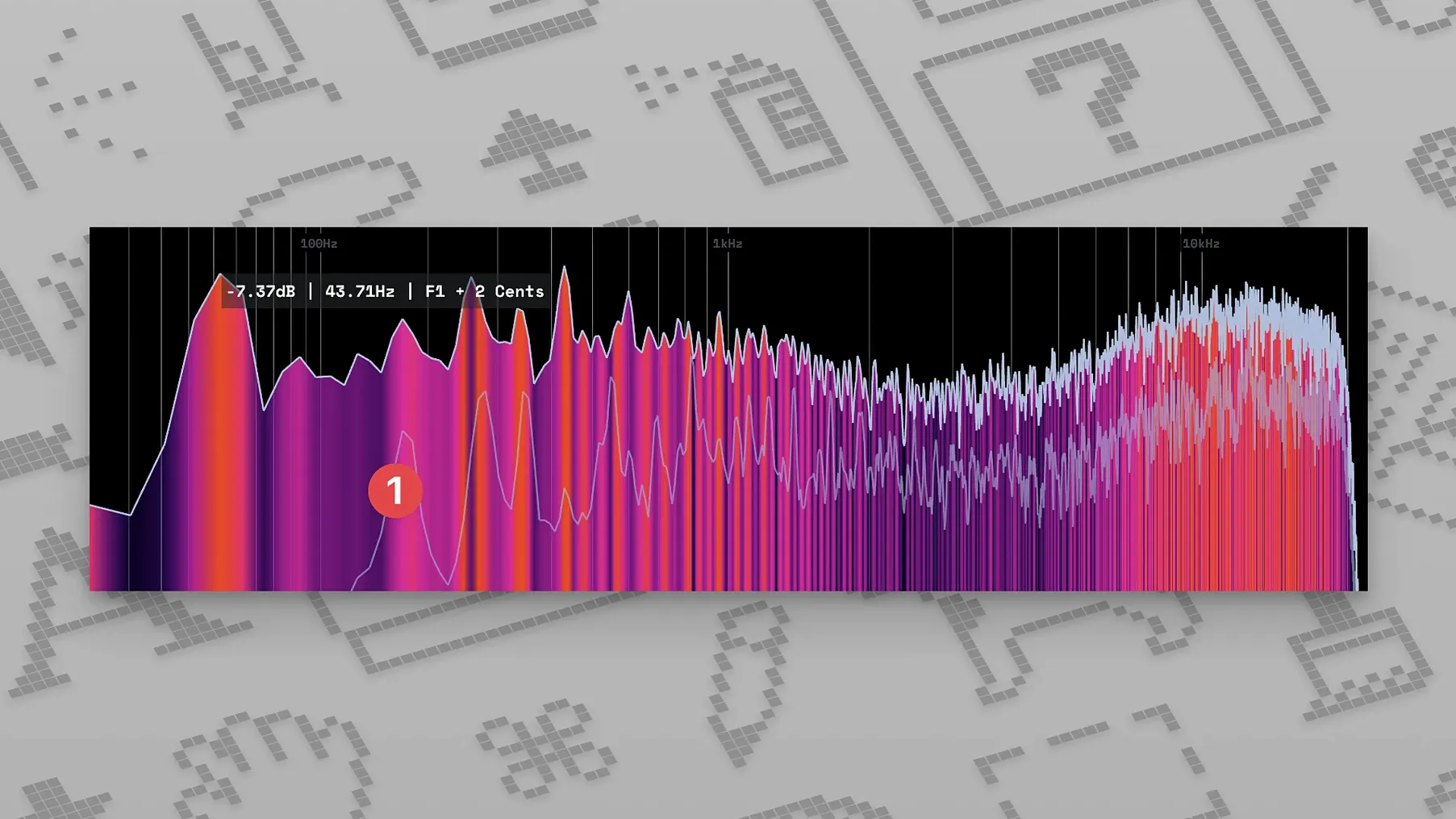
Mixing engineers and mastering technicians use MiniMeters when they need a second opinion on their levels.
What does the setup look like?
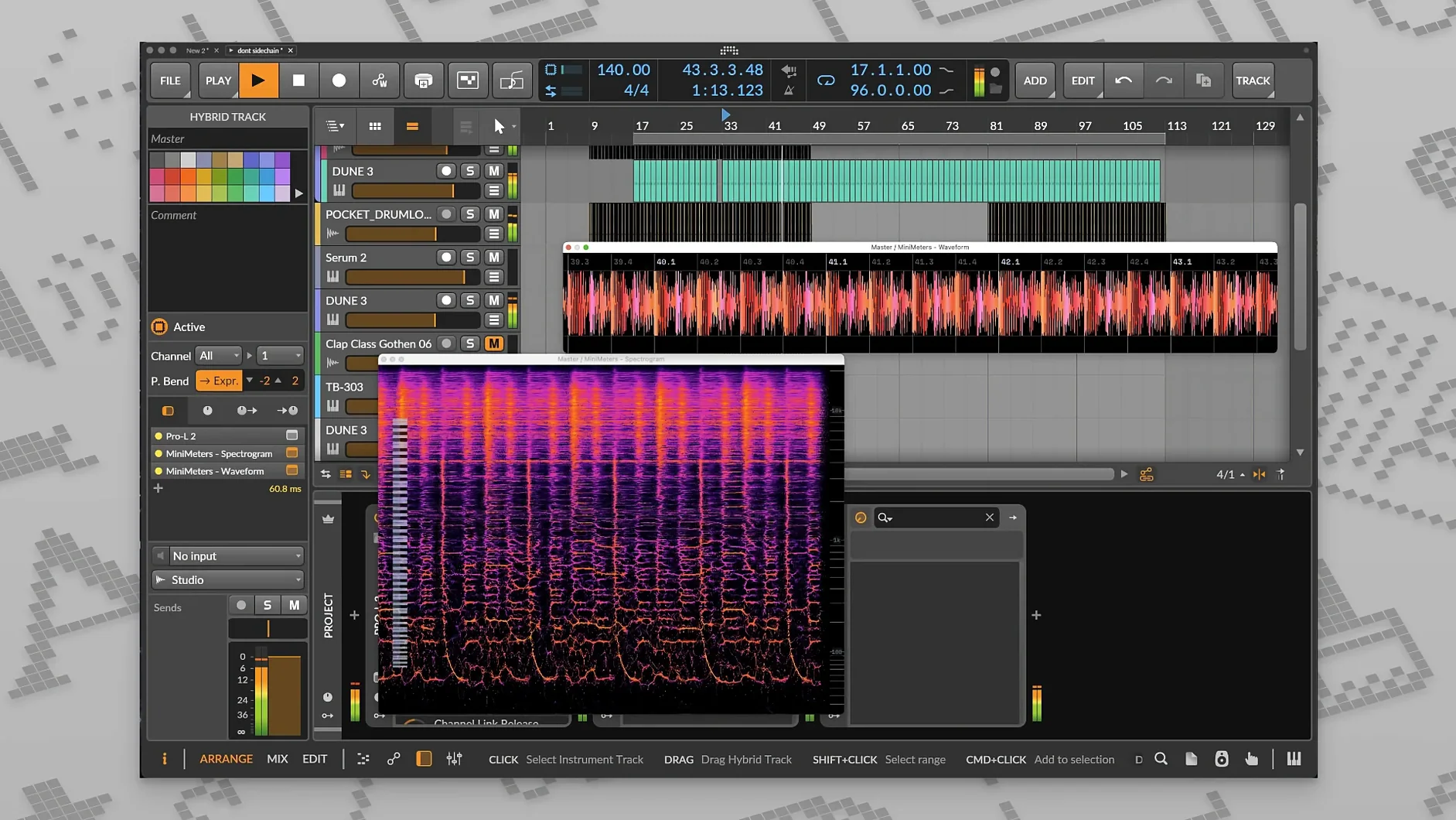
You insert the MiniMetersServer plug-in on your master bus. The standalone meter app picks up the audio and shows it instantly.
What do you check first?
Open the waveform view to confirm you still have transients. Then glance at the stereo meter to catch any channel imbalance early.
When does the LUFS meter come in?
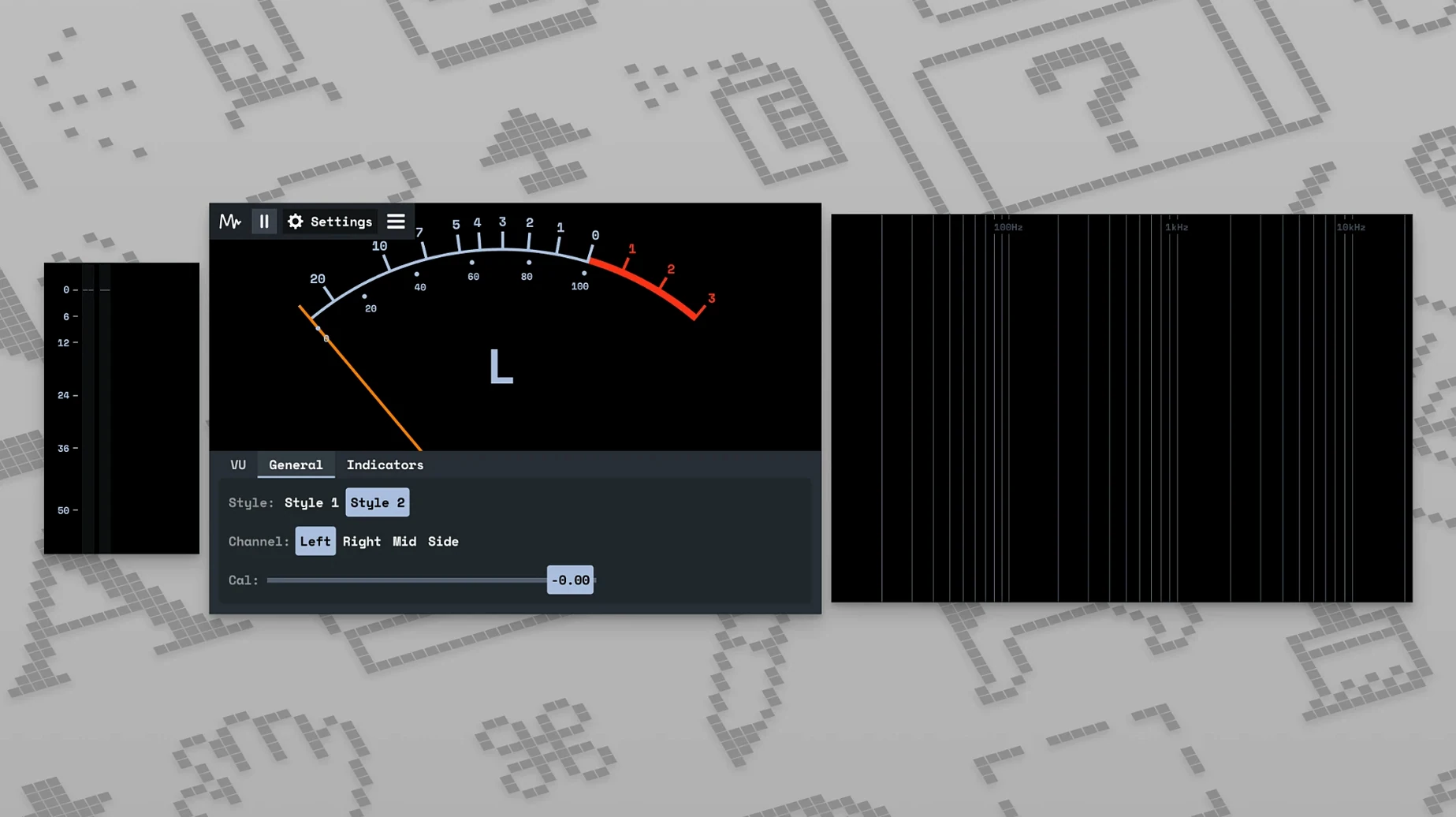
After setting the rough balance, you watch overall and peak LUFS. The spec-compliant meter tells you exactly how loud the track will feel on a streaming platform.
What else helps during the pass?
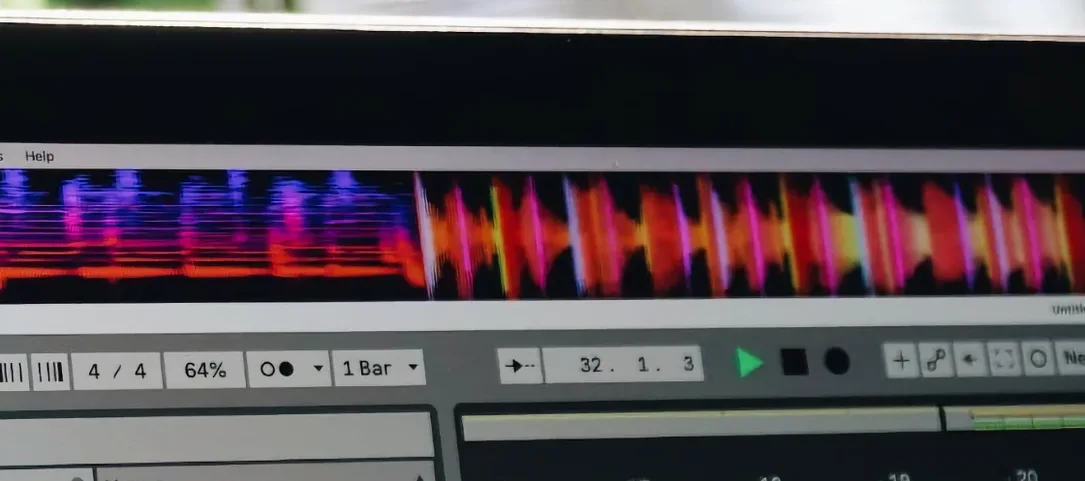
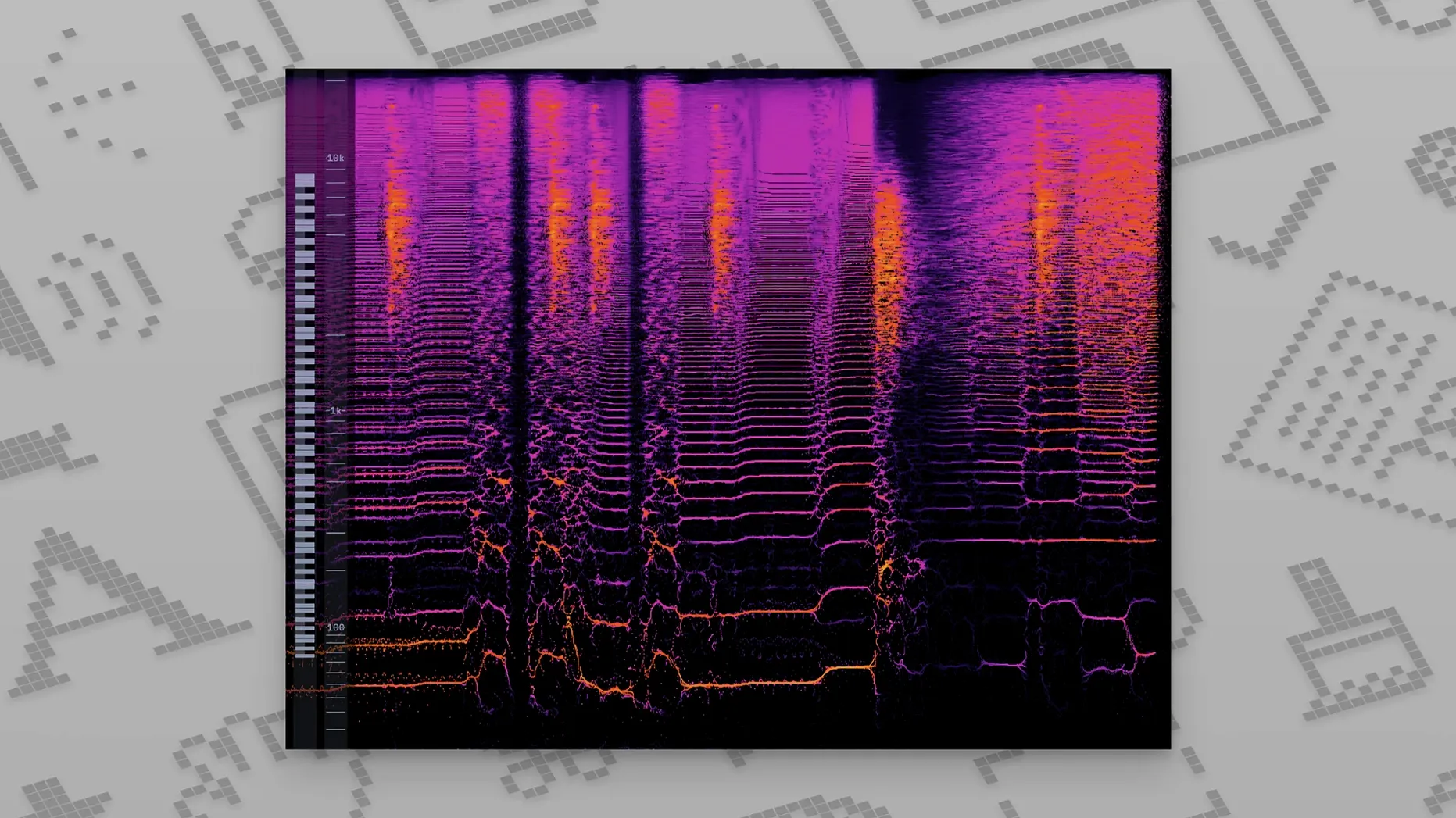
The spectrogram update shows frequency build-up as it happens. You spot a muddy low-mid before your ears get tired.
MiniMeters sits light. On an M1 Mac it idles at roughly 2–3% CPU and stays under 150 MB of RAM during a typical mixing session. I have left it open for eight-hour stretches without a single frame drop or crash. Version 1.0.30 fixed the small UI glitches that used to nudge the window position on wake; now it stays put.
The server connection is equally stable. Audio arrives with no perceptible lag, even when my DAW is pushing 80 tracks with heavy processing. That reliability matters more than feature count. A meter you cannot trust is just decoration.
A quick mastering check
I use MiniMeters for a five-minute mastering sanity check before sending anything to a client. Here is the path.
Load the stereo mix into a fresh DAW session. Insert MiniMetersServer as the last insert on the master channel. Launch the standalone app and dock it to the right edge of the screen.
Switch the view to LUFS first. Play the loudest section and note the short-term and integrated readings. If integrated sits above −14 LUFS for a streaming target, I pull the limiter threshold down a half-dB and run the chorus again.
Next, flip to the spectrogram. Scan the low end during the densest part of the arrangement. A sustained orange band around 200–300 Hz usually means the bass and the low-mids are fighting. I notch 2 dB in that zone on the mix bus EQ and watch the spectrogram cool down.
Switch to stereo meter and solo the sides. If the correlation dips below zero for more than a blink, I narrow the side channel width before exporting. Last pass: waveform view. Look for clipped peaks. If the waveform touches the ceiling, I drop the final limiter ceiling to −0.3 dB and render.
Whole process takes under five minutes. The meter does not second-guess me; it just shows what is there.
Three instant tweaks
Out of the box, MiniMeters uses a dark theme with default window scaling. I make three changes immediately.
Window scaling. Drag it to 125% or 150% if you are on a high-DPI display. The default size is readable but small on a 4K screen pushed to the corner of the desk.
LUFS target line. Enable the reference line in the LUFS view and set it to your delivery target. Seeing the integrated value cross that line in real time is faster than reading numbers alone.
Spectrogram color map. Switch from the default gradient to a high-contrast map. The hot spots become unmistakable, which helps when you are scanning during playback rather than stopping to study the display.
Those three tweaks take thirty seconds. After that, the tool disappears into the workflow.
One small window. No clutter.