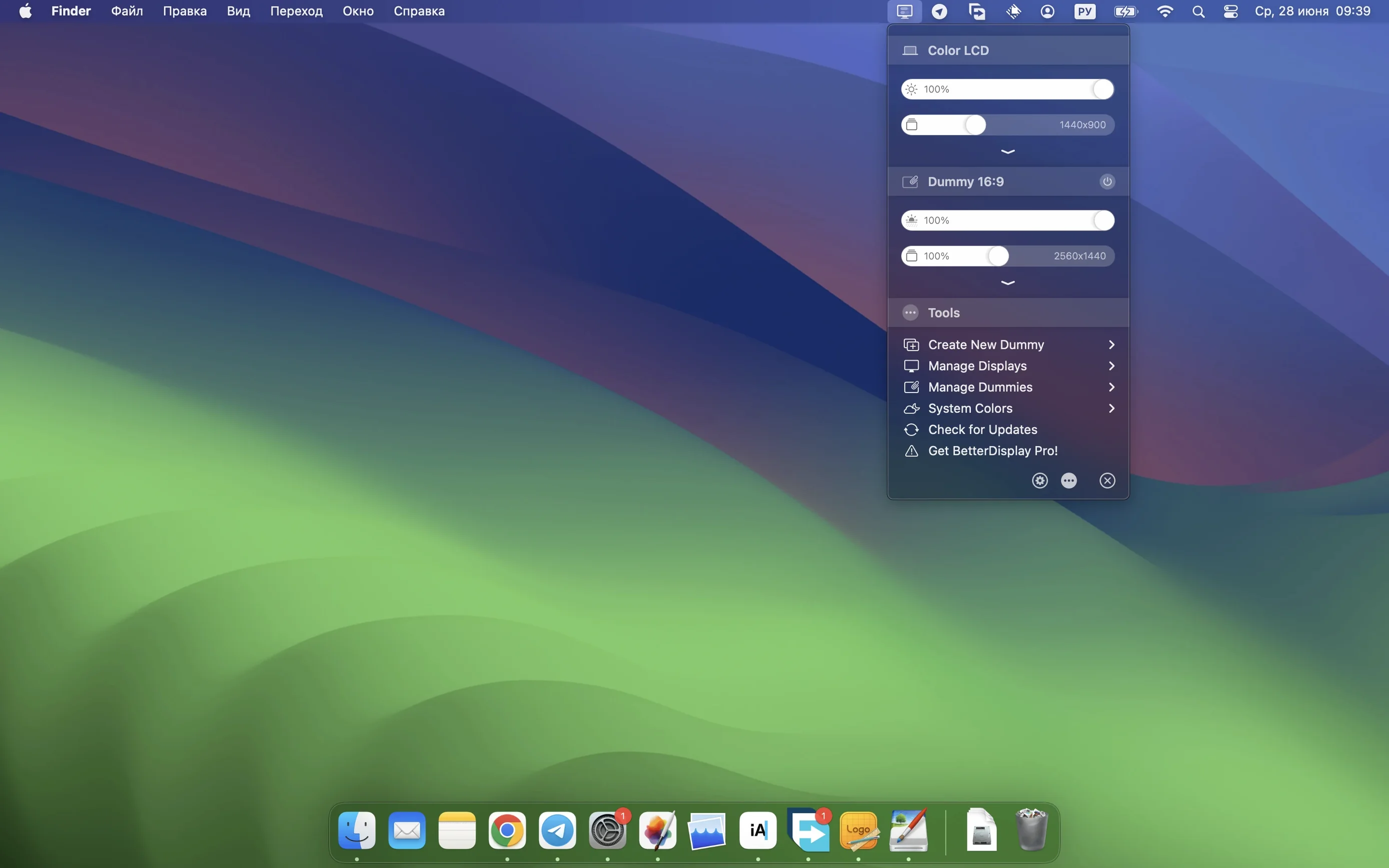
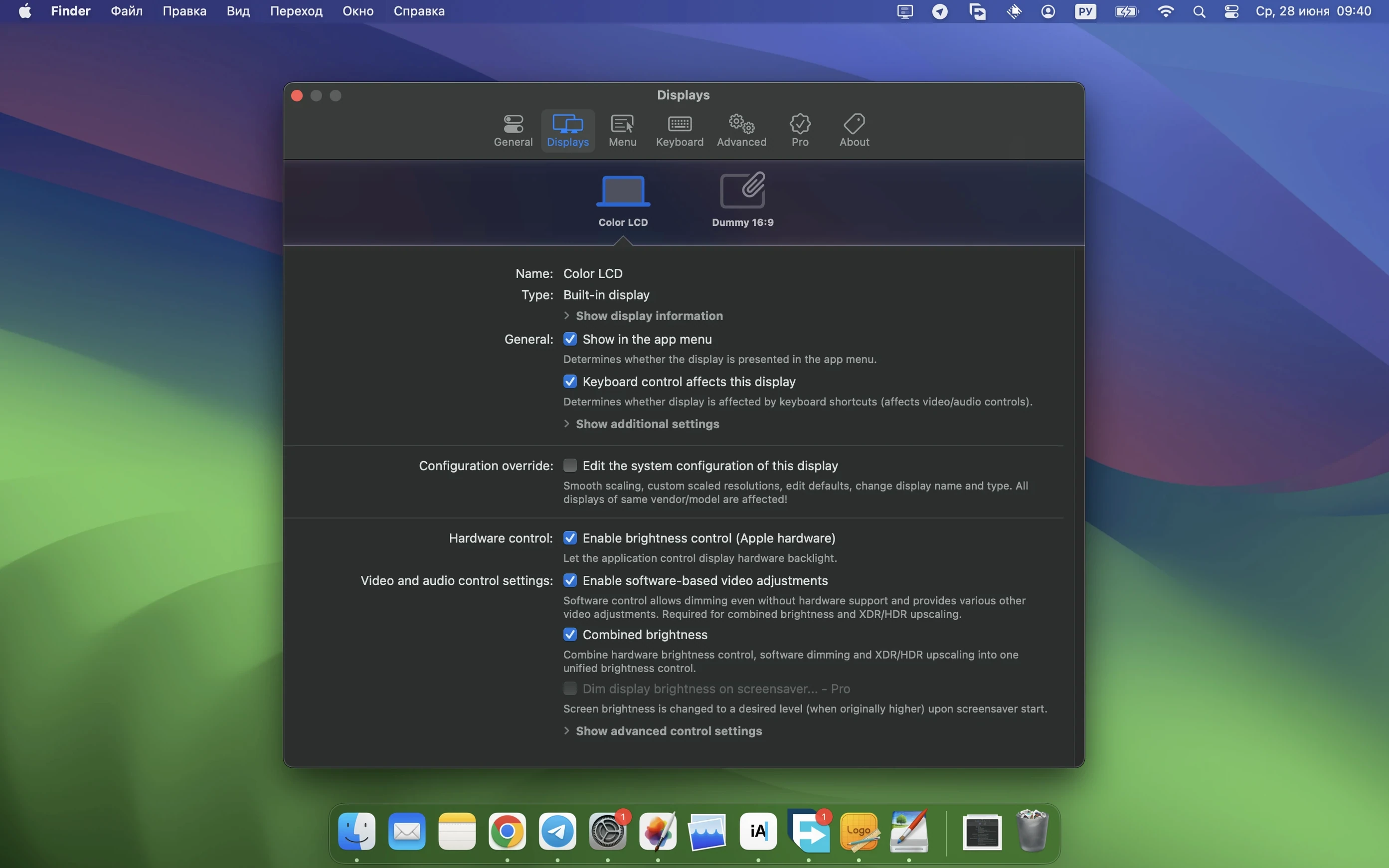
BetterDisplay replaces the limited display controls built into macOS with a toolkit that treats your screen as configurable hardware, not a fixed panel.
Scaled resolutions
It converts any screen into a fully scalable canvas under System Preferences, with exactly the pixel grid your eyes need and no fuzzy approximations.
Virtual displays
Create a virtual desktop to mirror or extend your workspace without plugging in another monitor. Useful for streaming setups and fixed-resolution screen sharing.
Color and dimming
Go darker than your display’s hardware limit with full black dimming, then tune color precisely from the menu bar without touching the physical buttons you can never find.
Compared to what else is out there
Lunar and MonitorControl both do brightness via DDC. They do it well. But neither touches virtual displays or HiDPI scaling. If you only need keyboard-tied brightness across two external screens, either one works fine.
BetterDisplay sits a layer above. It handles scaling, color, virtual desktops, and picture-in-picture windows. The menu bar controls are more granular, and it talks to HDMI-CEC devices — something the others skip entirely.
SwitchResX offers deep resolution and EDID overrides. It’s powerful, but the interface feels stuck a decade back. BetterDisplay surfaces the same overrides with less friction. You’re not reading plist keys in a dark panel. You’re picking a resolution from a clean list that actually matches your panel’s capabilities.
If your Mac has an XDR screen, neither Lunar nor SwitchResX touches XDR brightness upscaling. BetterDisplay does. That alone makes it the default pick for anyone who works in HDR timelines or grades in bright rooms.
Skip virtual screens
Start with one display. Leave the virtual screens and picture-in-picture for later. Open the menu bar dropdown and notice which sliders respond immediately — brightness, contrast, and volume usually do, if your monitor speaks DDC.
Assign keyboard shortcuts to brightness up and down for each screen. Separate shortcuts for the laptop panel and the external display prevent your desktop from lurching in brightness while you adjust just one.
Next, visit the scaling tab. Pick a HiDPI resolution that gives you readable text without making palettes and toolbars crowd your workspace. The list shows only what your display can actually render, so you’re not guessing.
On day two, try the black dimming slider after sunset. Pull it down slowly. You’ll see the backlight stay fixed while the image darkens further — useful when even zero brightness feels too bright in a dark room.
Wait a week before creating your first virtual display. When you do, match its resolution to the stream target or the laptop you’ll screen-share with. A 16:10 virtual screen at 1920×1200 avoids letterboxing on most conference call setups.
DDC worries, answered
Does it mess with my existing display arrangement? No. It reads your current setup and leaves it alone. Changes happen only inside the app’s controls. Uninstalling reverts everything to the system defaults.
Will DDC controls work with my monitor? Probably, if the monitor was made after 2016 and connects via USB-C or DisplayPort. HDMI is less reliable for DDC, but the HDMI-CEC support in BetterDisplay picks up some of the slack on newer TVs and projectors.
Is the free download enough, or do I need the pro features? The scaling and DDC controls are available in the standard version. Virtual displays, XDR brightness upscaling, and advanced color adjustments require the pro side. Many people stay with the free version for months. Others find a betterdisplay download mac search leads them straight to the pro features once they need virtual screens for streaming.
If someone searches for better display for mac free, they often arrive expecting basic brightness controls. They stay for the HiDPI scaling. That’s the pattern.