
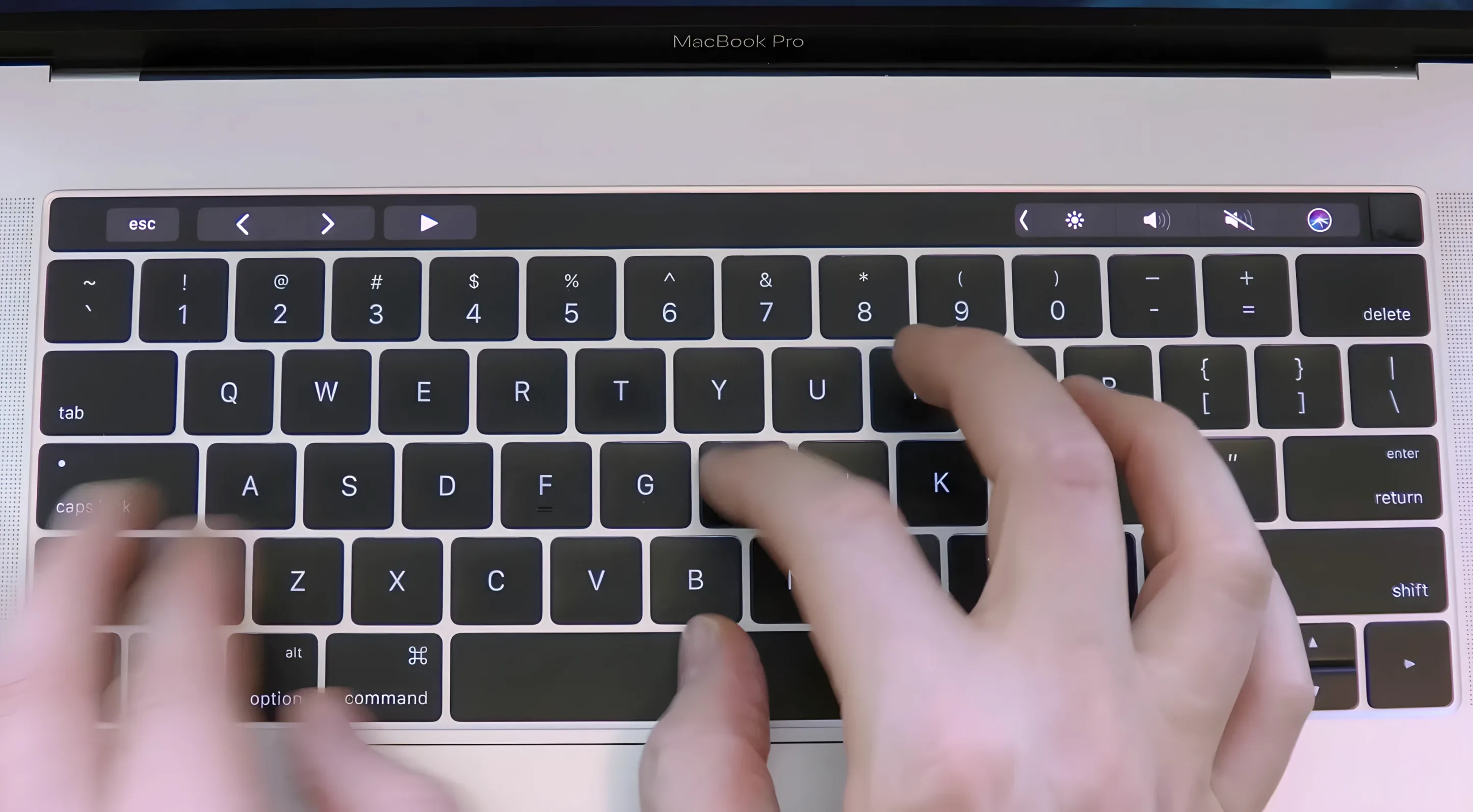
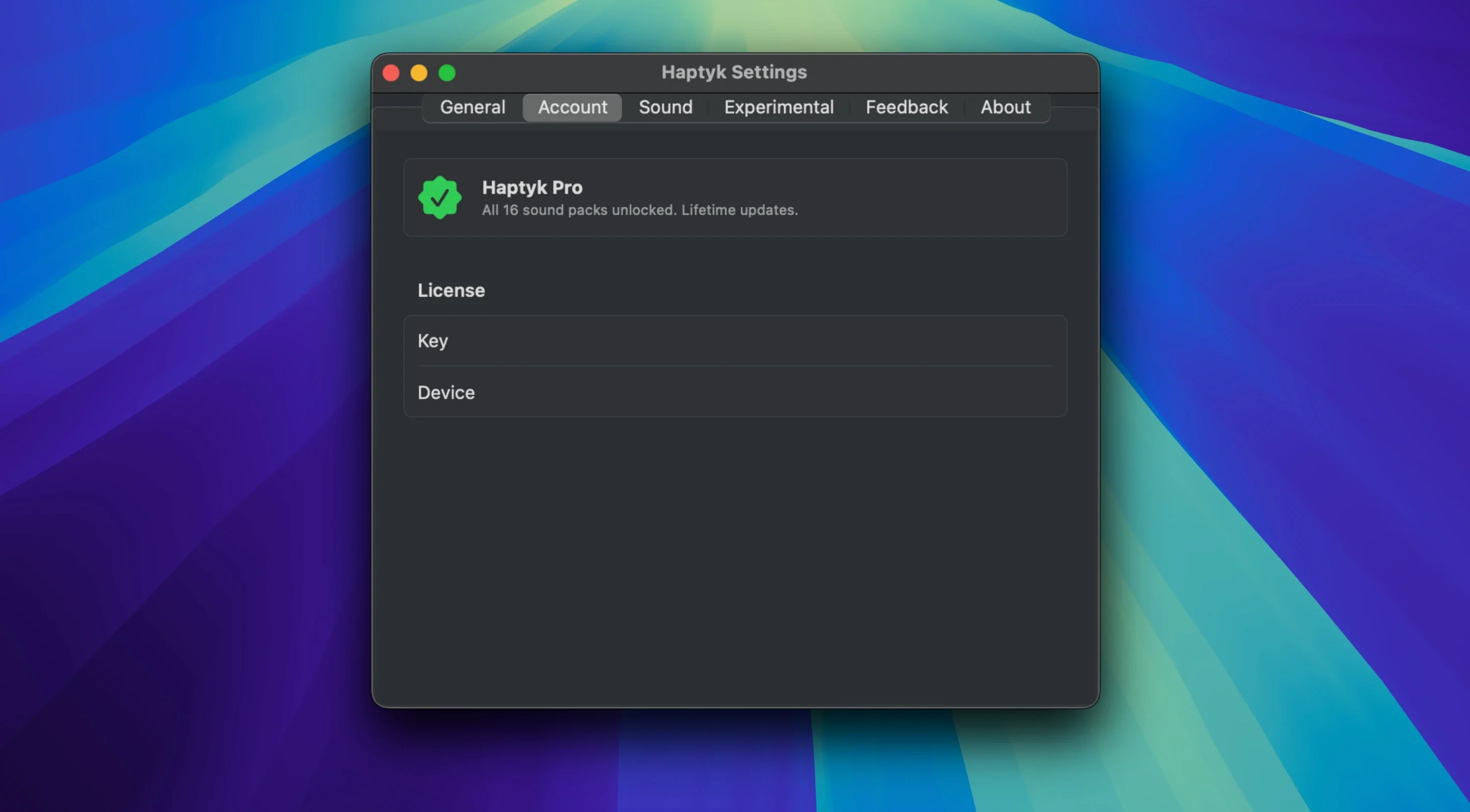
You sit down with a MacBook, start typing, and hear nothing. Haptyk fills that silence. It reads the force of each press on the built-in keyboard and plays a sound that responds—soft for a light touch, sharper when you strike harder.
- Open a blank note and type a single sentence slowly, varying your pressure. The sound follows.
- Try a fast burst of keys, then pause. The decay tail is clean, never muddy.
- Hold a key down lightly, then gradually increase force. Notice how the sound blooms.
- Type with your usual rhythm for ten minutes. The sound settles into the background, but the silence when you stop is noticeable.
Quirks and fixes
Sometimes the app stays silent after launch. Give it a moment. The sensor needs a few seconds to wake up on first keypress. If nothing happens after ten seconds, open System Settings → Privacy & Security → Accessibility and check that Haptyk appears there. Toggle it off and on.
On a soft surface like a lap desk or pillow, force detection can drift. The accelerometer reads vibration through the chassis, and a dampened surface mutes the signal. Move to a hard desk. The difference is immediate.
A few users report it stops responding after sleep. This is rare in 2.0.2, but if it happens, quit and relaunch. Sleep sometimes disconnects the sensor polling loop.
Details you might miss
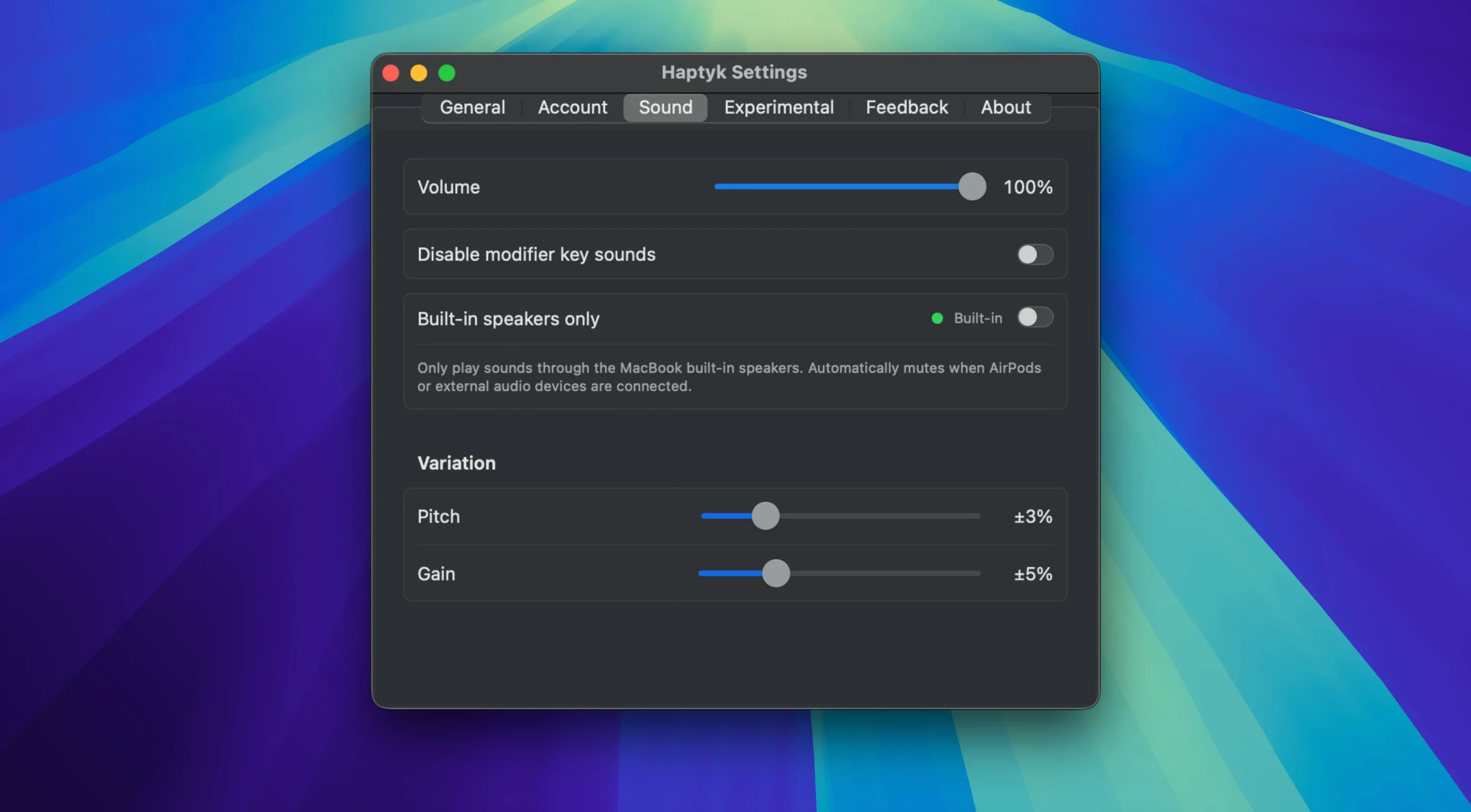
The menu bar icon holds a volume slider and a quick mute toggle. No dock clutter, no window to manage. Click once to adjust, click again to hide.
There is a hidden calibration gesture. Press and hold any key with steady, moderate force for three seconds. The app re-centers its force curve around that pressure. Useful if you switch between a light-touch MacBook Air M2 and a heavier chassis.
Haptyk does not use the speakers the way you expect. It routes audio through a low-latency private channel, so system volume and mute do not affect it. That means you can keep macOS muted for notifications and still hear typing.
First days with Haptyk
Start with the default sound profile. Resist the urge to tweak immediately. Let your fingers learn the force mapping for a full day of normal work before you touch the settings. Your pressure habits need time to surface.
After a day, open the preferences and test the alternate sound sets. There are three. One mimics a deep linear switch, one is closer to a tactile bump, and the third is a quiet thock. Pick the one that fades into your attention the fastest.
If you share a room, set the volume lower than feels natural at first. The sound is designed to be felt as much as heard, and a lower setting often disappears into ambient noise while still giving the feedback you need.
For long writing sessions, pair Haptyk with a dark room and no music. The sound becomes a metronome. Not a distraction—a rhythm you lean into.
That is the point. Not a feature list, but a physical layer added to a machine that had none. Start there.