
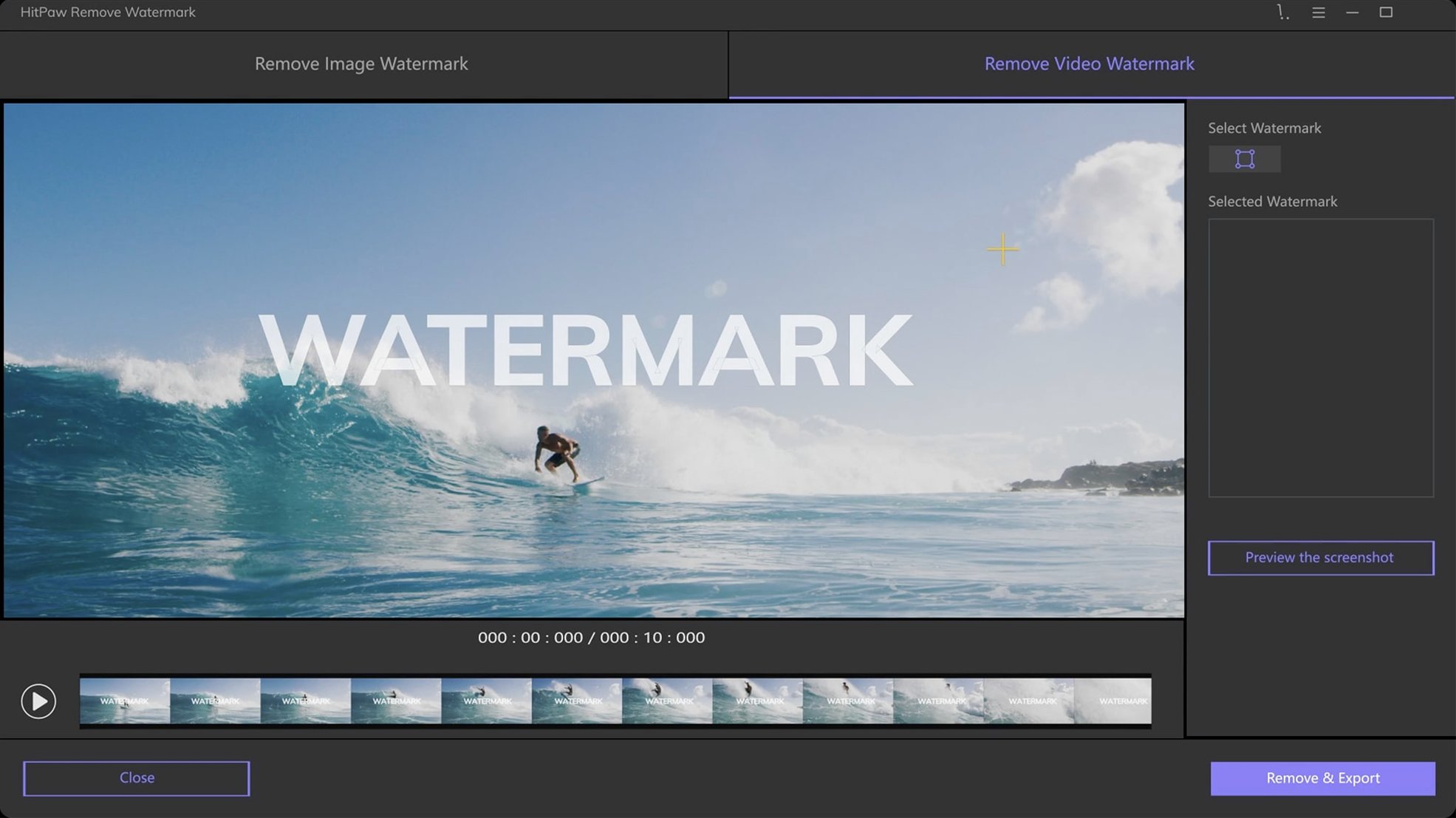
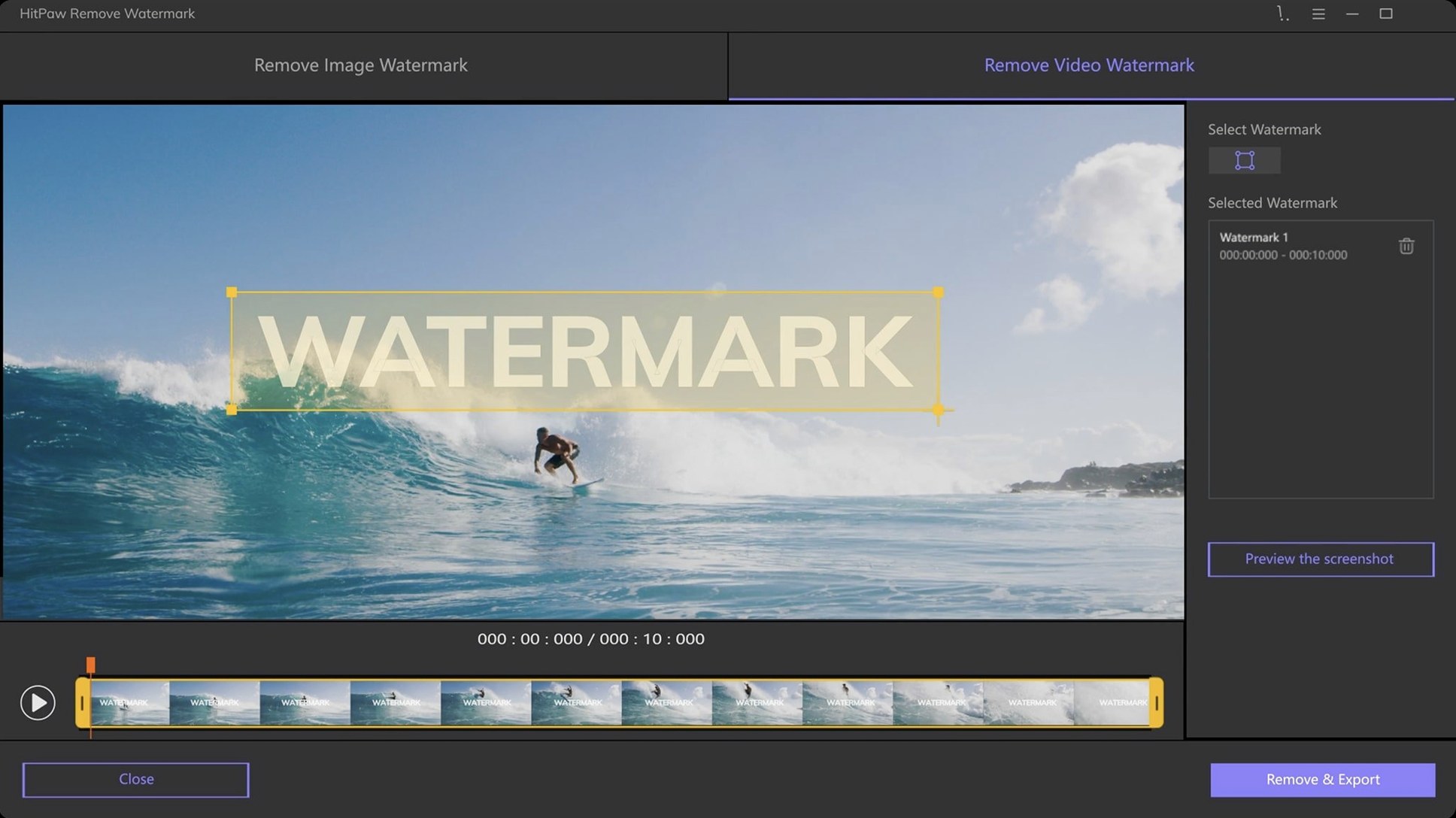
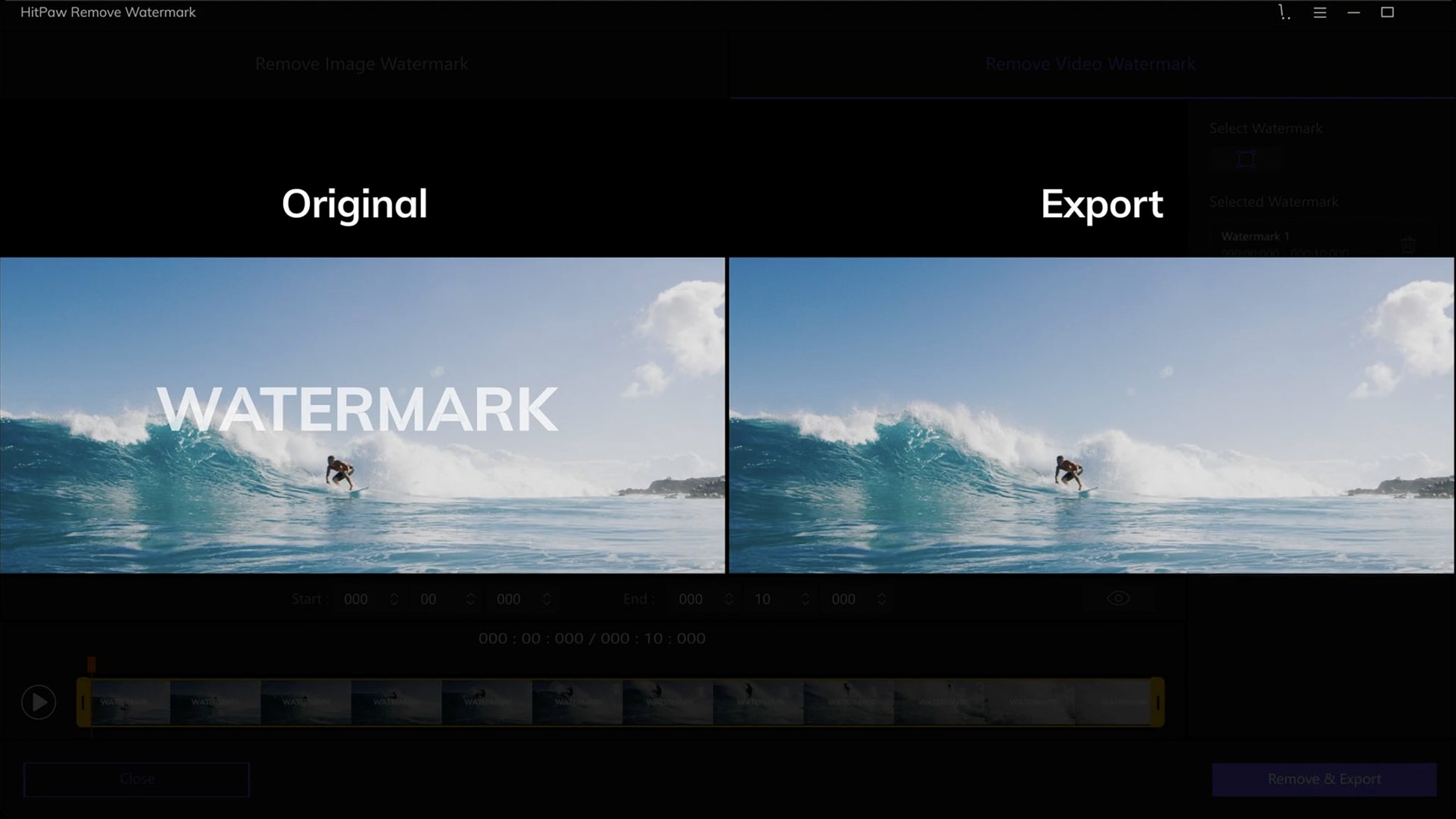
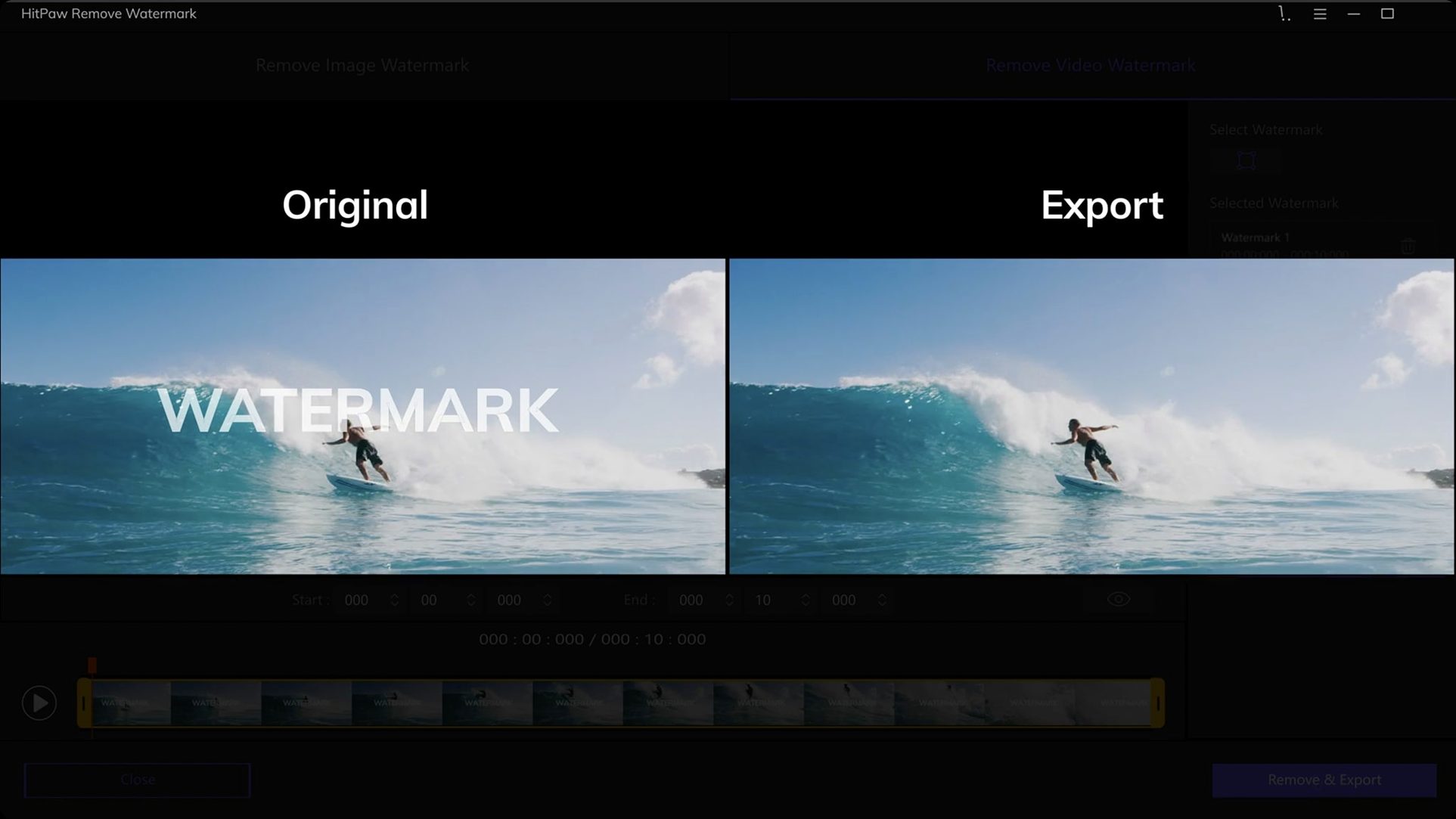
HitPaw Watermark Remover takes an unwanted object out of a still image or a video clip.
The Mac version needs macOS 10.13 or later on an Intel Mac. A separate Windows product exists.
Marking modes
- Dragging in a source image to start
- Choosing a removal mode: smooth filling, edge filling, or texture repair
- Marking the watermark with rectangle, triangle, or freeform selection tools
Interface languages
- The interface is graphical, not a command-line tool
- Interface languages include English, German, Japanese, and seven others
PNG first
Open preferences before the first project. Switch the output format to PNG for images — it preserves transparency in case the removal leaves a soft edge you want to clean later.
For video, lower the preview resolution. Full-resolution previews slow down the selection step on older Intel Macs. The removal itself still runs at the original quality.
Turn off the sound effect. It ships enabled.
Brushed metal fix
You open a still from a product shot. The timestamp in the corner sits over a textured surface — brushed metal.
You drag the image in. The freeform selection tool traces the timestamp loosely; no need for precision. Texture repair mode is the natural choice here. You apply it.
The preview shows a faint blur where the digits were. You undo, switch to edge filling, and narrow the selection slightly. Apply again. This time the metal grain continues across the area. Good enough.
You export as JPEG. Three minutes from drop to done.
A video file comes next — a short MOV with a moving logo in the lower third. You scrub to the frame where the logo sits over the plainest background. Rectangle selection covers it. Smooth filling handles the rest. The tool processes only the selected range, so you trim the timeline to the affected seconds and let it run.
Drag-out workflow
The app works as a single-purpose station. You drag something in from Finder or from a folder on the Desktop, clean it, and drag the result into a different tool — a timeline in DaVinci Resolve, a layer in Pixelmator Pro, a Keynote slide.
There is no export-to-cloud menu and no share sheet. That keeps the session short. The removed file lands wherever you tell it; the original stays untouched.
macOS Quick Look works on the output without extra steps. Press Space on the exported PNG or MOV to check the result before dropping it into the next app.