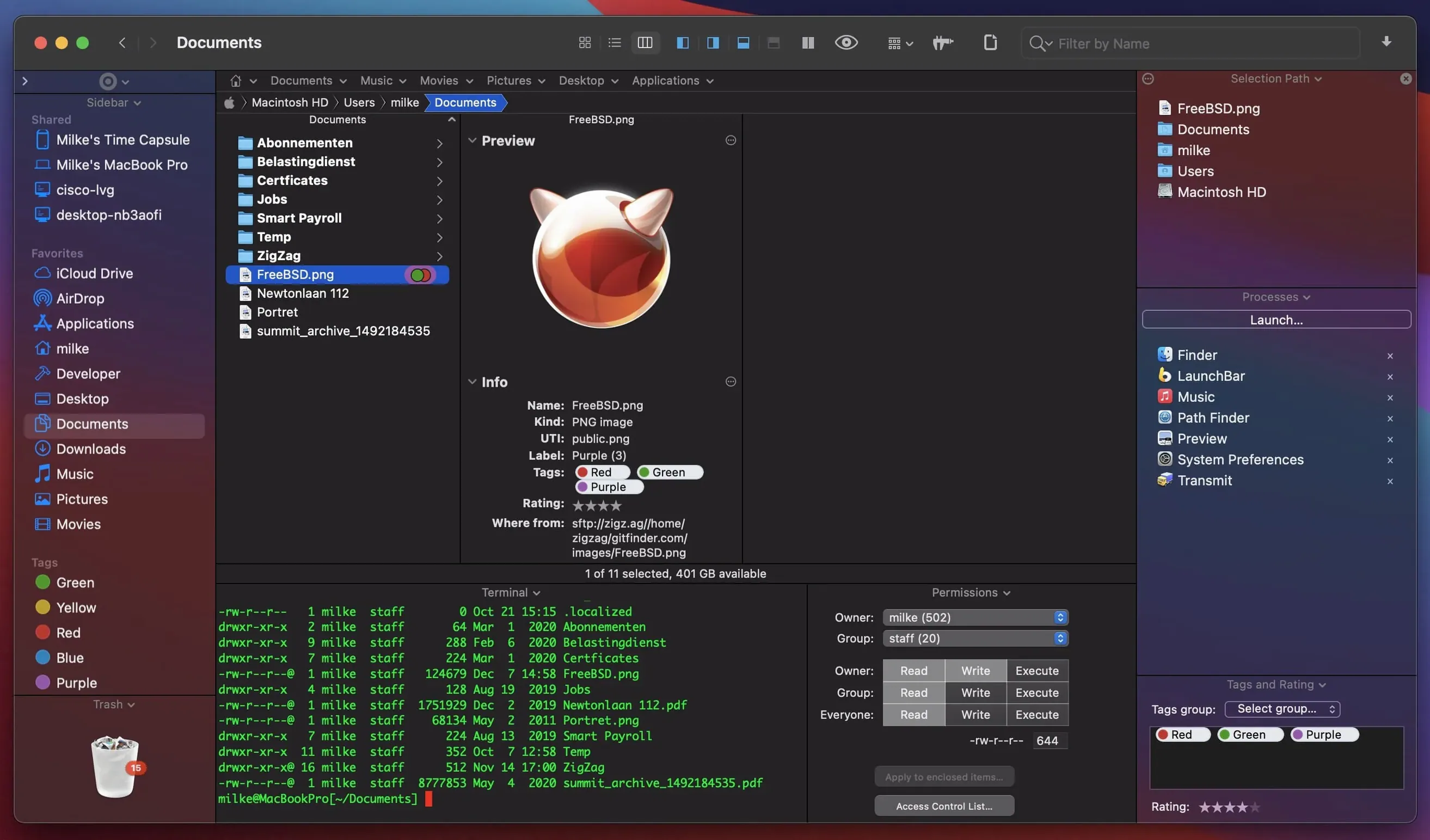
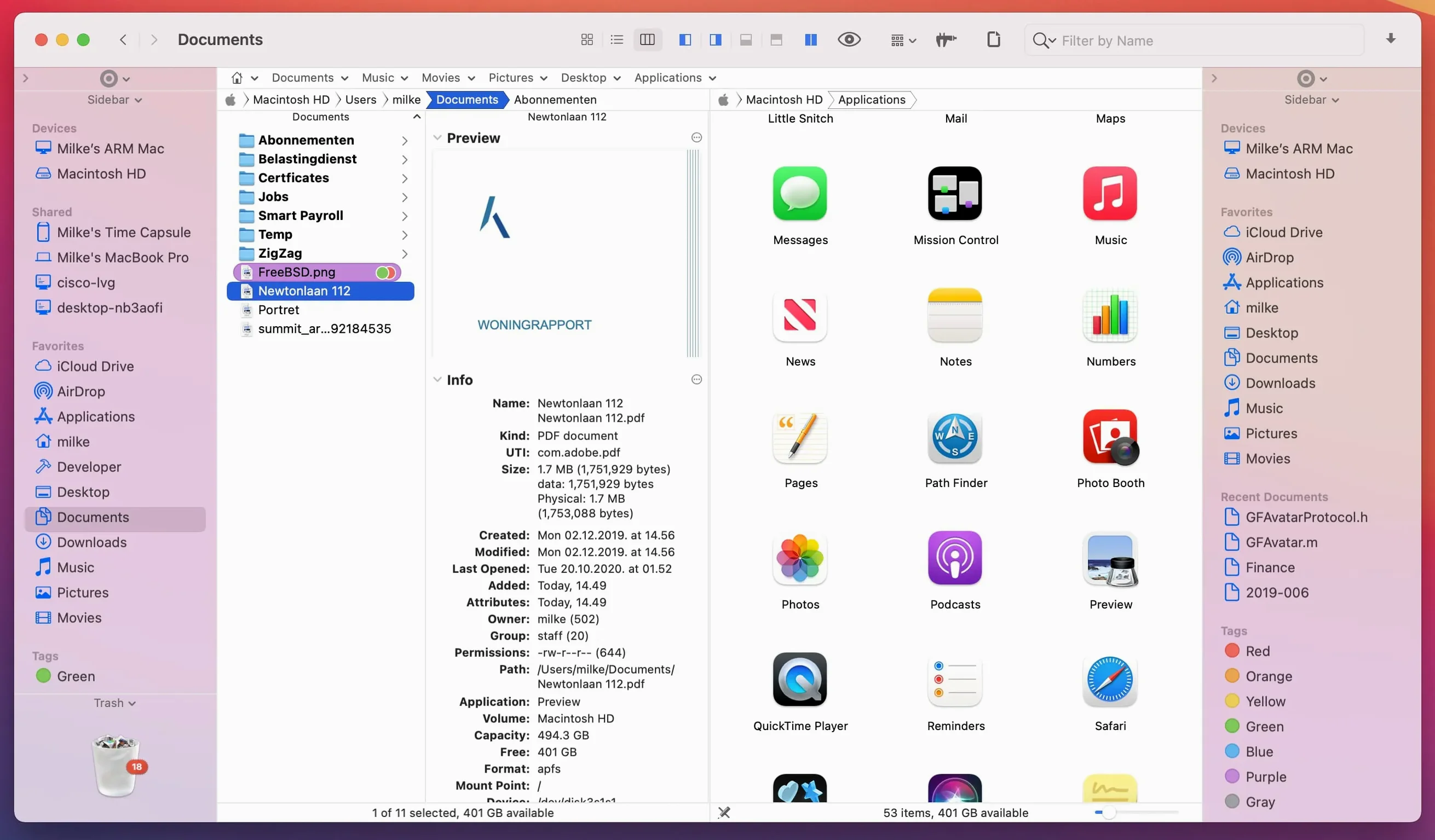
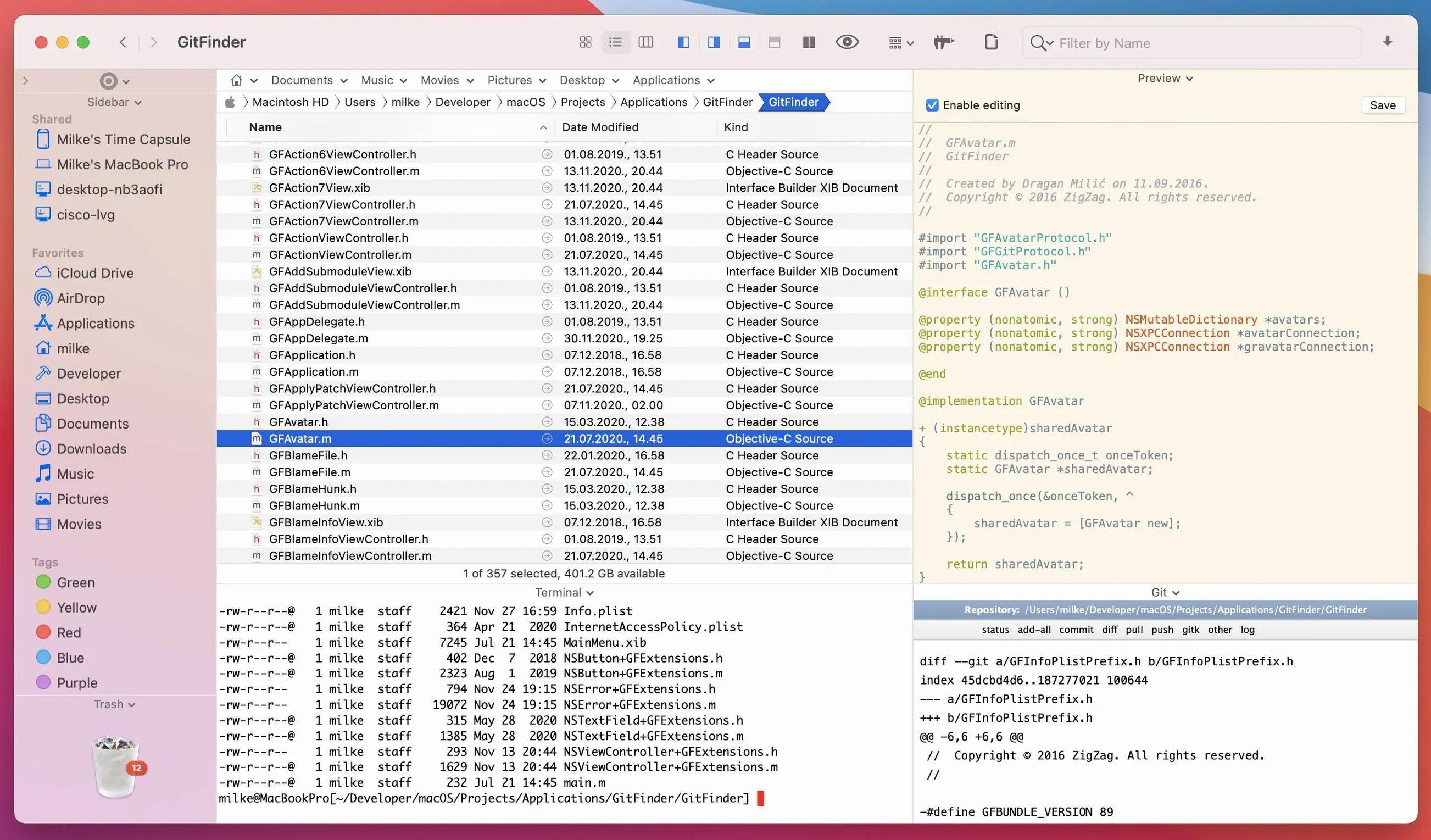
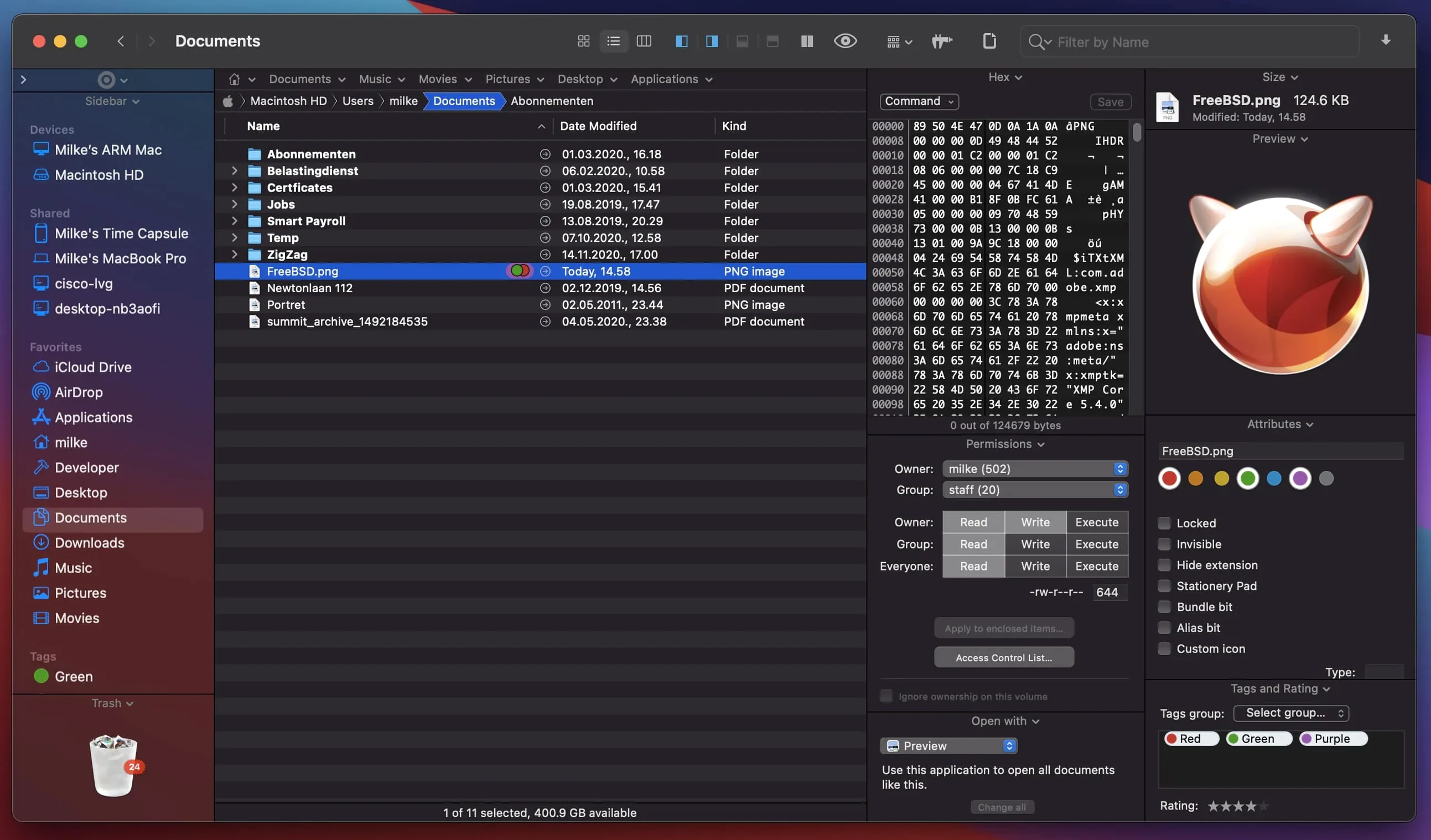
Power users and anyone who shuffles files between locations all day. The Finder was never built for that. Path Finder was.
- Open the dual-pane view. Drag files from one folder to another without opening a second window.
- Make a few tabs. Keep your downloads, a server, and a project folder in one place.
- Try the file preview. Press Space on a video or a document and watch it play inline, no extra app.
- Connect to an FTP server. It is built in; no separate client needed.
- Browse with the keyboard. Arrow keys and quick shortcuts move you through folders faster than a mouse.
A photographer returning from a shoot often has two drives full of folders: RAW files, JPEG exports, and a client folder that needs to stay clean. Path Finder handles this without extra windows.
Open a second pane. Point one side at the card reader, the other at the working drive. Filter by extension to see only the RAW files. Select them, move them across, then switch the filter to JPEG and repeat. The tabs keep the client folder one click away, so nothing ends up in the wrong place. When the shoot is backed up, connect to the studio server through the built-in FTP client and send the selects without leaving the app.
The whole job stays inside one window. No Finder. No separate FTP tool. No hunting through ten open folders.
Double-click fix
Recent fixes mostly touch everyday browsing. Double-clicking an icon in List View now behaves the way it should. That sounds small, but anyone who has opened the wrong file twice in a row knows the difference.
Batch rename no longer stumbles at 31 files. Selection in List View holds up when you click several items in one pass. Label and tag colors, plus iCloud status icons, now show correctly across Icons, List, and Columns views. Drag-and-drop feels cleaner too, both when you draw a selection and when you cancel it.
Most of the work under the hood targets macOS 27 Golden Gate. Menu icons and small interface details now sit right on the newer system. For people still on Ventura or later, the daily experience stays stable.
One folder first
Do not rebuild your whole workflow at once. Pick one folder routine and move it into Path Finder first.
- Set your most-used folder as the default opening location. That removes the first click of every session.
- Create two or three tabs for recurring spots: downloads, a project folder, a server connection.
- Turn on the dual-pane view only for transfer-heavy days. Single pane feels calmer for browsing.
- Learn the keyboard shortcuts for your two most common actions. Two shortcuts are enough at first.
- Use the file preview every time you would normally open Quick Look. It becomes automatic within a week.
After a few days, add the archive tool and the process manager when you actually meet them. Not before. That keeps the app quiet until it earns more space in your day.
These five things take ten minutes. They replace two or three apps you currently keep open.