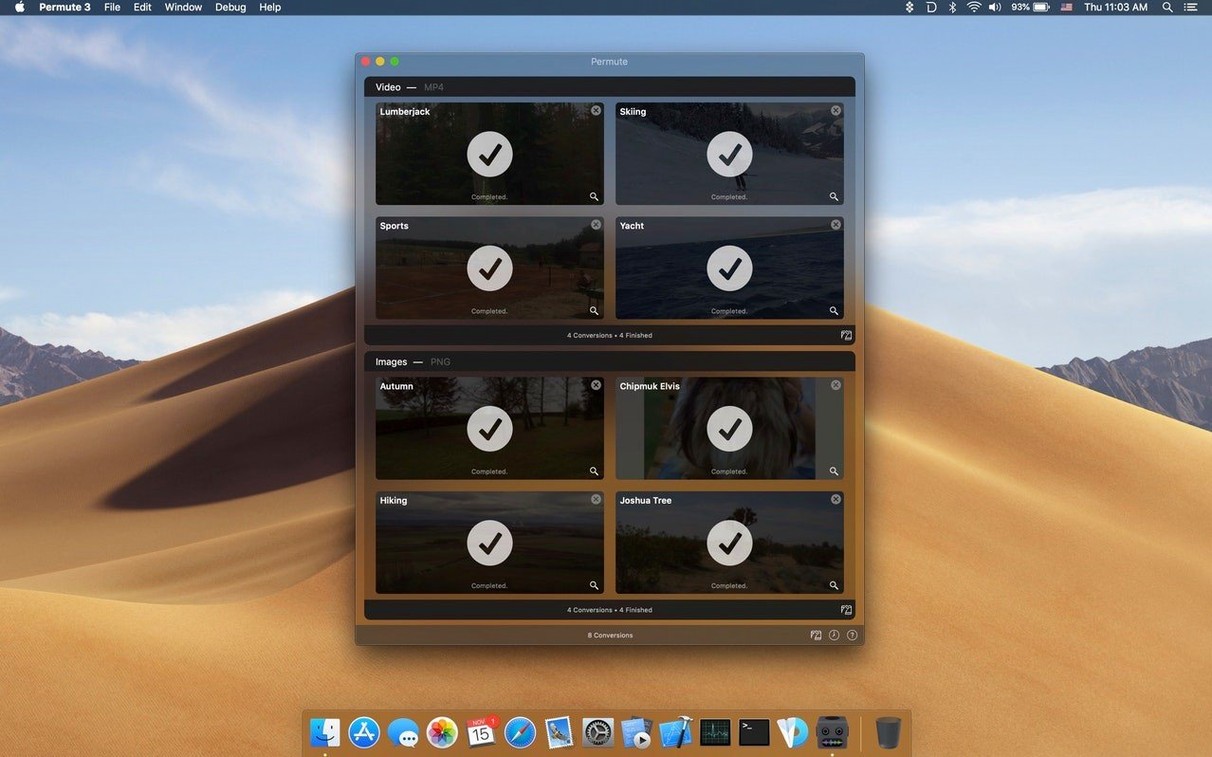
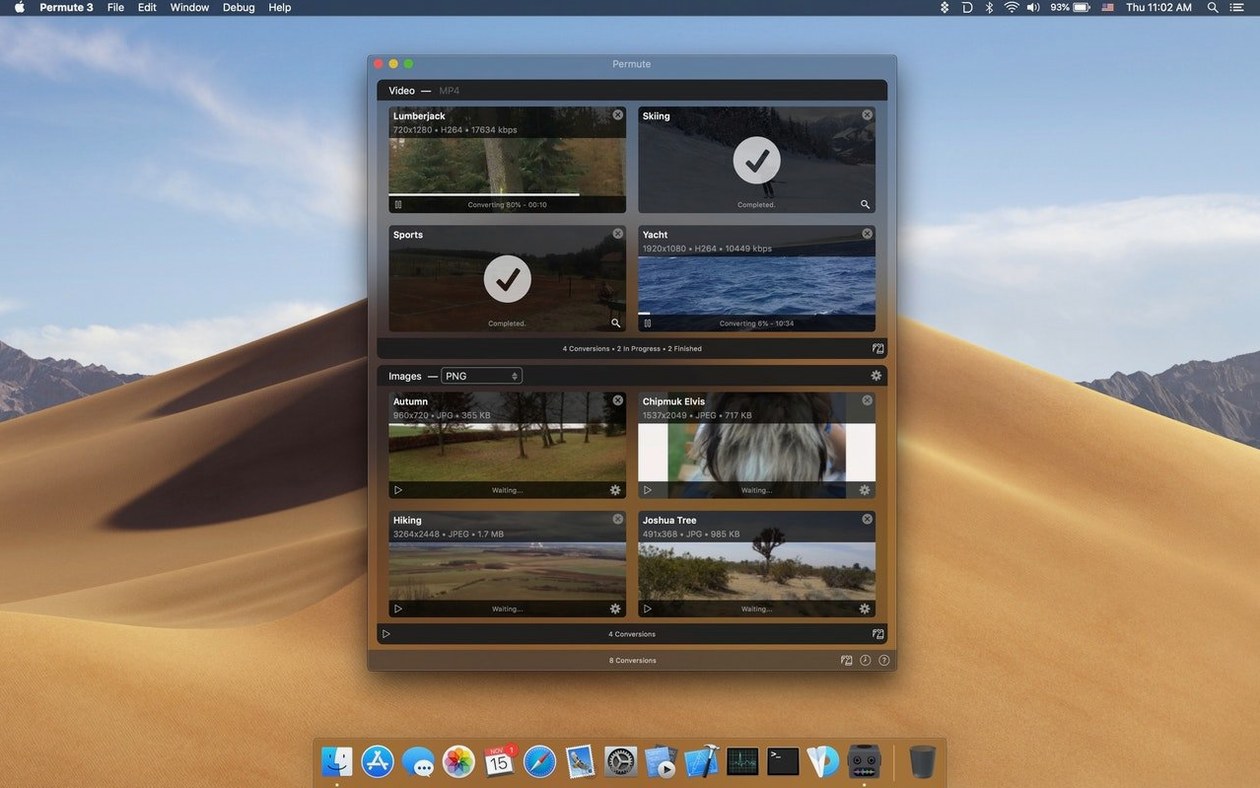
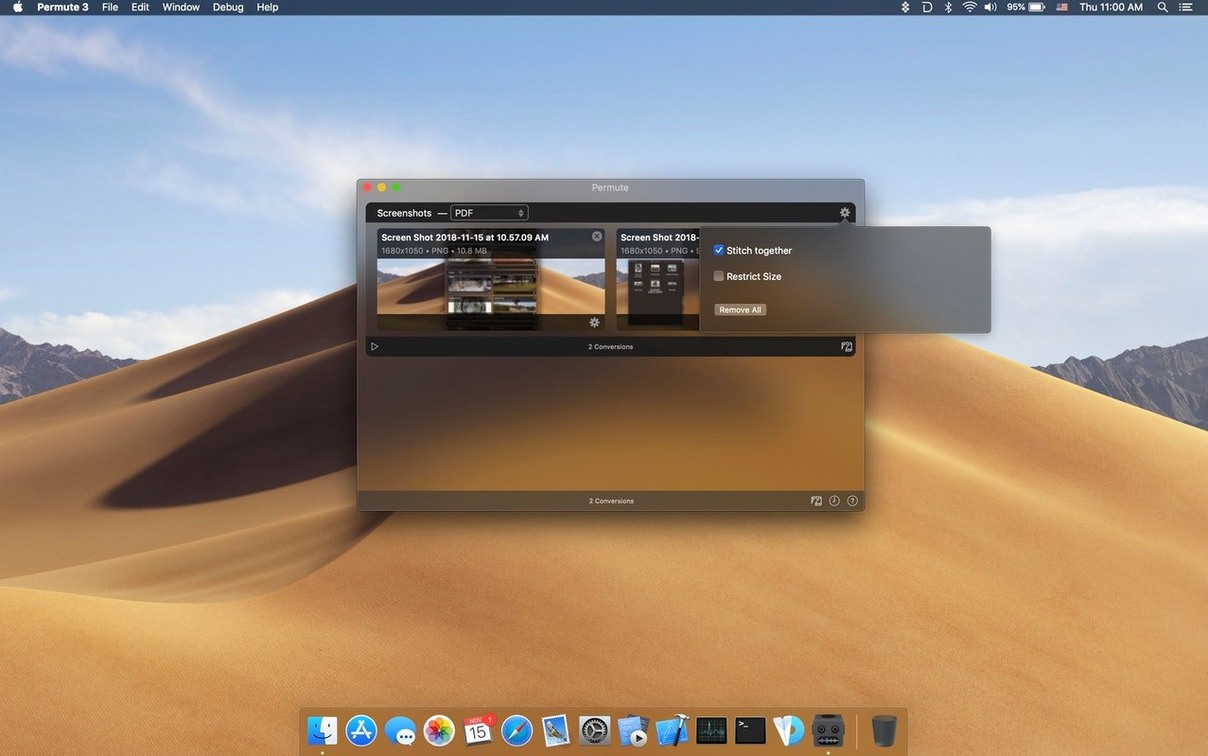
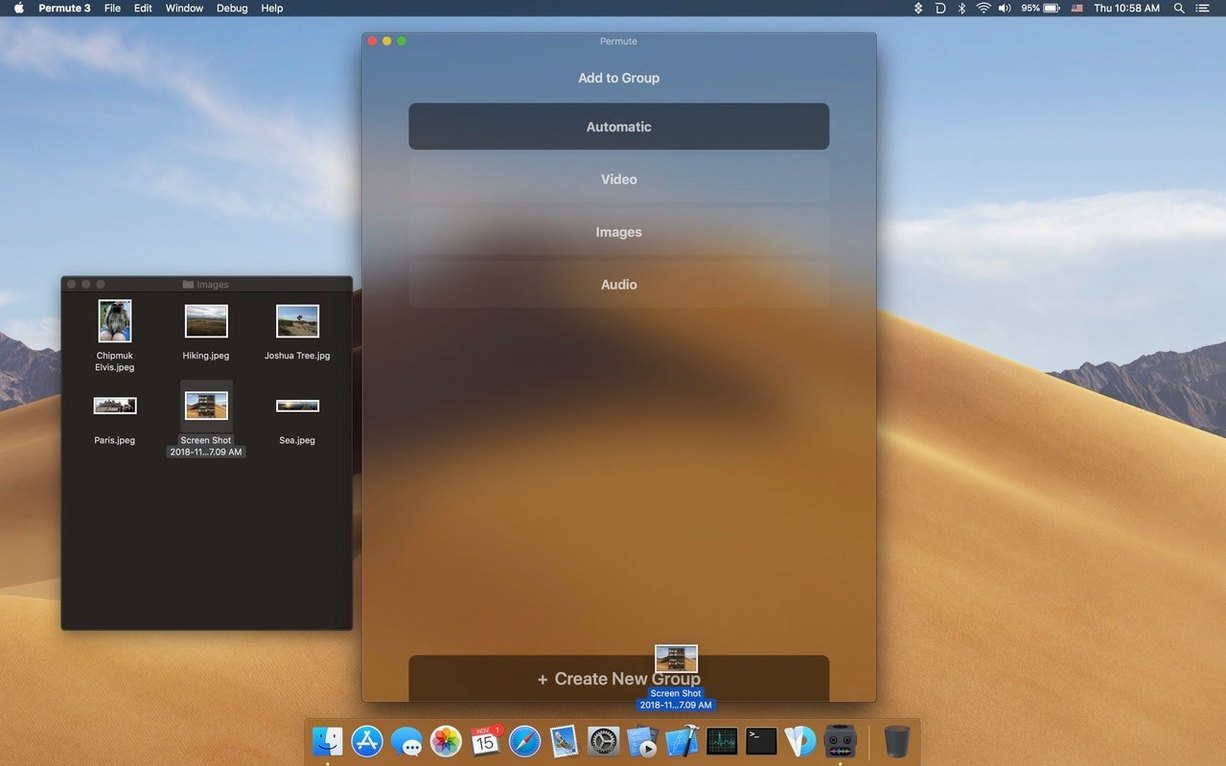
A video clip lands on your desktop. It’s the wrong format for the editor you already have open. You drag it, drop it, and get back to work.
Converter — not a library, not a player. Permute stays out of the way.
One developer — Charlie Monroe builds and maintains it alone. The software feels personal, not committee-made.
Formats — video, audio, images. It goes between them and also creates ISO files. No fussing with profiles unless you want to.
Untouched originals
Most questions are about what Permute actually does with files. It copies, converts, and writes the result wherever you choose. The original stays untouched. You can batch forty clips or a single song; the queue handles both the same way.
People also ask whether it replaces QuickTime or HandBrake. It doesn’t. Permute sits closer to the surface: quick conversions, format shifts, grabbing audio from a video you already have. For deep compression tuning, you still reach for something heavier.
One thing worth knowing: Permute 4 runs only on Apple Silicon. An older Intel Mac won’t install it. If you’ve been using Permute 3 on an older machine, this version is a different build for newer hardware.
Honest progress
Speed depends on the codec and the size of the file. A short screen recording to MP4 takes seconds. A full movie to a different container takes longer, but the progress bar stays honest. No spinning beach balls, no hidden post-processing.
Memory use stays modest. Converting a 1080p clip in the background, I rarely see Permute climb above a few hundred megabytes. It releases what it uses. That matters if you keep it running alongside an editor and a browser with thirty tabs.
Stability is the quiet kind. The app doesn’t crash on odd files; it tells you a conversion failed and moves to the next item in the queue. Failed files show a reason, usually about a codec or a corrupt source. Nothing else in the queue gets stuck.
If you’re looking for a permute mac workflow that just works, the simplest path is to drop files and let the presets decide. You can adjust them later, but you rarely need to.
No sound
A common one: a file converts but the result has no sound. That happens when the source uses an audio codec Permute doesn’t map cleanly. The fix is usually to pick a different output container — MP4 instead of MKV, or vice versa. Another route is to convert to WAV first, then mux the audio back in.
Subtitle timing can drift after conversion. If the subtitle track came from a different source than the video, frame rate differences creep in. Convert the video first, then add the subtitle track in a second pass. That keeps sync predictable.
Merging two videos with different resolutions or frame rates sometimes produces a file that stutters. Convert both clips to the same profile first, then merge. It’s one extra step, but the result plays cleanly.
If a permute 4 mac conversion stalls at the start, the source file may be damaged or partially downloaded. Re-copy the file from the original location and try again. If it still fails, convert it to an intermediate format like ProRes or WAV, then to the target.
For anyone doing a fresh permute download, the app asks for no account, no login, no cloud sync. It installs, it converts, it leaves.
A tool that does one job and leaves your folder structure alone.