Most property lists use three or four data types, but a plist can hold thousands of entries. PlistEdit Pro treats that scale as normal.
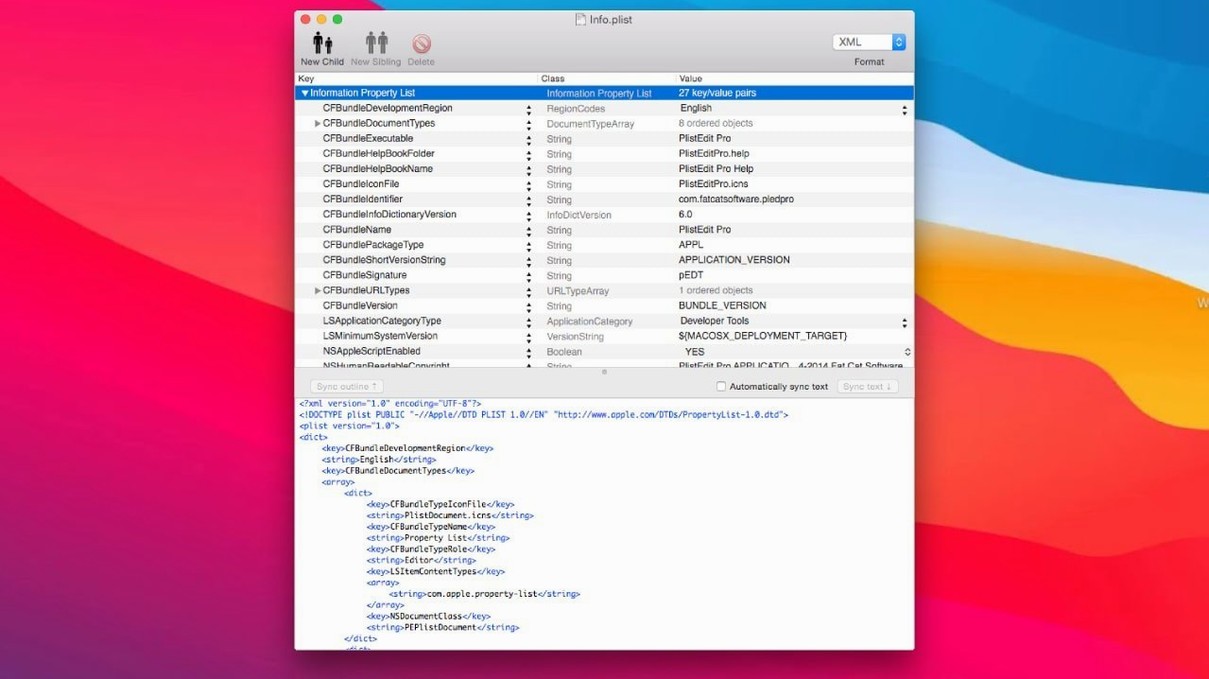
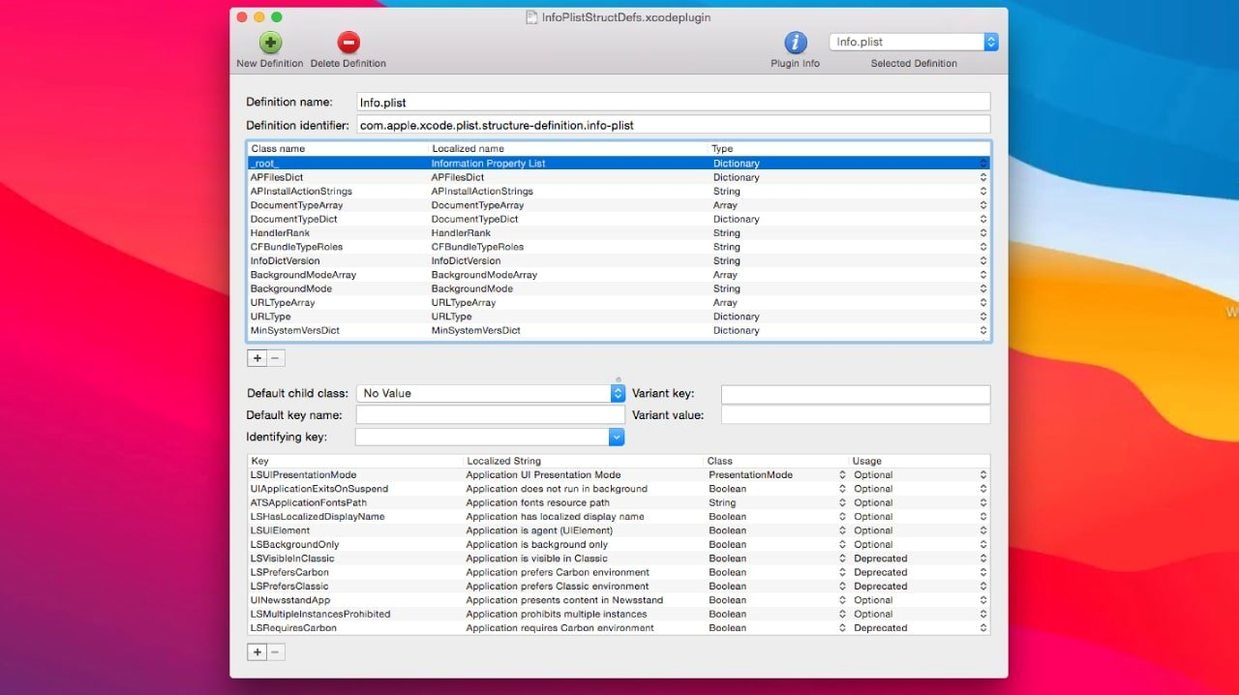
Developers open it for two reasons. First, the outline view shows exactly how keys and values nest, with structure definitions that prevent format mistakes before they happen. Second, you can drag sections around instead of cutting and pasting lines of XML by hand.
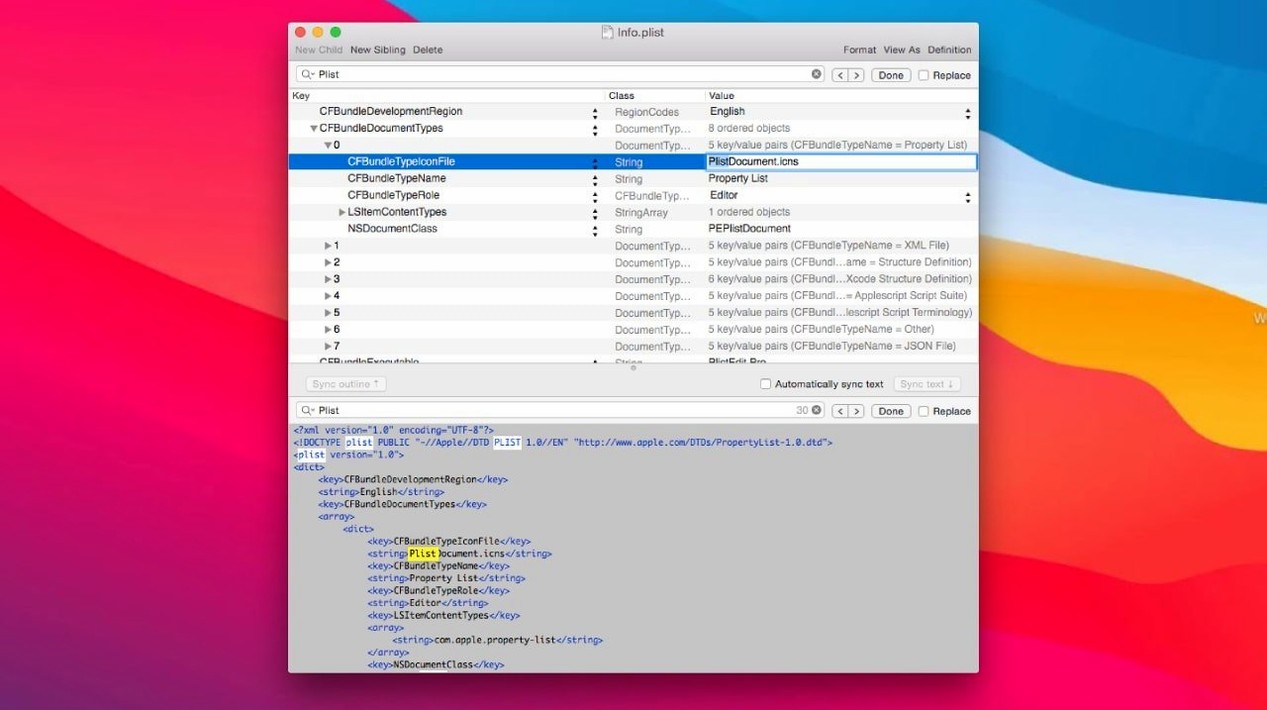
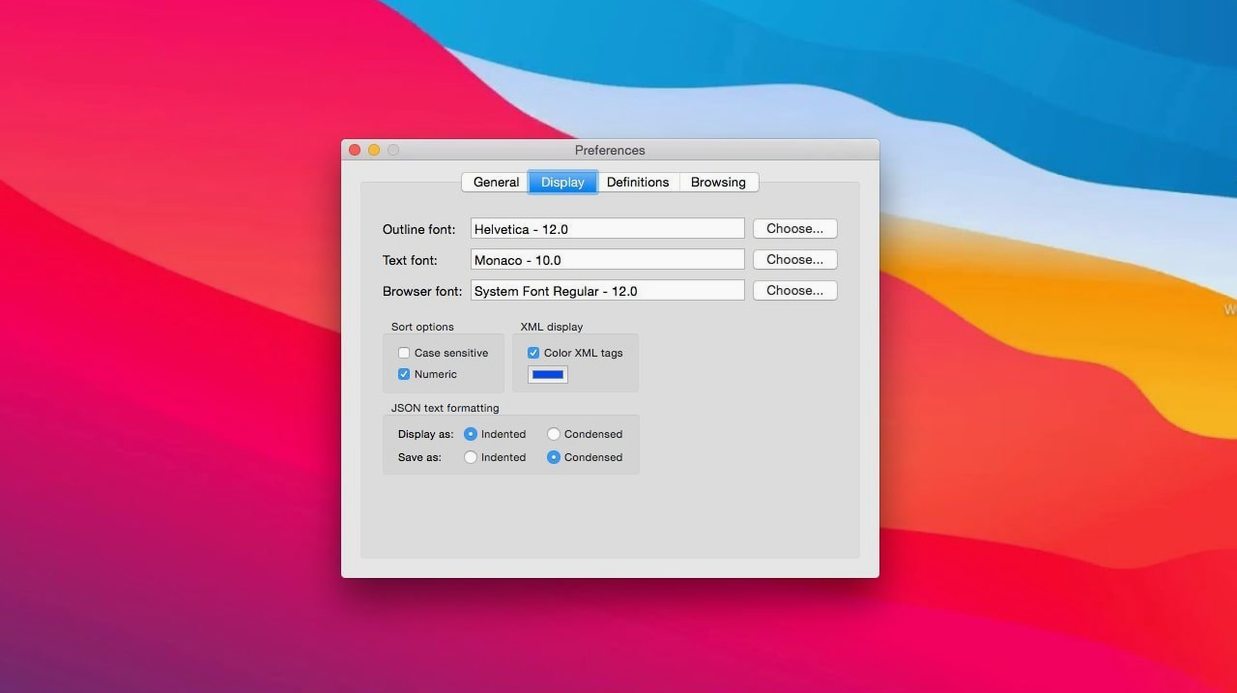
Find and replace works across the whole file or just selected branches. Multi-level undo means a wrong drag doesn't cost you ten minutes. You can also set the editor font to something you enjoy staring at.
A common debugging session starts in the preferences browser. You suspect a setting is stuck, but you don’t know which domain. Choose Search Folder, point to ~/Library/Preferences, enter the value you think is wrong, and run it. PlistEdit Pro shows every plist containing that string, domain by domain.
From there, double-click a result. The outline view opens with the offending key already highlighted. You can edit the value in place, or right-click to delete it entirely. Then save and relaunch the app you were debugging — no need to hunt through raw XML or guess at domain names.
If the same key needs changing across multiple plists, drag it from one window into another. The key, type, and value copy over intact. It feels like moving a folder in Finder.
Details
Pressing Option-Return in the outline view inserts a sibling entry immediately below the current row. Shift-Return inserts a child. These two shortcuts remove most mouse trips during data entry.
When you paste a dictionary or array from another source, the app preserves the data types if they’re valid plist types. If they’re not, it prompts you to choose how to coerce them. This catches JSON-to-plist mismatches early.
The pledit command-line tool lets you run find-and-replace across files in a script. It’s a thin wrapper around the app’s search engine, so the same scope options — current file, open files, or folder — apply in automation.
Dropped OS support
Version 1.10.0 dropped support for macOS 13 and earlier. The interface now expects the conventions of macOS 14 and above, which means fewer visual discrepancies in dark mode and a more predictable toolbar layout.
Earlier, the preferences browser kept its filter checkboxes in a floating panel. Now they sit inside a toolbar menu, out of the way until you need them. The “ask to revert” behavior also moved to a small popover, so the workspace stays cleaner during long editing sessions.
It handles standard plist formats and JSON. Nothing more, nothing less.