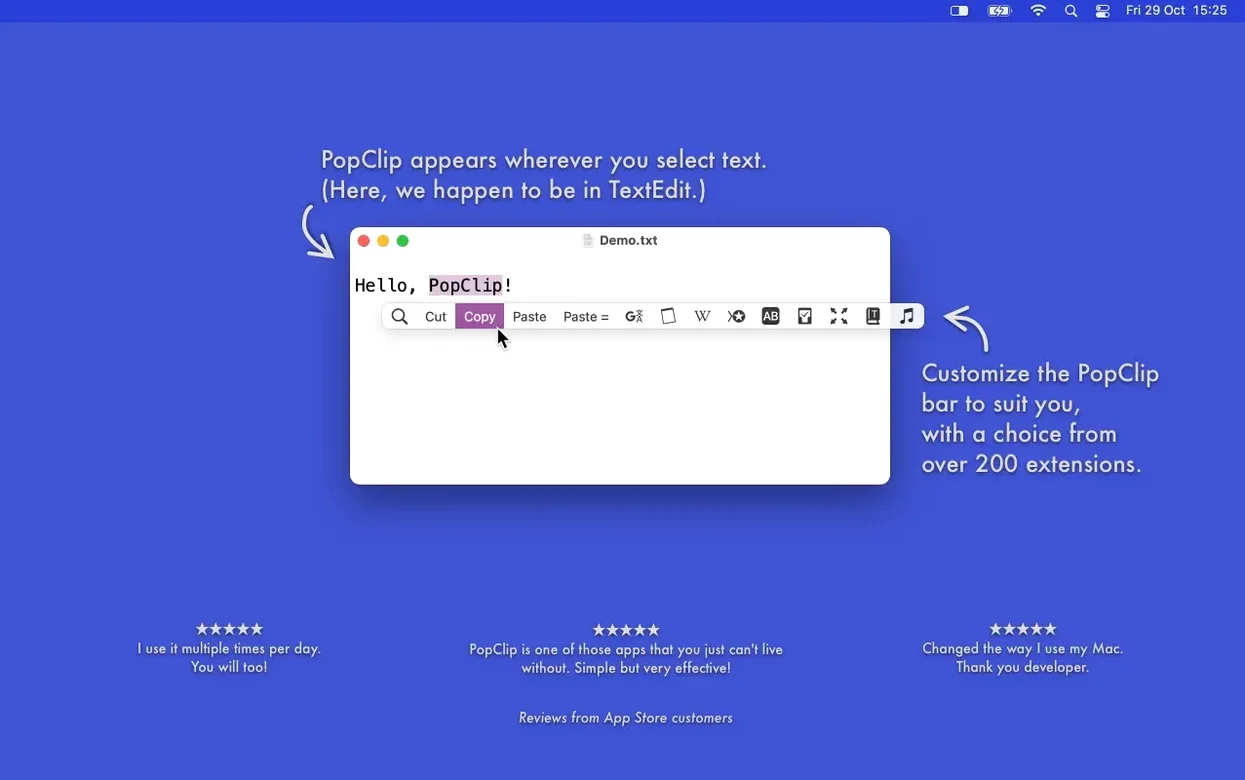
PopClip is a macOS utility that shows a row of context-aware actions whenever you select text.
What stays
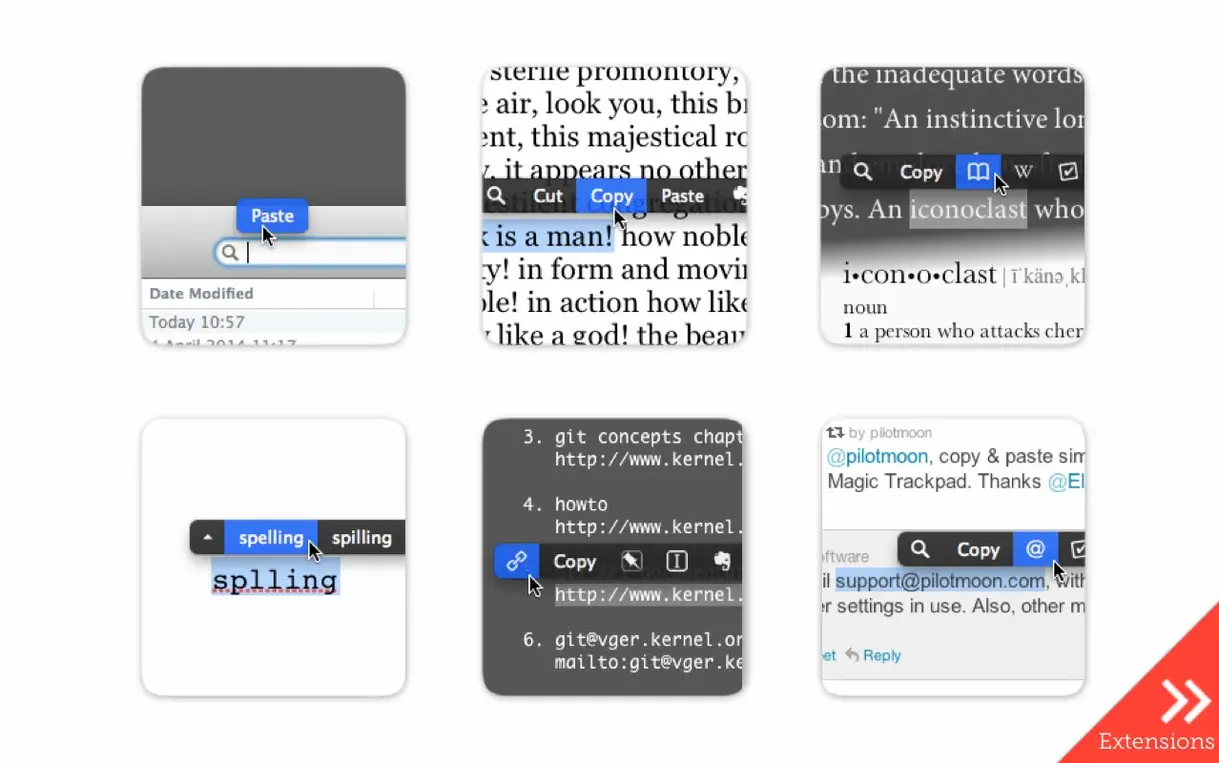
- Actions appear for a dictionary lookup, paste-and-match-style, translation, word count, and case conversion.
- iCloud syncs your extensions, layout, and settings between your Macs.
- Spelling corrections show up when you select a misspelled word.
Tighter code
Version 2026.8.1 is a quiet cleanup. No new features. No shifts in behavior. Just a tighter, tidier version of the tool you already know. It works on Apple Silicon and Intel Macs, requires macOS 13.5 or newer, and stays out of your way until you highlight something.
Selectors rejoice
PopClip rewards a specific kind of Mac user. The ones who select text constantly — not to read it twice, but to act on it. Writers correcting phrasing. Developers opening ticket numbers and commit hashes. Researchers firing off web searches from a term in a PDF.
If you keep one hand on the mouse and hate the trip to the menu bar, the utility lands naturally. It also suits people who work across languages. Select a sentence in French, tap the Translate extension, and read it in English without opening a browser tab. The same gesture opens a URL from a plain-text email or navigates to a file path pasted into a note.
It fits less neatly if you live entirely in plain text editors that already have deep keyboard shortcuts. Or if you rarely touch the mouse. The popover waits for a drag, not a Shift-Arrow selection. That mouse dependency is the line. Cross it often, and the app earns its place. Cross it rarely, and it stays invisible.
Instant palette
PopClip sits between two worlds. On one side, Keyboard Maestro can trigger text actions via hotkeys or selection-based macros. It offers deeper automation but asks you to build the triggers yourself. PopClip gives you a ready-made palette that appears without a single shortcut to remember.
TextSniper grabs text from images and screenshots. It solves a different problem — extraction, not reaction. The two apps complement each other well. Grab with TextSniper, then act on the result with PopClip.
Then there is the built-in macOS context menu. It sits behind a right-click and handles basic lookup, search, and sharing. PopClip removes the right-click. One drag selects. One tap acts. The difference sounds small. After a few hours of link-opening and case-flipping, it feels large.
Settings to visit first
Out of the box, PopClip shows the actions it thinks you need. Spend three minutes in the preferences to make it yours.
Turn off the popover for password fields. The app tries to hide itself in secure text fields, but you can enforce this in the Excluded Apps pane. Add your password manager and any terminal app where accidental taps would hurt.
Reduce the extension list. More than a hundred extensions ship with the app. Most users need six or seven. Disable the ones you never touch. The row stays calm. Your eyes find the right icon faster.
Adjust the size. The slider under Appearance controls how large the popover feels. Push it up if you work on a dense 4K display. Pull it back on a laptop panel where every pixel of vertical space matters.
One last setting: iCloud sync. Turn it on if you use PopClip on a desktop and a laptop. Extensions and their positions carry over. You set things once, and the popover behaves the same way on both machines.