
RAR Extractor runs on any Mac with Apple Silicon or an Intel processor on macOS 11.5 or later.
Open
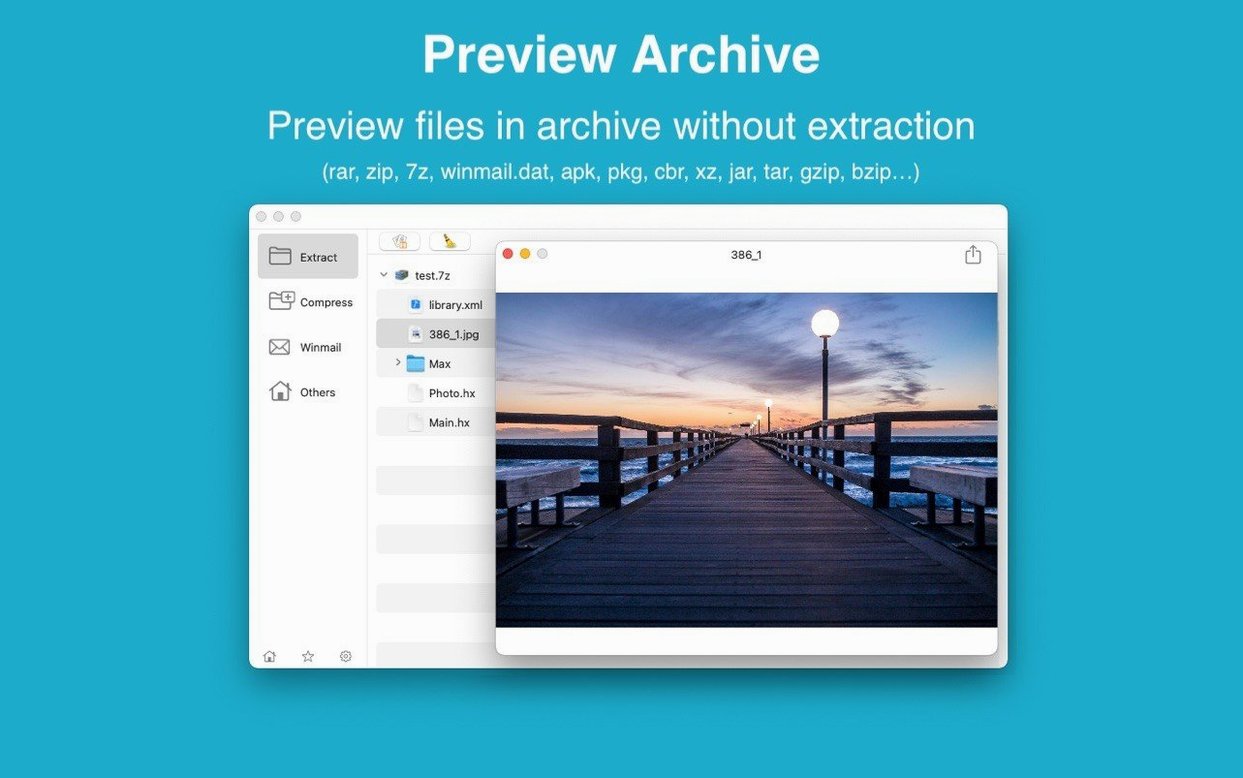
Drop an archive into the window. A fast preview shows its contents. Grab a single file or extract everything.
Unpack
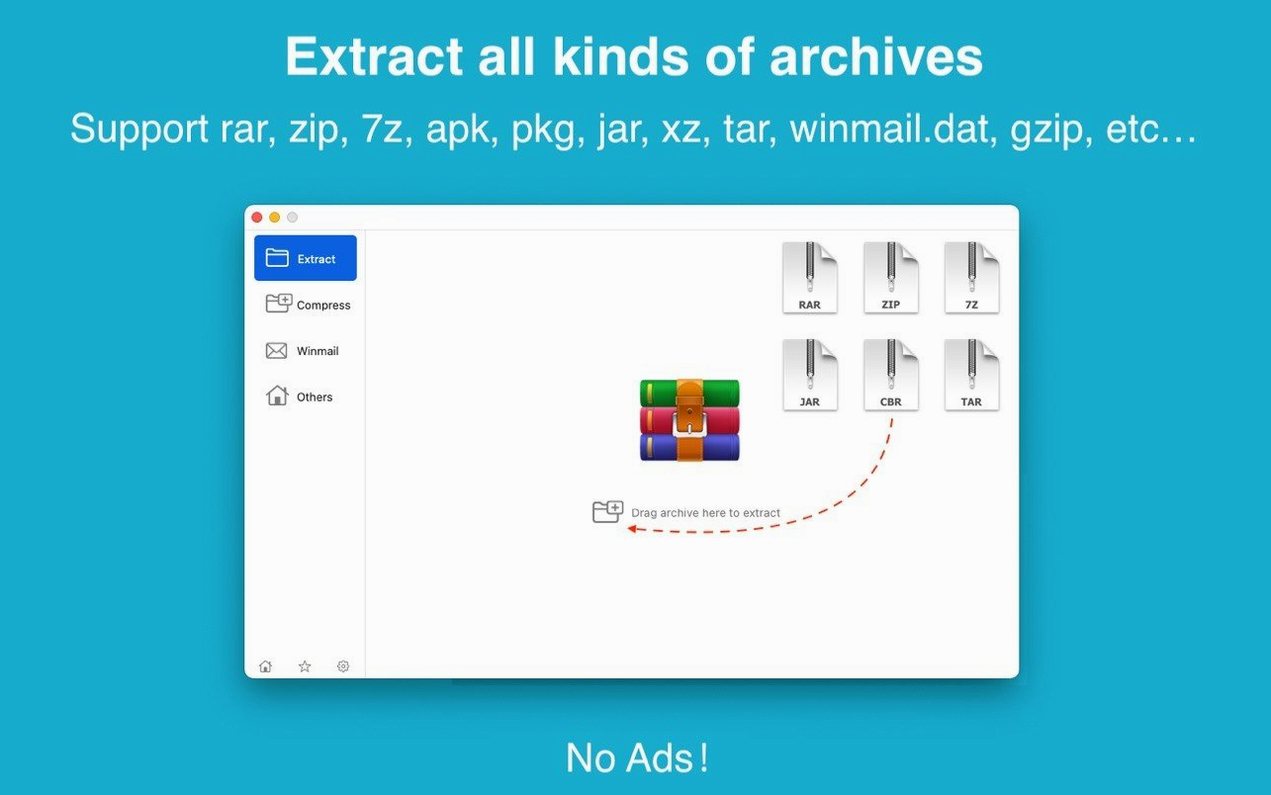
Drag in several archives at once. The batch unpacking handles them all without a queue of dialogs.
Create
The first launch gives you an empty window. That is the right moment to set the app as your default archive handler. Open Preferences and enable the default-app option. Double-clicking a RAR or 7Z file will then open it here instead of jostling between two other utilities you half-installed years ago.
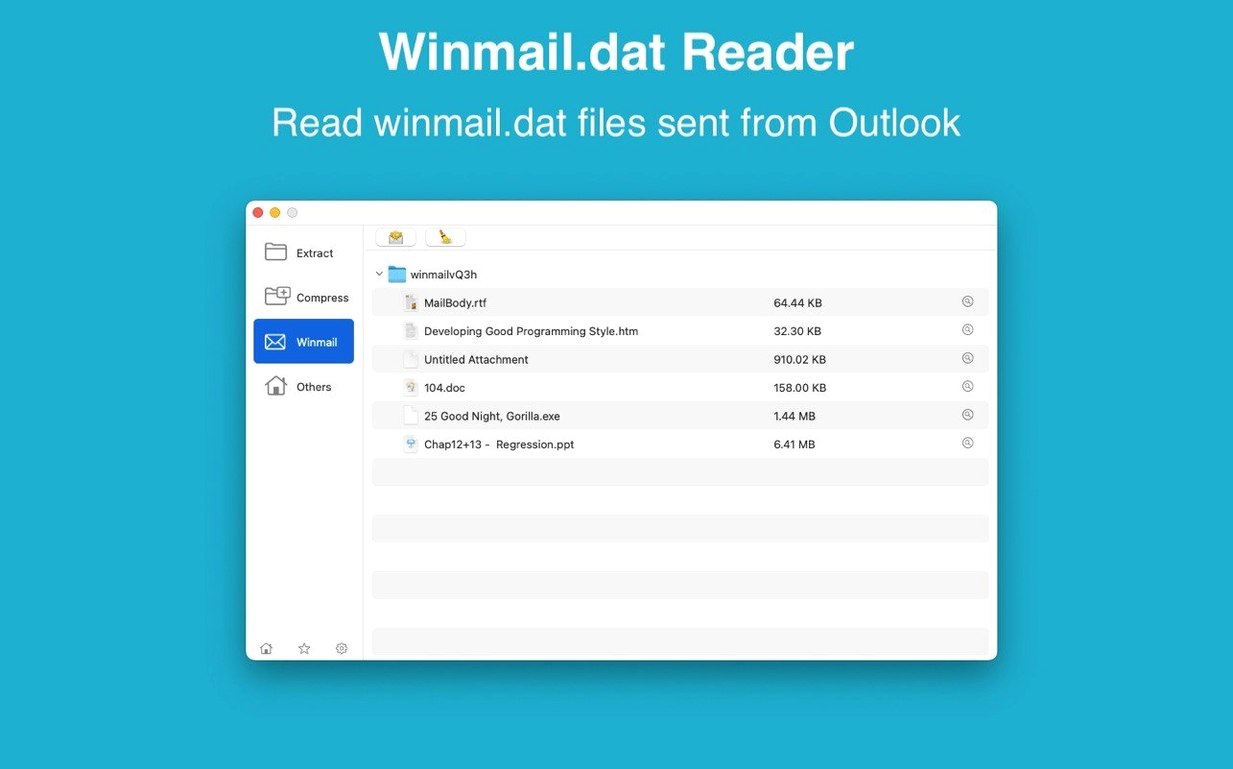
Another quiet improvement: drag a winmail.dat attachment into the window. The preview decodes it without forwarding the message to yourself or opening Outlook.
Dock-drop habit
Train one habit early. Drop archives onto the Dock icon rather than the window. It works when the app is hidden, and it saves a click.
For password-protected files, type the password once. The app remembers it for the session. When you are unpacking a set of encrypted archives that share a key, this removes the repeated prompt that slows down other extractors.
If you need a rar extractor mac users can rely on without thinking, pin the app to the Dock and leave the dual-window view off. The single-pane mode keeps the interface flat. You see contents on the left, nothing on the right. Less to scan.
When a friend sends a large set of compressed project files, select all of them in Finder and drag once. Batch unpacking writes each archive's contents into its own folder automatically. No overwrites, no merge prompts.
Client delivery mix
A working photographer receives three client deliveries by email and one shared drive link. One delivery arrives as a password-protected RAR, another as a split 7Z set, the third as a ZIP filled with TIFF scans. The shared drive contains a single large RAR of retouched finals.
She drops all four onto the Dock icon. The app asks for the password on the first archive and stays quiet for the rest. The split 7Z set extracts as one folder. The ZIP expands next to it. The large RAR from the shared drive unpacks without beachballing — the preview stays responsive even while the extraction runs.
She drags the extracted folders straight into Lightroom. No helper app stayed open, no extra window to close. The whole unpacking step took under a minute of her attention.
What changed lately
Version 13 brought Apple Silicon support as a native build. Extraction of large 7Z and RAR archives now uses less energy, which matters on a MacBook Air where every watt pulls from the battery. The interface redraws faster when scrolling through archives with thousands of items.
A more recent update refined the winmail.dat preview. Embedded attachments now show their real filenames instead of generic placeholders. For anyone who corresponds with Outlook users, that small change removes a daily annoyance.
AES-256 encryption for new archives arrived in the 13.x cycle. Older versions used a weaker cipher. If you create password-protected archives regularly, the switch to 256-bit encryption is the quiet reason to stay current.
Settings to adjust
- Default archive app — switch it on once and stop choosing an app per file type.
- Single-window mode — turn off the dual pane in Preferences. The file list fills the window.
- Extraction destination — set it to “Same as archive” unless you always want a specific folder.
- Password memory — leave it on for sessions where you unpack many encrypted files.
If you need a download rar extractor for mac that stays out of the way, these four changes make it feel native to the system rather than a port.
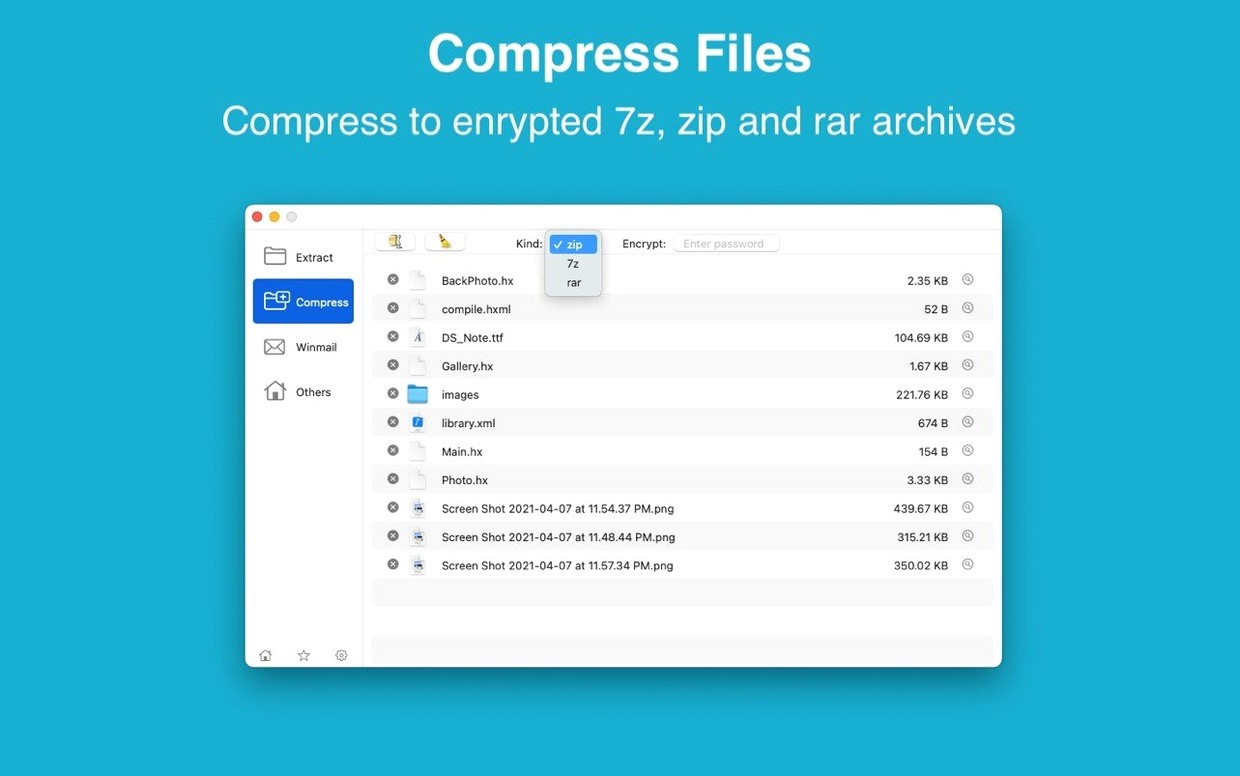
Add files and choose ZIP or 7Z. Set a password and the app locks it with AES-256 encryption before writing the archive.