
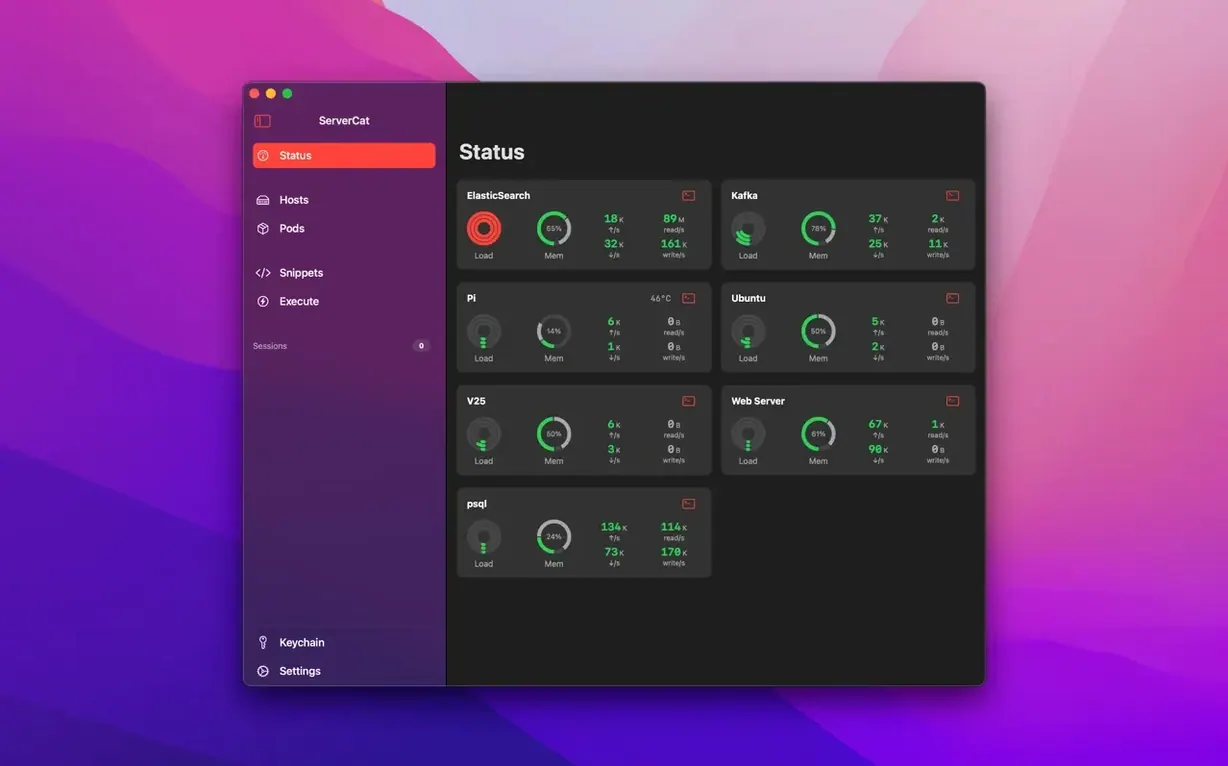
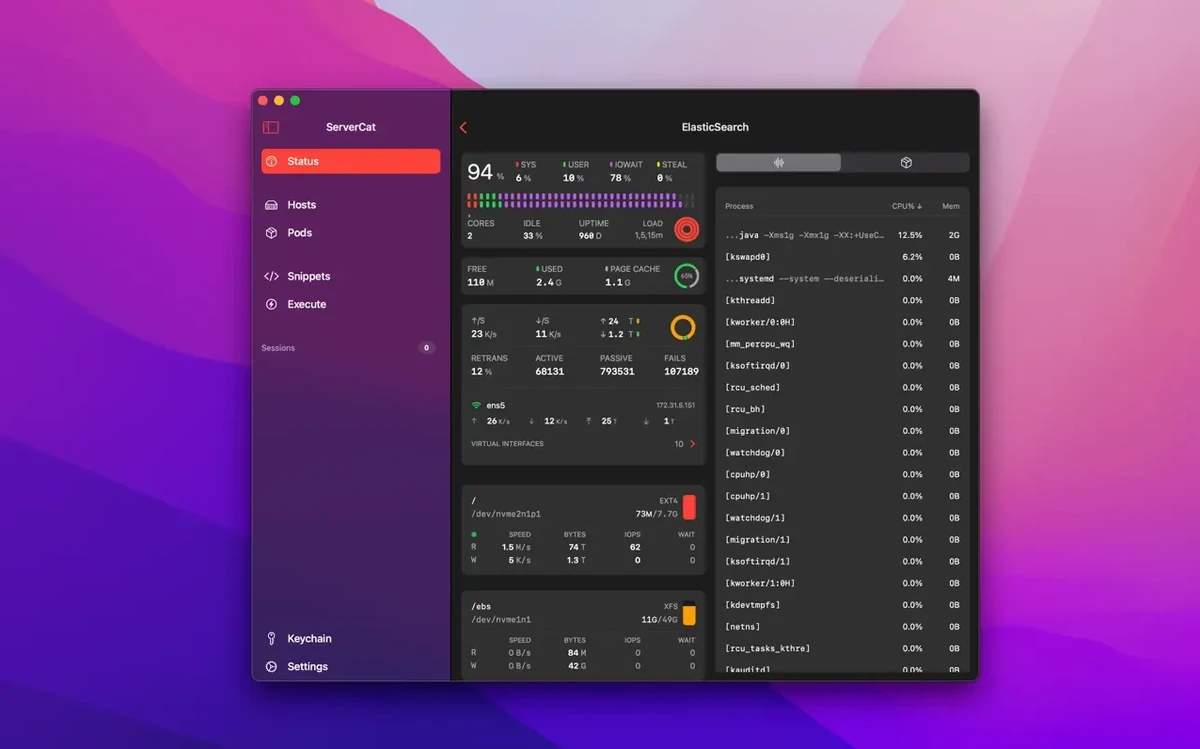
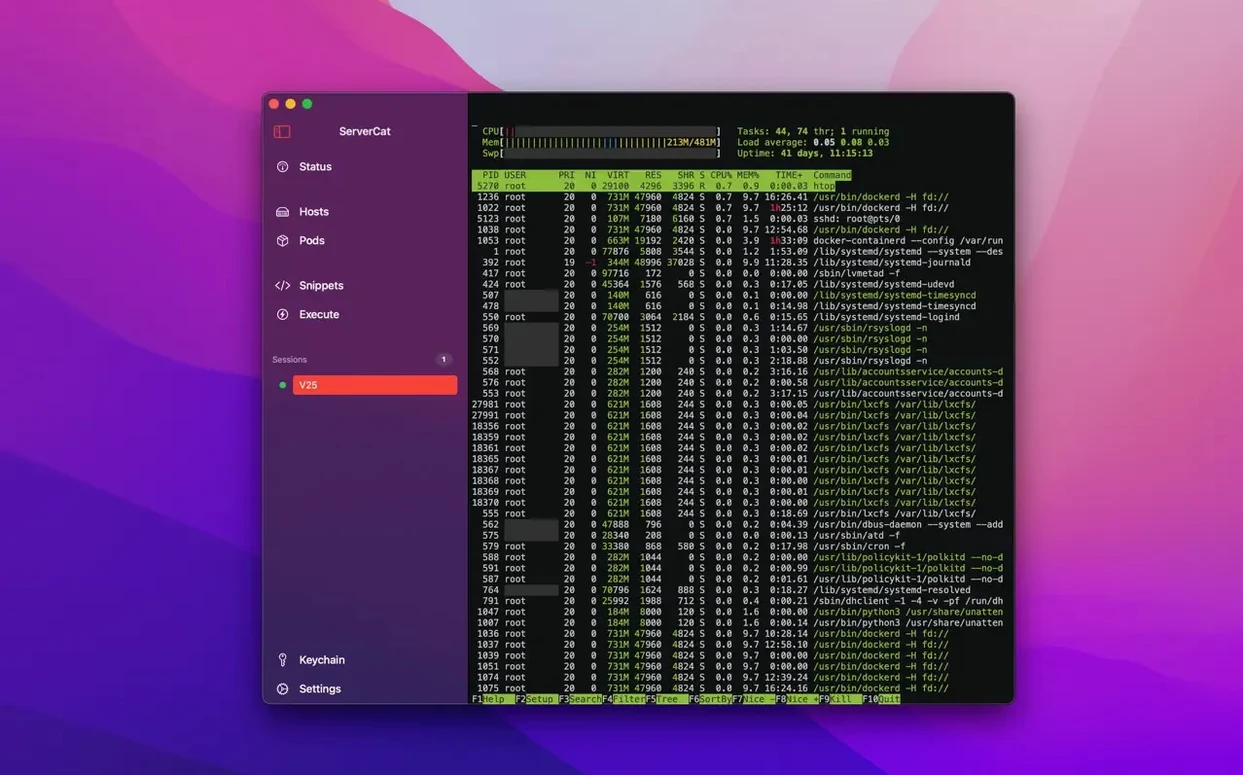
ServerCat is a Mac-native dashboard that puts live server vitals and an SSH session in one window.
Per-core CPU — utilization broken out by core, not a single average that hides a noisy neighbor.
Disk blocks and IOPS — raw throughput numbers for spotting saturation before it becomes a ticket.
GPU and process list — headless or not, you see what the silicon is doing and which tasks are running.
Credentials sit on your drive under AES. No cloud unless you turn on iCloud sync, and even then the blob is encrypted before it leaves the machine.
The terminal shell and background SSH are premium. So is container management. The free tier gives you the monitoring panels and enough to decide if the rest fits your workflow.
Agentless inspection
Does it touch my servers? No. ServerCat reads the /proc filesystem over SSH — same mechanism as top or htop. Nothing is installed on the remote machine. No agents, no helpers, no leftover scripts.
How many servers can I add? As many as you have SSH credentials for. The app doesn't count them.
What about ARM Linux? The monitoring panels don't care about architecture. If the kernel exposes /proc entries, ServerCat reads them. Raspberry Pi, Ampere Altra, AWS Graviton — all fine.
Does it need root? A standard user account works for most panels. Docker stats typically require the user to be in the docker group. If you want process details owned by other users, you'll need sudo or root.
Visible metrics
Add one server. Let the panels populate for a minute while you do something else. Come back and scroll through CPU, memory, disk, and network tabs. Notice which metrics you glance at first. Those are the ones worth keeping visible.
Resize the window narrower than you think. The layout reflows well. A slim column on the side of a busy desktop often beats a full-width panel.
If you use Docker, open the container list and tap any container name. The detail view shows logs, environment variables, and resource history. It's faster than typing docker logs every time.
Set up a second device. Install the iOS version on a phone or iPad, turn on iCloud sync once, and your server list appears. AES-encrypted blob, same keychain behavior. You can check container status from a coffee line without opening a laptop.
Don't add every server on day one. Live with two or three for a week. You'll learn which panels matter and which you can collapse.
A Docker health check workflow
Say a container has been restarting silently. Open ServerCat and tap the server. The dashboard shows a memory spike on the per-core graph from twenty minutes ago — brief, sharp, then normal. Switch to the container list. One container shows a restart count higher than zero. Tap it.
The log view loads the last few hundred lines. Scroll to the timestamp matching the memory spike. An out-of-memory kill from the kernel. You see the process that triggered it, right there in the log. No ssh, no journalctl flags to remember.
From the same detail screen, check the container's resource history. If the memory limit is too tight, you'll see it flatline against the ceiling. Note the new limit you need. Open the embedded terminal — premium feature — and run docker update --memory 512m container-name. Done.
Whole flow took under two minutes. No context switching between a terminal, a separate monitoring tool, and a notepad. The servercat - ssh terminal mac full version experience is exactly this: monitoring and action in the same glass rectangle.