Shottr opens at 8 MB and stays out of your way. A screen capture tool built for the Mac, it gives you the tools most built-in shortcuts skip.
Scrolling screenshot — capture a full webpage or chat thread in one continuous image, no stitching.
Pixel zoom — magnify down to the pixel grid for precise cropping or alignment checks.
Screen ruler — measure vertical and horizontal distances in points, right on the screen.
Annotations — add text, freehand marks, highlights, or spotlight effects before you save or share.
Shottr works alongside your existing macOS setup without demanding attention. Drag any capture straight into Mail, Notes, Messages, or a Finder folder. The pinned screenshot floats above other windows, so you can reference a spec or a mockup while switching between Xcode, Sketch, or a browser tab. It respects standard macOS shortcuts and plays well with Continuity — capture on a Mac, drop into a document open on an iPad nearby.
OCR ties into system sharing. Highlight text in a screenshot, copy it, and paste it into a code editor or a search field. QR codes work the same way: point, read, and the URL lands on your clipboard. No extra windows, no import-export ritual. Quick Look previews Shottr captures directly from Finder. Spotlight finds them by filename. The app fits into the Mac like something that shipped with it.
A capture-to-feedback loop
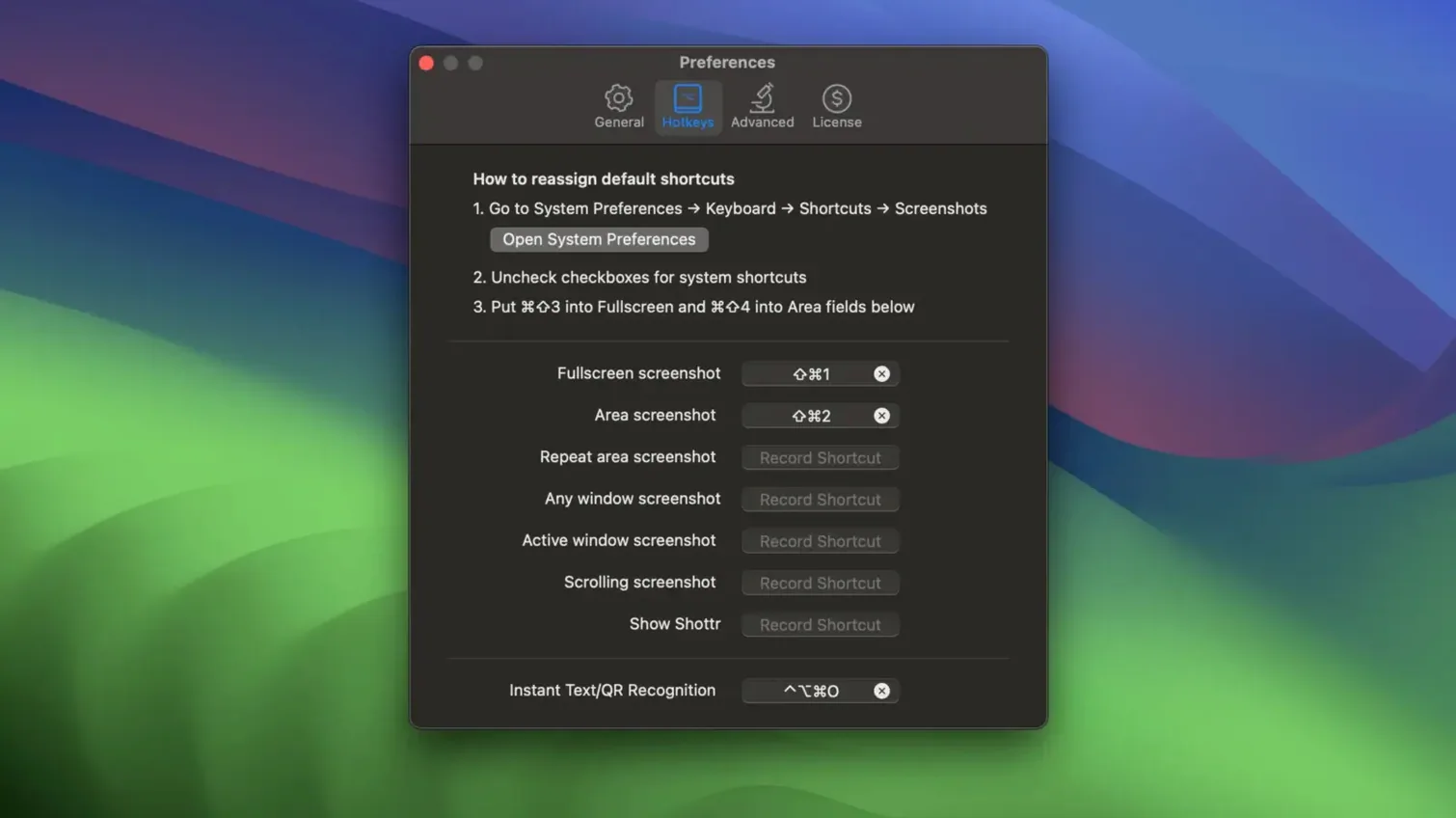
You spot a layout bug in a web app. Press the Shottr hotkey. Drag a region around the broken UI. The preview opens instantly — use the spotlight tool to dim everything but the misaligned element. Add an arrow and a short text note. Press Command-C to copy the annotated image, switch to Linear or Jira, paste. Thirty seconds, no files on the desktop, no cleanup later.
If the bug only appears partway down a long page, use the scrolling capture. Shottr scrolls the window and assembles the full height automatically. Annotate the area, upload to the cloud, send the link. The recipient sees exactly what you saw, without downloading a heavy attachment.
For color work, hover over a pixel, press the color picker shortcut, and the hex value is ready to paste into a CSS file. No screenshots needed at all — Shottr works as a measuring and sampling tool even when you never press Save.
Manual save trap
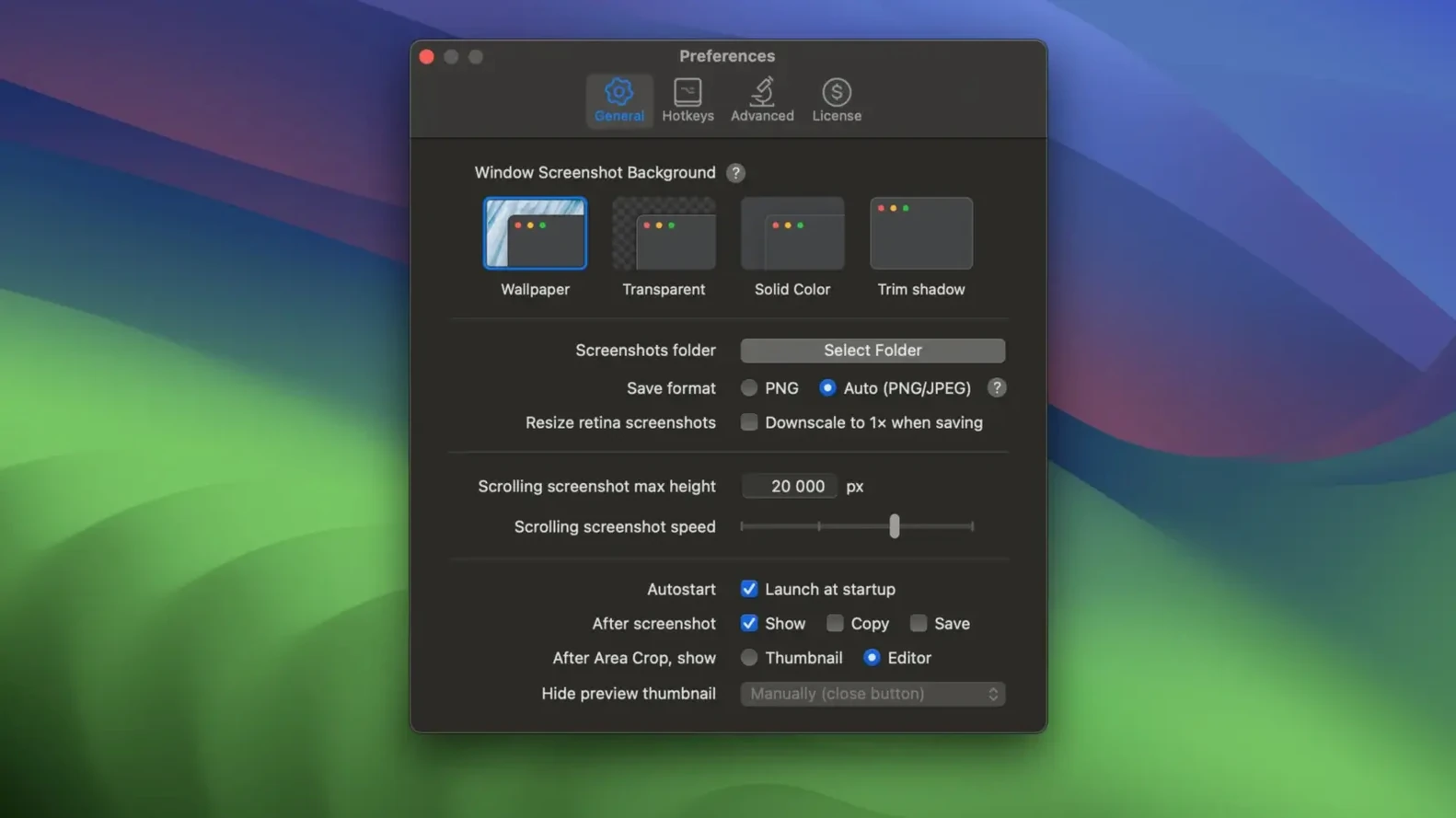
The most common mistake: saving every capture manually when you don't need to. Shottr copies to the clipboard by default. Paste what you need, move on. Command-S is for the ones worth keeping.
Some people ignore the floating window. Pinning a reference image saves constant app-switching. Release it with a single click when you're done.
Another stumbling point: overlooking the zoom. Double-click or pinch to zoom in on a fresh capture. Pixel-level inspection reveals anti-aliasing issues, alignment gaps, and stray borders that disappear at 100% view. Beginners often annotate without zooming and miss details a pixel-aware workflow would catch.
Finally, the ruler tool works outside a capture session. Activate it first, measure on the live screen, then decide whether to shoot. Many users grab a screenshot first and measure later — doing it in the wrong order adds a roundtrip.
Cloud upload — send a capture to the cloud and get a link, no extra steps.