
It is for the person who hears the fans spin up and wonders why. Or the one who keeps an eye on SSD lifespan without wanting to dig through System Information.
Watch
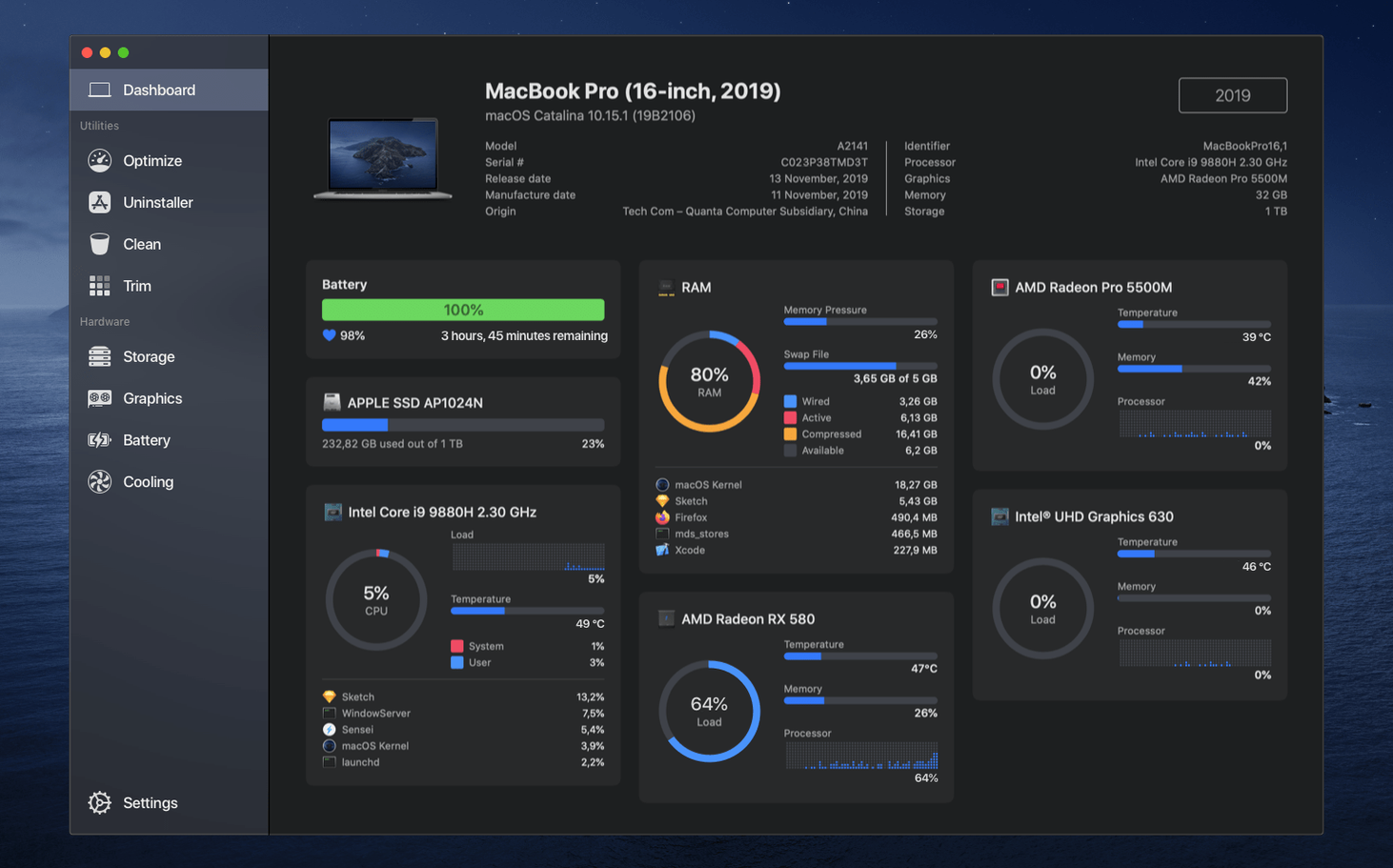
The Dashboard shows temperatures, voltages, and power draw in one place. The menu bar Monitor stays out of sight until you need it, then it is just a click away.
Clean
Disk cleanup tools find old caches and logs that slow things down. It can also enable TRIM on third-party SSDs, which is the kind of quiet maintenance most people forget about.
Control
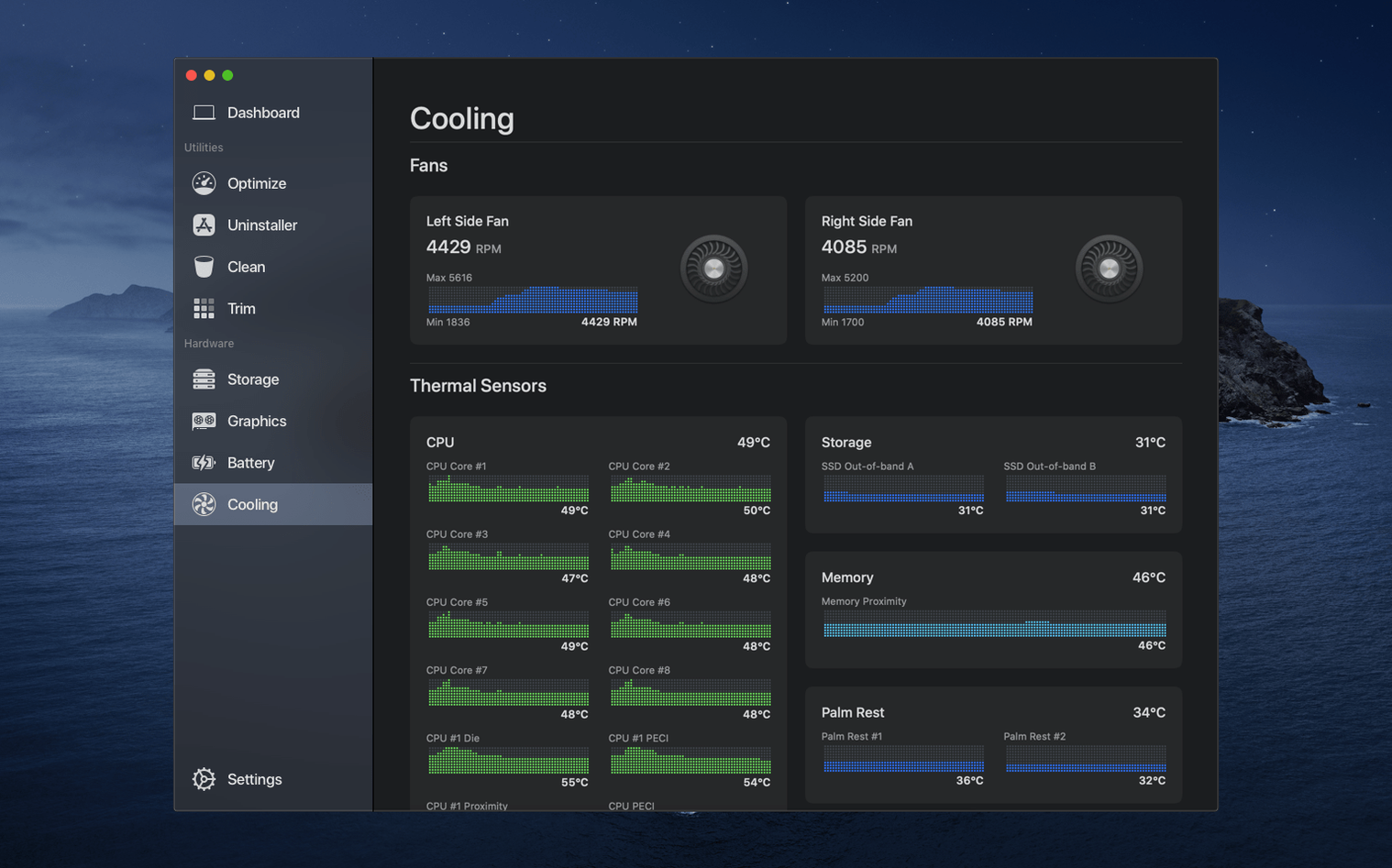
You can set fan curves manually. Battery health reporting tells you when to plan a replacement before it catches you off guard.
No background tax
People ask if it runs constantly in the background. The answer is no, unless you want the menu bar Monitor to stay visible. Even then, the footprint is tiny. Quit it and Sensei exits fully.
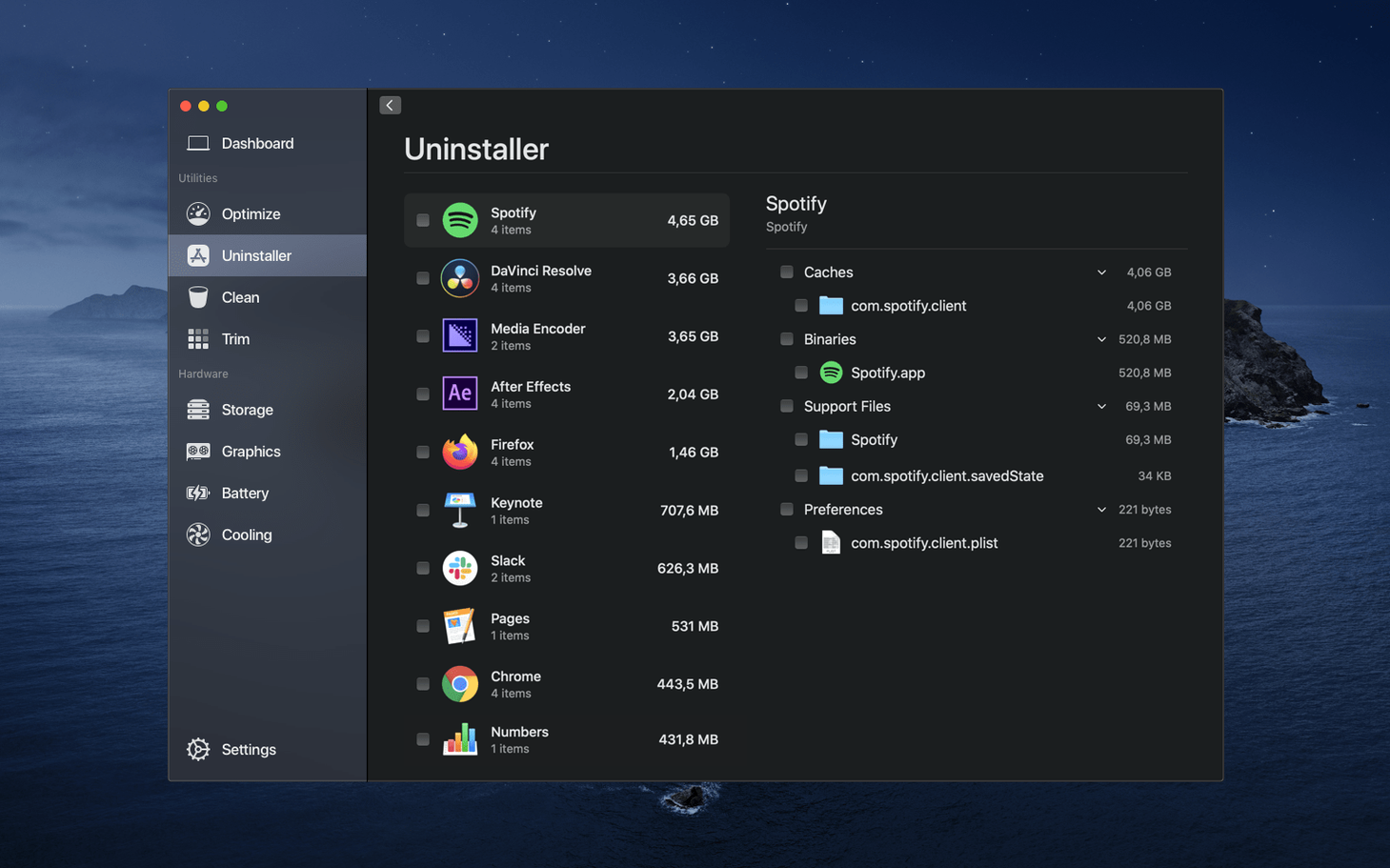
Another common hesitation: does cleaning delete something important? The uninstaller and cache tools ask before they remove anything. You stay in control. It never scrubs blindly.
And no, it does not replace Activity Monitor. It sits alongside it, adding detail that Apple’s tool hides—like SSD wear and individual fan speeds—without demanding you learn a new interface.
Quiet changes
Version 2.1.2 brought no visual overhaul, but the temperature sampling for Apple Silicon Macs grew more consistent. Spikes that used to appear in the dashboard now settle into a steadier readout. That matters during long renders, where false alarms can break focus.
Earlier updates smoothed the menu bar graph rendering. It draws fewer CPU cycles now, barely registering in its own monitor. For anyone who kept the older sensei 1.7.1 running, the jump to the 2.x line also brought native support for newer Macs and a cleaner disk scan path.
Menu bar clarity
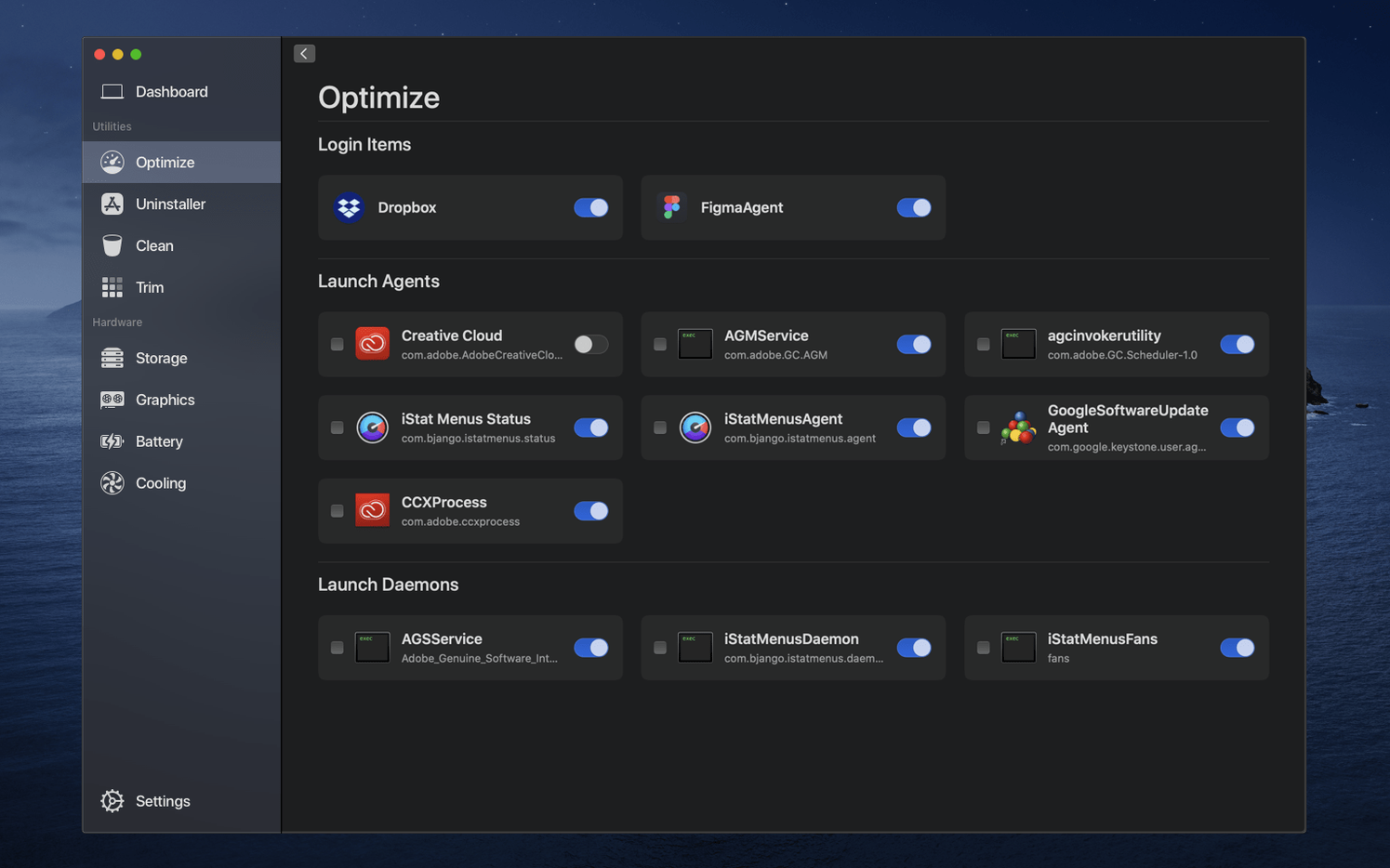
Open preferences once. Under General, disable startup launch if you prefer to open it only on purpose. Under Monitor, pick which sensors appear in the menu bar—showing all of them is noise. Most people keep CPU temperature and one fan reading.
For SSD users, toggle TRIM Enabler only if your drive is third-party and you have confirmed it is not already active. The tool checks before it acts, but it is worth making it a deliberate step, not a reflex.
A single tool that asks very little of your attention.