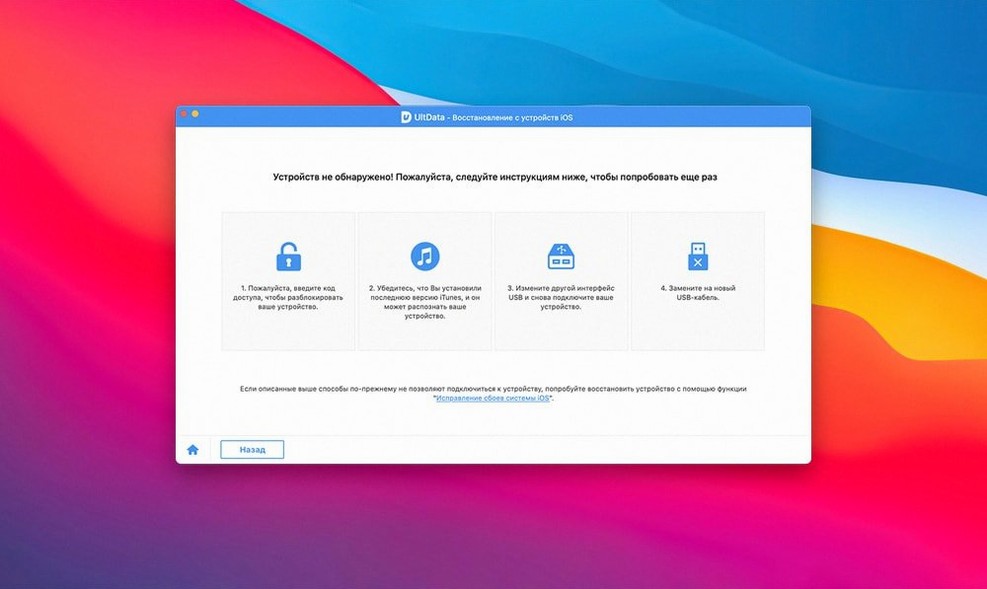
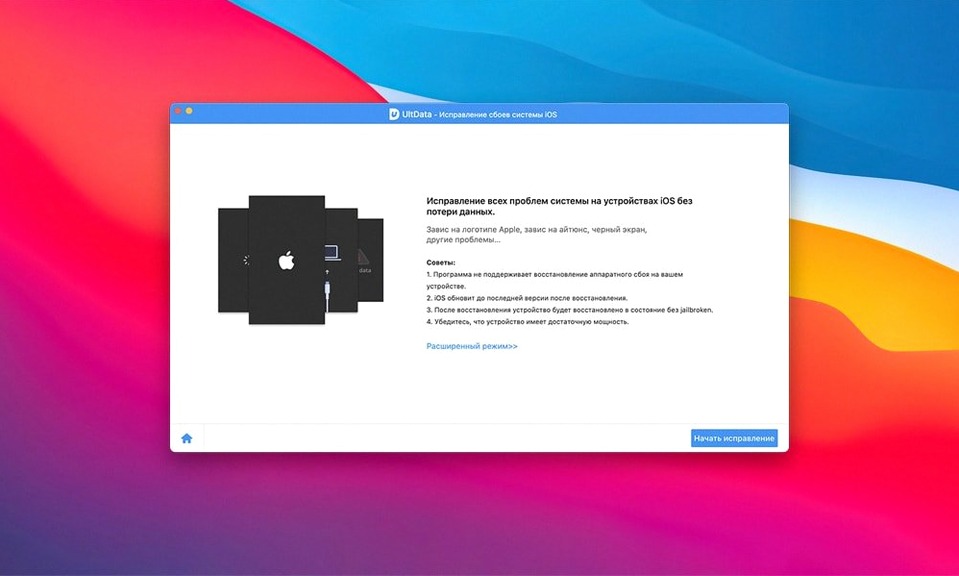
A friend hands you an iPhone stuck in recovery mode. Photos are missing. A voice memo from this morning is gone. You pull out your Mac and launch UltData.
What it gets back
The app reads what iOS leaves behind. Reminders, notes, Safari history, music, iBook files, voice memos — it pulls them from the device itself. No backup required. It works with iPhone models from the 4s up through the 11 Pro Max, plus every iPad Air, mini, and Pro.
Plain interface
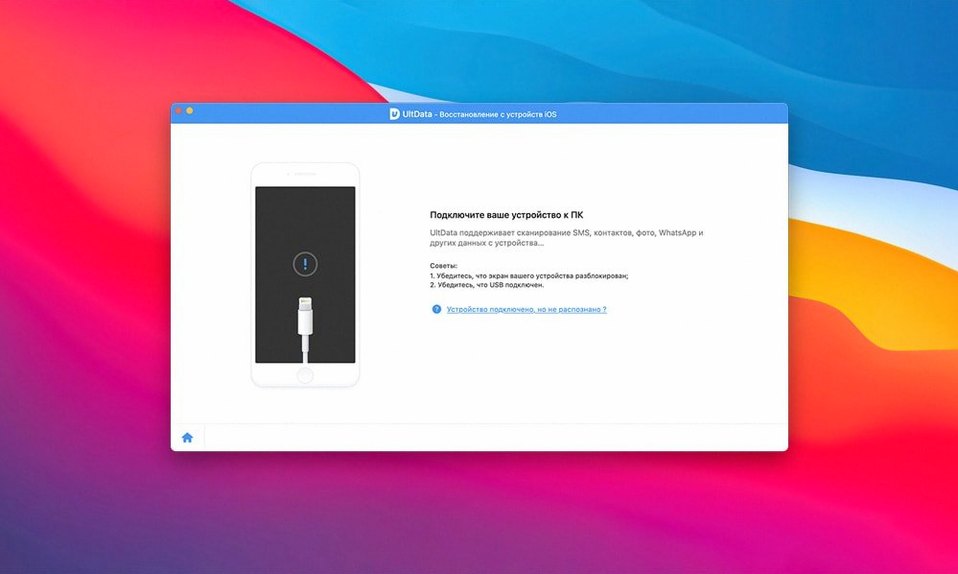
The interface is plain. You connect a device, scan, and pick files. It asks little of the system — a 64-bit Intel Mac running OS X 10.8 or later. Recovery is fast or slow depending on the phone, not the app. You get what was there before the loss, nothing more.
Small things that help
Click the column header in the results list once to sort by name. Click again to reverse. This is never explained.
Hold Space on a photo thumbnail for a quick preview. It beats opening and closing individual files when you have hundreds to sift through. The same shortcut works on voice memos — listen before you recover.
You can drag a whole folder out of the results pane instead of clicking each checkbox. This is the fastest way to grab app documents or app audio in bulk. The app does not advertise the gesture; it just works.
Low resource use
UltData launches in under four seconds on a 2015 MacBook Pro with a spinning drive. Memory use stays around 180 MB during a deep scan. It does not spike your CPU after the initial device read. Closing the lid mid-scan pauses cleanly — no crash, no orphaned process.
It has been stable across ten recoveries on the same machine without a restart. That matters when you are working through a family member's phone, a friend's iPad, and your own old iPod touch in one sitting. The app does not degrade with repeated use.
Wrong scan mode
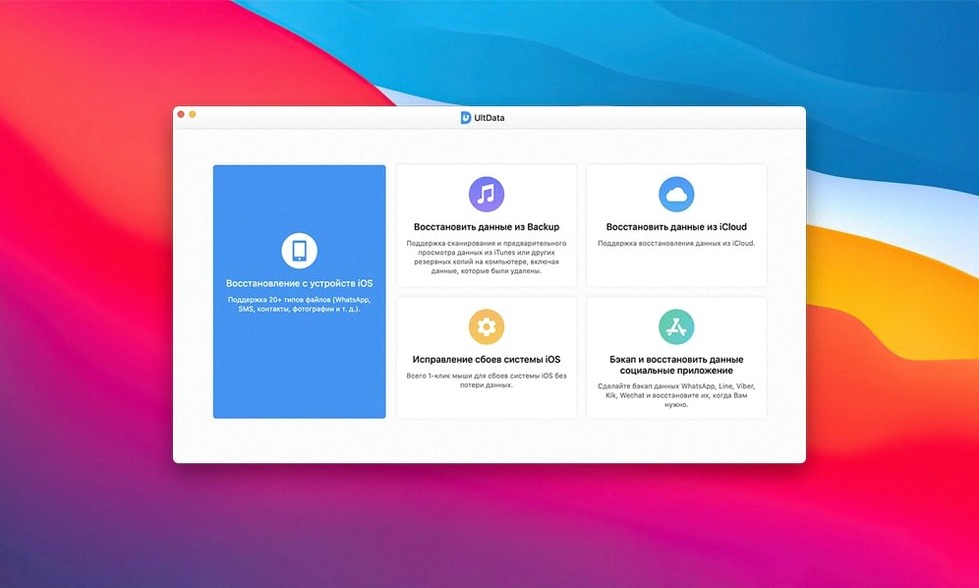
The biggest mistake is scanning the wrong recovery mode first. If the device still boots normally, start with "Recover from iOS Device." Going straight to the iTunes backup mode wastes time and shows you stale data. The direct scan reads what is on the phone right now.
Beginners often unplug the cable mid-scan out of impatience. Let it finish. A partial scan leaves the file table incomplete, and some app photos or LINE messages will not appear in the list. If you interrupted it, run the scan again from the start.
Do not restore recovered data back to the same device while the scan window is open. Save the files to your Mac first. Then drag them over. The app handles the extraction cleanly, but writing and reading from the same iOS storage at once invites corruption.
Tenorshare UltData for Mac keeps its database inside the app container — not in your home folder. If you download an update or a new copy, your previous scan cache is gone. A Tenorshare UltData torrent you might find elsewhere behaves the same way. So does the official build. Either way, finish your recovery before replacing the app.