
People with unusual monitors reach for SwitchResX. HDTV owners, projector users, anyone whose panel never quite fits the defaults in macOS.
First steps
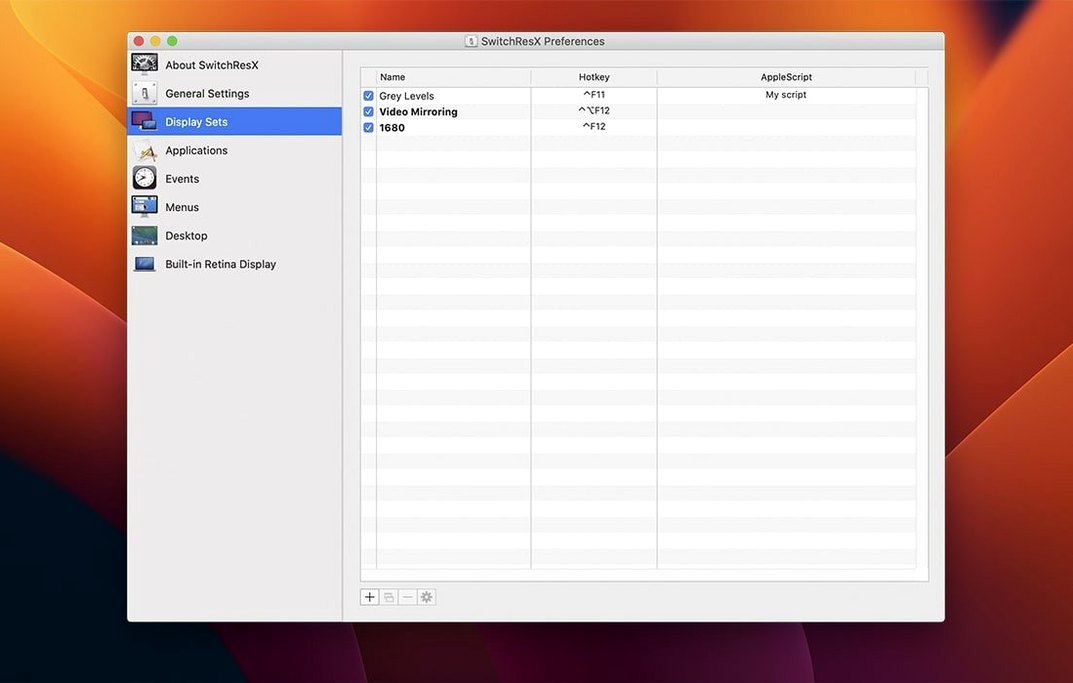
- Open the Display Sets tab and save your current setup before changing anything.
- Create a custom resolution for your external display, then assign it to a specific app.
- Try a color-plus-resolution profile if your screen needs both.
A note on scripting
Hold down the Option key while clicking the menu bar icon. You get a compact list of every saved resolution without opening the main window. Small thing, but after the third time you skip the full interface, it becomes the main way you use it.
The Display Sets pane has a hidden trick. Drag one set onto another in the sidebar and it nests as a child. Useful for keeping a clamshell-mode set tucked under your desk setup instead of scrolling past it every time.
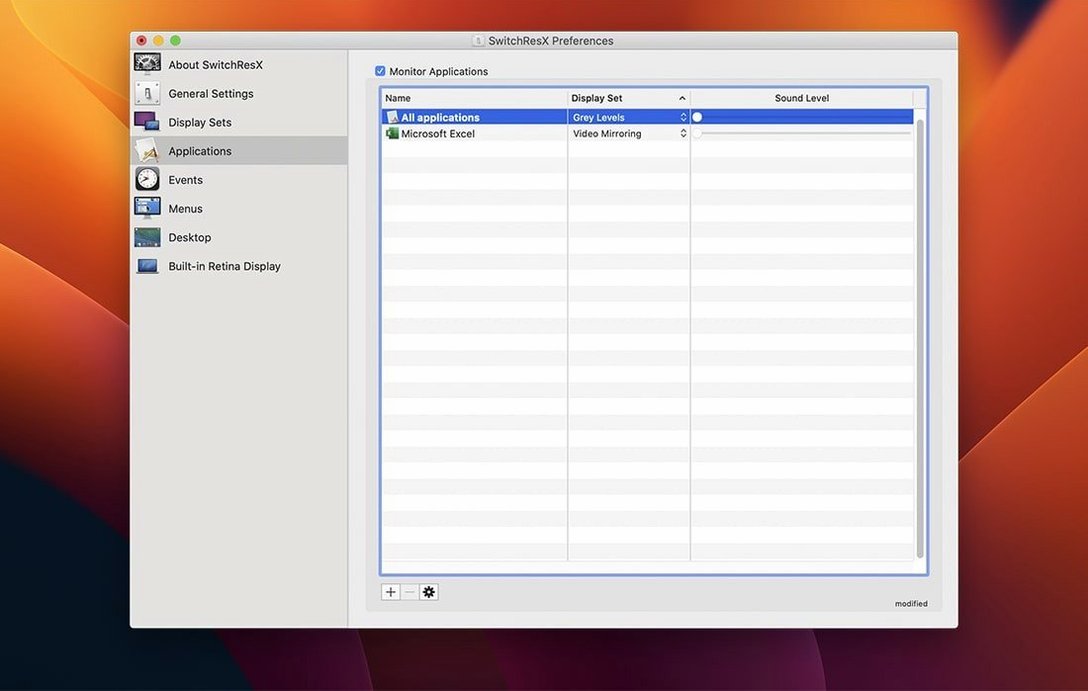
Application-specific assignments watch the frontmost app by default. If you want a resolution to stick when you click away to Finder or a background window, check Keep this resolution when app is no longer active in the assignment settings. Most people miss it until the screen flickers mid-task.
Cleaner menu bar
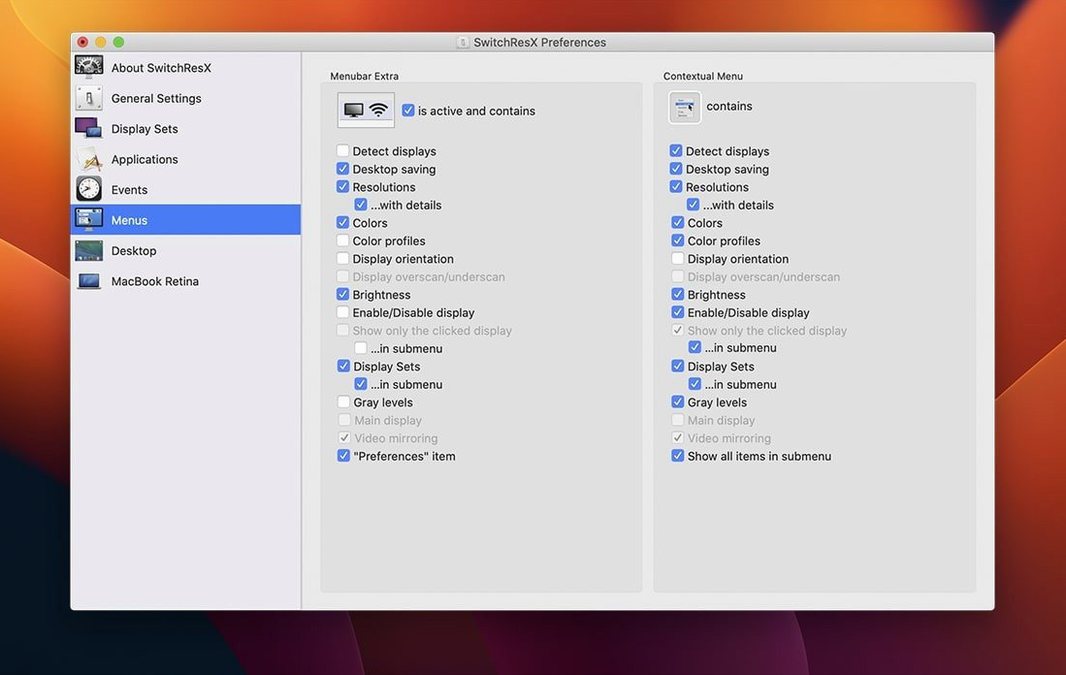
Turn off Show resolution in menu bar if you only need context switching. The icon stays cleaner and the menu draws faster.
Under Preferences, disable Restore resolution on wake if you hot-plug a display while the Mac sleeps. The setting fights with macOS and you get a double-switch — blank screen, wait, blank screen again. Uncheck it once and the problem disappears.
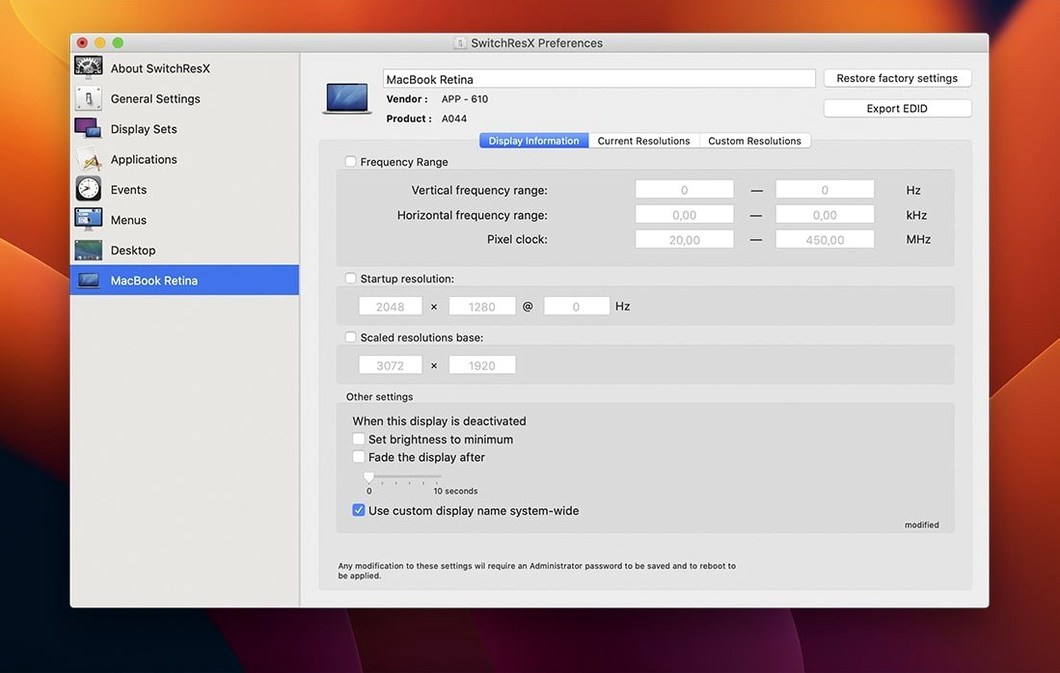
Set the Default monitor manually. SwitchResX guesses, but on multi-display desks it sometimes picks the wrong one as the anchor. Pick your main screen in the Monitor tab and the custom layouts stop drifting.
Headless loop fixed
The bug that had SwitchResX rewriting its settings file on a loop when no display was attached is gone. For anyone who runs a headless Mac mini or unplugs everything at the end of the day, that means no more background CPU churn and no corrupted Display Sets.
Displays that show up without a name in macOS no longer break the detection logic. Before the fix, an unnamed panel could cause the app to ignore your assignments; now it falls back cleanly.
Deleting a Display Set that gets triggered after another set used to leave a dangling reference. That is fixed. The Dock quitting issue on Apple Silicon when disabling a display is also resolved — something that mattered mostly when running a MacBook with an external monitor in lid-closed mode.
Black screen rescue
The screen stays black after applying a custom resolution. This usually means the timing parameters are out of range. Boot into safe mode or connect a second display, open SwitchResX, and delete the bad entry from the Custom Resolutions list. Start again with the Scaled checkbox on and a conservative pixel clock.
Assignments stop working after a macOS update. System updates occasionally reset the permissions that let SwitchResX talk to the display subsystem. Re-run the installer from the disk image, then open System Settings and re-grant Accessibility access when prompted. The app remembers your previous setup; no need to recreate anything.
HiDPI modes do not appear for a third-party 4K monitor. SwitchResX relies on the GPU reporting available scaled modes. If the monitor EDID does not advertise them, you can force HiDPI by duplicating your target resolution and enabling the HiDPI checkbox in the custom resolution editor. Give it a distinct name so you can tell the two apart in the menu.
Avoid the habit of piling up custom resolutions for a single display. macOS reads them all at startup and too many entries slow down the login process. Keep the list small — delete anything you have not used in a month.
SwitchResX works with AppleScript. A short script can switch a projector to the right resolution before a presentation starts, then back again after.