Illustrators and designers who need to reclaim a low-resolution logo or scanned sketch.
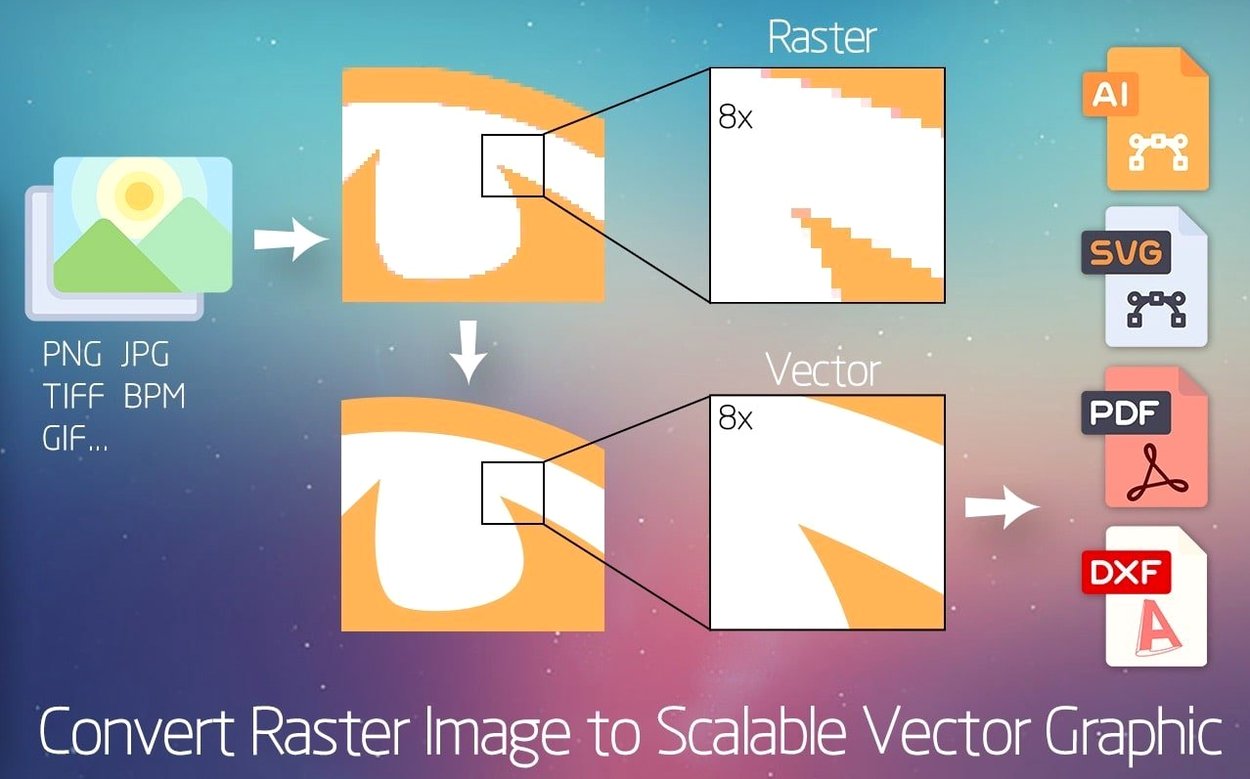
- Drop a JPG or any of 70+ bitmap formats onto the window.
- Pick a preset. The tool reads the image and offers a trace with up to 64 flat colors.
- Adjust the path simplification slider. Less is usually more.
- Export to AI, SVG, DXF, or PDF. Open it directly in Illustrator or Corel.
Small touches that speed things up.
Drag a logo onto the dock icon and the app opens it directly. No file dialog, no browsing. The same works with Finder selections — select a few bitmaps, press ⌘O, and they queue up one after another.
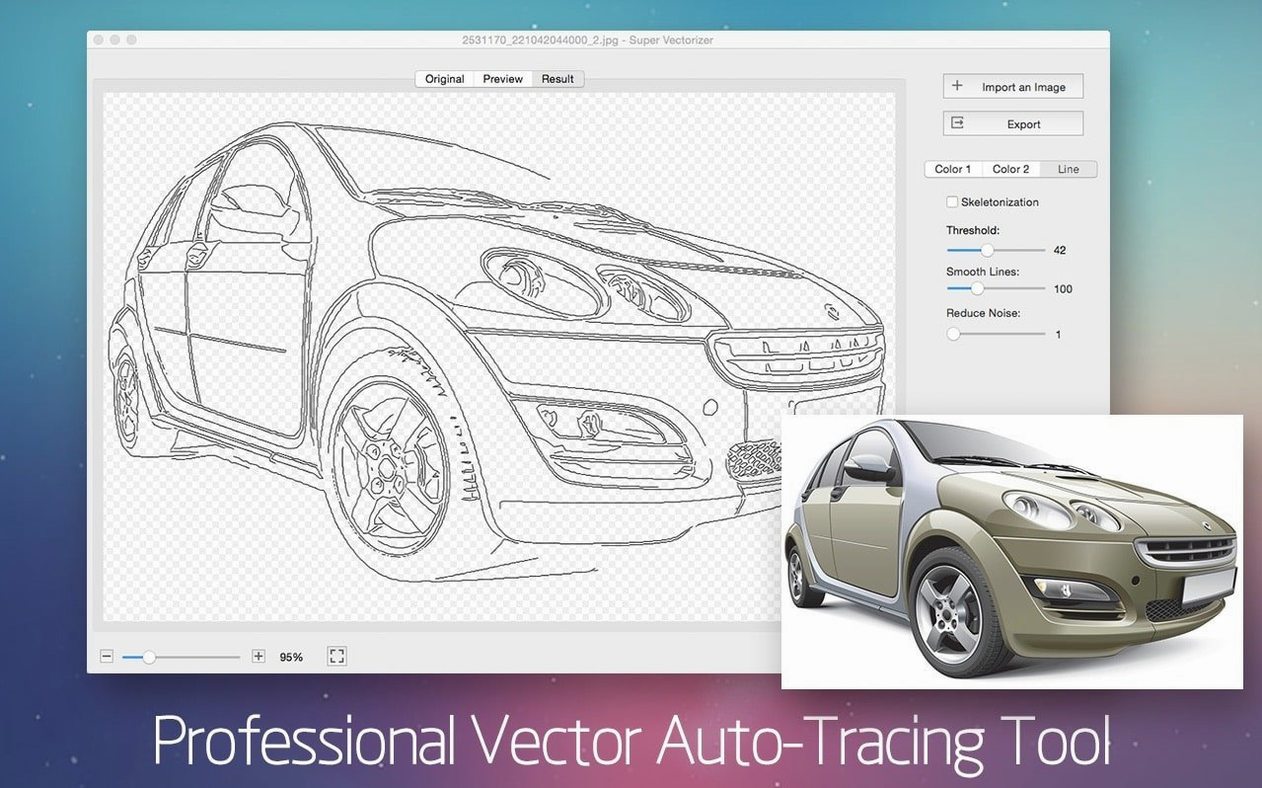
The edge smoothing slider has a sweet spot around 20–30%. Too high and you lose the sharp corners a technical drawing needs. Too low and every pixel wobble gets preserved. Try a low value first, then inch it up while watching the preview.
Transparent background output is one checkbox in the export panel. It is easy to overlook, hidden below the format selector. Tick it before you export an SVG logo, or you will get a white rectangle behind your mark. For anything headed to a dark layout, this saves a trip into Illustrator.
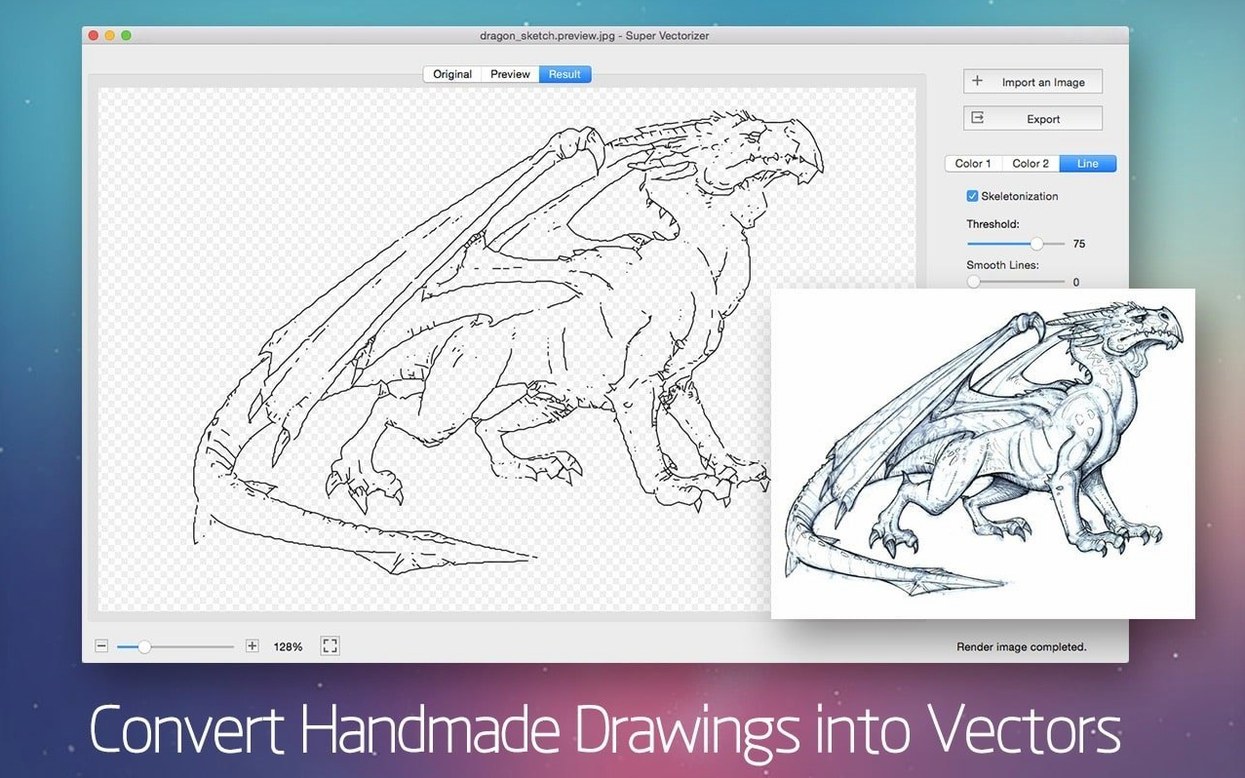
Skeletonization is the tool’s quiet standout. A pencil scan fed through it turns into a single-stroke path. Useful when you need an engraving-ready line or a plotter file, not a filled shape. Sketch a hinge on paper, snap it with your phone, skeletonize, export as DXF. Done.
Snags to sidestep
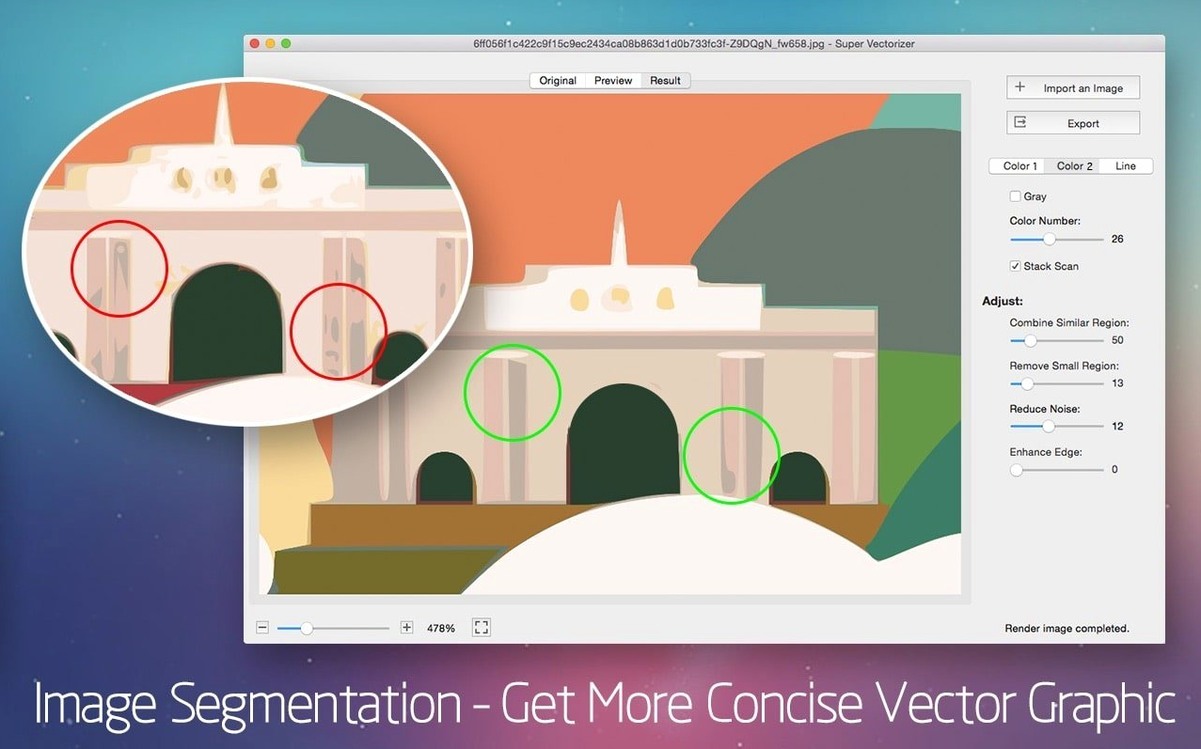
Sixty-four colors sounds generous. On a photograph it produces a heavy SVG with too many tiny regions. Reduce the color count to 8–16 unless you are tracing a flat illustration. The file stays manageable and the shapes stay sensible.
The app shows no progress bar for large files. A 600-dpi scan of an old map can take a minute. The window looks frozen. It is not. Wait for the preview to refresh.
Smartphones save photos in color profiles that can throw off the trace. If a JPEG produces muddy bands, open it in Preview first, export as PNG, and drop that into the app. The trace tightens up.
With version 2.3.3 on Apple Silicon, the real-time preview sometimes lags when you drag a slider quickly. Pause between adjustments. The engine catches up.
Next to its peers
Image Vectorizer sits in a similar space. It feels lighter and exports more formats, but its edge detection is coarser. Super Vectorizer Pro holds detail better on lettering and fine linework, especially below 12-point type. For a scanned signature or a delicate serif, the difference is visible.
Vector Magic is the benchmark for automatic tracing. It guesses shapes more accurately with zero input. The trade-off is control. Super Vectorizer Pro gives you sliders for path simplification, color reduction, and corner sharpness. You can steer the result. Vector Magic gives you a button.
Against Inkscape’s built-in tracer, Super Vectorizer Pro is faster to a usable result. Inkscape rewards patience and tweaking. For someone who needs a clean SVG of a client’s old logo before lunch, the dedicated app wins on time. For artistic experiments, Inkscape’s centerline tracing offers more nuance, but the interface is a maze by comparison.
If you trace mostly flat graphics and need a quick path into Illustrator, Super Vectorizer Pro fits. For photographic color reduction, look elsewhere. For line art and logos, it earns its place.
A few seconds, and a fuzzy screenshot becomes a clean shape you can scale indefinitely.