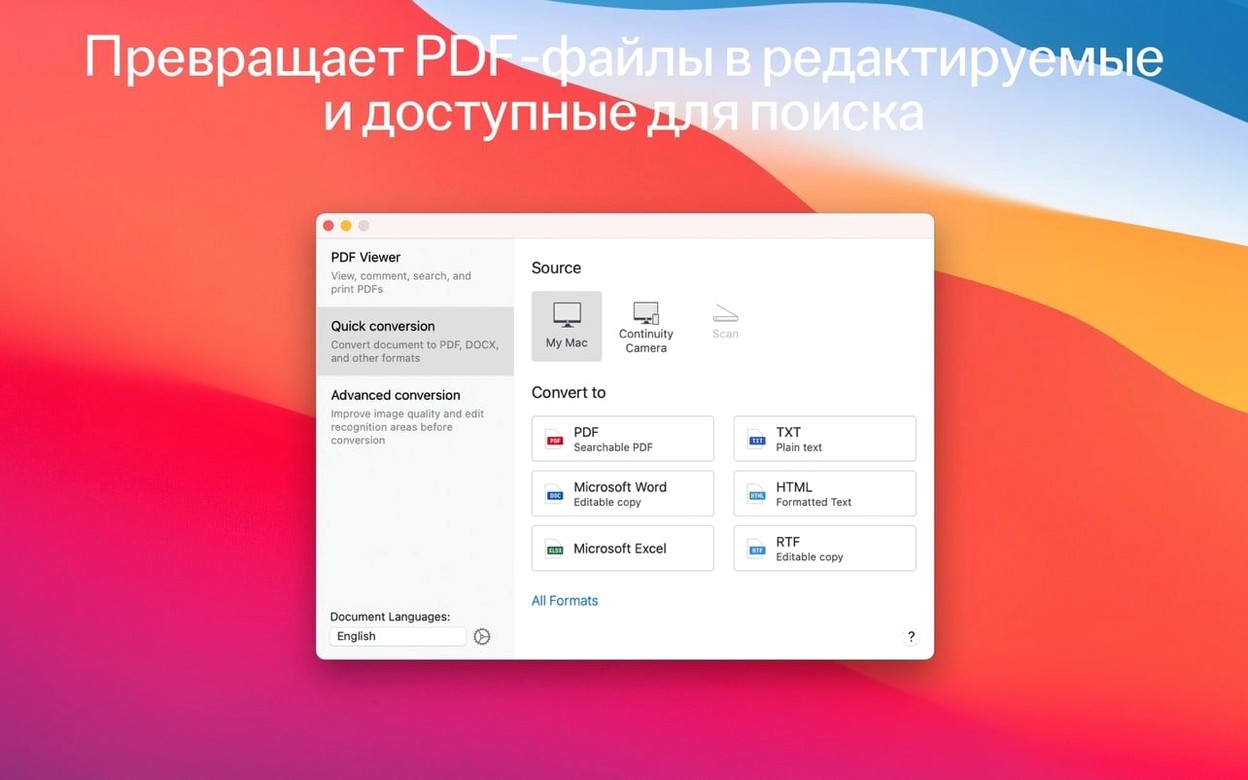
FineReader PDF runs on macOS 11 or newer. Intel build.
Convert
Take a scan straight from your iPhone with Continuity Camera, or open a photo you already have. Paper becomes searchable, editable text.
Check
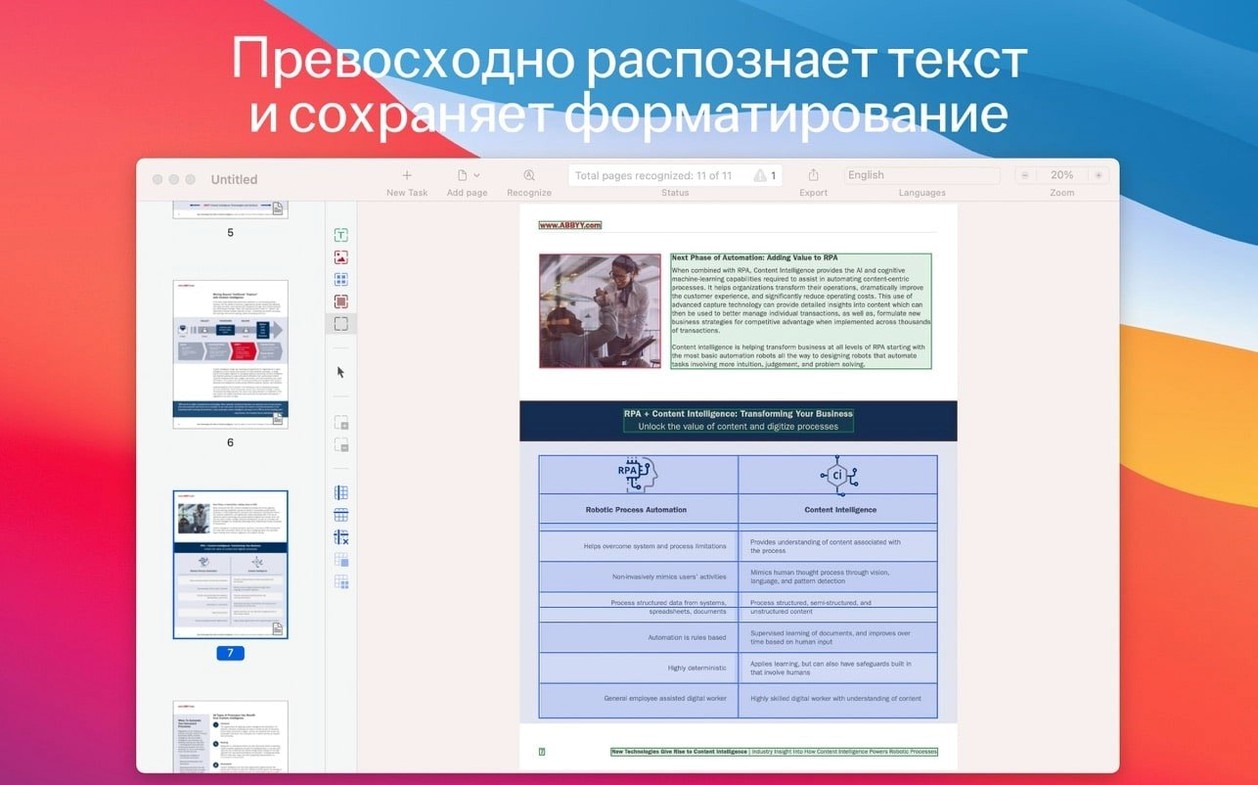
Look over the result in the OCR editor before you export. Fix a layout quirk once, not in every copy.
Warm up
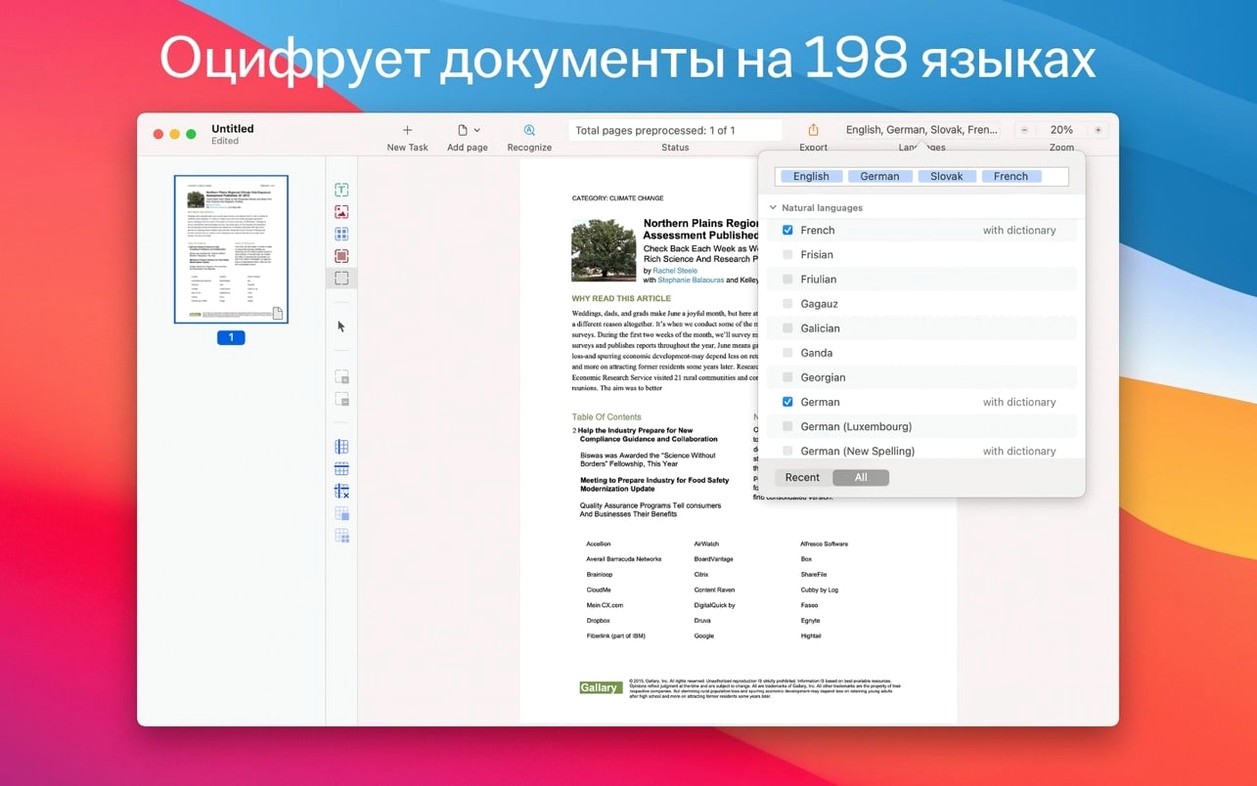
Let the app warm up before you trust the defaults. Feed it ten pages you know well. Watch how it handles mixed-language paragraphs or tables with light grid lines. Adjust the recognition language only when the text comes back garbled — the auto-detection works most of the time.
One habit worth forming early: check the text layer before you export. Click the OCR editor tab. Scan a few lines. If a column shifted or a heading clung to the body text, fix it now. The repair takes seconds. Re-exporting an entire batch later takes far longer.
Bouncy launch
FineReader PDF is an Intel app and it shows during launch. The icon bounces twice, sometimes three times. Once open, though, the heaviness lifts. Scrolling through a 90-page PDF feels glassy. No pauses between pages, no beachball when you switch from viewer to editor.
Memory use sits around 400 MB with a complex document open. That is modest for what it carries — a full recognition engine, a renderer, and an editor in one window. On an M-series Mac, Rosetta handles it without complaint. I have left it open through sleep and wake cycles. No leaks, no creeping sluggishness.
The dark mode support is consistent. Toolbars, side panels, and the document pane all dim together. Late-night sessions with scanned contracts feel less harsh than they do in some native PDF tools that forget half their chrome.
Leaner OCR
Next to Adobe Acrobat, FineReader PDF is leaner. Acrobat covers forms, signatures, and collaboration. FineReader ignores those. What it does — recognition, conversion, text editing — it does with better accuracy and less interface clutter. If you only need OCR and clean exports, FineReader saves you the weight.
Apple's Preview does live text extraction for free, but it stops at the surface. It will not rebuild tables, preserve document structure, or export to DOCX with formatting intact. FineReader PDF treats the scan as a document, not a snapshot with embedded text guesses.
Readiris is closer. It also targets batch recognition and PDF conversion. In side-by-side tests with the same scanned receipt, FineReader PDF kept the table alignment cleaner. No rotated cells, no merged price columns. Readiris handled the image faster; FineReader handled the output better. For archival work where format fidelity matters, the trade-off leans toward accuracy.
Skewed contract
You open a scan of a ten-page contract. It arrives from your iPhone via Continuity Camera as a slightly skewed JPEG. You drop it onto the FineReader window. The app pauses for recognition — about eight seconds for the full document. Then it splits the screen: the original image on the left, the recognized text on the right.
You click into the OCR editor. A table of payment terms spans page three. One merged cell is wrong. You drag the boundary back into place. Another column header, bold in the original, appears as plain text. You select it and apply bold. Two clicks, done.
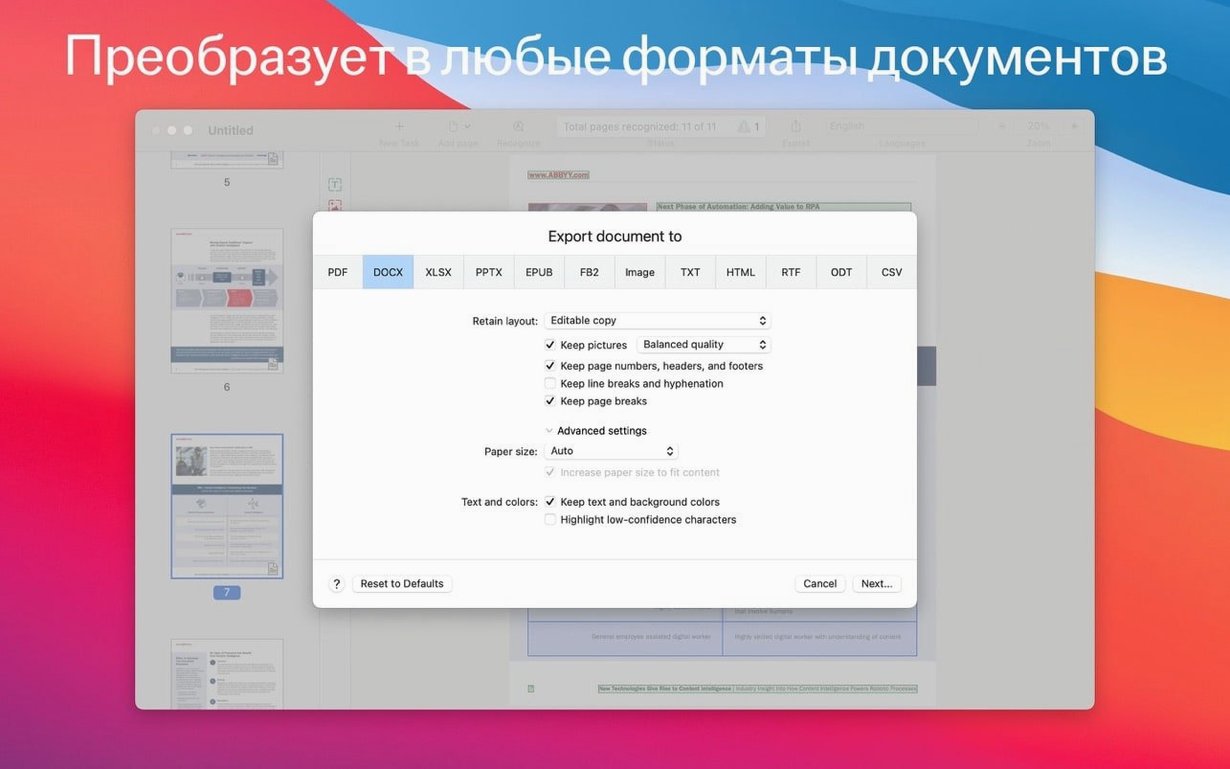
You switch to the export panel. Choose DOCX because the legal team needs to track changes in Word. Check one box: keep page layout. Export. The result opens in Pages for a quick sanity check. Headings, indentation, table borders — all present. You save a PDF/A copy for the archive directly from the app, skip the extra step.
The session closes. No leftover export windows, no orphaned temp files. The desktop stays empty.
For the archive, save PDF/A. Add a password when a document should stay private.