Tap to edit
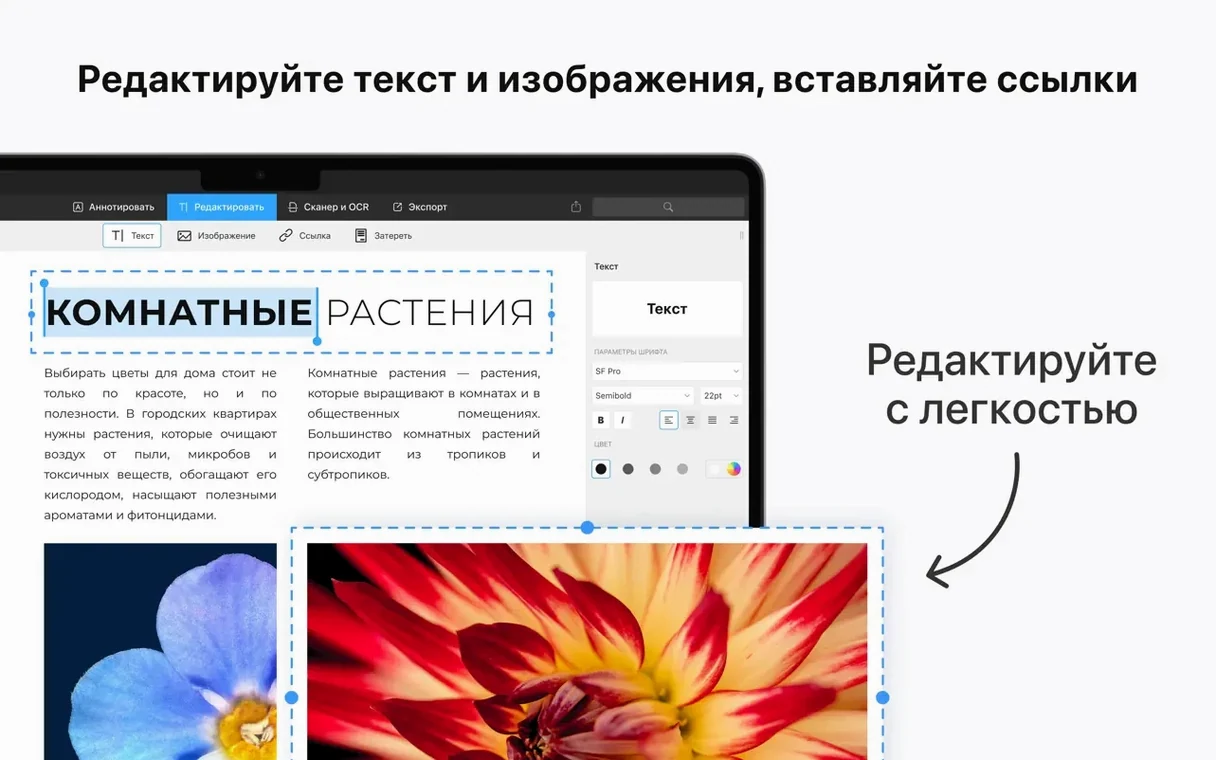
Tap any text block in a PDF. The formatting ribbon appears above it. Change words, adjust fonts, or fix a typo right in place—no export round-trip needed.
How does signing work?
Open a form, click the Signature tool in the toolbar. Draw or type your signature once. It saves for every document after that.
Can I turn other files into PDFs?
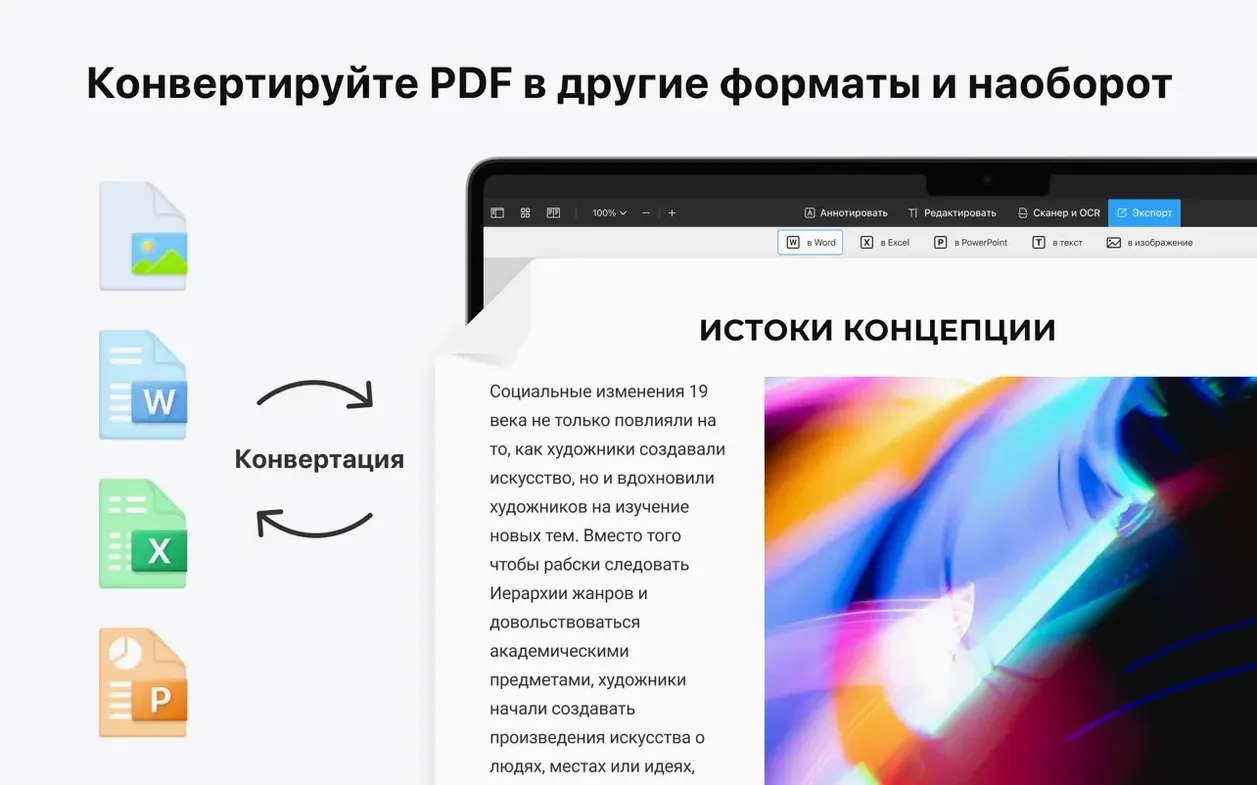
Yes. Drop a Word, Pages, or Docs file onto the window. The app converts it on the spot. Merging several files into one PDF works the same way.
In daily use, the app stays out of the way. Launch is near-instant on Apple Silicon, and even large technical drawings with hundreds of layers scroll without stutter. I opened a 400-page equipment manual—page renders landed before my eyes reached the top of the screen.
Memory use hovers around 180 MB with a handful of tabs open. That number barely moves when you add annotations or fill a form. On an Intel Mac with 8 GB, the app stayed responsive with five 200-page documents open side by side. No beachballs.
One thing you notice after a week: it never nags. No update pop-ups, no account reminders, no upsells layered over the toolbar. That silence is rare.
Lingering prompts
Version 3.11.1 tightened a few things that used to grate. The sign-in prompt on first launch still appears, but dismissing it once is enough—the next launch skips straight to your documents. Activation resolves itself without a single click after that.
Text editing grew more precise. Earlier versions sometimes shifted line positioning when replacing fonts; the current build keeps baselines locked. Japanese and Chinese text blocks, once prone to character spacing drift, now hold their layout reliably. If you work across languages, that alone justifies the update.
Form handling improved in small but practical ways. Checkboxes in government PDFs—the kind that refused to toggle in older releases—now respond on first click. Radio-button groups behave correctly. These fixes are quiet, but they remove the friction that used to send people back to a browser-based editor.
Daily handlers
The app makes the most sense for people who touch PDFs daily but don't want a tool that demands study. Contractors marking up site plans. Researchers annotating journal articles. Anyone who fills three tax forms a year and wants their signature ready. Lawyers and paralegals who redact and merge constantly will push it harder, but the interface never punishes light use.
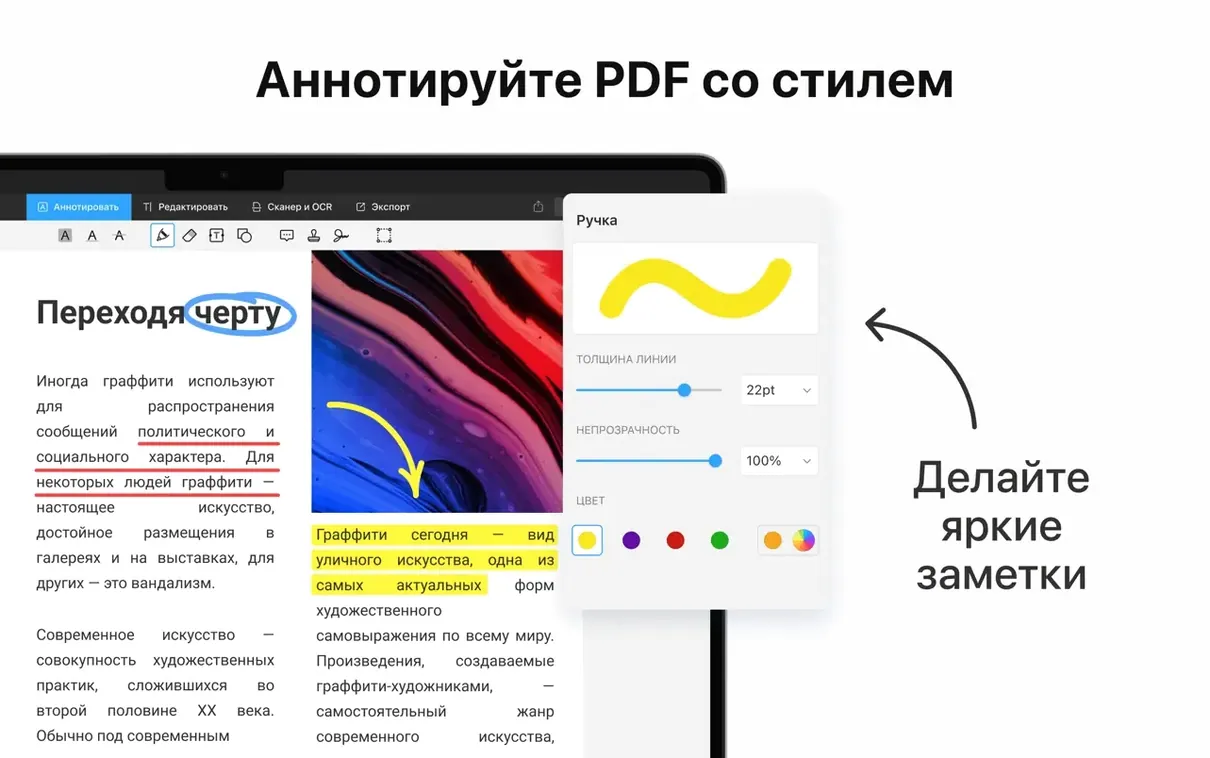
Students get a lot from it. Highlighting passages, adding margin notes, and building a table of contents for a thesis all happen in the same window. The table-of-contents feature is under-mentioned: select headings, and the app auto-generates a clickable outline. That outline stays with the PDF when you send it to an advisor.
People switching from browser-based tools notice the speed first. People switching from heavier desktop editors notice the quiet. Both groups tend to stay.
With other tools
Handoff bridges the Mac and iOS versions without ceremony. Start reading on an iPad in the kitchen, pick it up on the Mac at your desk. The document opens at the same scroll position. No cloud folder to manage.
Finder integration is straightforward. Right-click any image or document, choose Open With, and the app handles the conversion or viewing inline. Drag a selection of PNGs onto the dock icon and it offers to combine them into a single PDF. Quick Actions in the Finder sidebar let you merge or compress without opening the main window.
For people who already use Apple Notes or DEVONthink as a document brain, the app slots in cleanly. Edit and annotate here, then file the result into your existing system. It doesn't try to become a library or a database—it does the PDF work and gets out of the way. That restraint makes it fit into more workflows, not fewer.