Version 12.1.28 has OCR in the build. No separate download.
Recognize
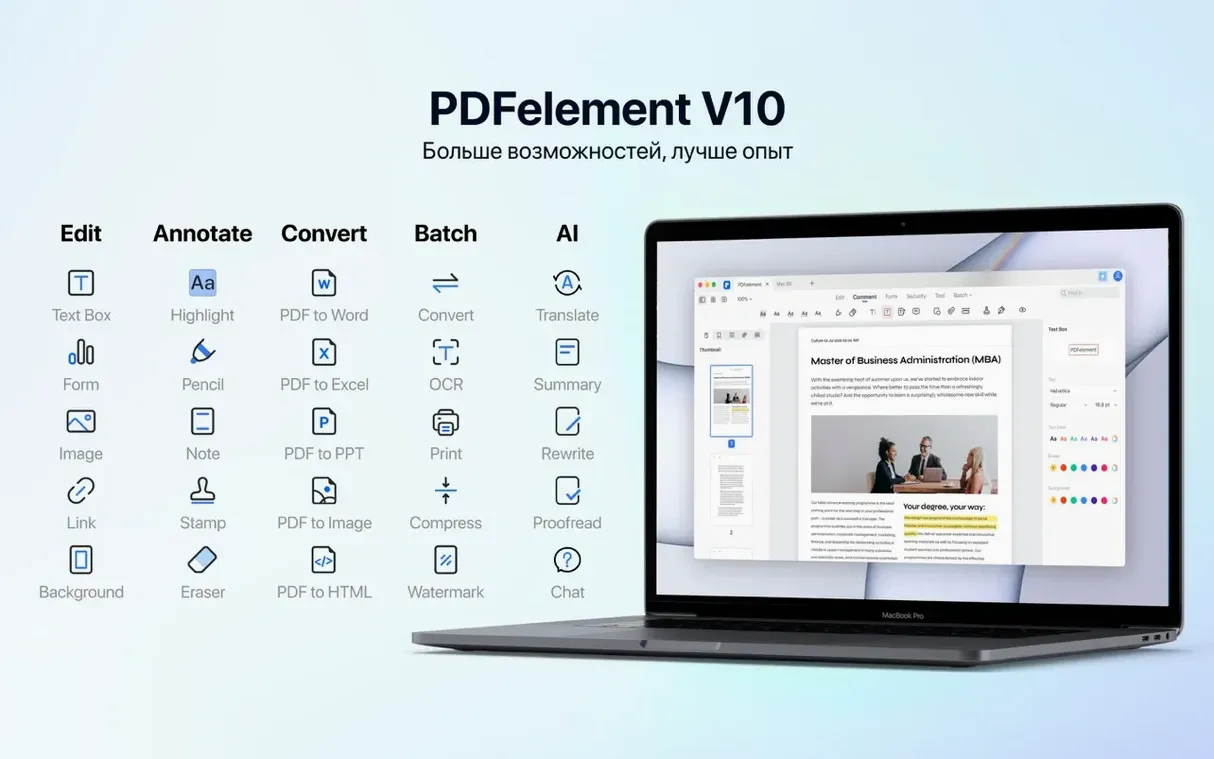
The OCR engine reads scans and images in 29 languages and turns paper into a searchable, selectable PDF.
Shape
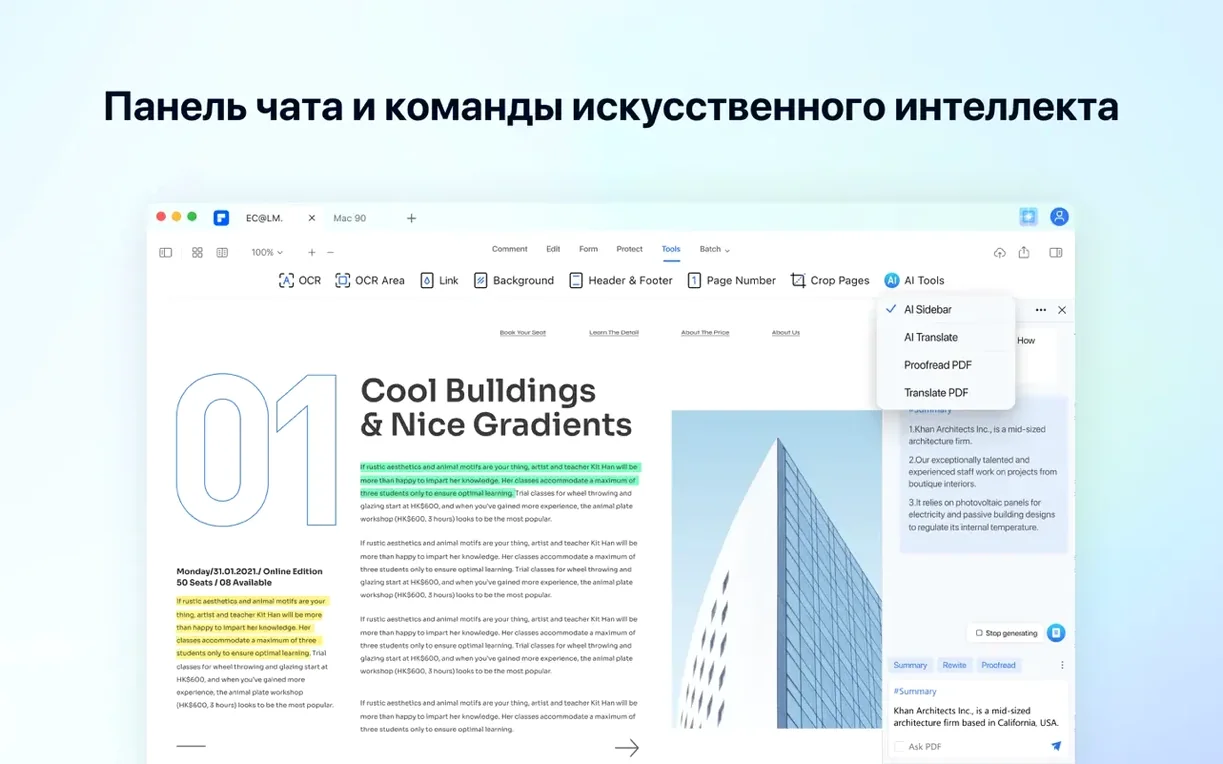
Edit text and images in place. Redact lines or whole images. Batch-convert to Word, Excel or PDF/A when a document outlives its format. The AI panel shortens a paragraph, translates a section or answers a question about the page.
Duplicate fields
Hold Option while dragging a field to duplicate it. Saves a trip to the form palette.
Right-click a page thumbnail and choose Replace Page. You pull a single page from another PDF without disturbing bookmarks or links.
In the OCR dialog, tick Detect slant before running recognition on a crooked scan. The text layer lands cleaner.
When you need the same redaction pattern across fifty pages, mark one, save it as a Redaction Profile, and apply it to the rest in the batch panel. The profile remembers exact coordinates.
Tap the spacebar on a selected PDF in the desktop list. A quick preview pops up before you commit to opening.
Set a custom shortcut for Export To › Microsoft Word. The default menu path is long; a two-key combo trims it.
OCR stays in-app
People who handle scanned contracts daily. The OCR lives inside the editor, so there is no round-trip through an external app.
Students pulling quotes from photographed textbook pages. They highlight a sentence, hit the AI summary button, and get a paraphrase in the sidebar while the original stays intact.
Anyone preparing documents for court or government filing. PDF/A output bakes in fonts and color profiles. Bates numbering stamps every exhibit in sequence before the morning deadline.
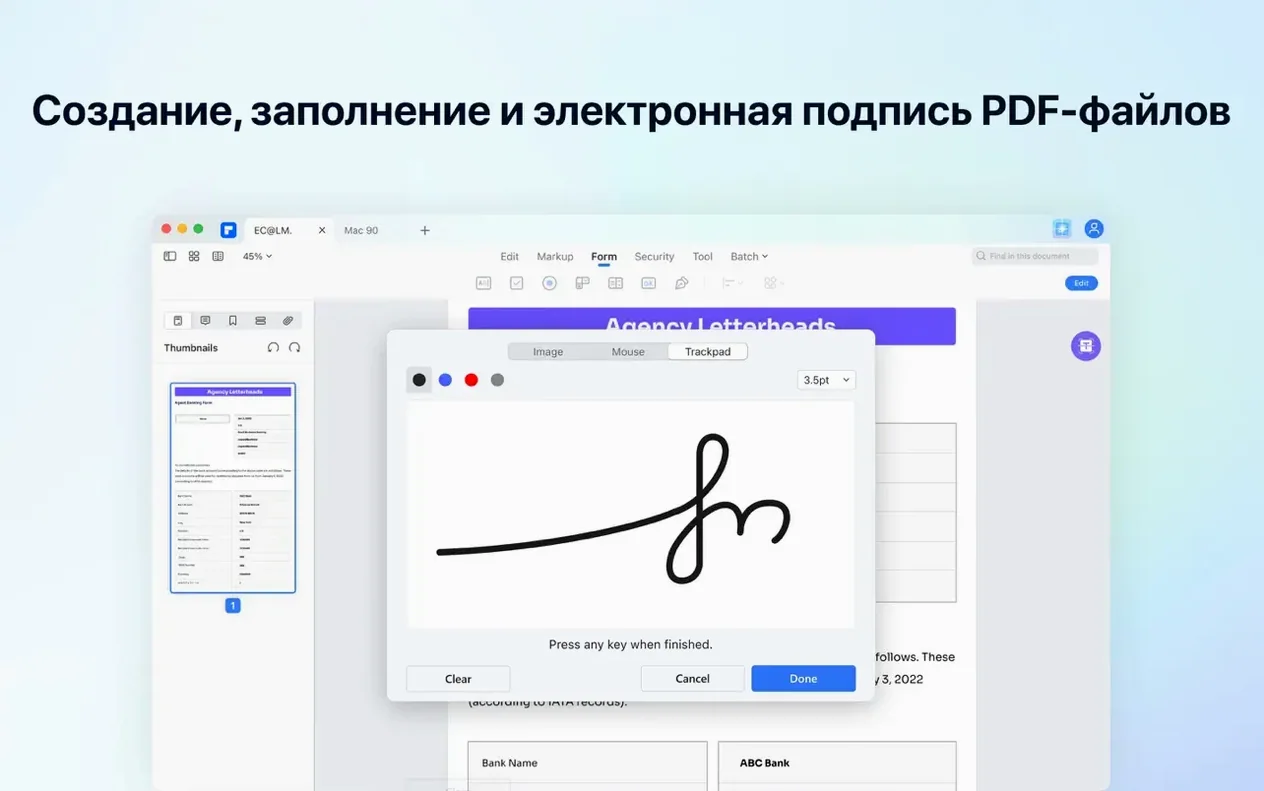
Small offices that receive forms by email. They open a flat PDF, let the form auto-detect suggest fields, adjust two checkboxes, and send it back signed. No printing, no scanning, no waiting.
A contract, start to finish
You receive a scanned eight-page agreement in Portuguese. It is crooked, silent, and unsearchable.
Open it. The OCR panel suggests Portuguese from the document’s metadata. Accept. Tick Detect slant. Let it run. Thirty seconds later the text is selectable.
Page three holds a clause you need to rephrase. Switch to Edit mode. Click into the paragraph. Type the revised wording. The font matches because the OCR mapped it to a nearby system face.
A counterparty signature block is missing. Open the Forms tab. Drag a digital signature field to the empty space. Save.
Before you return it, batch-convert the final PDF to PDF/A for archiving. Two clicks in the batch panel. The file lands in a folder with _archive appended to its name.
First three days
Day one: open a scan you already have. Run OCR. Search for a word you know is on the page. See it highlight. Trust builds fast.
Day two: pick a multi-page PDF and try the batch tools. Split by page count, then merge back the odd and even halves. Learn what the panel can chain together.
Day three: give the AI sidebar ten minutes. Feed it a dense paragraph, ask for a summary, then translate the summary. You will learn where the tool helps and where it guesses.
Set the default zoom to Fit Width in preferences. Most documents read better that way.
Drag the OCR and Redaction tools onto the toolbar. They sit buried in menus otherwise.
If you share a Mac, lock your signature with a password in the Security preferences. The signature persists across sessions but stays private.
A quiet morning habit: open the batch panel first, not last. Many people discover pdfelement torrent-grade convenience only after weeks of manual work. Don’t wait.