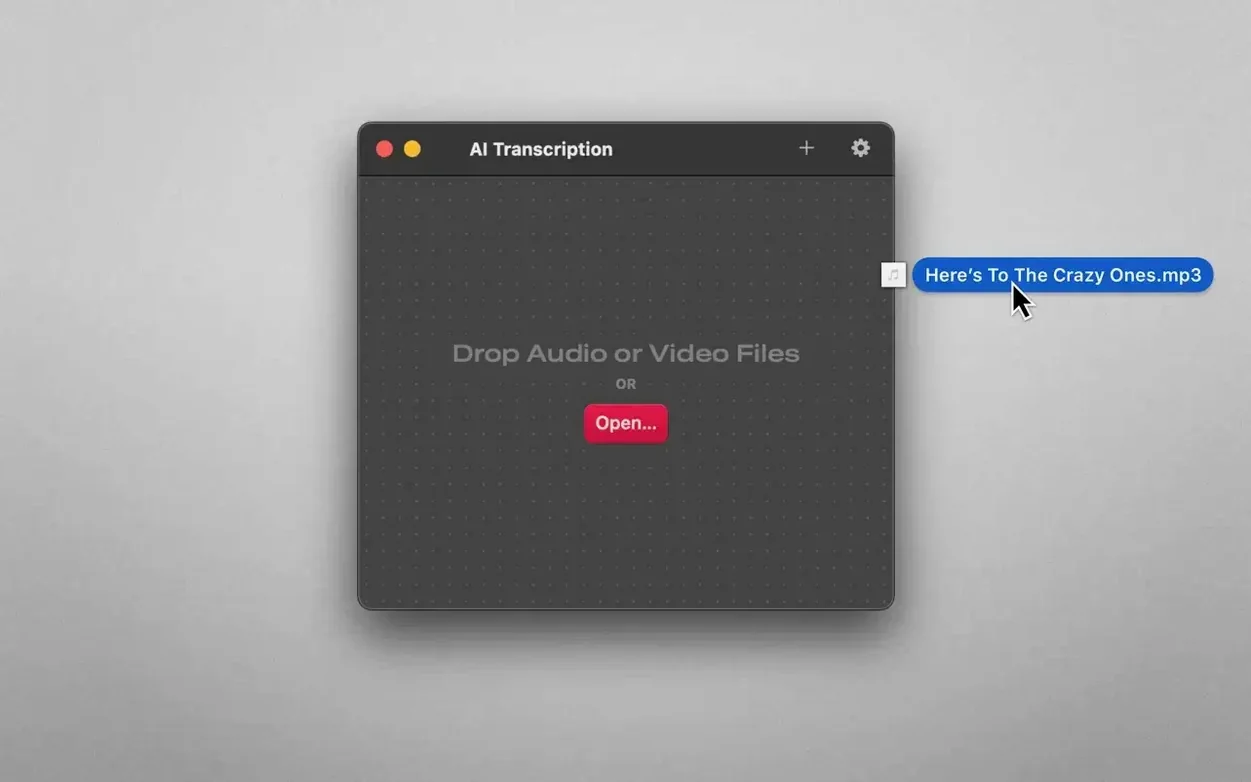
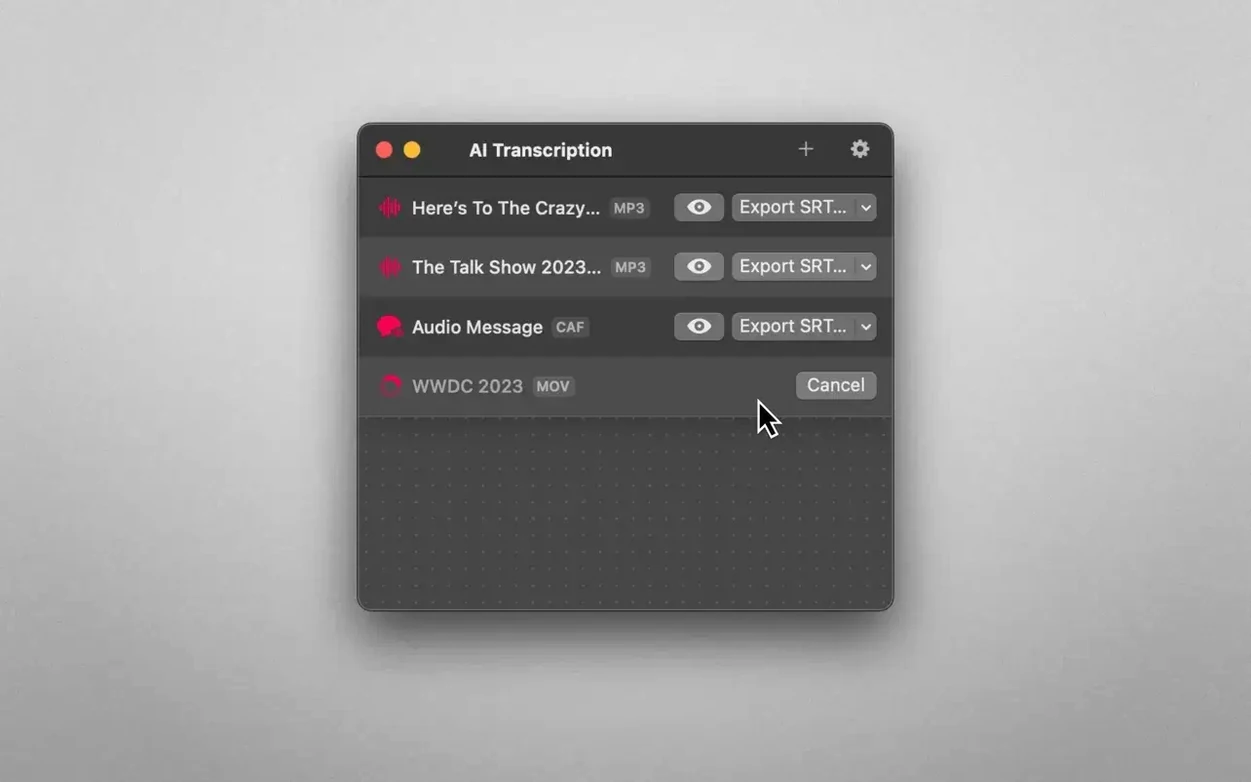
Think of macOS's built-in dictation, but applied to a file you already have. AI Transcription takes that same on-device speech engine and points it at your recordings.
Offline engine
It converts audio and video files into text directly on your Mac. Nothing is uploaded.
Split formats
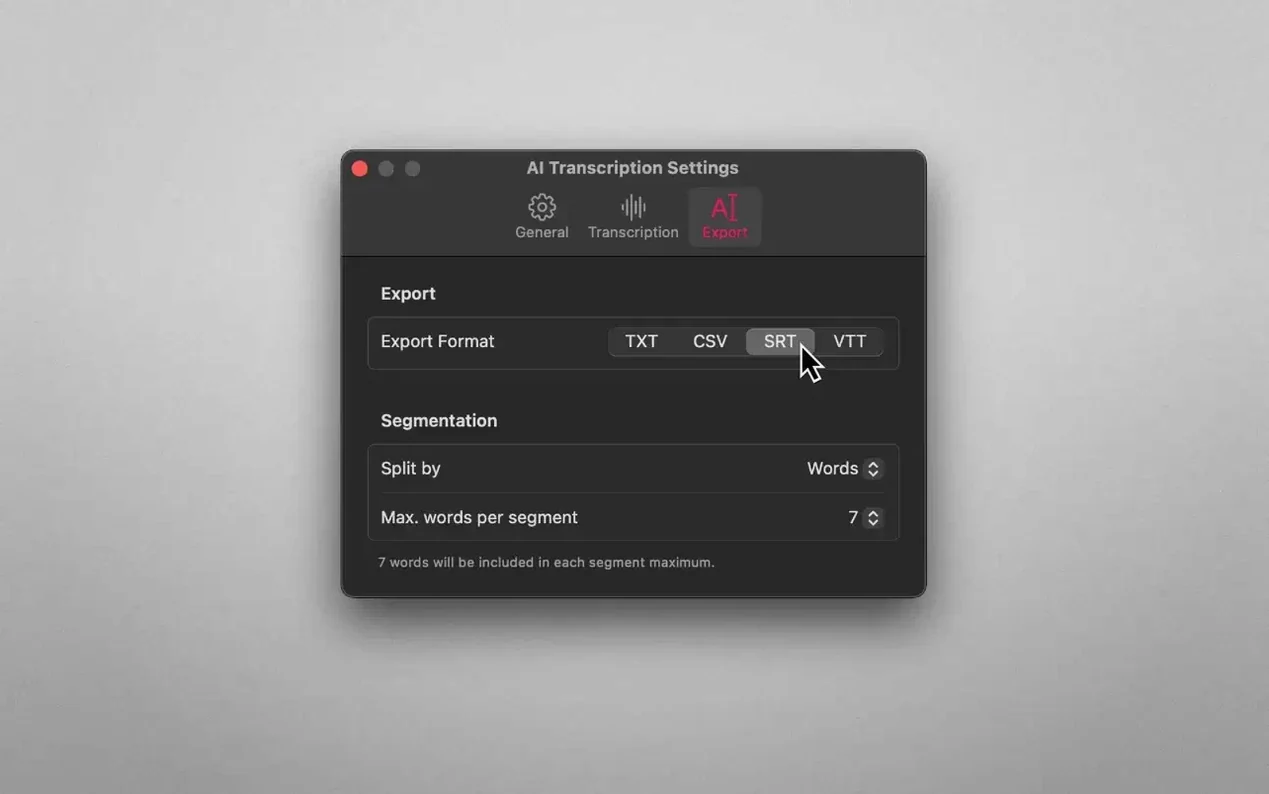
Plain text, CSV, SRT, or WebVTT. You can split the transcript by word, sentence, or duration.
Chunked playback
Load an hour-long interview from your desktop. AI Transcription opens it, shows the waveform, and waits. Choose a language model — the larger ones take longer but catch more nuance. Press play.
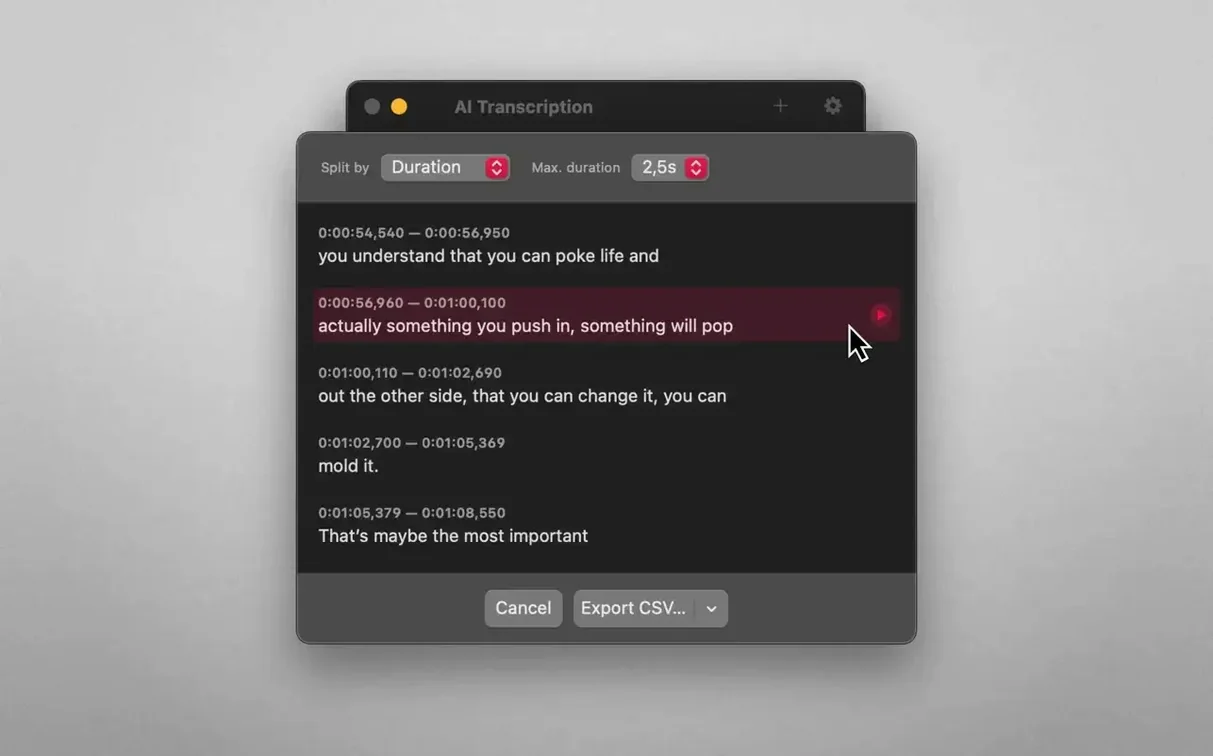
The waveform scrolls. Text appears in chunks, not as a single block. You can read along while the recording plays back at the same time. If a speaker mumbles through a section, tap ⌘K to pause and replay that segment. The transcript stays in sync.
When it finishes, switch to the sentence view. Each line gets a timestamp. Click any sentence to jump the audio to that exact moment. This is useful when you need to verify a quote without scrubbing through the whole file.
Export as SRT if you edit video. The timestamps are frame-accurate enough for most NLEs. Drop the file into DaVinci Resolve or Final Cut and the captions land where they belong.
Finder-searchable
The app writes files to wherever you specify — no locked-in library. This means Finder tags and Spotlight work as expected. You can search for a phrase inside a transcript days later and macOS finds it instantly.
It also respects your default audio output. If you route system audio through Loopback or BlackHole, AI Transcription will capture that stream. Record a Zoom call, save the file, transcribe it. The whole chain stays local.
For quick captures, use the Share extension. Select any audio or video file in Finder, right-click, send it to AI Transcription. The app launches with the file loaded and the language model from your last session pre-selected.
Quiet details
Hold Option while dragging a file onto the dock icon to switch language models before transcription starts. This bypasses the main window picker.
The export panel remembers your last format and split style per file type. SRT exports always use sentence splits; CSV defaults to word-level. You can override it, but you rarely need to.
If you work with multilingual recordings, the app detects the dominant language when set to auto. It is not flawless — a mix of Japanese and English will confuse it — but for single-language files it saves a step.
Anyone with recorded interviews, meetings, or voice notes who needs a searchable text version without sending data to a cloud service.