
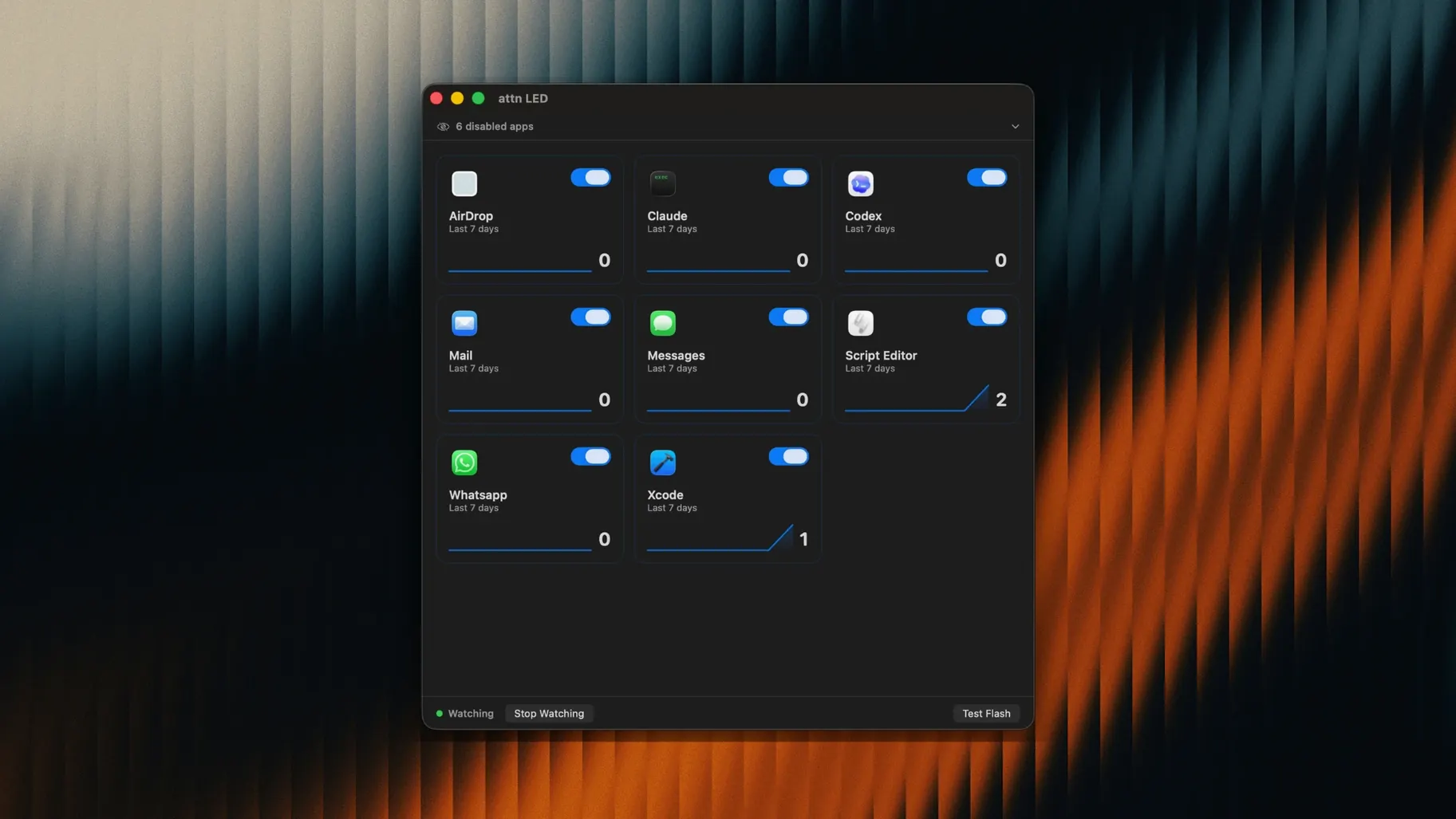
You’ve set Focus mode, silenced every banner, and closed the messaging apps. The only thing that can reach you is the one message you’ve been waiting for. attn LED lets that message through without a sound or a pop-up. It blinks the camera LED.
- Stops blinking automatically when FaceTime or a video call begins—no manual toggle.
- Detects new apps with notification permissions. No configuration needed.
- Works as a physical signal. You catch it with peripheral vision only.
- Adds nothing to the screen. No badge, no Dock bounce, no sound.
- Runs on Apple Silicon and Intel MacBooks, macOS 12 and later.
Quiet details
The LED respects your notification settings. If an app is muted in System Preferences, attn LED stays dark for it. If you’ve set a Focus that allows only calls, the light ignores everything else.
One shortcut worth knowing: you can dismiss a blinking LED without opening the app. Click the camera indicator in the menu bar, then click Stop Blinking. The light goes off. The notification stays unread, waiting for you later. Another: hold Option while opening the app to disable LED monitoring for the current session. Useful when someone else is in the room.
The app adds a single menu bar item. No Dock icon. No preferences window that demands attention. The menu shows which apps are being watched and lets you toggle each one with a click. The auto-detection feature catches new chat clients the moment they request notification access—no restart, no rescan.
First-day mistakes
Most beginners give the app permission and then forget about app selection. They let every notification through. The LED blinks for calendar reminders, software updates, backup confirmations. The light loses meaning.
Limit it to two or three apps. Slack and Messages. Or Mail and Teams. The LED works best when it signals something rare.
Another common slip: covering the camera with a privacy shutter, then wondering why attn LED stopped working. The light is the camera LED. Obscuring the lens kills the signal. If you use a physical cover, slide it open when you want LED alerts.
Some users also expect the LED to identify which app triggered it. It won’t. attn LED is a binary signal: something needs your attention or nothing does. The menu bar icon shows the app name if you need to check.
A focus-block workflow
You’re writing. The kind of writing where a single interruption costs twenty minutes. You enable Do Not Disturb, close Slack’s window, and open attn LED. You set it to watch only two apps: Messages and a support escalation channel in Teams.
The room is quiet. No banners slide in. No Dock badges count up. Your screen stays exactly as you left it. Forty minutes in, the green LED pulses near the camera. Peripheral vision catches it. You glance up—the menu bar icon shows which app lit it. You finish the sentence, then open Messages. The LED stops.
That’s the whole loop. The light waited. You didn’t lose context. You didn’t hear a ping. The interruption cost you five seconds instead of twenty minutes.
When the writing block ends, you open attn LED’s menu and disable both apps. The LED returns to being just a camera indicator. You go back to ordinary notifications until the next deep session.
attn LED 1.0 doesn’t replace your notification system. It gives you one extra channel—physical, silent, impossible to miss from across the room.
A small hardware light, tied to your notification rules. That is the whole idea.