
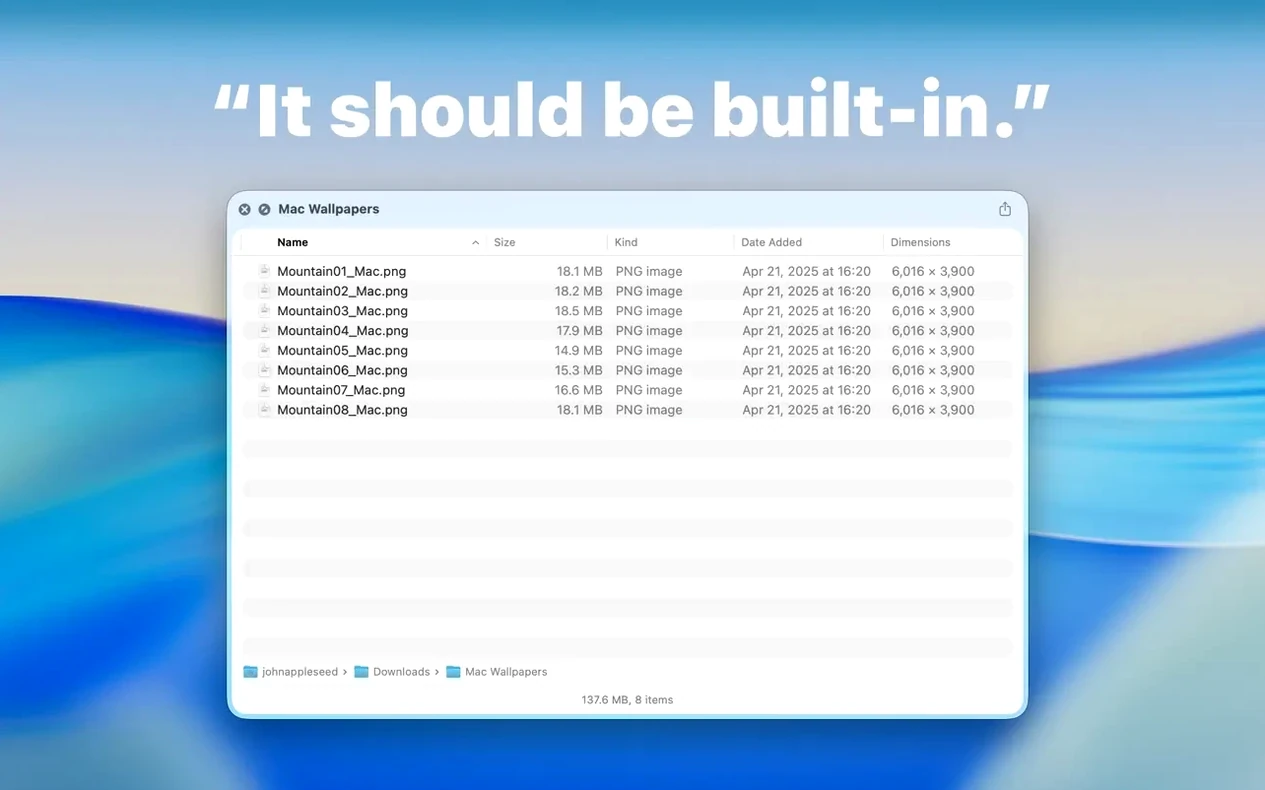
Folder Preview Pro is a Quick Look extension that shows the contents of a folder right in the Finder preview panel.
Silicon ready
It runs on both Apple Silicon and Intel Macs. Your system needs macOS 13 or later. There are no other dependencies.
What does version 3.1 add?
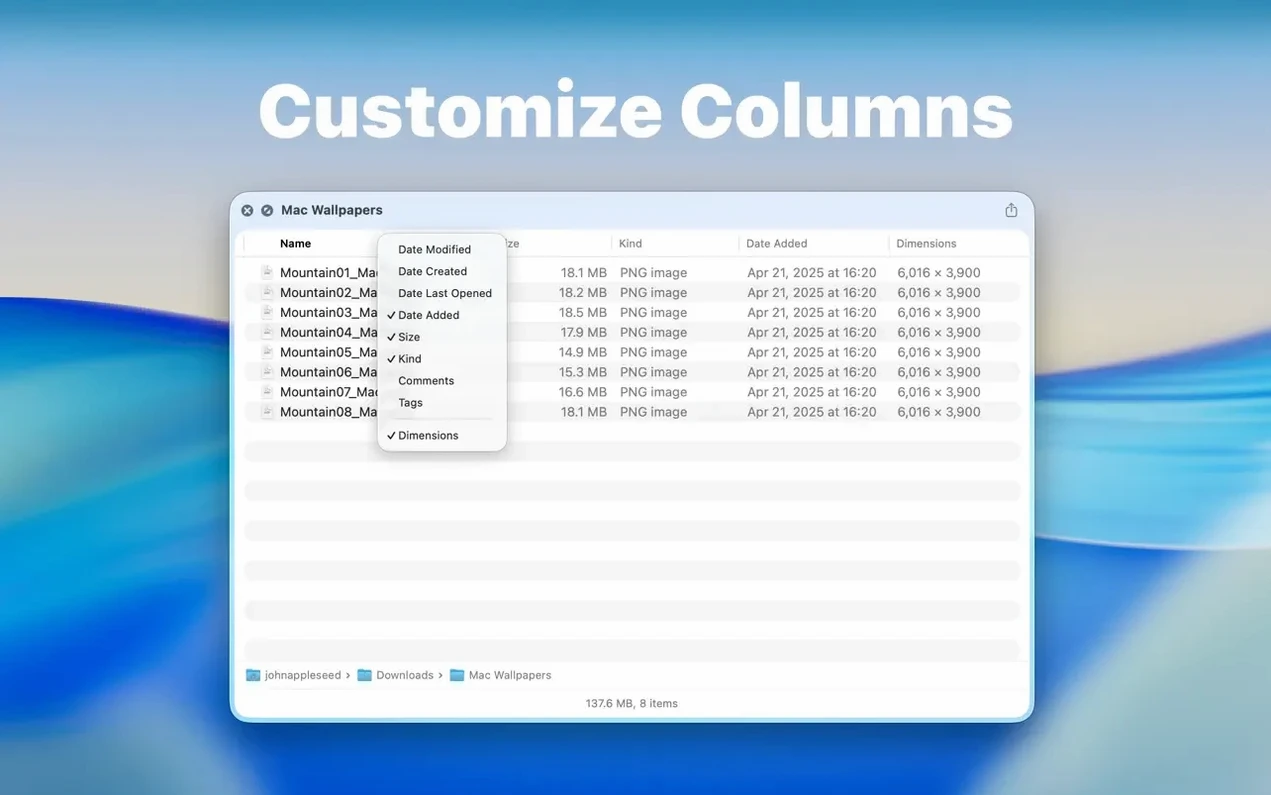
A Dual Columns view lets you see two folder levels at once. You can also right-click column headers to show or hide columns. A Contents item now appears in the context menu for level-by-level browsing. Drag-and-drop out of the preview is supported from list and icon views. Archive size limits now include 5 GB and 10 GB options.
Launching a preview is nearly instant. The extension sits inside Quick Look, so there’s no separate app window to manage and no long indexing pass. I’ve used it with folders holding a few thousand loose files, and the list appears without the beachball.
Memory use stays modest. Quick Look itself does the heavy lifting, and Folder Preview Pro only adds the folder view. On an M1 machine with several previews open, activity stayed flat. Older Intel Macs may feel it more with very large archives, but normal folder browsing remains light.
Quick Look required
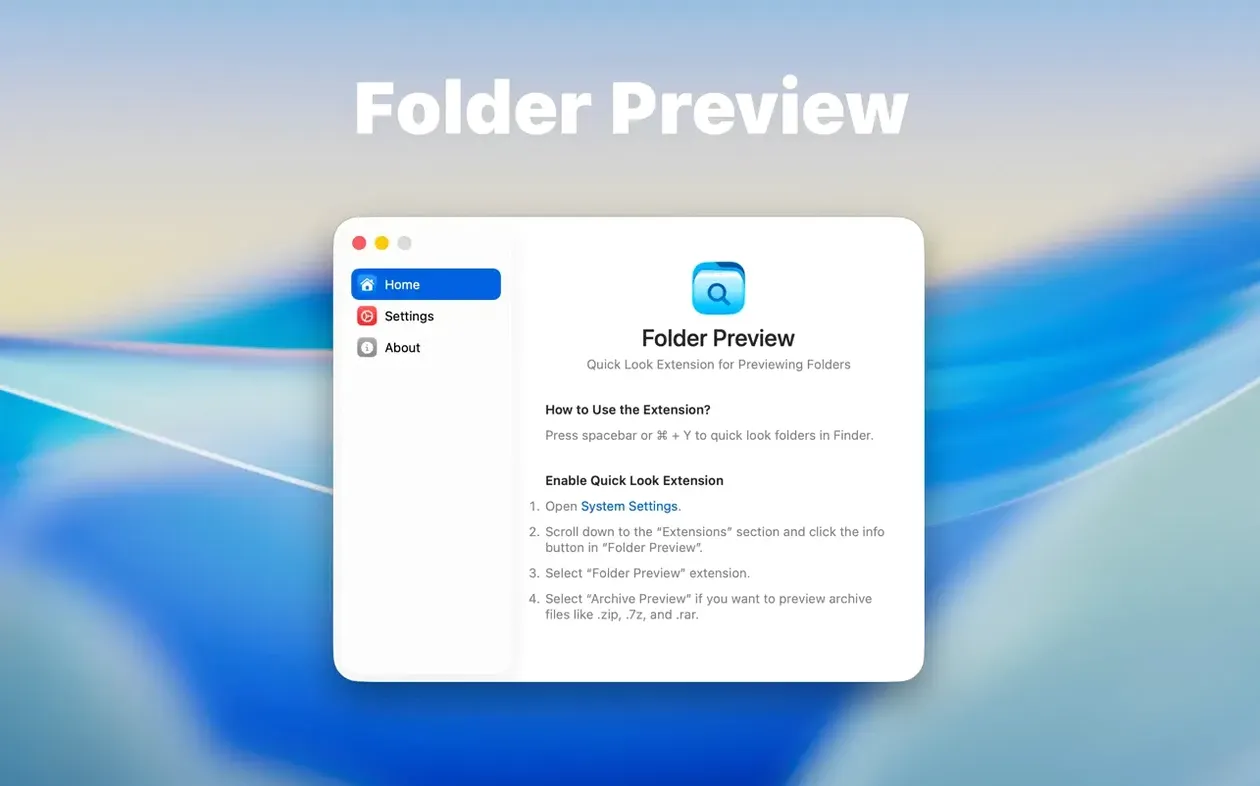
Most people ask whether Quick Look needs to be enabled first. It does. Turn it on under System Settings, then press Space or Command-Y on any folder in Finder.
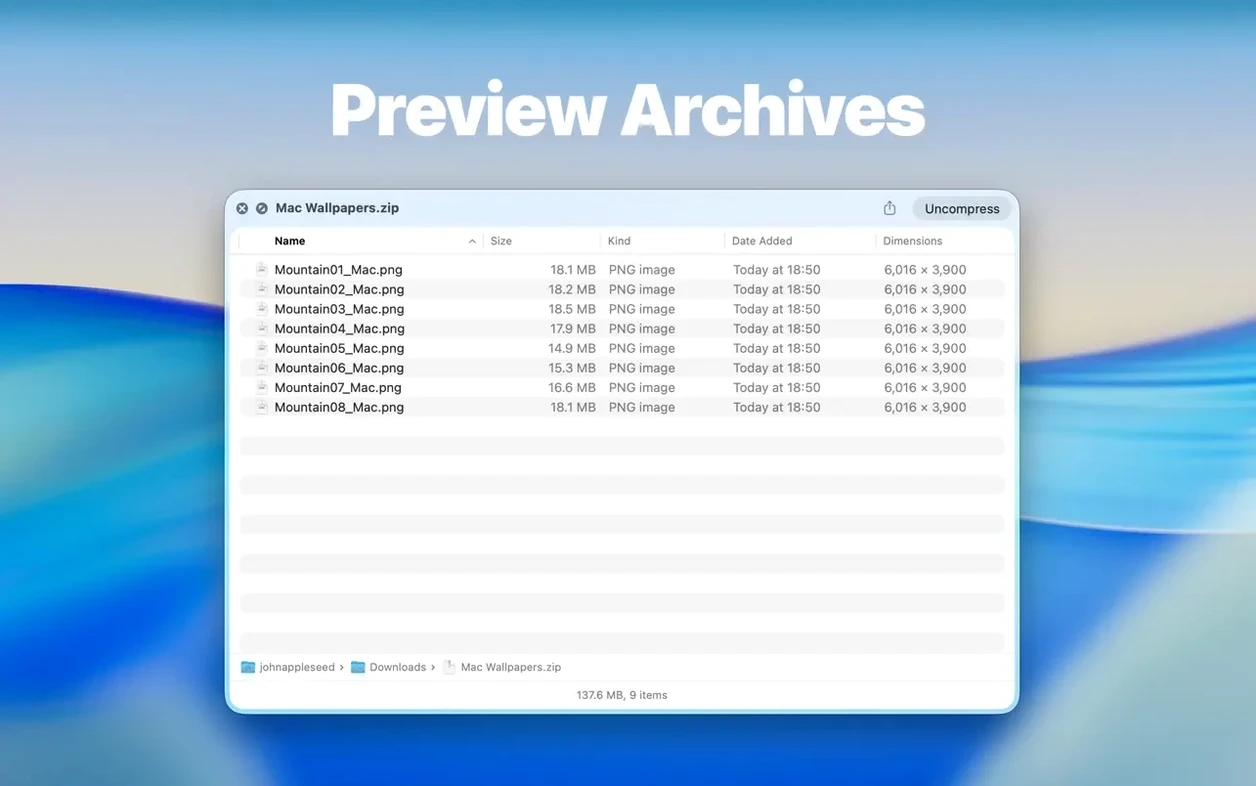
Another common question is about archives. ZIP, TAR, GZ, 7Z, and RAR files open in the preview without expanding them. A 10 GB archive size limit is available for people who regularly work with large backups or media bundles.
Some users wonder if drag-and-drop works from the preview. In version 3.1 it does, from both list and icon views. Grab a file and drop it onto the desktop or into another app.
A short session
You’re cleaning up a project folder from two years ago. Instead of opening it, you select it and hit Space. The preview shows the top level. Folders, loose PDFs, a few stray screenshots.
You right-click a subfolder and choose Contents. Now the preview drills down one level. You spot an old export folder you thought was gone.
You switch to Dual Columns. The parent stays on the left, the selected folder’s contents on the right. No new Finder windows, no tab sprawl.
You drag one PDF out of the preview onto the desktop. Then you close Quick Look and delete the rest. The whole check took about a minute.
That’s the daily rhythm with Folder Preview Pro. Less opening, less closing, fewer Finder windows stacked behind whatever you’re actually working on.