
Finder wasn't built for servers. The moment you need to move files between a remote volume and your desktop, you're juggling two windows and hoping nothing disconnects.
Two panes, one view
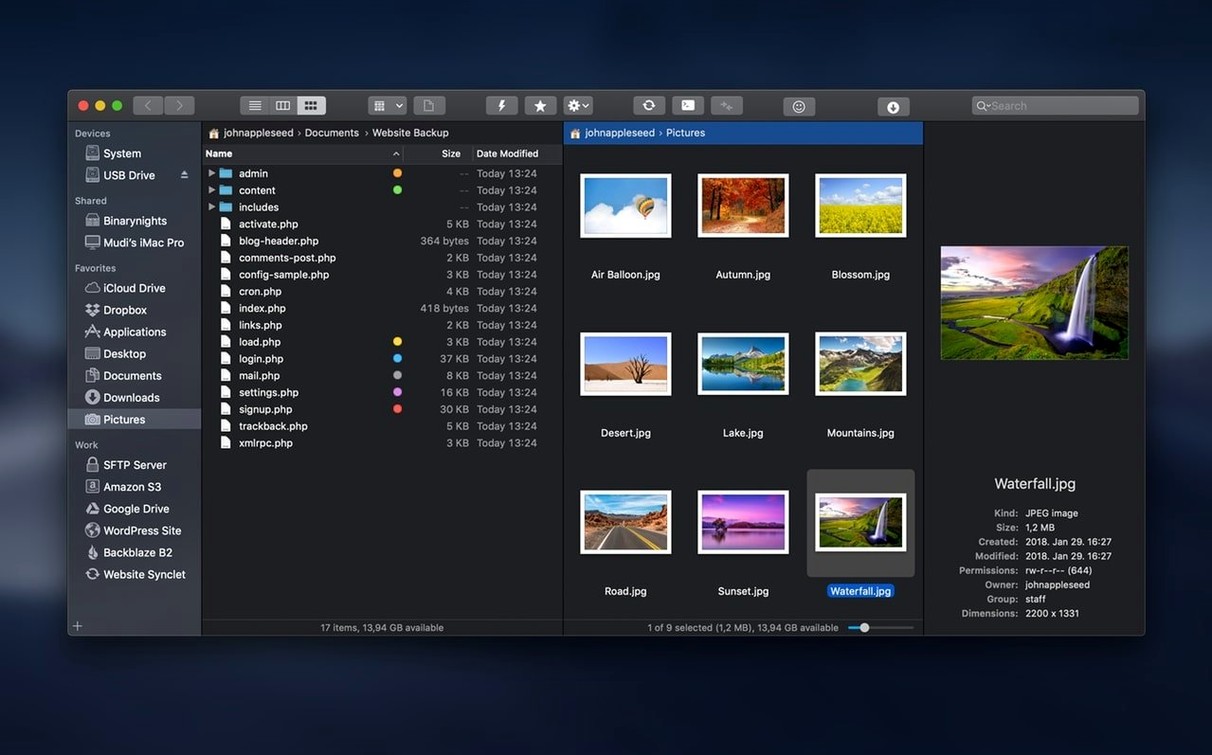
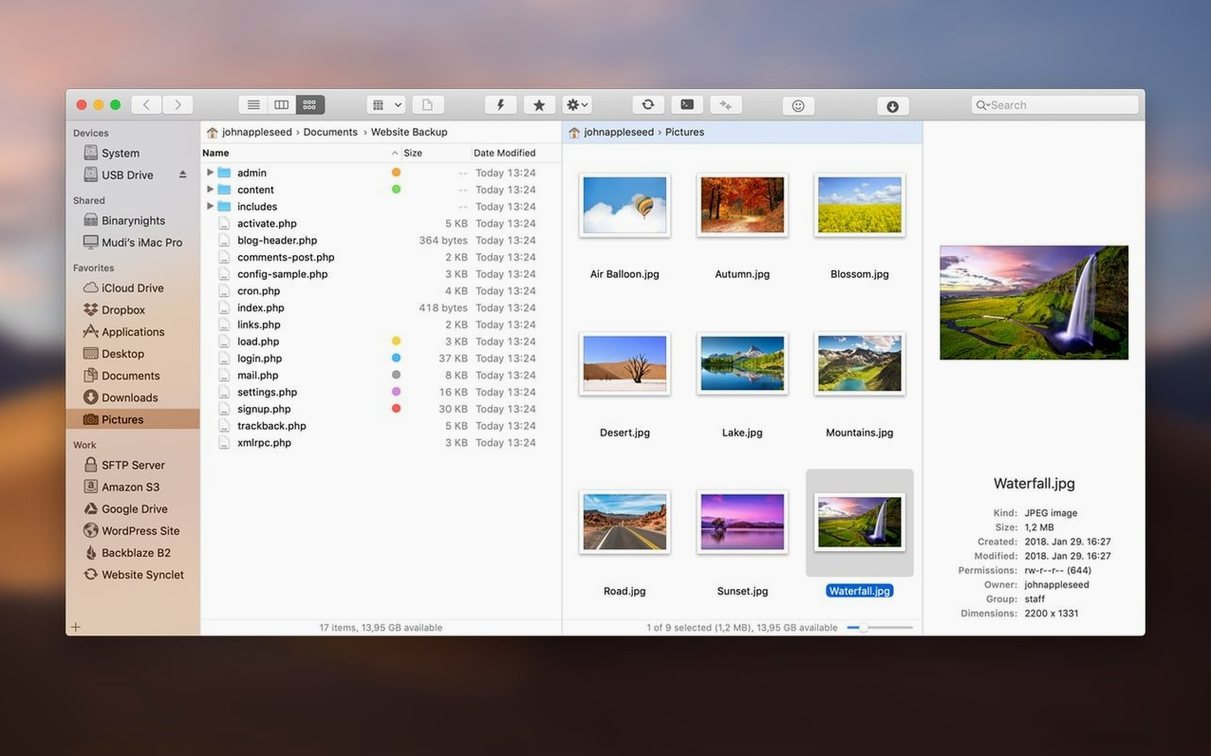
ForkLift puts both locations side by side. Local on the left, remote on the right—or stacked vertically if you prefer. It connects to FTP, SFTP, Amazon S3, WebDAV, AFP, SMB, and NFS volumes as though they were folders on your desktop. You drag files across. You edit text files on the remote server without downloading them first. The dual-pane layout disappears when you don't need it; a single-pane mode keeps things quiet.
Find anything, anywhere
Search works the same whether you're digging through a local drive or a server halfway around the world. Filter by name, extension, text inside the file, or Finder tags. Preview photos and PDFs without opening another app. Version 4.7.6 tightens the feel of everyday file actions—moving, renaming, copying—so the interface stays out of your way.
Sync without fear
One-way sync pushes everything from a local folder to a backup server. Two-way sync keeps both sides identical. ForkLift shows you what will change before it does anything. A dry run, essentially. You see the file list, then you confirm. No surprises.
For people managing websites, staging environments, or photo archives across multiple drives, this alone replaces a dedicated sync tool.
Live edit flow
Developers who move between local projects and staging servers live in ForkLift. They open a remote config file with a text editor, save, and the change is live. They drop into Terminal from the current folder without typing a path.
Photographers with NAS drives get the same benefit. Preview raw files in the pane. Rename batches across volumes. Sync edited work back to the archive.
Anyone who connects to more than one server at a time stops juggling separate apps. ForkLift keeps each connection in a tab. S3 bucket on the left, SFTP on the right, local drive in a third tab. No window clutter.
A short day with a site builder
Someone maintaining three client sites opens ForkLift in the morning. Left pane: the local build folder. Right pane: the production server over SFTP. They drag updated assets across. They open a stylesheet directly from the server, tweak a media query, save. The change is deployed.
Midday, a friend sends a zipped archive of stock photos. They browse it inside ForkLift without unzipping. They preview a few shots, pull the keepers into a local folder, and delete the archive.
Before closing the laptop, they set a one-way sync from the local backup drive to an S3 bucket. The comparison view shows twelve changed files. They confirm. Done.
Single-click opens
Turn on Single-click open. By default, a double-click opens files. Single-click mode makes the file list behave like the Finder column view, but faster.
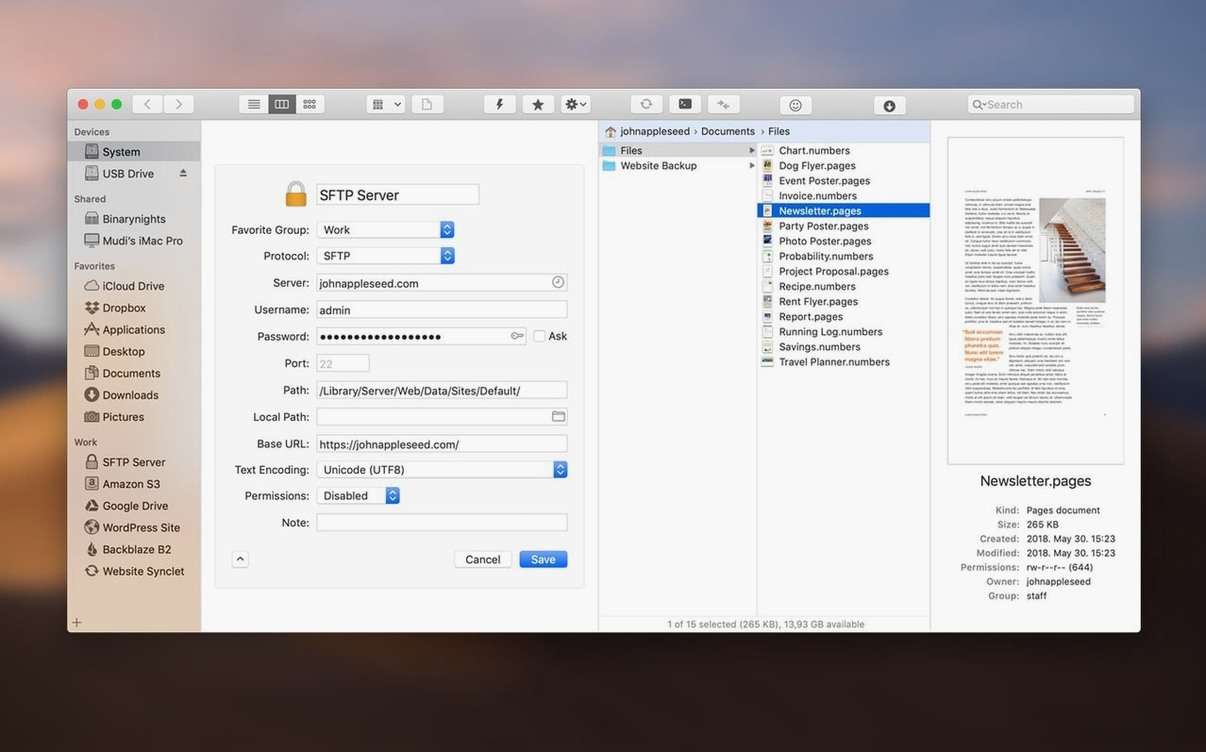
Map your favorite remote connections to the sidebar. Drag an SFTP bookmark into the favorites section. Now a single click connects. No password prompts after the first save.
Set the default text editor to something you actually use—BBEdit, Nova, VS Code. ForkLift's built-in editor is fine for quick fixes, but an external editor turns it into a proper remote editing workflow.
If you use Terminal often, point the toolbar button to your preferred app. iTerm and Hyper are both supported.