

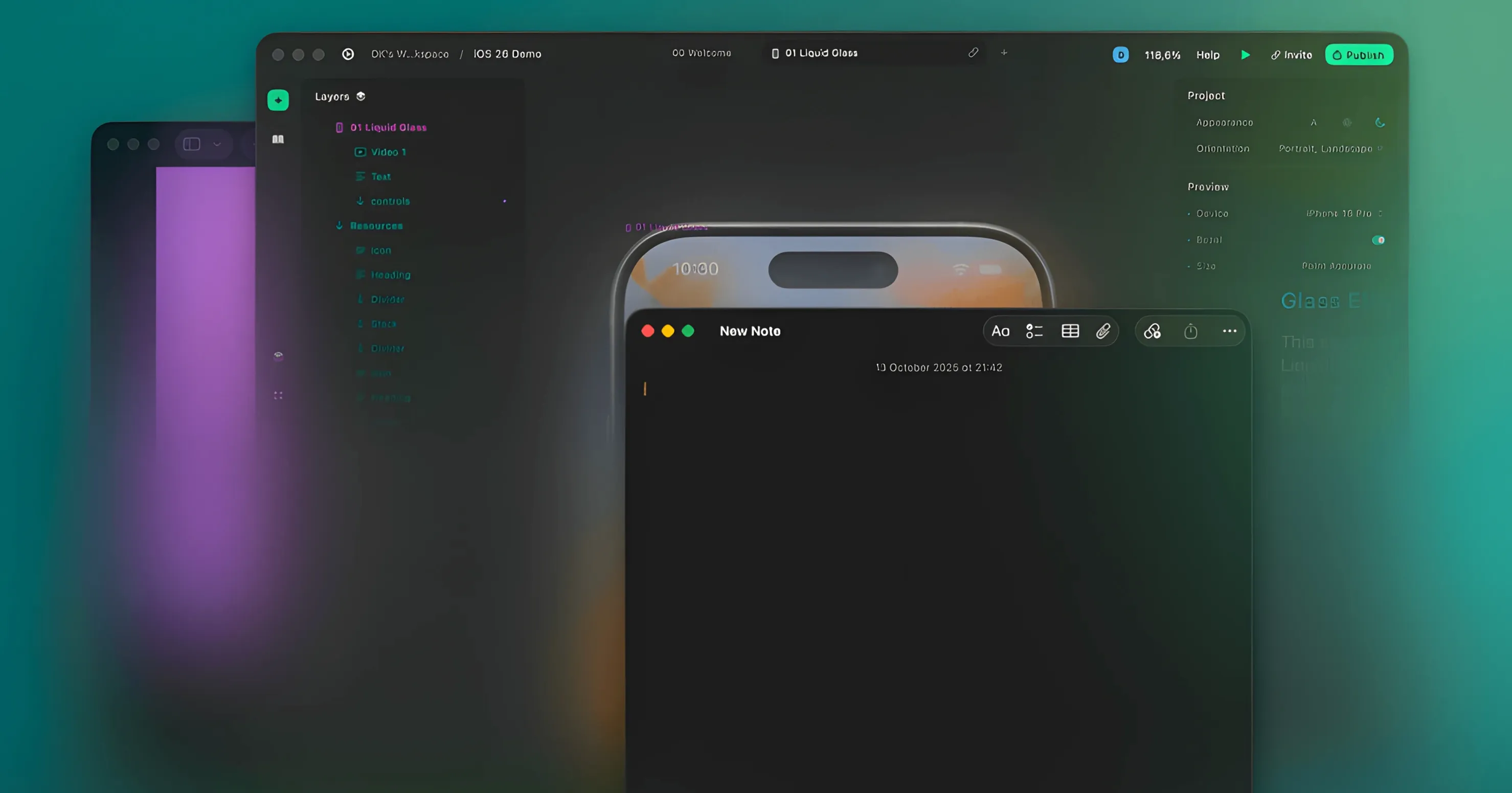
You have a text editor open. Your browser sits behind it, and an email client behind that. The layers compete for your attention.
Monocle clears the noise.
It lives in your menu bar and does one thing: pushes background windows into the background visually. You stay with the application you are working in. Everything else recedes.
Dim and blur
- Dim background windows to a soft shade
- Blur them for stronger separation
- Toggle with a click from the menu bar
Narrow focus
Monocle suits anyone who works with overlapping windows and wants less visual clutter. The utility is intentionally narrow. No panels, no preferences overload. Just quieter focus on the window that matters right now.
In blur mode, Command-Tab still behaves as you expect. The window you switch to sharpens, the one you left fades. It makes app switching feel less like rearranging clutter.
Excluded apps are useful here. Keep a chat window clear while everything else blurs, or keep the Dock area untouched. The setting is easy to miss because it sits quietly in the menu bar preferences.
A writer’s afternoon
A translator works with a reference PDF, a dictionary, and a manuscript. Before Monocle, the three windows fought for space; notes got lost between PDF pages and dictionary entries.
Now the manuscript stays bright. The reference material sits behind it, just visible enough to read a line when needed. With gradient dimming turned on, the shift between windows feels less abrupt. One menu bar click returns everything to normal when the session ends.
Monocle mac app rewards a few minutes of setup, then disappears into the routine.