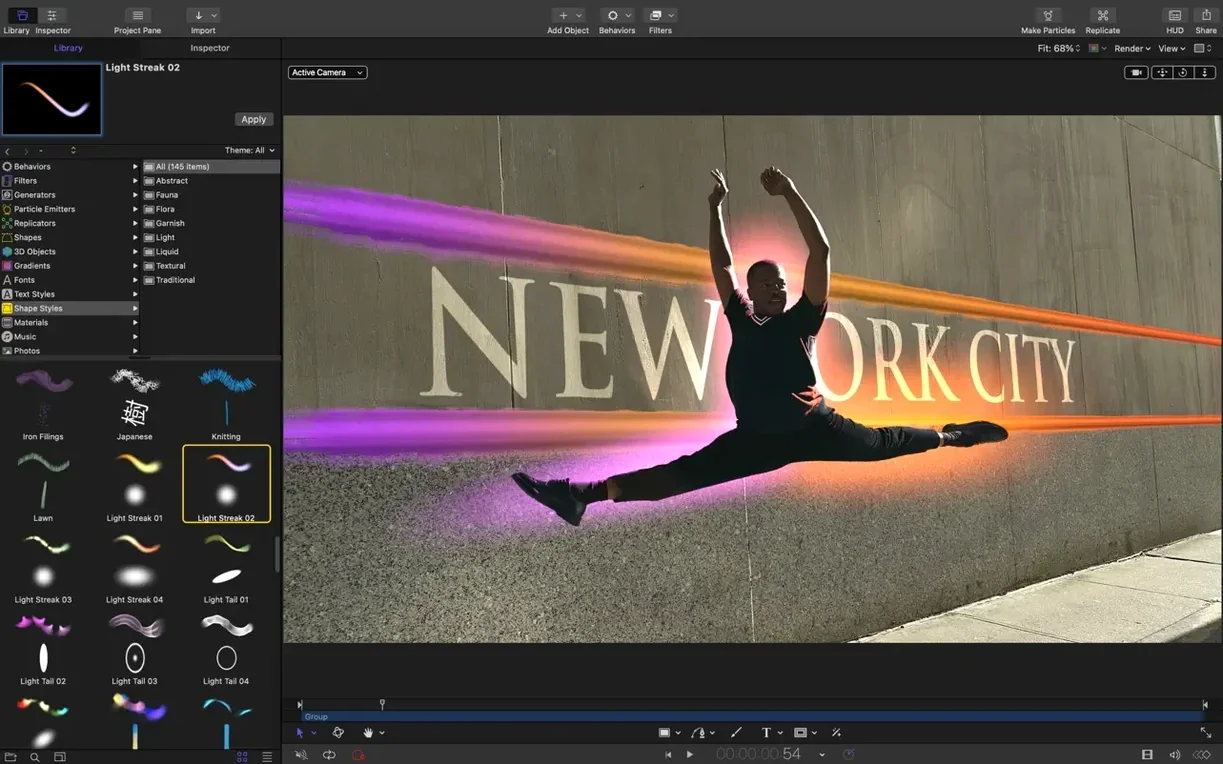
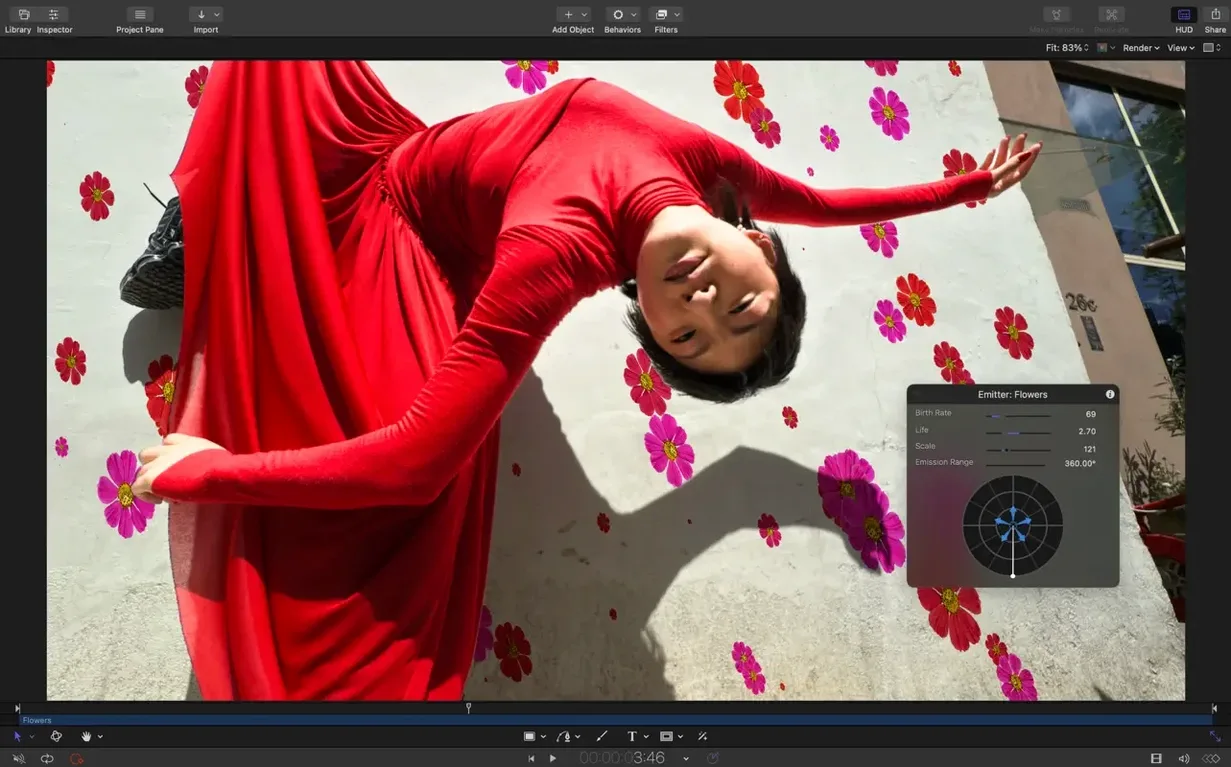
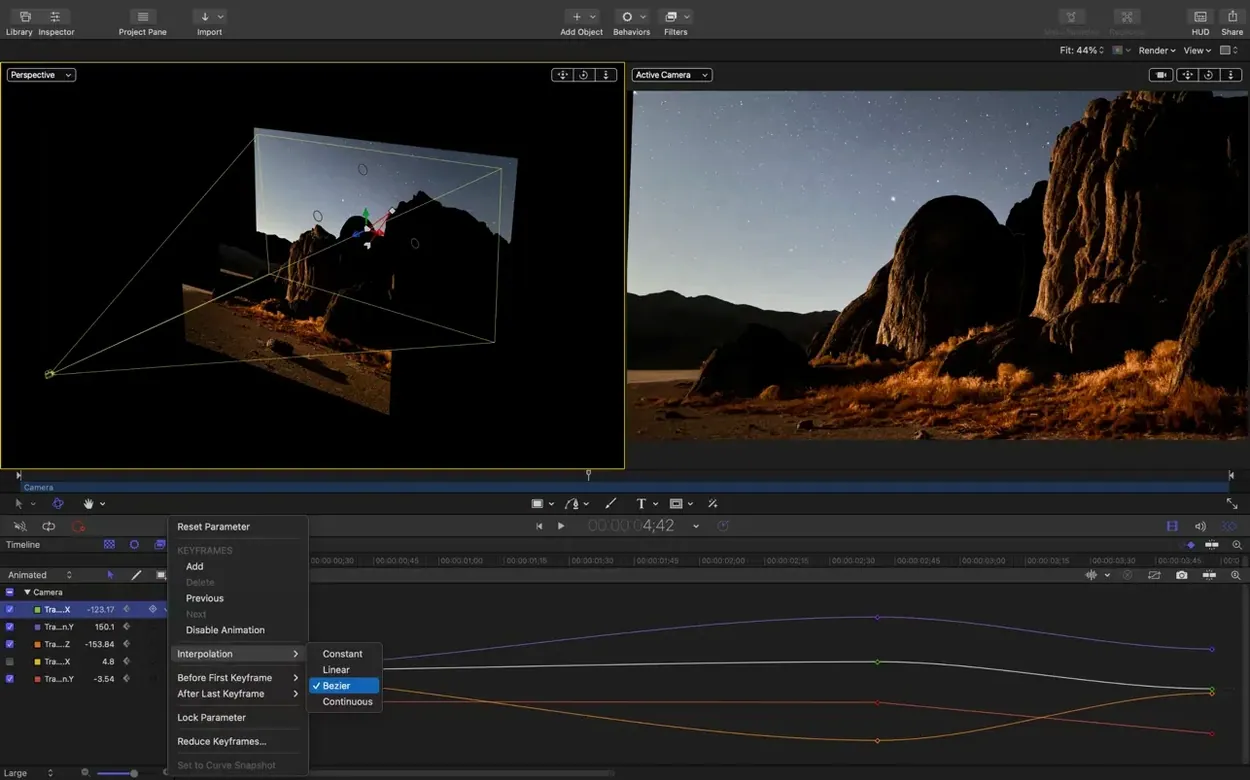
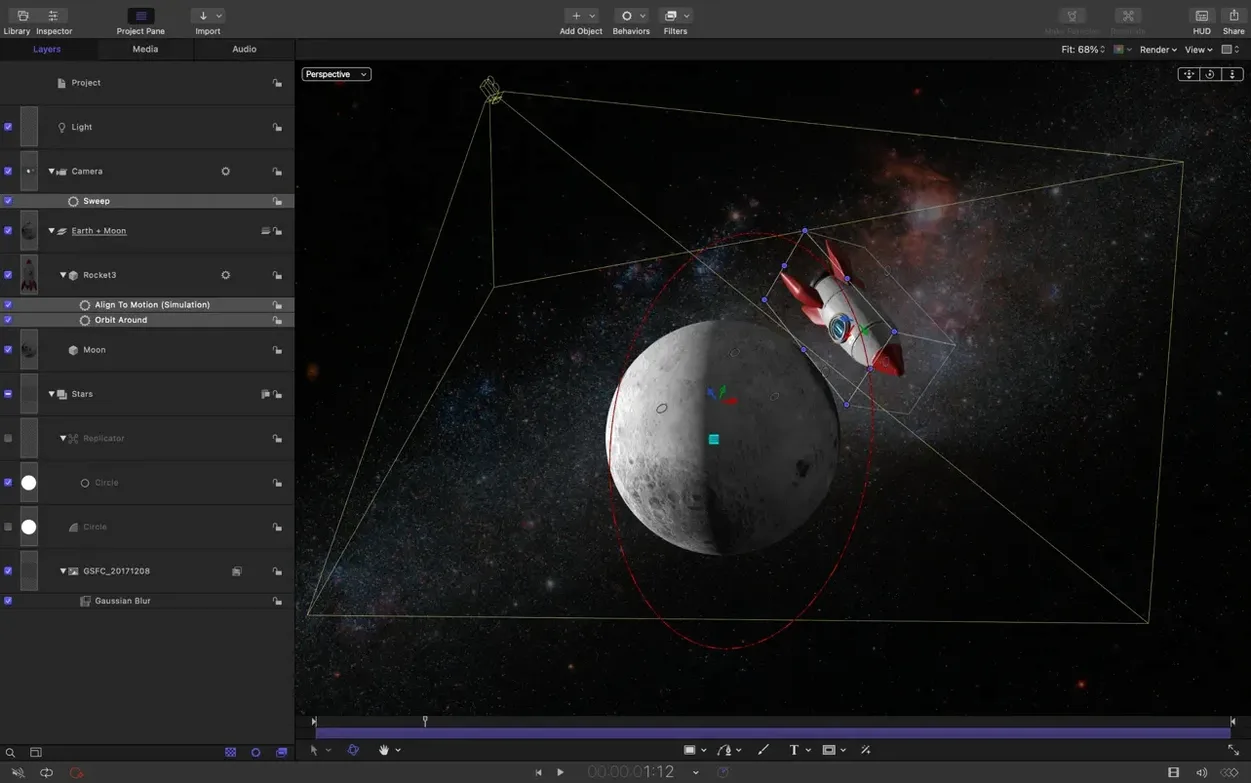
Editing is about rhythm. When a title needs to land on a specific frame, or a transition feels half a beat too slow, you lose the cut. Most compositing tools add friction — render bars, round-trips, waiting.
Motion removes that. It runs alongside Final Cut Pro X, not against it.
Reusable templates
- Broadcast editors building reusable templates for Final Cut Pro X
- Commercial work where staggered text reveals need precise timing
- Importing SVG logos that stay sharp at any resolution
Companion, not finisher
- Designed as a companion to Final Cut Pro X, not a standalone finishing tool
- Requires macOS 15.6 or later
Drop a clip, add a 3D title, stagger the lettering. The performance updates in 6.3 keep the viewport fluid while you work. No pre-render. No guesswork.
Scope decides
People often weigh Motion against After Effects, DaVinci Resolve Fusion, and Blender. The differences come down to scope.
After Effects is a full compositing and animation environment. Deeper, wider, but heavier. A one-second title change can mean a round-trip through Dynamic Link and a hard wait. Motion is lighter. You make a title, a transition, an effect. It goes into Final Cut Pro X as a live template. The editor tweaks it on the timeline without leaving the cut.
Fusion lives inside Resolve. Powerful node-based work, but the learning curve is real. If you spend your day in Final Cut, Motion speaks your language. Layers, timelines, keyframes. No node graph to relearn.
Blender is free and remarkably capable, but it is a 3D suite first. Video editors want a title on screen in four minutes, not a new discipline. Motion is built for that speed.
Where Motion loses ground: jobs that need character animation, complex physics, or a full 3D pipeline. Where it wins: getting broadcast-ready graphics in front of an editor fast.
Template not showing
A few things trip people up, usually in the first week.
Templates not showing in Final Cut Pro X. Save your Motion project as a template, not a standard project. In the Save dialog, choose the template category that matches your intent — title, transition, effect, or generator. After saving, Final Cut usually picks it up. If not, restart Final Cut.
SVG import looks wrong. Some SVG files carry fills, strokes, or transforms that Motion reads differently than a browser. If a logo arrives warped, open it in a vector editor and expand strokes to paths, or flatten the artboard. Re-export plain SVG and import again.
3D text texture shows the wrong image. An older bug, fixed in this release. If you still see it on an existing project, toggle the material’s texture source off and on. Or rebuild the material. Usually clears immediately.
Color correction renders brighter than expected. The macOS 26 rendering fix handles this in 6.3. For older projects, check your color space in the project settings. A mismatch between Rec. 709 and wide gamut can still cause a shift.
Viewport stutters with many emitters. Drop the preview resolution temporarily. Work at half or quarter res while animating, then check at full res before export.
Glowing lettering
You open a 90-second commercial cut from a colleague. The client wants the product name to appear at 00:12, letter by letter, with a soft glow. The cut is already in Final Cut Pro X.
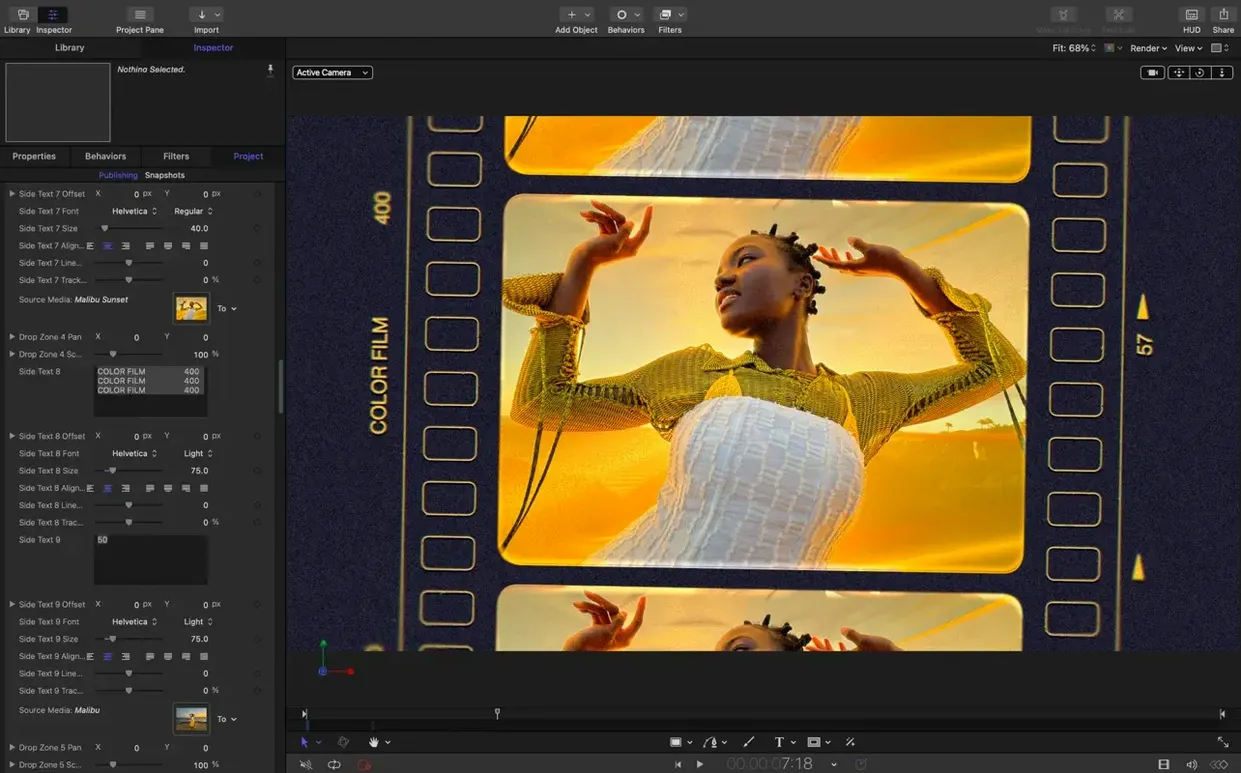
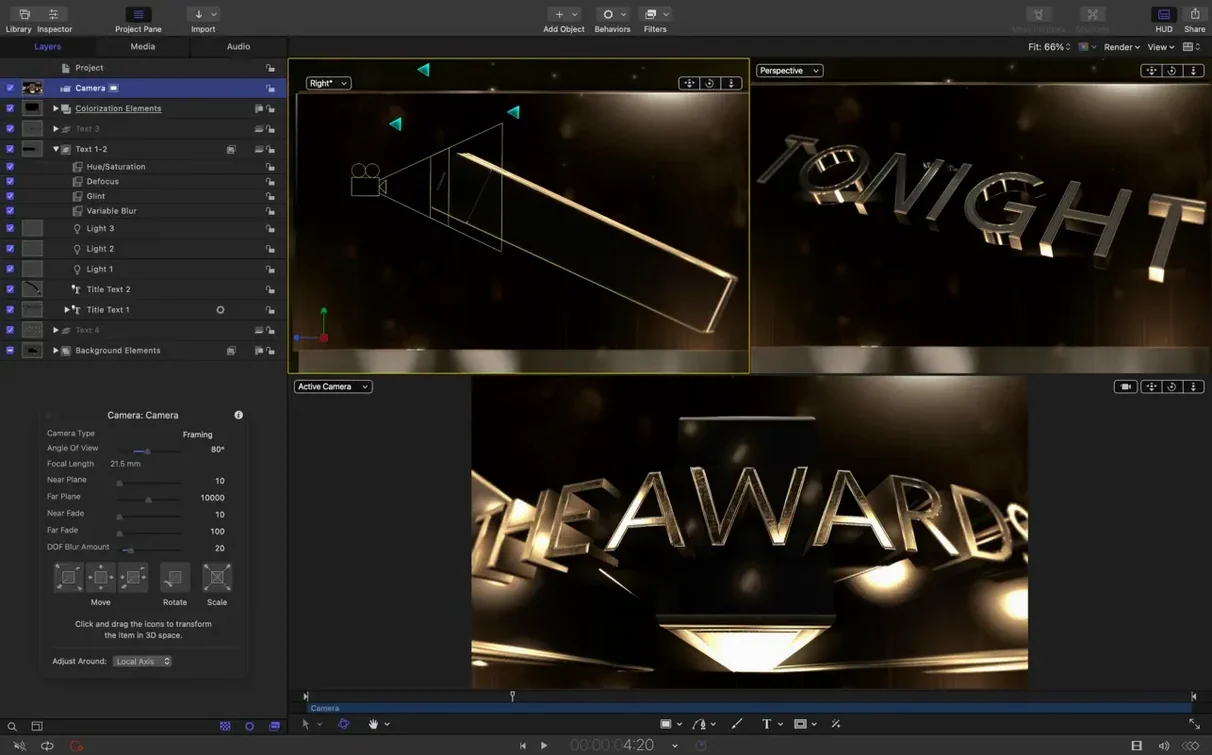
You launch Motion, start a new Final Cut Title project, and set the duration to four seconds. Type the product name. Switch to 3D text, nudge the depth and lighting until the letters feel solid.
Add a stagger behavior from the new 6.3 controls. Set the cascade to run left to right, 0.08 seconds per character. Pull the title into Final Cut as a template, drop it at 00:12, and watch the letters land in sequence. The editor asks for a reverse version for the end card. You duplicate, hit reverse on the stagger, save as a second template. Two minutes total.
Then a transition. The cut between scene two and three is abrupt. You build a soft wipe with a little motion blur in Motion. It saves straight into Final Cut’s transitions browser. The editor drops it in, and it just works.
You export a master through Apple Compressor while the editor keeps cutting. Nothing is waiting on you.
Intel still works
Does it run on Intel Macs? Yes. Version 6.3 supports Apple Silicon and Intel 64-bit Macs.
Do I need Final Cut Pro X to use it? Not to run it, but the real value shows when the two are paired. As a standalone motion graphics tool, it works. As a companion, it disappears into the edit. That is the point.
Is it hard to learn if I already know After Effects? The concepts transfer — keyframes, layers, masks, behaviors. The timeline feels familiar. The main adjustment is template thinking: you build things to be reused and tweaked inside Final Cut, not locked down and rendered out.
Can I import vector logos? Yes, SVG import is new in this version. Logos scale cleanly at any resolution, which matters on large LED walls and cinema screens.
What macOS version do I need? macOS 15.6 or newer.