
You’re deep in a project folder. You need the full path copied, a file permanently deleted, and the folder icon changed—all without leaving Finder.
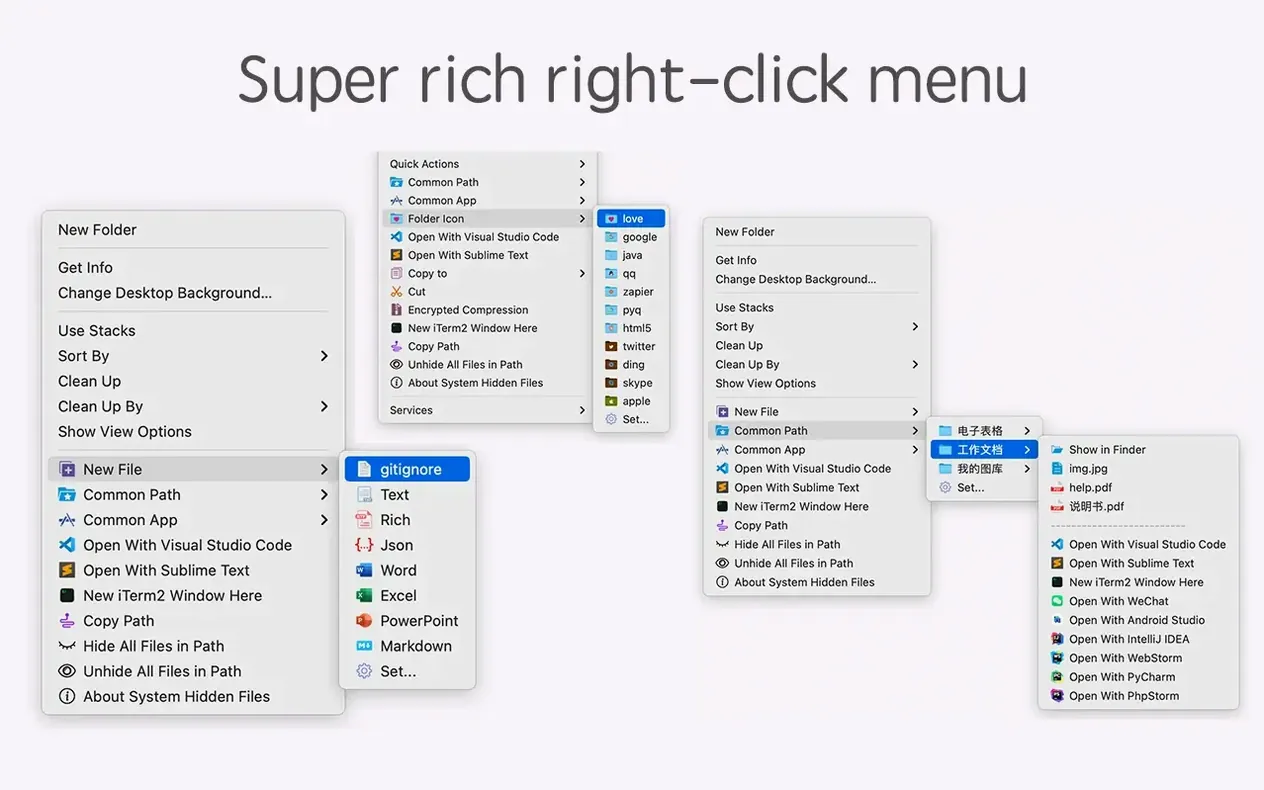
MouseBoost Pro fits those actions into a single right-click.
The tools
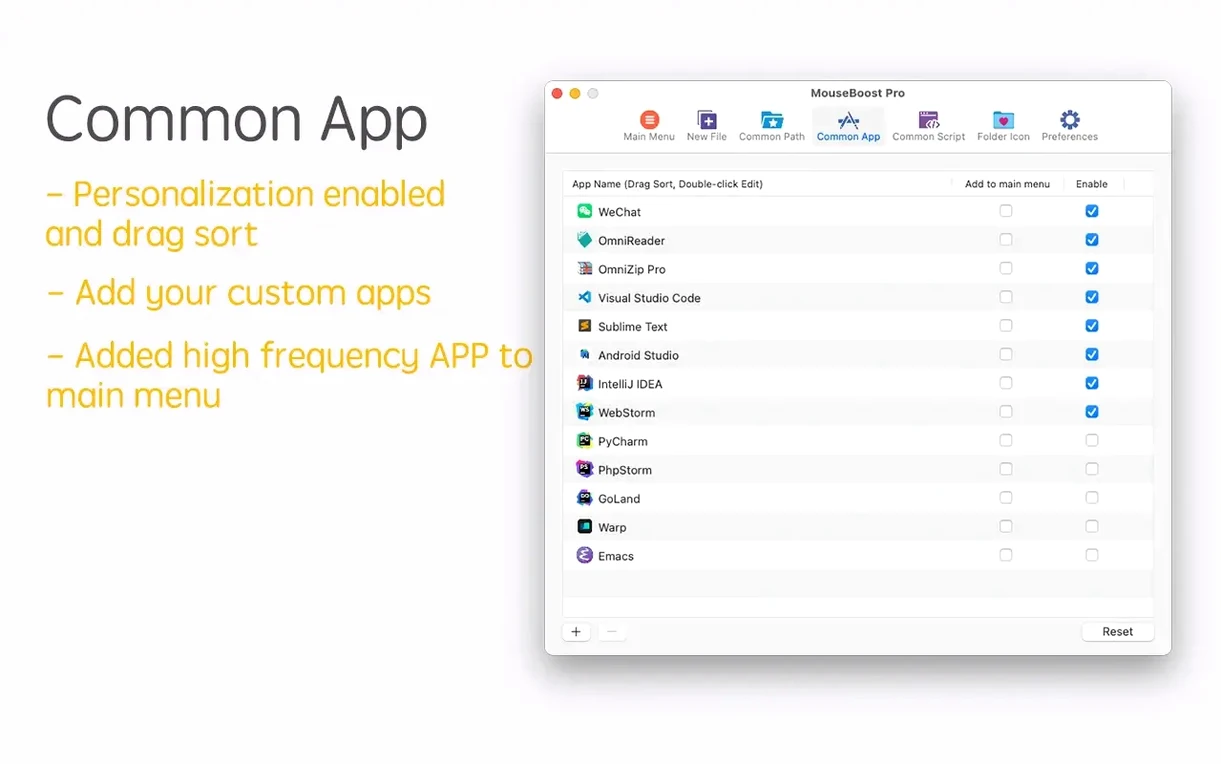
- Open the current folder in VSCode, Sublime Text, or Emacs
- Show or hide specified files
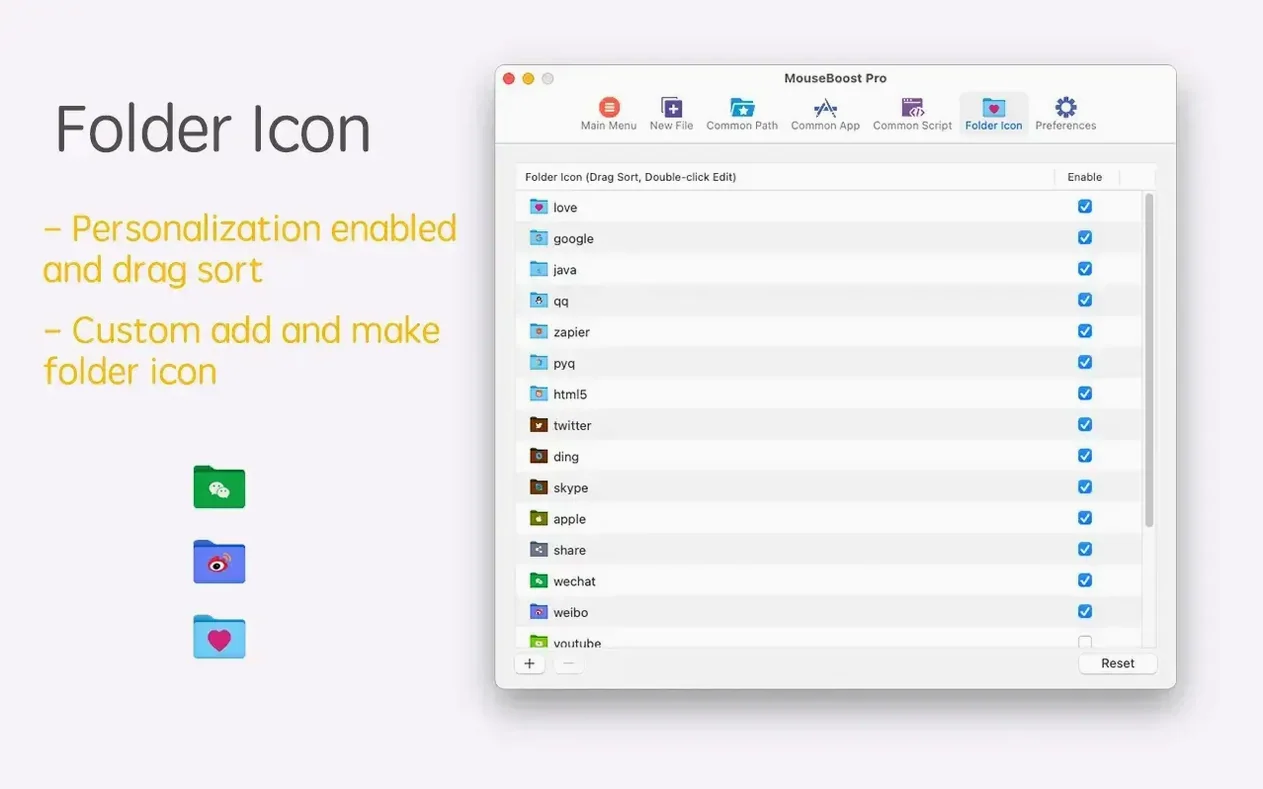
- Change folder icons
- Compress files with encryption
- Permanently delete without the Trash
- Copy the current path
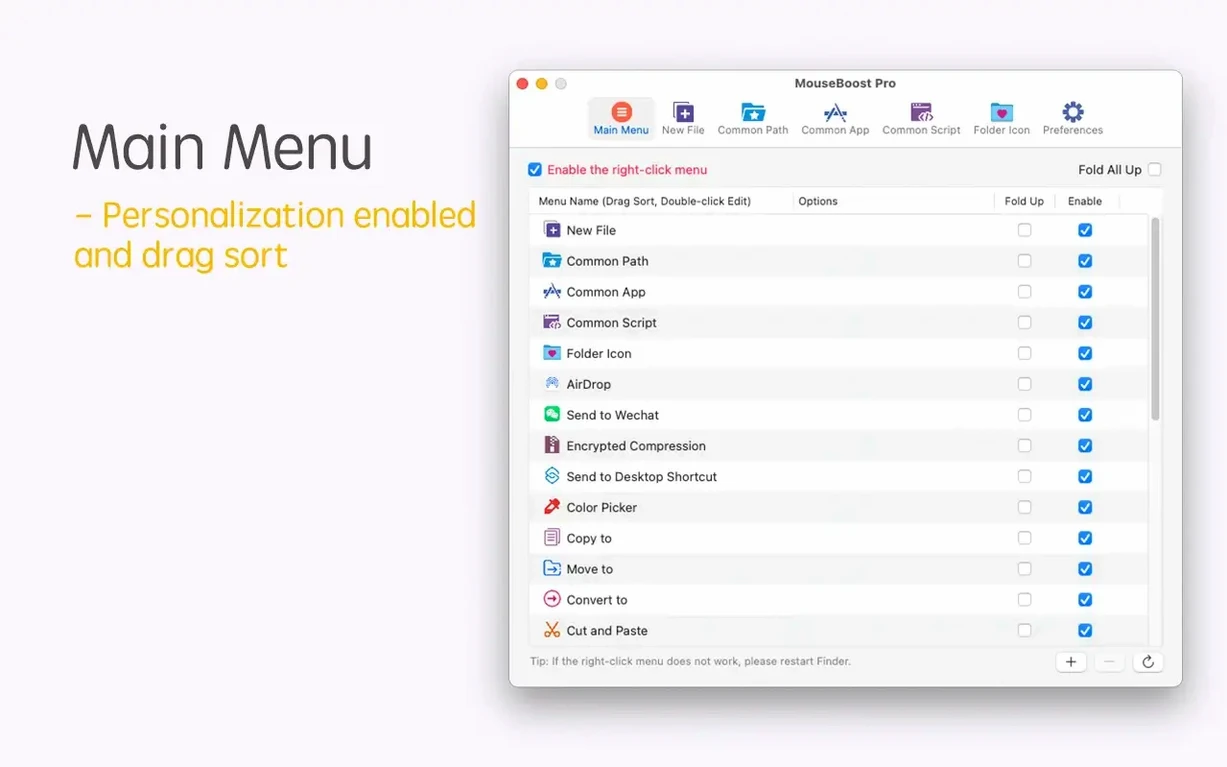
More than 30 utilities sit in the context menu. You can sort every one of them to match how you work.
Extension model
MouseBoost Pro plugs into Finder without getting in the way. It adds a system service, and macOS respects it like any other extension—no background daemon, no menu bar icon unless you want one. You control visibility from System Settings under Extensions, same as you would for Quick Look or Share menus.
The path-copy action works with Terminal, iTerm2, or any app that accepts a paste. Move a file with the right-click, then paste it into a chat window or a code editor. The path lands as plain text. No extra formatting. No quotes unless the path has spaces—then macOS wraps it automatically.
Batch renaming in version 5.2.8 grew a quiet but useful trick: insert text at a specific position in the filename. If your team switches naming conventions mid-project, you add a prefix or a date string without touching each file. The rename-from-list option turns a text file into a rename map. One column of old names, one column of new names. The tool reads the list and applies every change at once.
OCR and scrolling capture arrived in the same update. Take a long screenshot of a folder tree, and the OCR can copy text from it—useful when you document a directory structure for a readme. The aspect ratio selector keeps the capture clean for slides or documentation.
Right-click workflow
You start in Finder with a folder of client assets. Names are inconsistent. Some files need to disappear, others need a home in a new subfolder.
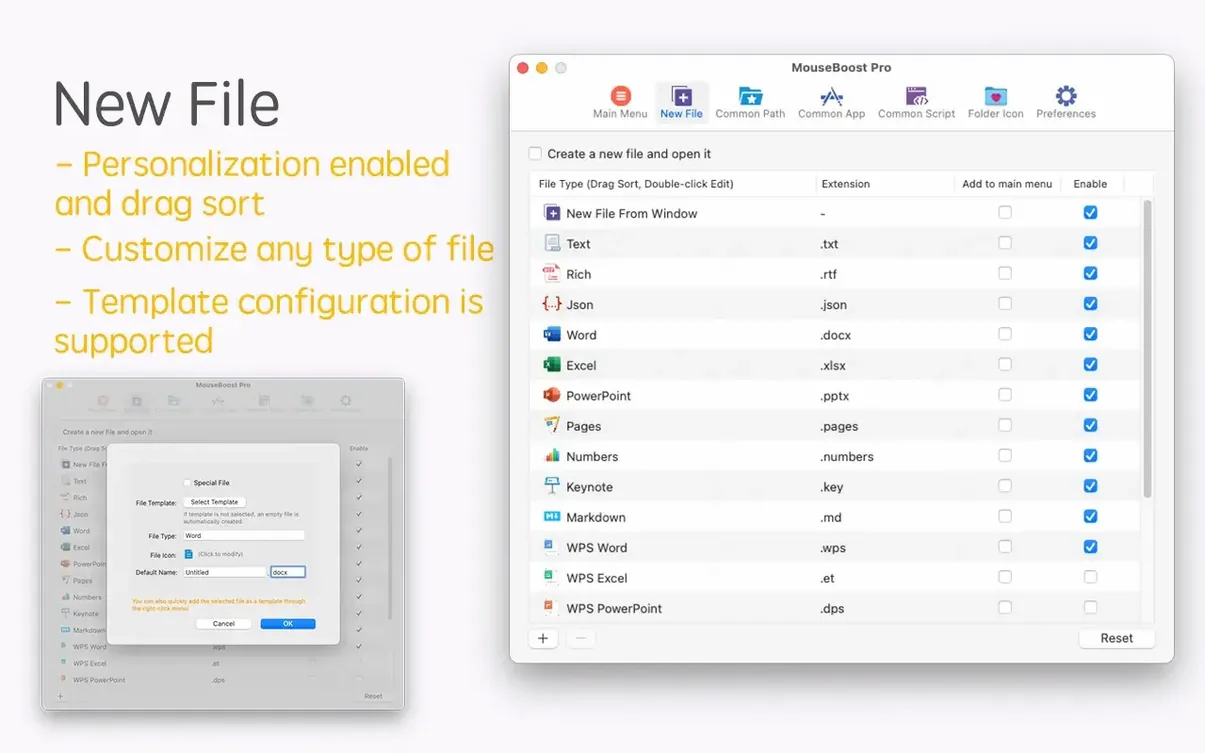
You right-click the folder itself and pick New file. A plain text file appears, already named. You repeat for a Markdown file and a ZIP archive.
A folder called old-drafts holds nothing you need. You right-click, choose Delete permanently. No Trash. No leftover. You do the same for four stray screenshots.
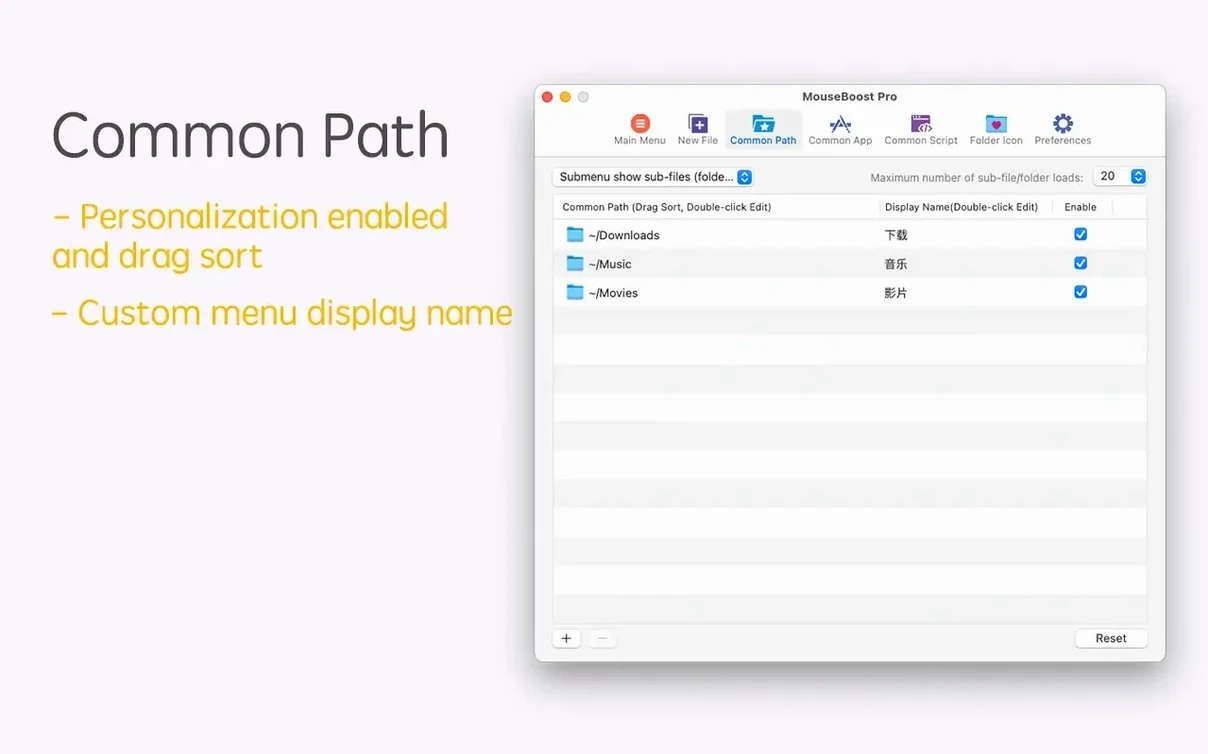
Now the remaining files need organization. You select ten images, right-click, and choose Move to. A list of favorite folders appears—you set these up last week in the mouseboost pro preferences. You pick the project’s images folder. The files move. No drag-and-drop across split Finder windows.
One folder needs its icon changed to stand out. You right-click, choose Change icon, and point to a PNG you prepared. The icon updates while Finder is still open. You notice the folder instantly now, even in a crowded directory.
The batch rename tool handles the file names next. You pull up a text list you wrote earlier—old name on the left, new name on the right. You feed it to the rename-from-list option. The filenames shift in under a second. Then you insert a build date at character position twelve across every file. Consistent naming, done.
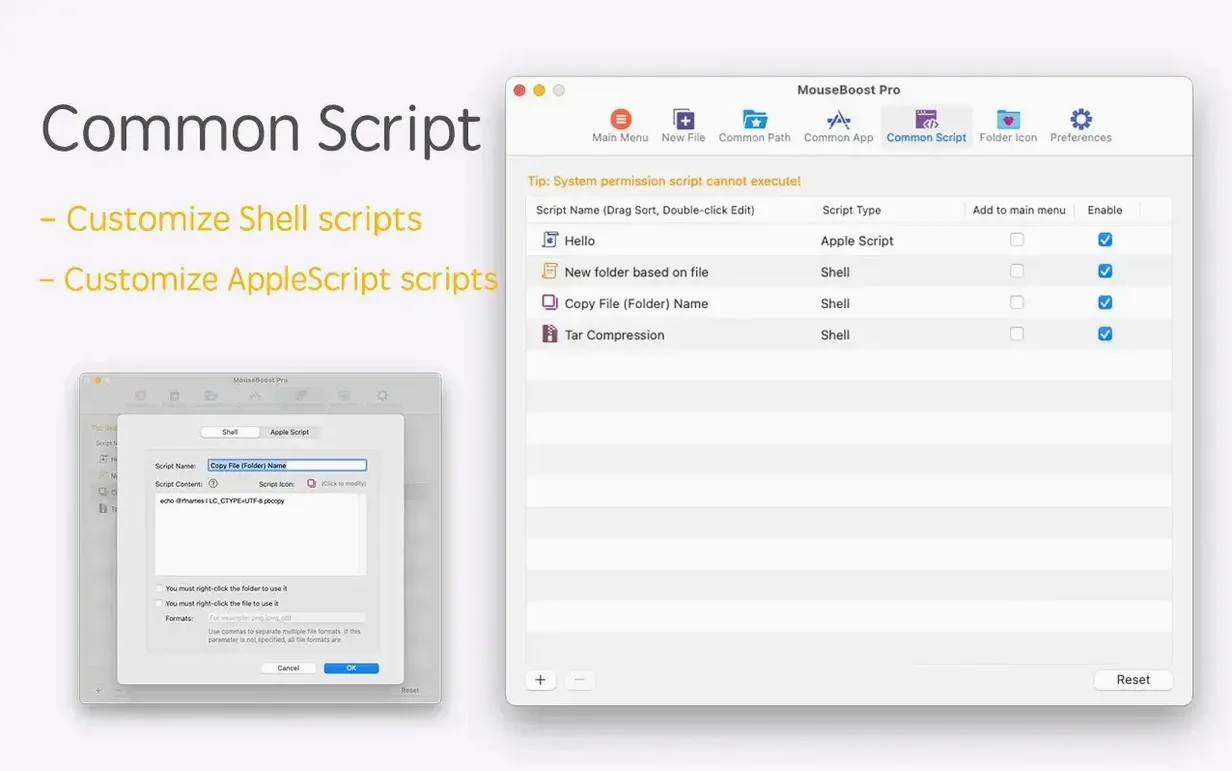
Before you commit the folder to a repo, you right-click and copy the full path. You paste it into VSCode’s terminal. One more right-click opens the entire directory in iTerm2, already sitting at the correct prompt. You run git status and close Finder.
Developers who switch between terminal and Finder. People who reorganize folders often. Anyone who wants common file actions closer to hand.