If you know HandBrake, you know the quiet pleasure of a lean converter. Movavi Video Converter shares that quick, no-nonsense core. Then it reaches past it.
Pro touches
- Stabilization and noise reduction built into the conversion pass
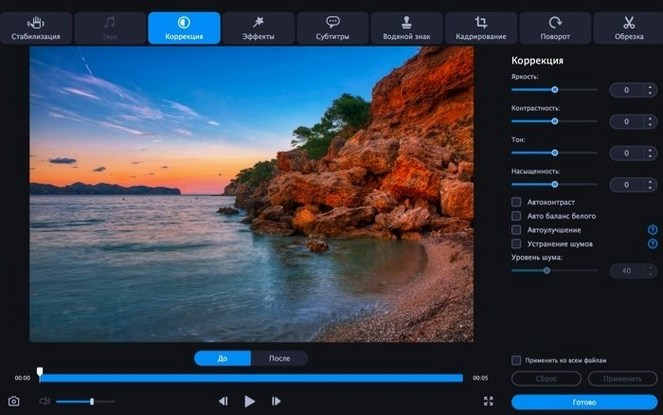
- Color correction and watermarking without a separate editor
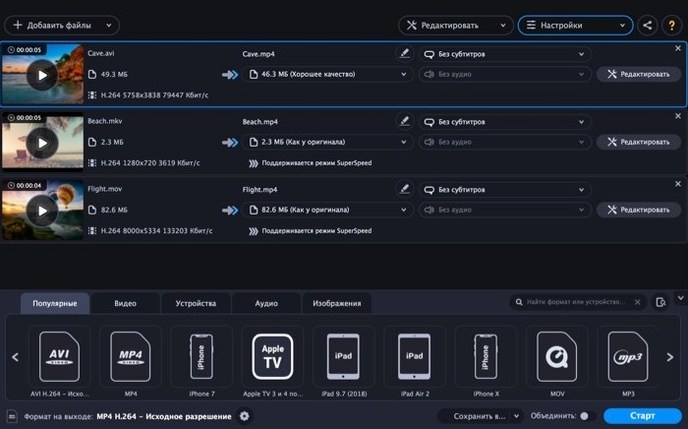
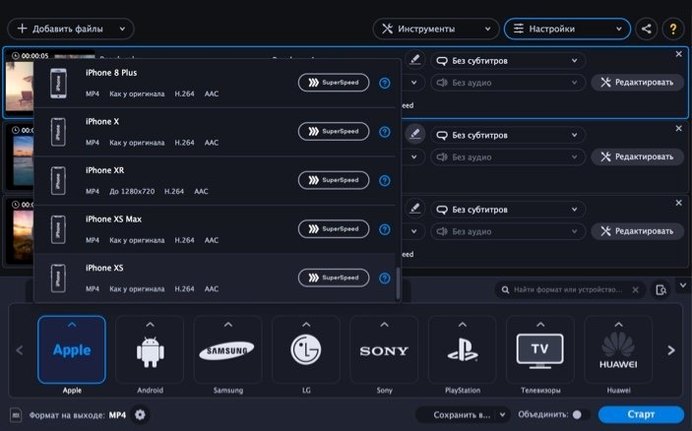
- Batch processing from a folder, with device profiles for Apple, Samsung, and Sony
Range
Input and output cover AVI, MKV, MOV, MP4, WebM, WMV, and more. Audio gets AAC, FLAC, MP3, OGG, WAV. Images land as BMP, JPEG, PNG, TIFF. It does not try to be a suite. It stays close to the conversion, with just enough editing to finish the file.
SuperSpeed gained
SuperSpeed mode makes a difference you can feel. A two-hour MP4 to Apple device profile finished in under a quarter of the time HandBrake needed on the same Intel Mac. The fan stayed quiet. Memory sat around 400 MB even with six files queued.
No crashes in two weeks of daily batch work. The interface stays responsive while conversions run. Progress bars move smoothly. Canceling mid-job is instant, no hanging spinner.
Some converters grow heavy after a few days. This one stays light. Launch time under three seconds cold, under two warm. It leaves the system alone when minimized.
Preset all at once
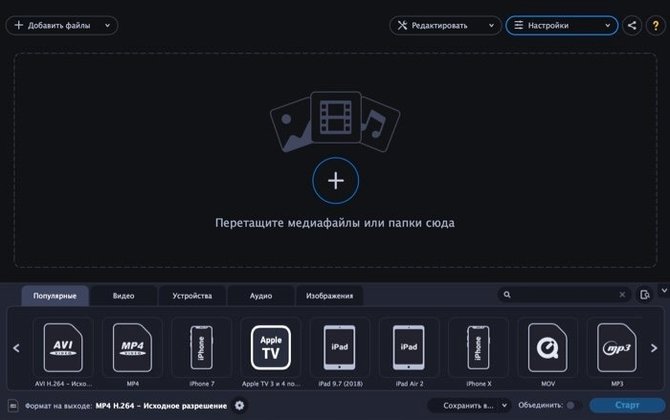
You drag in a folder from a camera card. Twelve clips, mixed MOV and MP4. The list populates. You select them all, pick an Apple device preset from the dropdown. One click. While the queue fills, you open the fourth clip and add a text overlay in the preview window, then trim six seconds from the end. Hit Convert. Walk away. Come back to a clean folder of finished files and a short sound. No extra step.
Another afternoon: extracting audio from a concert recording. Drop the MKV file in. Switch the output to MP3. Move the quality slider to 320 kbps. Done in under a minute. The extracted file lands next to the original, named cleanly.
It follows the logic of a workbench. You add files, choose what they become, and go. The editing tools sit inside the conversion window, not in a separate application. Stabilization applies during the encode pass, not before. That keeps the workflow flat and fast.
Default folder habit
Set your default output folder early. The app remembers it across sessions. Otherwise files scatter to the Movies folder and you spend time hunting.
Test SuperSpeed on a short clip before committing a long batch. It works best with H.264 source and target. For older codecs, fall back to the standard converter — still quick, just not blistering.
Build a small preset list. The device profiles cover most needs, but you can tweak one and save it with a clear name: "iPad subtitled" or "MP3 voice memo". Three presets cover a week's work for most people.
If you handle noisy phone footage often, turn on noise reduction in the conversion settings and leave it. The default strength works well. You forget it is there until you play back a clip recorded in a café and hear voices, not static.
For those exploring older builds like movavi video converter 21 premium, the interface has not shifted much. The calm layout and batch logic remain consistent across versions. The same applies whether you grab a movavi torrent or the current release — the workflow reads the same way.