Runs on Intel Macs with macOS 10.13 or later.
One task
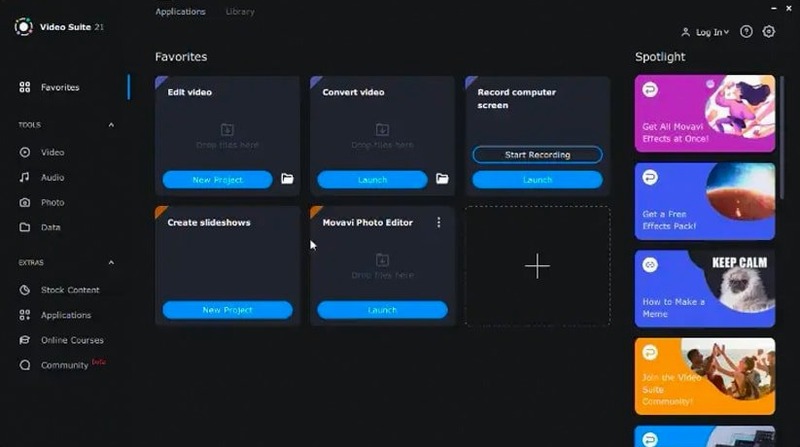
I need to pull phone footage, trim it, and deliver it as a small mp4. Movavi Video Suite handles all three steps without sending me to another app.
The transfer
Phone connects over the local network. Footage arrives directly into the project bin. No cable, no cloud middleman.
The edit
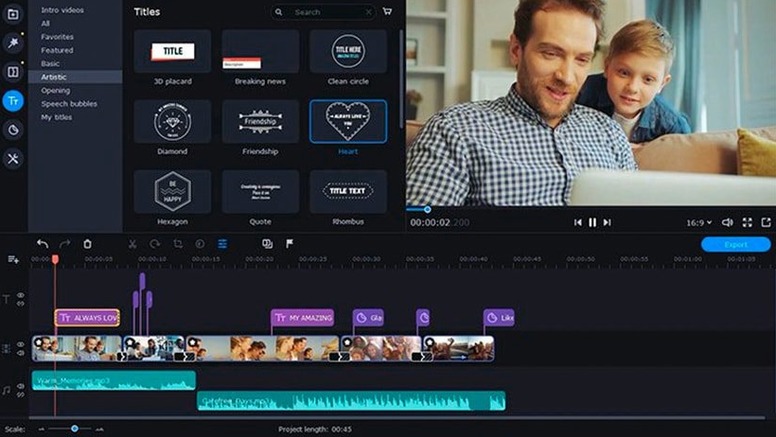
Trim handles snap to the playhead. A few cuts, one fade. The updated effects indicator tells me at a glance what I applied.
The export
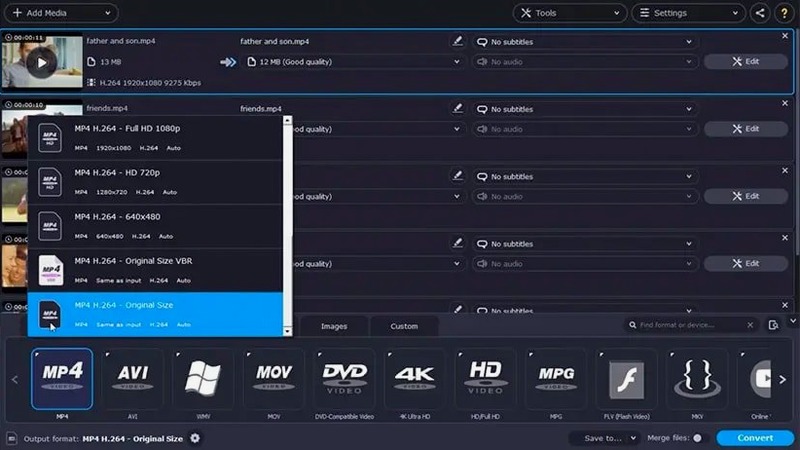
Pick mp4 from the format list. More than 180 formats live in the converter. It runs the job, and the file lands small enough to send.
Alongside everything else
The converter works as a standalone tool. Call it from Finder with a right-click, or drop a batch of files onto the dock icon. It queues them all, processes in parallel, and leaves your edit timeline untouched.
For screen recordings, the app puts a small floating bar above every other window. Record the whole screen, a rectangle, or a single app. The recording lands directly in the project bin — no import step. Add a voiceover track or mouse clicks mid‑recording, then trim the result without switching tools.
Quick Look integration means you can preview a converted file by tapping the spacebar before you even open the folder. The default save location is a Movavi folder inside Movies, but you can redirect it anywhere in Settings.
System audio capture
People often ask whether the screen recorder captures system audio. It does — choose the system audio device in the capture panel. You can also mix in a microphone at the same time. The recording saves as a standard mov file, ready to drop into the editor or export directly.
Another common question: can I add subtitles without burning them into the picture? Yes. During conversion, turn on the subtitle option and pick an srt file. The app muxes soft subtitles into the container format where supported, so they stay toggleable in a player.
“Does it read AVCHD folders from a camera?” It does. Point it at the folder structure and it extracts the clips as if they were single files. The same logic applies to phone footage transferred over the network — no renaming, no manual sorting.
A lecture recording, start to finish
You need a ten‑minute screencast with voiceover and a small burned‑in logo.
Open the recorder. Set the capture area to a Keynote window. Enable system audio. Plug in a USB mic and select it as the commentary source. Turn on mouse click highlighting — a yellow ring that fades after half a second. Hit record. Deliver the talk. Stop. The file appears in the bin.
Drag it to the timeline. Trim the false start at the head and a cough near the end. Drop a png logo onto the upper track, scale it down, and set its duration to cover the whole clip. The effects indicator confirms it is applied.
Open the export tab. Choose mp4, H.264, 1080p. The converter estimates the file size before you commit. Hit convert. Movavi writes the file to disk, small enough to upload to a course portal. One app, no round‑tripping.