
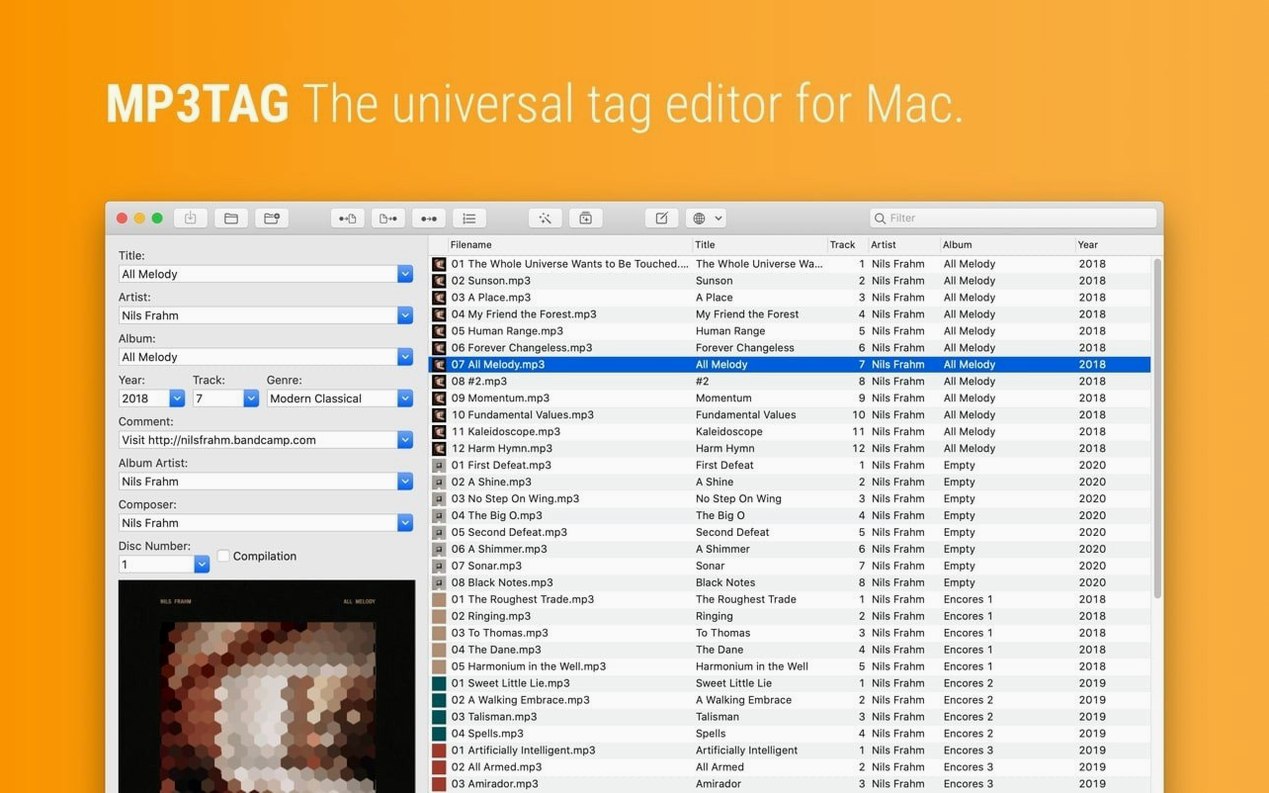
If your music library still holds files from the old Napster or Soulseek days, you know the mess. Mp3tag for Mac is the same kind of tool you might remember from Windows—a straightforward metadata corrector that gets filenames and tags in line.
Rename from tags
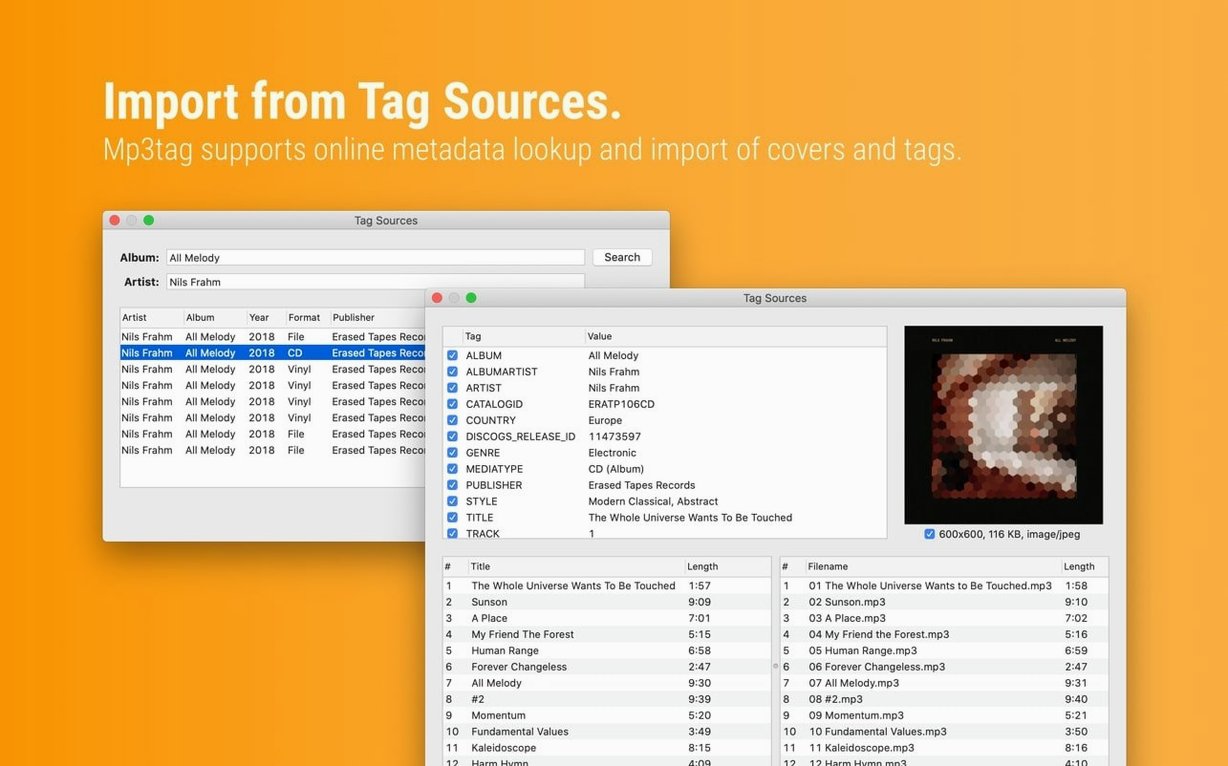
You have an album dumped in a folder, all tracks labeled track01.mp3. You import the tag data from MusicBrainz, then tell Mp3tag to build filenames from the artist-title pattern.
Resize cover art
Embedded covers can bloat a file. You set a maximum of 1200 pixels and let the app rewrite every image in the batch.
Clean up words
You want all instances of “feat.” turned into “ft.” across a hundred tracks. A single replace action in the tag panel handles it before you save.
Kid3 contrast
Mac users often reach for Kid3 first. It handles the same formats and does not look like much. The difference is the workflow: Kid3 feels like a spreadsheet that edits tags; Mp3tag feels like a batch processor that happens to show a table. For renaming a few hundred files in one pass, that distinction matters.
Meta is prettier and easier for a beginner. It loads an album, shows clean artwork, lets you fix a misspelled artist. But Meta slows down when you point it at a folder with four thousand files. Mp3tag stays responsive because it does less drawing and more parsing.
Yate is the power user's choice, with scripting that goes deeper than Mp3tag's action groups. Yate rewards people who want to build their own tools. Mp3tag rewards people who want to finish the job and close the window.
Unchecked preview
The most common mistake is saving before checking the preview. Mp3tag shows what filenames will look like in real time, but people still hit Save with the wrong pattern and rename an entire discography to nonsense. Reversing that is possible with the right pattern, but it takes another ten minutes.
Another mistake: applying a tag source result to the wrong selection. You search MusicBrainz for one album, then forget that all five hundred files in the list are still selected. Now every track is tagged as the same song. Select fewer files.
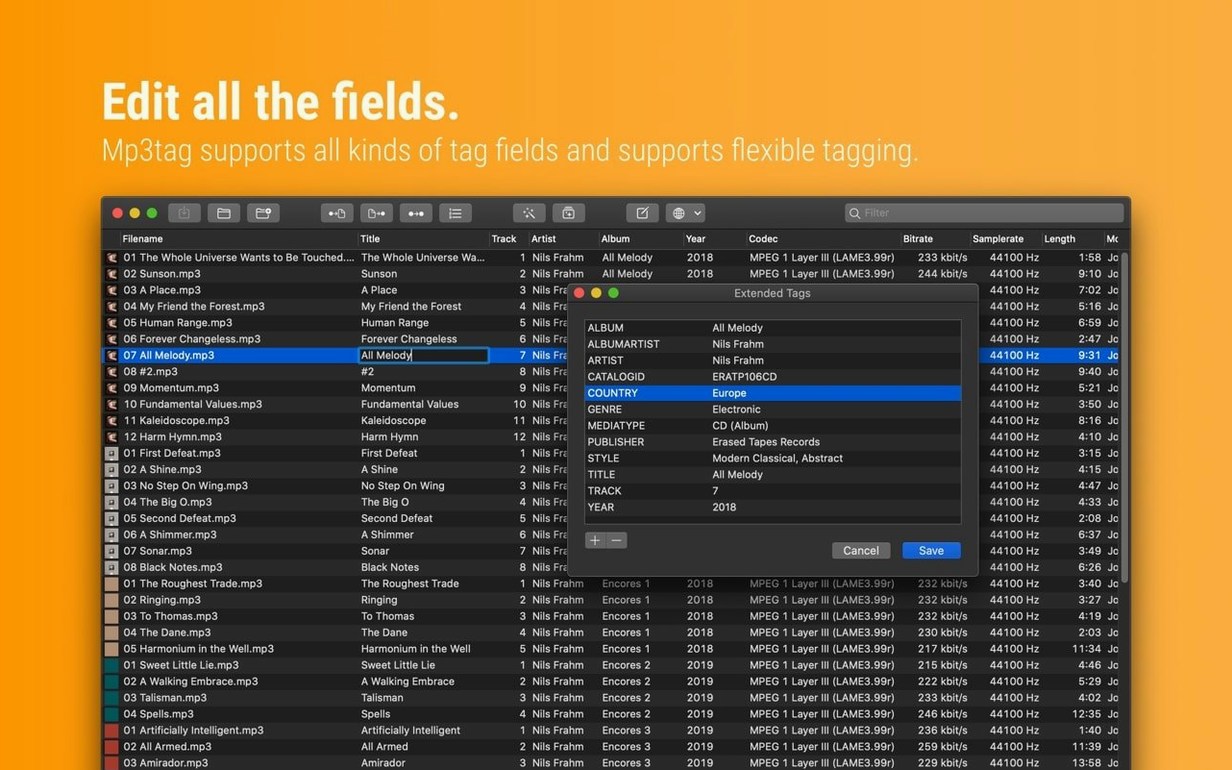
Beginners also ignore extended tags. The main panel shows artist, album, title. Extended tags hold composer, disc number, total discs, custom fields. If you only edit the main panel, you leave half the metadata untouched.
A DJ's evening
A DJ downloads forty new tracks on Friday afternoon. The files arrive with names like 3A - 124 - House Groover (Original Mix).mp3. She opens Mp3tag, points it at the download folder, and writes a filename-to-tag pattern that extracts the key, BPM, title and mix name. Two minutes later every track carries that information in tags, not just in the filename. She batches the genre to “House,” resizes the cover art to 600 pixels, and saves. Her rekordbox library now sorts the way she mixes.
Cover bloat
- Set the default cover size to something below 1000 pixels. Large embedded artwork is the main reason files bloat.
- Turn on “Confirm before saving” for the first few sessions. It slows you down just enough to catch mistakes.
- Define your most-used filename pattern and save it. You will reuse it constantly.
- If you work in a language other than English, switch the interface in preferences. Nine languages are included.
The search phrases mp3tag mac full and mp3tag mac usually lead people here after they have already tried the Windows version. What they find is the same tool, without the wait.